



We have all been there. You have 50 separate invoice files that need to be merged into one report. Or maybe you need to stamp “CONFIDENTIAL” or “TIMESTAMP” on a hundred pages before a meeting.
The usual solution?
Buying expensive PDF editing software or uploading your sensitive documents to sketchy “Free Online PDF Merger” websites (please don’t do that).
As a developer, I prefer a third option: The DIY Route.
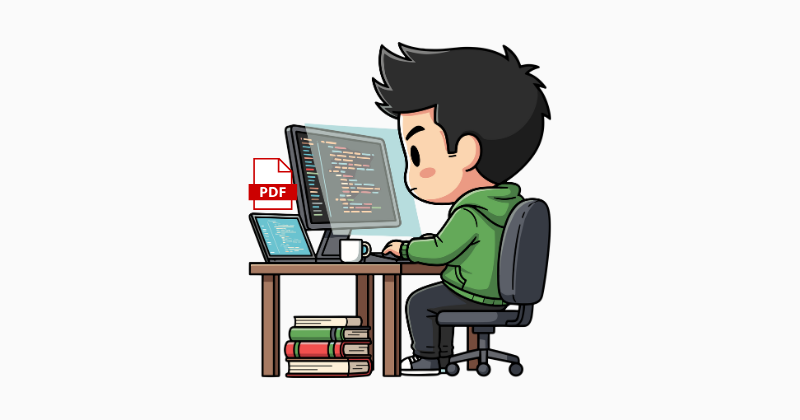
With just a few lines of Python, we can build a free and private PDF automation tool that runs on your computer. In this tutorial, I will show you how to use the PyPDF2 library to merge, split, and watermark PDFs.
Prerequisites
Before we start, make sure you have Python installed. We will need to install PyPDF2.
- Open your terminal and run
pip install PyPDF2Once installed, we are ready to code.
1. Combining Multiple PDFs
Let’s say you have a folder full of monthly reports (january.pdf, february.pdf, etc.) and you want one master file. Doing this manually is tedious. Here is the script to do it in seconds.
- Create a file named
merger.pyand add the following codes.
import os
from PyPDF2 import PdfMerger

def merge_pdfs(source_folder, output_filename):
    merger = PdfMerger()

    # Loop through all files in the directory
    for item in os.listdir(source_folder):
        if item.endswith('.pdf'):
            file_path = os.path.join(source_folder, item)
            print(f"Adding {item}...")
            merger.append(file_path)

    # Write the merged result
    merger.write(output_filename)
    merger.close()
    print(f"Success! Merged file saved as {output_filename}")

# Usage
# Make sure you create a folder named 'invoices' and put your PDFs there
if __name__ == "__main__":
    merge_pdfs('./invoices', 'All_Invoices_Merged.pdf')
The script looks into the invoices folder, grabs every file ending in .pdf, and stacks them on top of each other. Finally, it saves the stack as a new file.
2. Add Watermark
This is a classic corporate requirement. You need to overlay a “CONFIDENTIAL” stamp or a company logo on every page.
For this, we need a “stamp” file (a PDF with just the text/logo and a transparent background). Let’s call it watermark.pdf.
- Create a file named
watermarker.py
from PyPDF2 import PdfReader, PdfWriter

def add_watermark(input_pdf, output_pdf, watermark_pdf):
    watermark_obj = PdfReader(watermark_pdf)
    watermark_page = watermark_obj.pages[0]

    reader = PdfReader(input_pdf)
    writer = PdfWriter()

    # Apply watermark to every page
    for page in reader.pages:
        page.merge_page(watermark_page)
        writer.add_page(page)

    with open(output_pdf, "wb") as output_file:
        writer.write(output_file)

    print("Watermark applied successfully!")

if __name__ == "__main__":
    add_watermark('report.pdf', 'report_confidential.pdf', 'stamp.pdf')
This script essentially takes your watermark page and “stamps” it onto every page of your original document. It’s cleaner and faster than GUI tool.
3. Extracting Specific Pages
Sometimes you don’t want the whole document. You just want page 1 (the summary) from a 100-page report.
Here is a quick snippet to extract specific pages:
from PyPDF2 import PdfReader, PdfWriter

def extract_page(input_pdf, output_pdf, page_number):
    reader = PdfReader(input_pdf)
    writer = PdfWriter()

    # Remember: Python lists start at 0. So page 1 is index 0.
    if len(reader.pages) > page_number:
        writer.add_page(reader.pages[page_number])

        with open(output_pdf, "wb") as output_file:
            writer.write(output_file)
        print(f"Page {page_number + 1} extracted!")
    else:
        print("Error: Page number out of range.")

if __name__ == "__main__":
    # This extracts the 1st page (index 0)
    extract_page('huge_report.pdf', 'summary_only.pdf', 0)
Wrapping Up
Python turns repetitive administrative tasks into a one-click operation. By building these tools yourself, you not only save money on software subscriptions but also ensure your data privacy since no file ever leaves your local machine.
You can expand this project by creating a simple User Interface (GUI) using Tkinter so your non-coder colleagues can use it too.
This tutorial was written by Roh Widiono.