



Suddenly your Cloud Build fails. Sounds familiar?
It happened with me last week when I was tyring to deploy AI services. I got below error.
[exporter] Saving us-west1-docker.pkg.dev/geekflare/cloud-run-source-deploy/geekflare-ai/geekflare-ai:724e187938643e5047a7b6e126fcdc...
[exporter] ERROR: failed to export: saving image: failed to fetch base layers: saving image with ID "sha256:xx" from the docker daemon: error during connect: Get "http://%2Fvar%2Frun%2Fdocker.sock/v1.41/images/get?names=sha256%xx": EOF
ERROR: failed to build: executing lifecycle. This may be the result of using an untrusted builder: failed with status code: 62
Finished Step #0 - "Buildpack"
ERROR
ERROR: build step 0 "gcr.io/k8s-skaffold/pack" failed: step exited with non-zero status: 1
This can happens when using Google Cloud Build with Cloud Native Buildpacks to deploy applications to Cloud Run.
Untrusted builder or connectivity issues in error is red herring. My build ran successfullly last night so I was confident my build config is alright. I thought it is code so tried to roll-back and got the same error. That made me confident to think it is Cloud Build itself.
The issue is due to limited capacity being allocated to job during build. By default, Google Cloud Build runs on a standard machine type with approximately 4GB of RAM.
4GB might be okay for smaller apps but when using Buildpacks to package Next.js, the process of “exporting” the final image layers can spike memory usage. If this exceeds 4GB, the underlying Linux kernel abort the Docker daemon to save the system.
When the Docker daemon dies, the connection closes unexpectedly and results EOF error and exit code 62.
How to fix code 62 and EOF error?
It is much simpler than I thought. I use cloudbuild.yaml and I was able to fix this by allocating higher machine type.
Add machineType as E2_HIGHCPU_8 which gives 8GB RAM. If you need more, you can try E2_HIGHCPU_32. You can add this at bottom of the file.
options:
  machineType: E2_HIGHCPU_8
If your build is heavy in size, you can also allocate disk storage to 50GB or more.
options:
  diskSizeGb: '50'
If you use CLI to deploy, you can pass the options in your command.
gcloud builds submit --tag gcr.io/project-id/my-app --machine-type=e2-highcpu-8After allocating higher resources, run your build again.
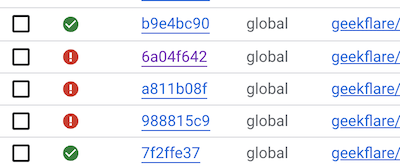
It went okay for me and I hope it worked for you as well.