

I was setting Google Cloud Build to deploy AI apps to Google Cloud VM and encountered below error.
ERROR: (gcloud.compute.ssh) Could not SSH into the instance.  It is possible that your SSH key has not propagated to the instance yet. Try running this command again.  If you still cannot connect, verify that the firewall and instance are set to accept ssh traffic.
Finished Step #4 - "Deploy to Server 1"
ERROR
ERROR: build step 4 "gcr.io/google.com/cloudsdktool/cloud-sdk" failed: step exited with non-zero status: 1
First, I thought it is due to my SSH key but soon realized it is firewall as I use custom SSH port to avoid DDoS.
I searched into Google Cloud docs but couldn’t find a defined IP ranges to whitelist. That’s because Cloud Build uses dynamic IP addresses. You cannot whitelist them, and opening firewall to the world (0.0.0.0/0) is not a good idea.
The solution is Identity-Aware Proxy (IAP).
IAP allows you to tunnel SSH through a secure Google gateway. You only need to whitelist one Google IP range.
This require 3 things to do to connect your Google Cloud VM from Cloud Build.
Configure the Firewall Rule
Allow Google internal IAP traffic.
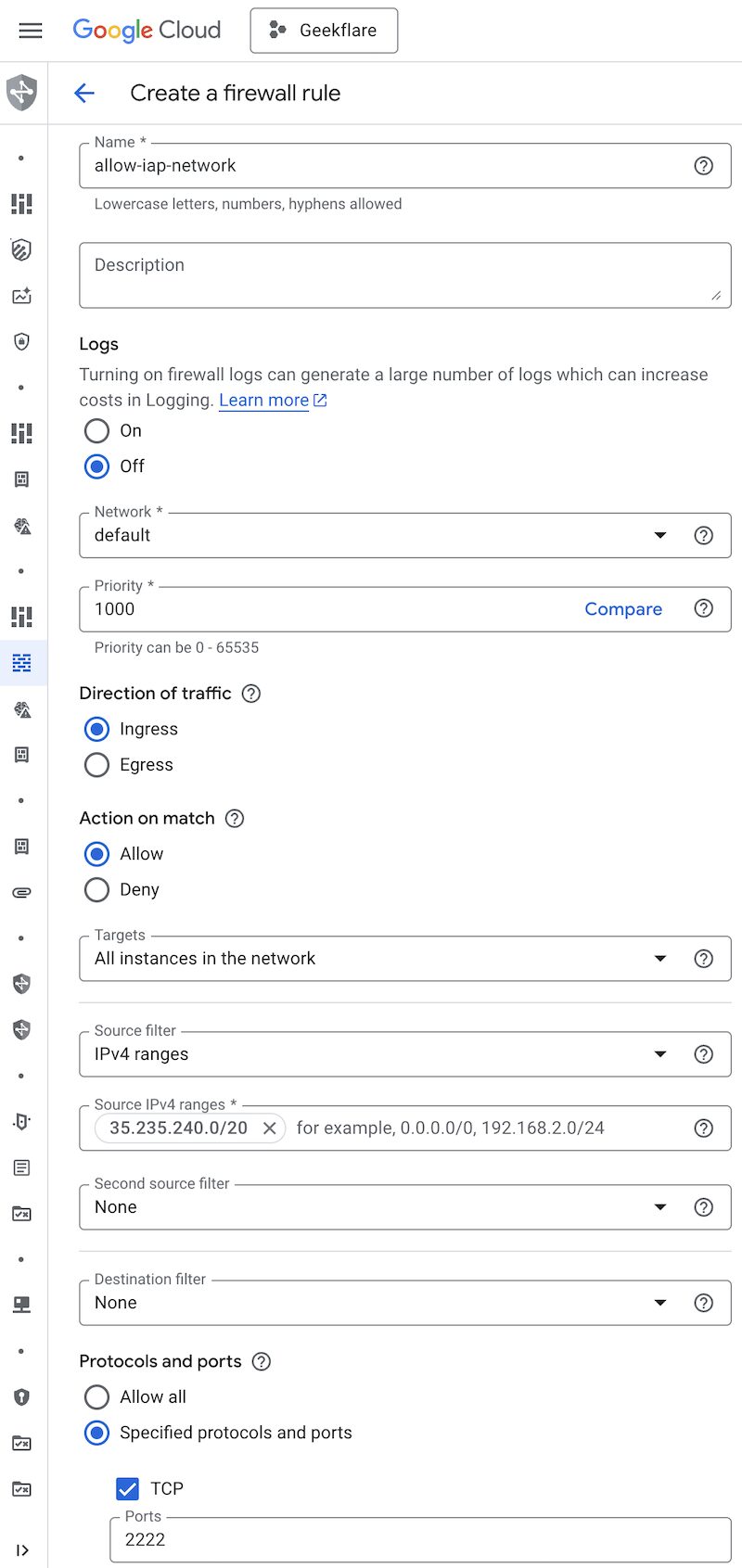
- Login to Google Cloud Console and go to VPC Network >> Firewall
- Click Create firewall rule
- Name anything you like
- Select All instances in the network in Targets
- Add
35.235.240.0/20range in Source IPv4 ranges - Check
TCPand enter your custom port (e.g.,2222). - Click Create.
Grant Permissions to Cloud Build
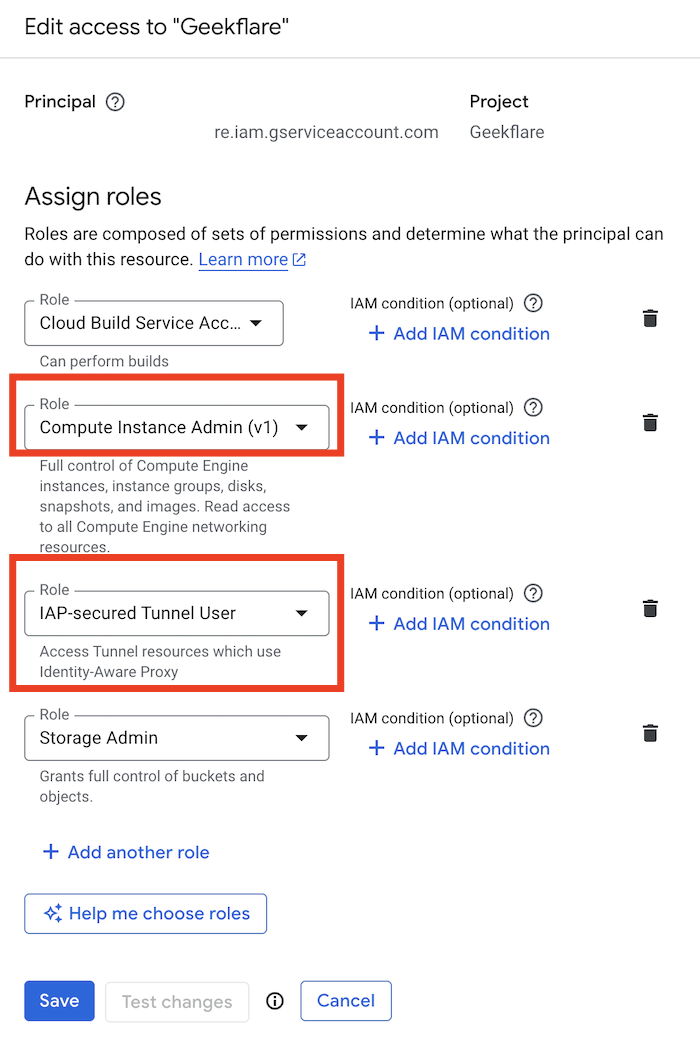
Your Cloud Build Service Account needs permission to use the IAP tunnel and log into the VM.
- Go to IAM & Admin > IAM.
- Find your Cloud Build Service Account. It usually looks like
[PROJECT_NUMBER]@cloudbuild.gserviceaccount.com - Click the Edit icon.
- Add the following two roles:
IAP-secured Tunnel UserCompute Instance Admin (v1)
- Click Save.
Cloud Build Configuration
And, finally in your cloudbuild.yaml, you will need to update the gcloud compute ssh command with --tunnel-through-iap flag. This tells gcloud to use the tunnel.
Example
gcloud compute ssh ${_VM_NAME_1} --zone=${_VM_1_ZONE} --tunnel-through-iap --ssh-flag="-p 2222" --command="Once done, trigger your build again and it should work.
Conclusion
I was able to connect to GCP VM from Cloud Build using above steps and I hope this helps you too.