A virtual desktop is a computing environment with operating system, apps, and files, that runs on a remote server instead of your local machine. You connect to it from a laptop, phone, tablet, or an Chromebook, and it behaves like a native desktop.
Businesses use virtual desktops to cut hardware spend, keep company data on a controlled server instead of scattered laptops, and let people work from any location without shipping physical machines.
This list covers subscription virtual desktops and DaaS platforms you can rent and start using directly.
Quick Comparison
| Solution | Best For | Starting Price | Deployment Model |
|---|---|---|---|
| V2 Cloud | SMB Windows desktops | $40/month | Fully managed cloud |
| Kamatera | Custom cloud servers | $4/month | Self-configured IaaS |
| Shells | Personal cloud PC | $5/month | Fully managed cloud |
| Windows 365 | Per-user Cloud PC | ~$25.60/user/month | Fully managed cloud |
| Azure Virtual Desktop | Enterprise multi-session | Pay-as-you-go | Cloud, self-managed pools |
| Amazon WorkSpaces | AWS-native enterprises | ~$23/month or hourly | Managed cloud, AWS |
| Citrix DaaS | Large enterprises | ~$30+/user/month | Cloud, on-prem, or hybrid |
| Omnissa Horizon 8 | Hybrid/on-prem | Custom quote | Hybrid, multi-cloud |
| Coder | Dev environments | Self-hosted | Self-hosted, any cloud |
| Kasm Workspaces | Browser isolation | Self-hosted | Self-hosted or SaaS |
| Cameyo by Google | Legacy apps on ChromeOS | $132/user/year | Managed cloud |
| Ace Cloud Hosting | QuickBooks hosting | ~$34.99/user/month | Managed cloud, Citrix-based |
V2 Cloud
Best for Small and Mid-Sized Teams
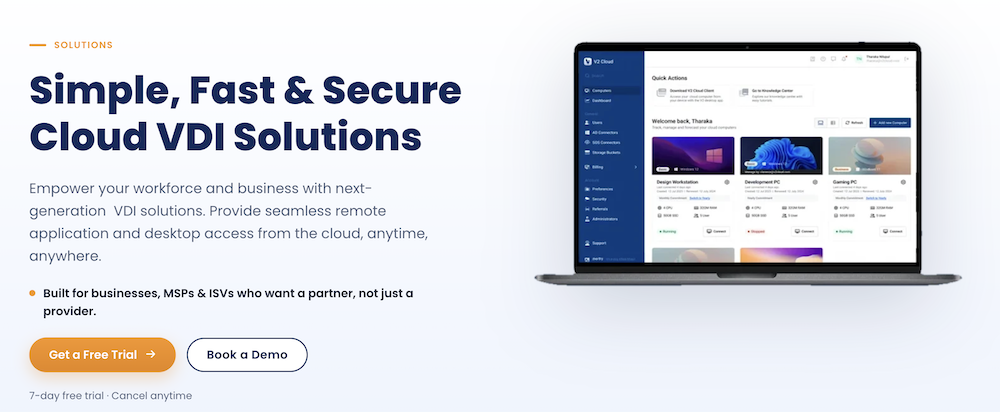
V2 Cloud runs Windows desktops as a service on its own Tier III data centers, with locations spanning North America, South America, Europe, Africa, and Asia.
It splits its offering into two products:
Virtual desktops for general use, and application hosting for software like QuickBooks and AutoCAD that businesses need pre-installed and ready to go.
One thing that sets V2 Cloud apart from most competitors, it ships a native client for Raspberry Pi, so a business can turn a $35 board into a thin client instead of buying new PCs for every desk.
Key features
- Daily VM snapshots on business plans, with one-click restore from the dashboard
- Real-time malware protection through a bundled Malwarebytes license
- Active Directory integration, including Azure AD and JumpCloud
- Access via browser, native desktop app, or a Raspberry Pi client
Pricing
Plans start from $35/month for a basic user desktop and scale to $240/month for power users.
Pros & Cons
PROS
CONS
Kamatera
Best for Custom Windows and Linux Cloud Desktops
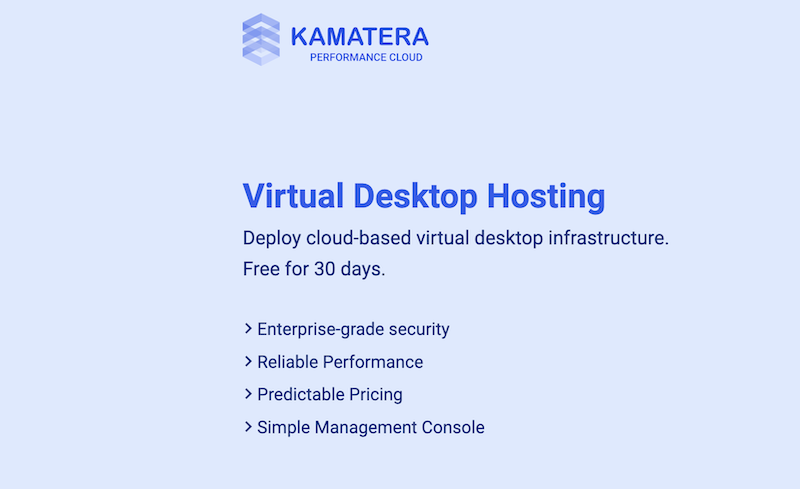
Kamatera isn’t a standalone virtual desktop product. It’s cloud infrastructure that you configure yourself, then install Windows or a Linux distribution on top of. That makes it a better fit for technical teams who want control over vCPU count, RAM, SSD size, and network traffic.
You can deploy across more than 20 global data center regions and choose between availability, general purpose, burstable, and dedicated server types. Supported operating systems include Ubuntu, Debian, Rocky Linux, Windows Server, and other distributions.
Key features
- Self-provisioned servers with independent control over CPU, RAM, storage, and bandwidth
- 99.95% uptime SLA with no long-term contract requirement
- Optional paid daily backups configured through the management console
- Bring-your-own-license support for Windows Server and Windows desktop OS
Pricing
Entry-level servers start at $4/month for 1 vCPU, 1 GB RAM, and 20 GB SSD, with a 30-day free trial on all plans.
Pros & Cons
PROS
CONS
Shells
Best for a Personal Cloud Computer
Shells targets individuals rather than IT departments. You spin up a cloud desktop in a few minutes and connect from a phone, an old laptop, a Chromebook, or a smart TV. It runs on SPICE (Simple Protocol for Independent Computing Environments), which is built for streaming a full desktop to very different device architectures without a heavy client.
Data centers are in Tokyo, Germany, New York, Amsterdam, Chicago, and Los Angeles, and you can pick from pre-installed Linux distributions or a Windows image.
Key features
- Desktop ready in under five minutes from sign-up
- Ten pre-installed Linux distro options, plus custom Windows images
- Custom plans for vCPU, SSD, and RAM beyond the standard tiers
- 7-day money-back guarantee on paid plans
Pricing
Plans start at $14.95/month with configurations 1 vCPU, 2 GB RAM, 40 GB storage.
Pros & Cons
PROS
CONS
Windows 365
Best for Per-User Cloud PCs
Windows 365 is not the same thing as Azure Virtual Desktop. Azure Virtual Desktop pools sessions across shared virtual machines and bills for compute you consume. Windows 365 assigns each user a dedicated, persistent Cloud PC at a flat monthly rate, so a you or your finance team can budget per seat without watching an Azure bill fluctuate.
Windows 365 Business needs no existing Microsoft licensing and supports up to 300 users, which makes it realistic for a small company to adopt directly. Windows 365 Enterprise removes the user cap but expects Intune and Entra ID already in place, so it’s built for IT teams already standardized on Microsoft 365.
Key features
- Fixed per-user pricing instead of consumption-based billing
- Persistent Cloud PC that keeps files and settings between sessions
- Business edition needs no Azure or Intune setup to get started
- Native Microsoft 365 app performance since it’s built on Windows itself
Pricing
Windows 365 Business starts around $25.60/user/month for a 2 vCPU, 4 GB, 64 GB configuration.
Pros & Cons
PROS
CONS
Azure Virtual Desktop
Best for Enterprise Deployments
Azure Virtual Desktop is Microsoft’s option for IT teams that want to manage the infrastructure themselves. It supports multi-session Windows 11, meaning several users share one VM, which lowers per-user compute cost at scale in a way Windows 365’s one-Cloud-PC-per-user model can’t match.
You choose the Azure region, configure host pools, and pay only for the compute and storage you use. That flexibility comes with real setup & configurations complexity like pool management, image templates, and networking including RDP Shortpath and Azure Private Link.
Key features
- Multi-session Windows 11 support that cuts per-user compute cost
- Custom image templates and advanced host pool management
- Flexible networking through RDP Shortpath and Azure Private Link
- Bring-your-own-license support for Windows 10, 11, and Windows Server
Pricing
Pure pay-as-you-go, billed through Azure compute and storage consumption.
Pros & Cons
PROS
CONS
Amazon WorkSpaces
Best for AWS-Native Organizations
Amazon WorkSpaces makes the most sense for a company already running production workloads on AWS, since it plugs directly into IAM, VPC, and existing AWS security tooling.
AWS actually splits the product into four distinct services:
- WorkSpaces Personal (persistent desktops)
- WorkSpaces Core (APIs and infrastructure for third-party VDI software)
- WorkSpaces Thin Client (a physical device for connecting)
- WorkSpaces Secure Browser (a browser-only remote session with no full desktop)
Encryption and compression run over the PCoIP protocol, and you can choose from AWS regions across North America, Europe, the Middle East, Africa, and Asia-Pacific.
Key features
- Both hourly and flat monthly billing on the same bundle
- Four distinct products for different use cases, from full desktops to browser-only access
- Direct integration with AWS IAM, VPC, and Security Hub
- 99.9% uptime SLA backed by AWS support
Pricing
DaaS pricing starts from $25/month.
Pros & Cons
PROS
CONS
Citrix DaaS
Best for Large, Regulated Enterprises
Citrix rebranded its virtual apps and desktops service as Citrix DaaS, and consolidated what used to be a sprawling product catalog into fewer, larger platform editions. It still covers on-premises, cloud, and hybrid deployment, with hybrid multi-cloud support across AWS, Google Cloud, and Azure.
Citrix leans on HDX optimization for low-bandwidth performance and NetScaler for load balancing and secure app delivery, which is why it still shows up heavily in healthcare, government, and financial services, industries where Citrix has decades of compliance track record.
Key features
- HDX optimization technology for usable performance on low bandwidth
- Hybrid multi-cloud support across AWS, Google Cloud, and Azure
- NetScaler-backed load balancing and secure application delivery
- Granular endpoint controls for unmanaged and BYOD devices
Pros & Cons
PROS
CONS
Omnissa Horizon 8
Best for Hybrid and On-Premises
Horizon spun out of VMware after Broadcom’s 2023 acquisition, and now operates as an independent company called Omnissa. Horizon 8 kept its name through the transition and is still the product to reach for if you need desktops running partly on-premises and partly in the cloud.
Instant clone technology provisions desktops quickly, and the current release (Horizon 8 2606, mid-2026) added a generally available macOS agent, extending support to physical Mac hardware alongside Windows and Linux.
Key features
- Instant clone provisioning for fast desktop deployment
- Native macOS agent (new in the 2606 release) alongside Windows and Linux support
- Deployable on-premises, on Azure, or on AWS through VMware Horizon Cloud
- Centralized policy and profile management via Omnissa Dynamic Environment Manager
Pricing
Two licensing models, SaaS and Term, both requiring a custom quote from Omnissa’s sales team.
Pros & Cons
PROS
CONS
Coder
Best for Remote Development Environments
Coder is open-source software you deploy on infrastructure like AWS, Azure, Google Cloud, Kubernetes, or bare metal on-premises. It isn’t a hosted service with its own data centers, which is worth clarifying. You define workspaces as Terraform templates, and developers connect through VS Code, JetBrains IDEs, Cursor, Jupyter, or a plain web terminal.
Lately, Coder has extended the same provisioning model to AI coding agents as well, positioning itself as infrastructure for agent-driven development. It’s used by Dropbox, Discord, Palantir, and the U.S. Department of Defense.
Key features
- Terraform-defined workspace templates you control end to end
- Deploys on your own AWS, Azure, GCP, Kubernetes, or on-prem infrastructure
- Wireguard-backed secure connections between clients and workspaces
- Support for AI coding agent infrastructure alongside human developer workspaces
Pricing
The Community edition is free and open-source, with unlimited workspaces and members on infrastructure you supply. Premium is priced per user and per deployment.
Pros & Cons
PROS
CONS
Kasm Workspaces
Best for Zero-Trust Browser Isolation
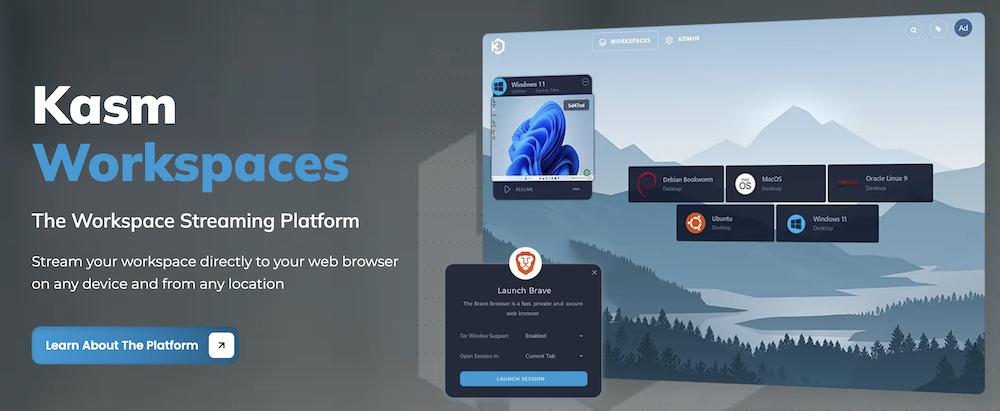
Kasm takes a different approach than the rest of this list. Instead of streaming a full virtual machine, it launches each browser, desktop, or application inside an isolated Docker container and streams the pixels to your local browser. When the session ends, the container is destroyed, so malware or a compromised site never touches the underlying host.
That container-based model makes it popular for different audiences like security teams doing OSINT research who need throwaway, untraceable browsing environments, and organizations that want remote browser isolation without deploying a full VDI stack.
Key features
- Container-based streaming instead of full VM provisioning, so sessions spin up fast
- Disposable sessions that leave no trace on the host after they close
- Self-hostable on your own infrastructure or consumed as SaaS
- Purpose-built workspace images for OSINT and security research workflows
Pricing
A free, self-hosted Community Edition covers individual, home-server, and evaluation use.
Pros & Cons
PROS
CONS
Cameyo by Google
Best for Running Windows Apps on Chromebooks
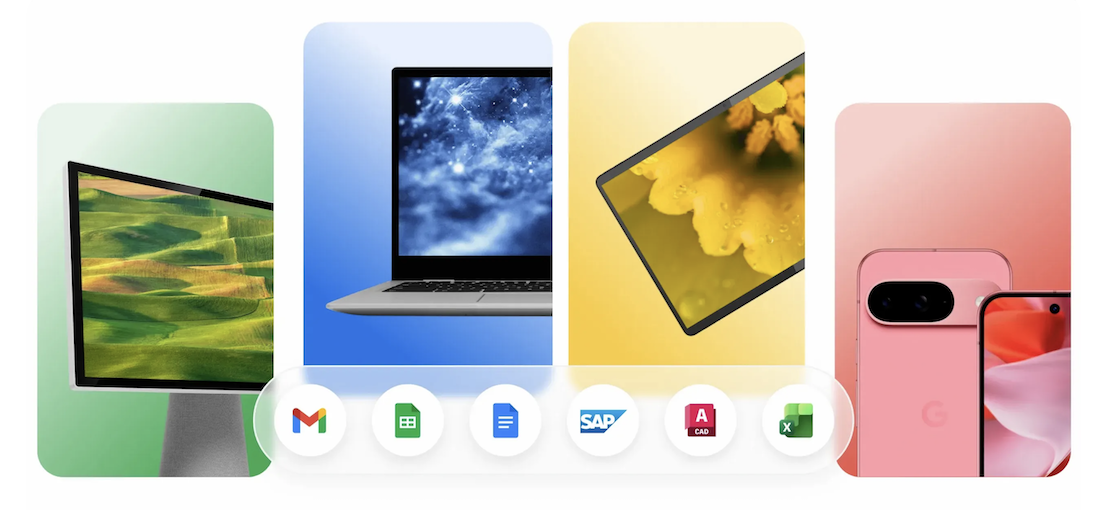
Google acquired Cameyo and relaunched it as “Cameyo by Google“, folded into Chrome Enterprise. It solves a narrower problem than a full virtual desktop, example, streaming one Windows application, like AutoCAD, an ERP client, or a legacy Excel macro tool, straight into a Chrome tab or as a progressive web app, without provisioning an entire remote desktop around it.
That narrower scope is the point. A Chromebook fleet that can’t run a specific legacy Windows app no longer needs a full VDI deployment just to close that one gap, and pairing it with Chrome Enterprise Premium adds URL filtering and data loss prevention around the streamed app.
Key features
- Streams individual Windows applications rather than a full desktop
- Runs inside a Chrome tab or as a progressive web app
- Direct integration with Chrome Enterprise Premium for URL filtering and DLP
- Built specifically to close the “app gap” on ChromeOS devices
Pros & Cons
PROS
CONS
Ace Cloud Hosting
Best for QuickBooks and Accounting Firms
Ace Cloud Hosting is a Citrix-powered hosting provider that leans heavily into accounting and bookkeeping firms running QuickBooks, and it hosts other line-of-business apps like Sage on request. That focus shows up in its support model, which is built around accounting-season deadlines rather than generic IT tickets.
Data centers are in 10-plus locations, including Atlanta, Las Vegas, Houston, France, Mumbai, and Singapore, with 100-day workload backups and cloning for disaster recovery.
Key features
- QuickBooks and Sage hosting pre-configured out of the box
- 256-bit encryption and TLS 1.3 for data in transit
- 100-day backup retention with replication and cloning options
- 99.99% uptime guarantee
Pricing
QuickBooks hosting starts around $34.99/user/month. An Unlimited Hosting bundle with a dedicated server and 80 GB storage runs to $150/user/month.
Pros & Cons
PROS
CONS
Cloud PC, VDI, and DaaS Aren’t the Same Thing
These terms get used interchangeably, but the distinction actually matters when you’re picking a product.
VDI (Virtual Desktop Infrastructure) is the underlying technology: a hypervisor running multiple virtual machines on shared physical servers, usually managed by your own IT team. Coder and Kamatera sit closest to raw infrastructure you configure yourself.
DaaS (Desktop as a Service) is VDI that a third-party vendor builds, hosts, and maintains for you. V2 Cloud, Shells, Citrix DaaS, and Ace Cloud Hosting all fall here: you rent a desktop and someone else runs the servers.
A Cloud PC, Microsoft’s term for Windows 365, is a specific flavor of DaaS where each user gets one dedicated, persistent machine at a flat price, instead of sharing pooled sessions billed by consumption like Azure Virtual Desktop.
How to Choose the Right Virtual Desktop Solution
- Match the workload to the hardware. A GPU-heavy 3D rendering job needs a GPU-backed Azure VM or a dedicated Kamatera instance.
- Decide who manages the infrastructure. Coder and Kamatera hand you control and complexity. V2 Cloud, Shells, and Windows 365 hand you simplicity at a markup.
- Check compliance requirements early. HIPAA, PCI-DSS, or GDPR obligations narrow the field fast, and Citrix and Omnissa have the deepest compliance track record for regulated industries.
- Test the actual use case before rolling out. Free trials exist on most of this list so you can confirm latency and app compatibility with your workload before rolling out broadly.
Frequently Asked Questions
Is a virtual desktop the same as VDI?
No. VDI is the underlying technology. A virtual desktop is what you actually use, and it can run on VDI you manage yourself or on a DaaS platform someone else manages for you.
How much does a virtual desktop actually cost?
Entry level personal plans start around $5 to $15/month (Shells, Kamatera). Business-grade desktops with support and backups run $25 to $45/user/month (Windows 365, V2 Cloud, Amazon WorkSpaces).
Can I run a virtual desktop on a Chromebook?
Yes. Most DaaS platforms on this list work through a Chrome browser or a lightweight client. Cameyo by Google is built for ChromeOS and streams individual Windows apps, which uses fewer resources on low-power hardware.