




Taking screenshots is one of the most common tasks on a computer or laptop.
At the workplace, you often need to take screenshots to share ideas with colleagues or get help from others by sharing an error screen. Some jobs also require you to take screenshots regularly. For example, as a writer, I have to take screenshots to ensure readers can visualize what I am talking about.
Even during your personal screen time, there are many instances where you need to take screenshots. For example, while buying something on Facebook, you may need to take a screenshot to talk to the seller. You can screenshot a financial transaction to have proof or even save a fantastic home decor idea you found online.
Even though it’s easy to take screenshots on Windows (just press the Windows + PrtScn buttons), the default function is minimal.
If you need to take screenshots often, it’s better to use a good screenshot tool that fulfills your needs, such as automatically saving them and allowing you to annotate them with editing tools.
However, what if you are a developer tasked with automating this process at scale?
For high-volume captures, developers rely on a Screenshot API to take screenshots without the headache of managing headless browsers or infrastructure.
That said, if you’re looking for screenshot tools on Windows, the following options make capturing and managing screenshots easy.
Greenshot
If you’re searching for a simple, free, yet powerful screenshot tool, then Greenshot is probably the best option out there. The best part about this tool is that it’s an open-source app that works from the taskbar of your computer and lets you quickly take screenshots in multiple ways. You can capture a region, active window, full screen, last region, and many other screenshot types using the UI and keyboard shortcuts.
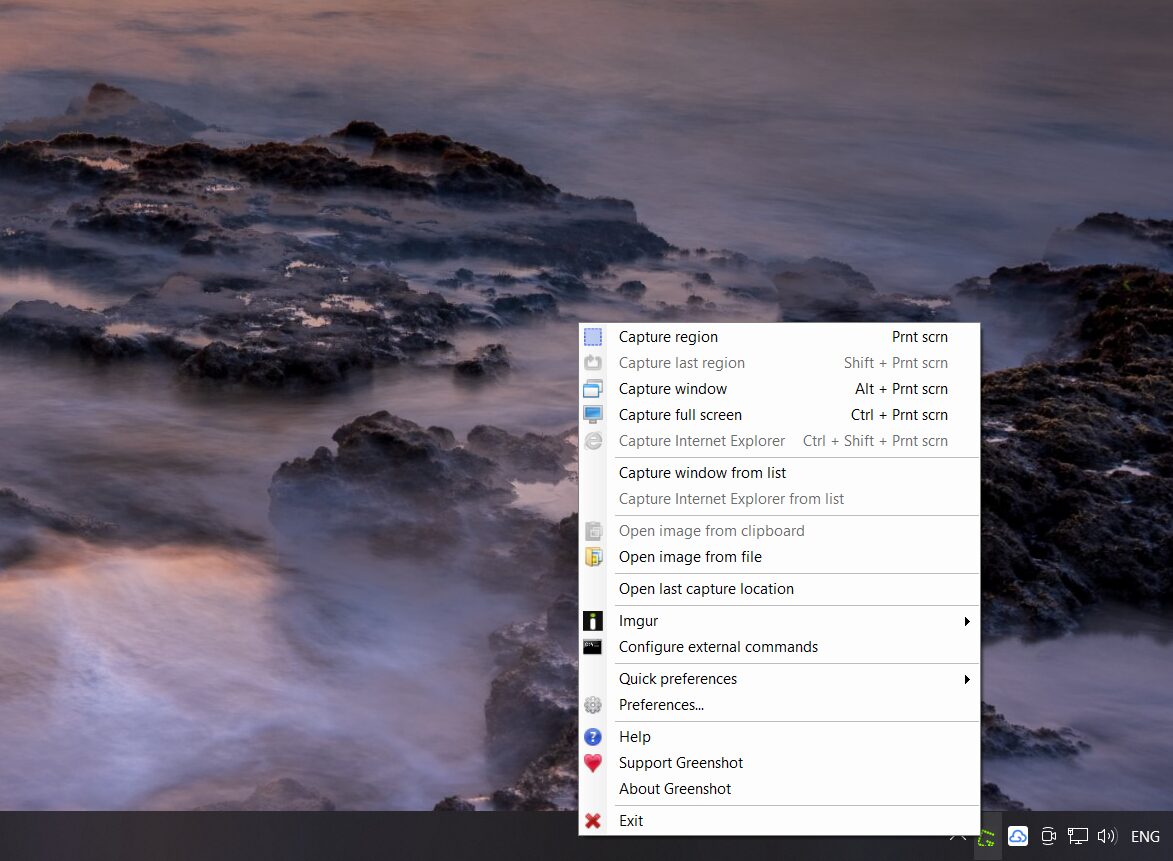
Once you capture the screenshot, the tool automatically opens a built-in editor where you can add arrows, highlights, text, and shapes. It also gives you the option to blur sensitive information before sharing the image.
Lightshot
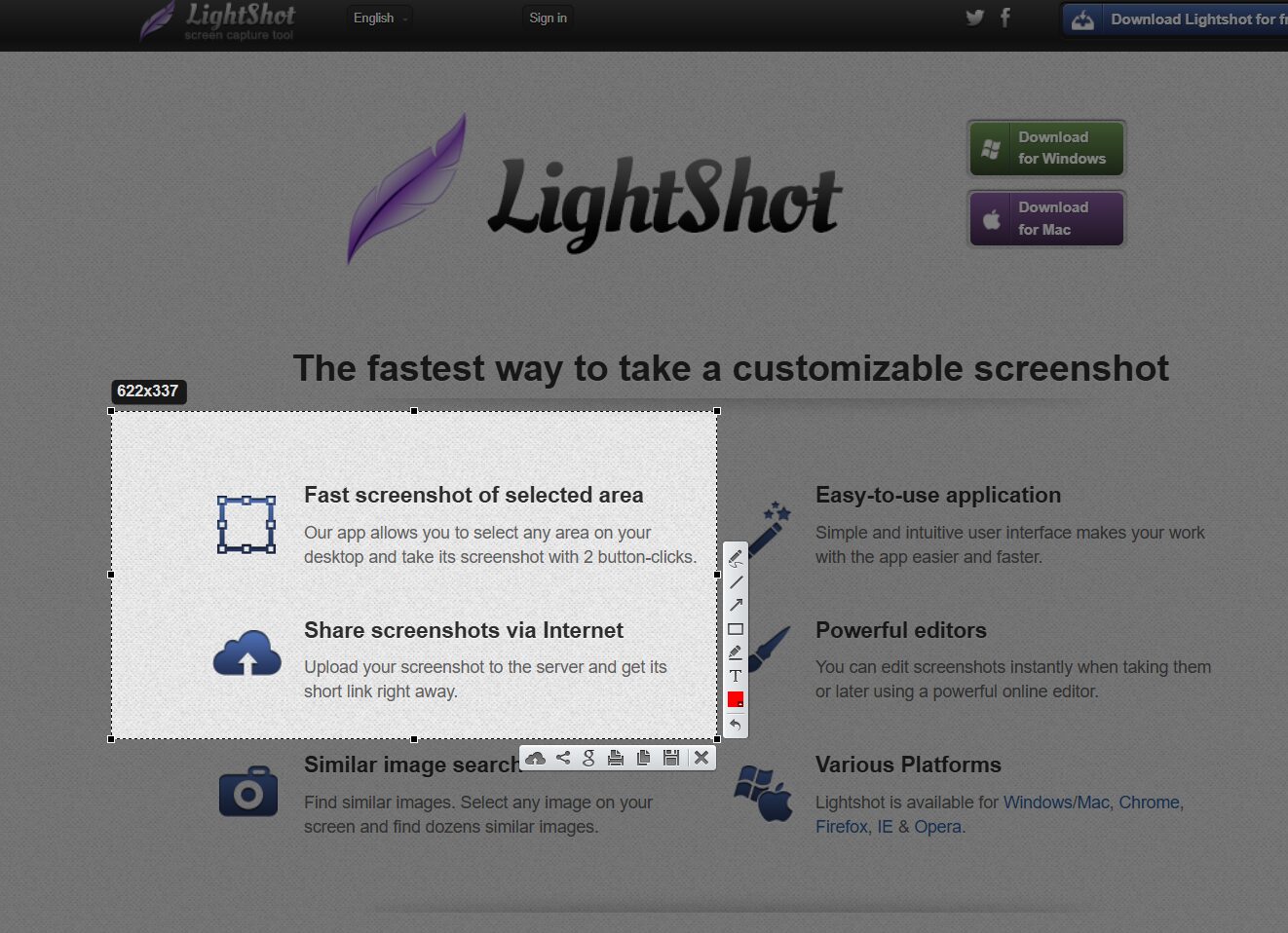
Just like its name, Lightshot focuses on speed and simplicity. Similar to other screenshot tools, it captures the full screen or a selected region. Along with basic editing options, Lightshot also lets you instantly upload the screenshot and generate a shareable link without any signup.
ShareX
ShareX is a perfect screenshot software for someone who often shares screenshots with people or websites. The tool captures screenshots in seven different ways and can also record videos and GIFs. Along with that, it comes with an auto-capture feature that automatically takes screenshots at a set interval.
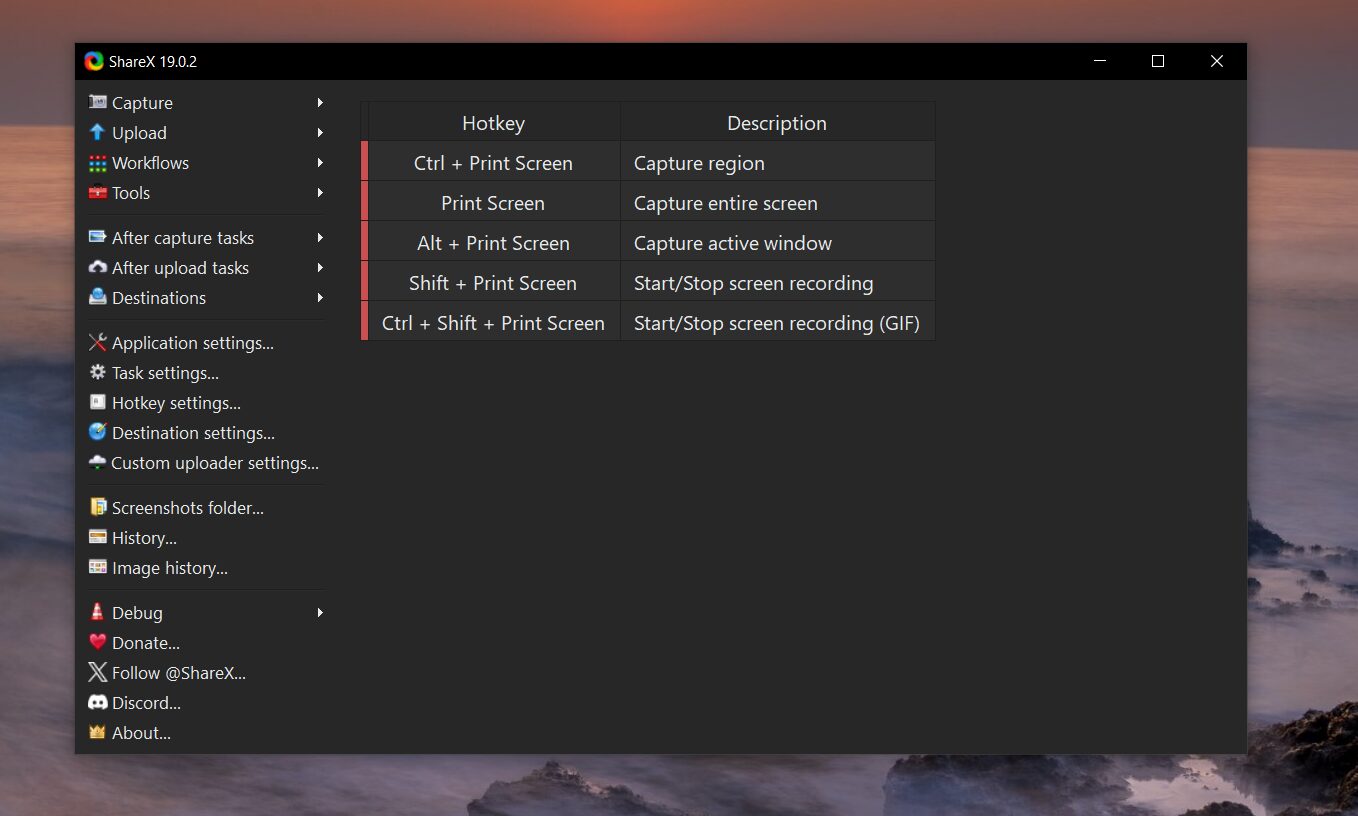
It also comes with a dedicated menu to upload your screenshots to multiple online services. It lets you manage your accounts right from the ShareX interface. Plus, it provides shareable short links to easily distribute screenshots.
Thanks to its highly customizable capabilities, the tool can sometimes look intimidating, and as a result, it is often used by developers or content creators.
Sleekshot
Sleekshot is another good option to consider. It streamlines your workflow by combining screenshot capture and editing in one place. Apart from that, just like every other software on the list, it captures a selected region, active window, or full screen using simple controls and shortcuts.
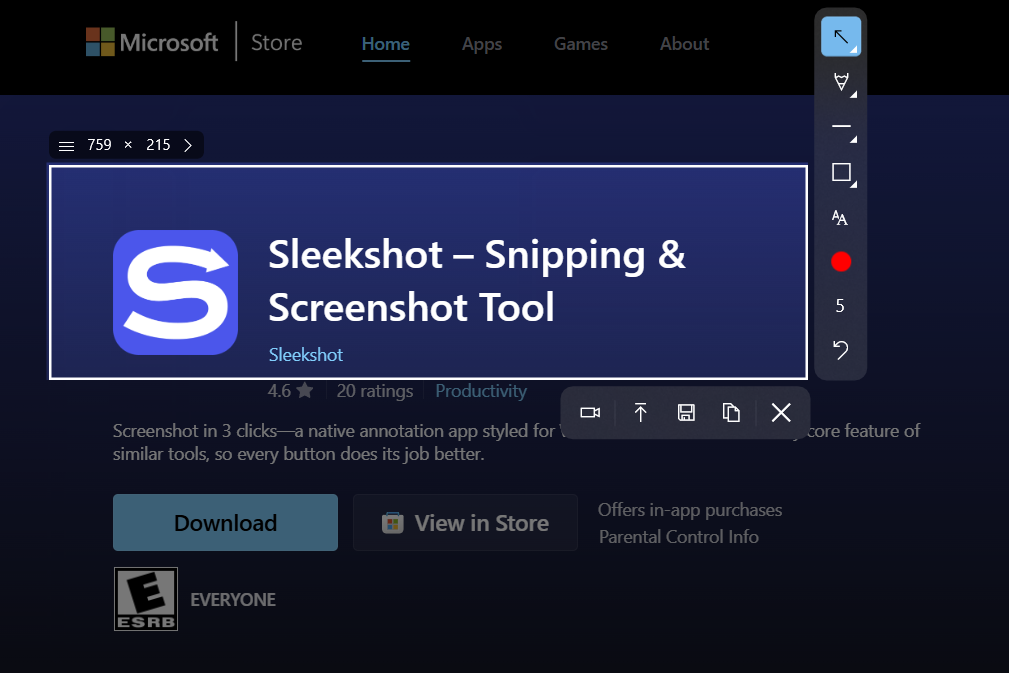
Once the screenshot is captured, the tool opens a built-in editor so you can start annotating immediately. You can adjust the colors and styles of annotations, which makes it a practical solution for creating clearer visuals for guides or bug reports.
Screenpresso
Screenpresso adds a tiny widget at the top of your screen, which appears when you hover your mouse over it. You can use this widget to take regular screenshots or capture delayed or scrolling screenshots. It also lets you pick colors and use OCR on screenshots.
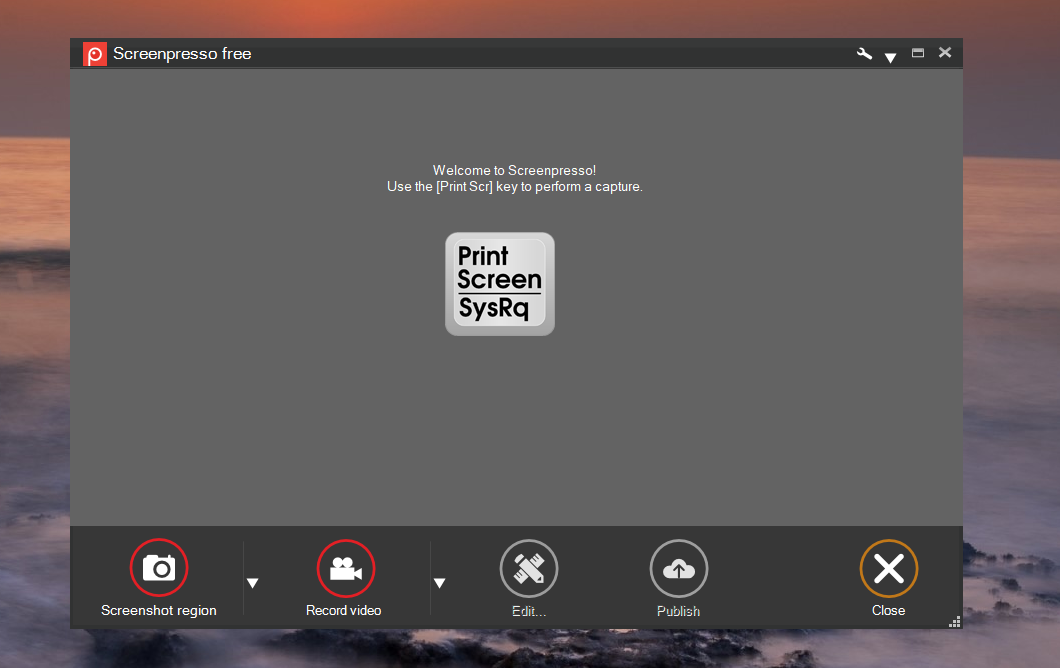
Furthermore, it can automatically add preset watermarks or resize screenshots as soon as they are taken. Apart from that, you can change the desktop background after the screenshot is captured.
However, keep in mind that while most screenshot features are free, the OCR and video recording capabilities add a watermark, and removing it requires a Pro version subscription.
PicPick
If you are searching for a screenshot capture tool with powerful editing capabilities, then PicPick might be the most suitable option. With this tool, you can capture screenshots in eight different ways. It opens its editor immediately after the screenshot is taken.
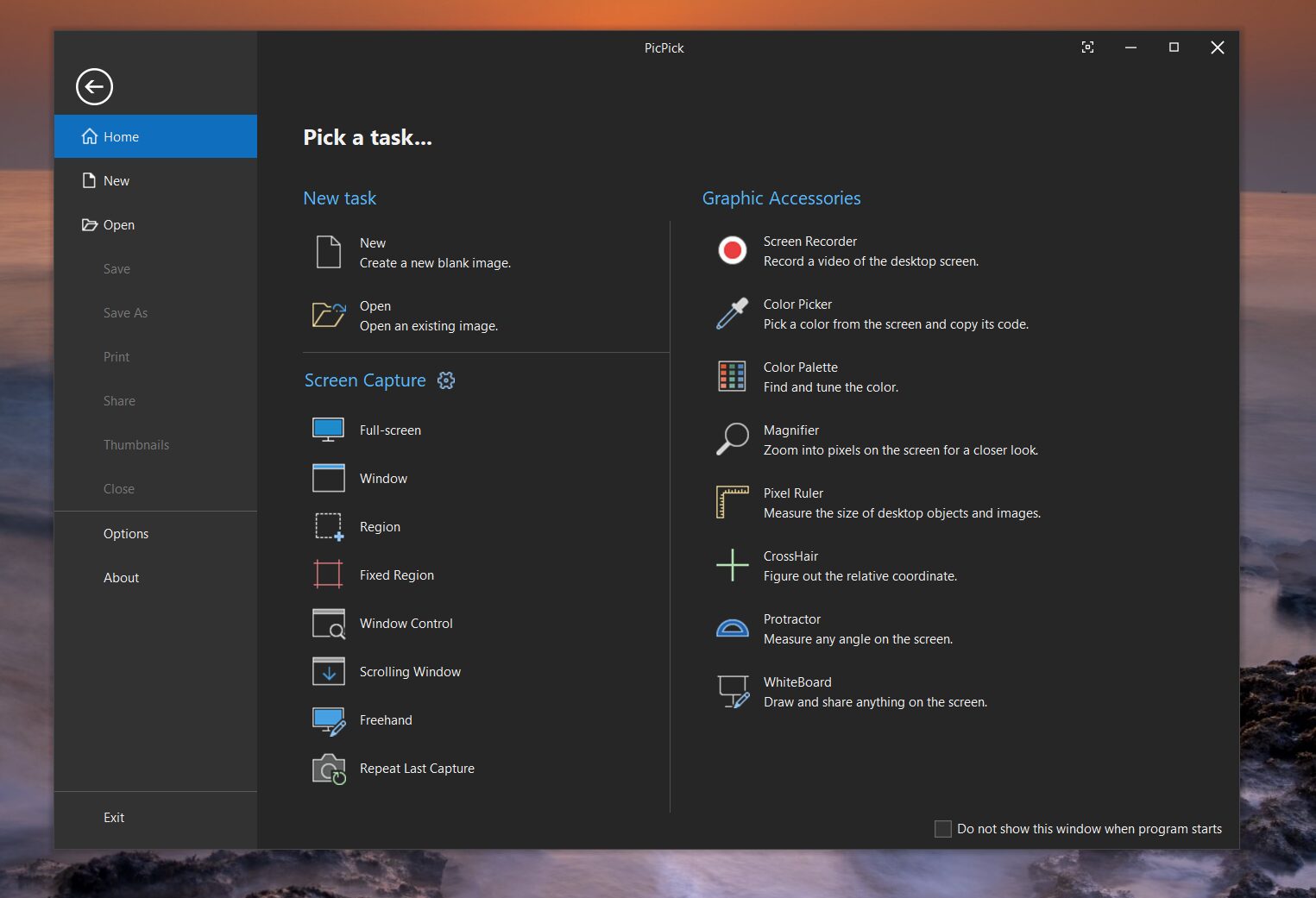
The editor includes many features such as image effects, pixel blur, resize, crop, draw tools, and more. Additionally, all screenshots taken with the tool are listed in the interface, so you can manage and edit them easily.
While the tool is completely free for personal use, you will need to purchase the paid version for commercial usage.
Snagit
Snagit is a professional screenshot and screen recording software known for its powerful capture capabilities and built-in editing tools. It offers up to 12 different ways to capture screenshots, and each option includes additional settings that allow you to customize how the capture behaves.
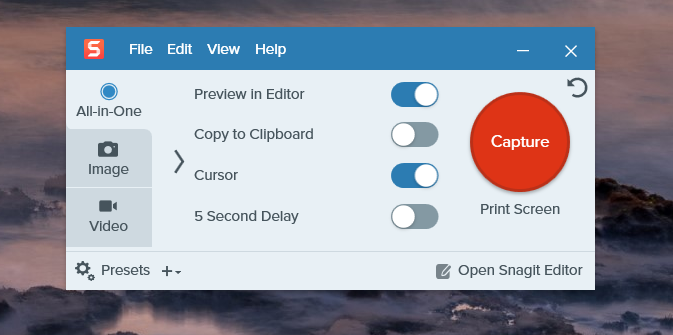
Once you capture a screenshot, it opens directly in the Snagit Editor. The editor includes all essential editing tools along with a gallery that stores and organizes all your screenshots in one place. You also get built-in integrations with several image hosting services and cloud storage platforms, making it easy to quickly upload and share your screenshots.
Awesome Screenshot
Awesome Screenshot is a Chrome extension for capturing screenshots directly from your browser. It’s an excellent option if most of your screenshots involve web pages or browser-based apps and you don’t want to install a separate screenshot tool on your system.
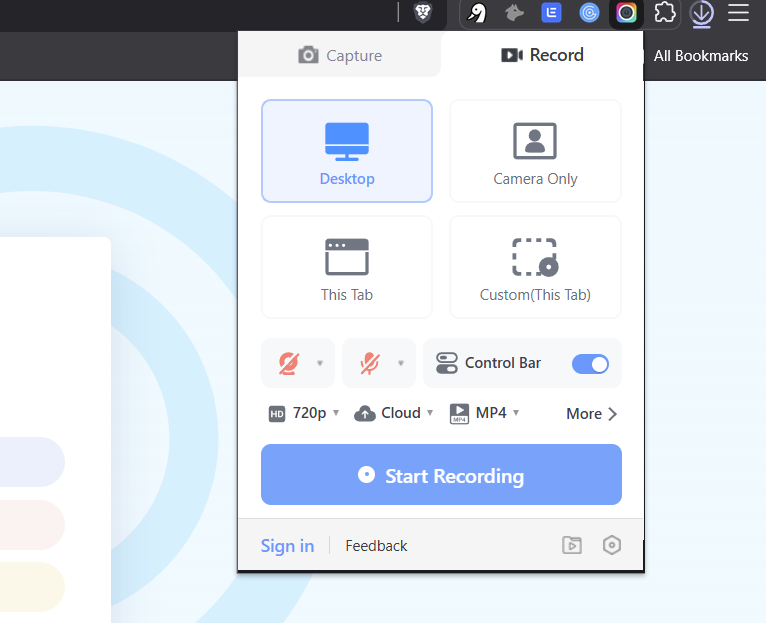
The extension offers multiple ways to capture screenshots. After taking one, it opens in a new tab where you can use basic editing tools to annotate or modify the image. Once you’re done editing, you can easily share the screenshot online using built-in sharing links.
You can also upload screenshots to Awesome Screenshot’s cloud storage. This allows you to share images privately and manage all your uploaded screenshots from one place. Another useful feature is the ability to capture full-page screenshots of web pages without manually scrolling.
Screenshot-Tool
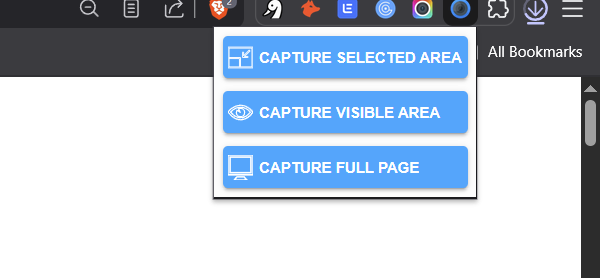
Screenshot-Tool is another browser extension with which you can capture entire websites and selected page elements. You can quickly edit, annotate, and save your captures. Along with capturing, the extension also includes basic editing and annotation capabilities.
ScreenRec
ScreenRec is known for its screenshot and screen recording capabilities. However, in this article, we will only focus on its screenshot features. The tool sits on the right side of your screen as a small floating widget with which you can capture screenshots whenever needed. The only downside is that you must manually select the area you want to capture each time.
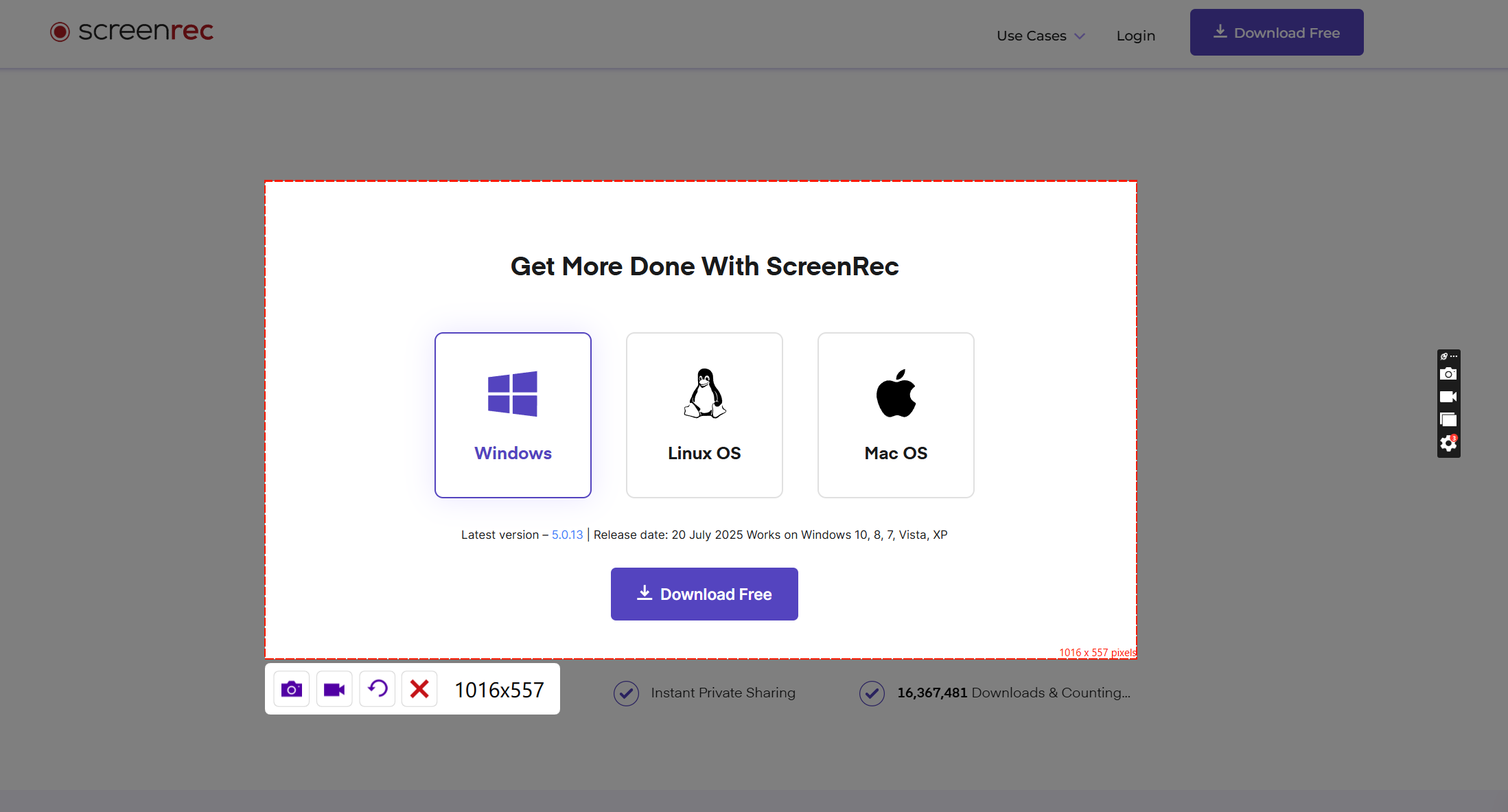
Once the screenshot is taken, it opens in a simple editor where you can add arrows, text, or basic annotations before saving the image. Apart from that, it also has a built-in gallery to view and manage all your screenshots and recordings.
If you sign up for a free account, you can generate private shareable links for your screenshots and get 2GB of cloud storage. The tool itself is free to use, but the cloud features require an account and come with limited storage.
GoFullPage
If you often need to capture an entire webpage, then GoFullPage is one of the easiest tools to use. It is a browser extension that captures a full webpage with a single click without manually scrolling and stitching multiple screenshots together.
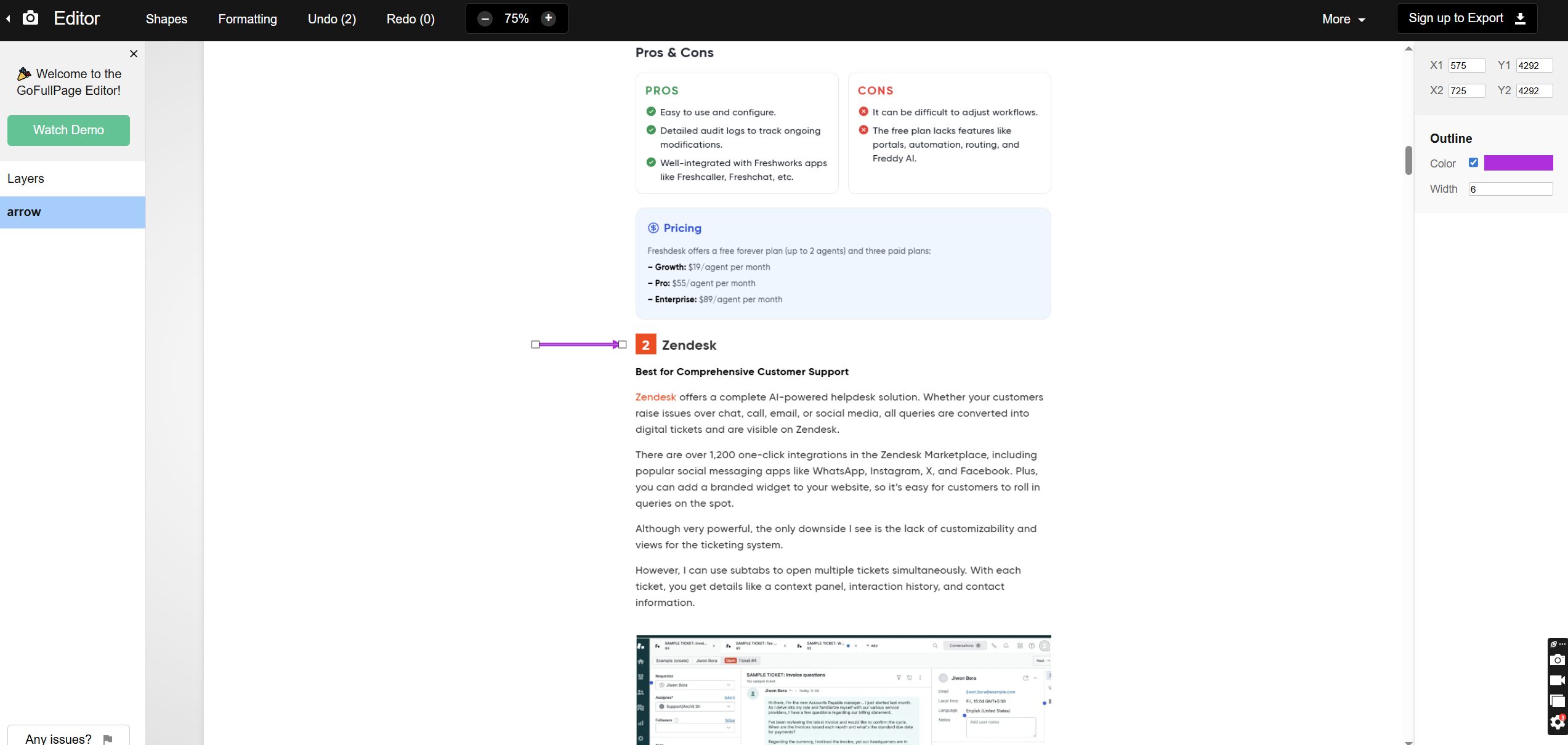
Once you activate the extension, GoFullPage automatically scrolls through the page and captures everything from top to bottom. After the capture is complete, it opens a preview where you can review the screenshot and download it. You can export the screenshot in formats like PNG, JPG, or PDF, which makes it convenient for sharing, documentation, or saving web pages.
Other Screenshot Tools Worth Trying
Along with the above-mentioned screenshot software, there are some worthy contenders worth considering. Here are some other screenshot tools you can try:
| Tool | Description |
|---|---|
| Zight | Screenshot and screen recording tool designed for quick visual communication and team collaboration. |
| Monosnap | Capture screenshots, record screens, and upload files to the cloud for sharing. |
| ScreenClip | Browser-based snipping tool that lets you capture and annotate parts of a webpage quickly. |
| Droplr | Screenshot and screen recording platform focused on fast sharing through link-based workflows. |
| ScreenPal Snipping Tool | Simple snipping utility that also integrates with ScreenPal’s video recording platform. |