


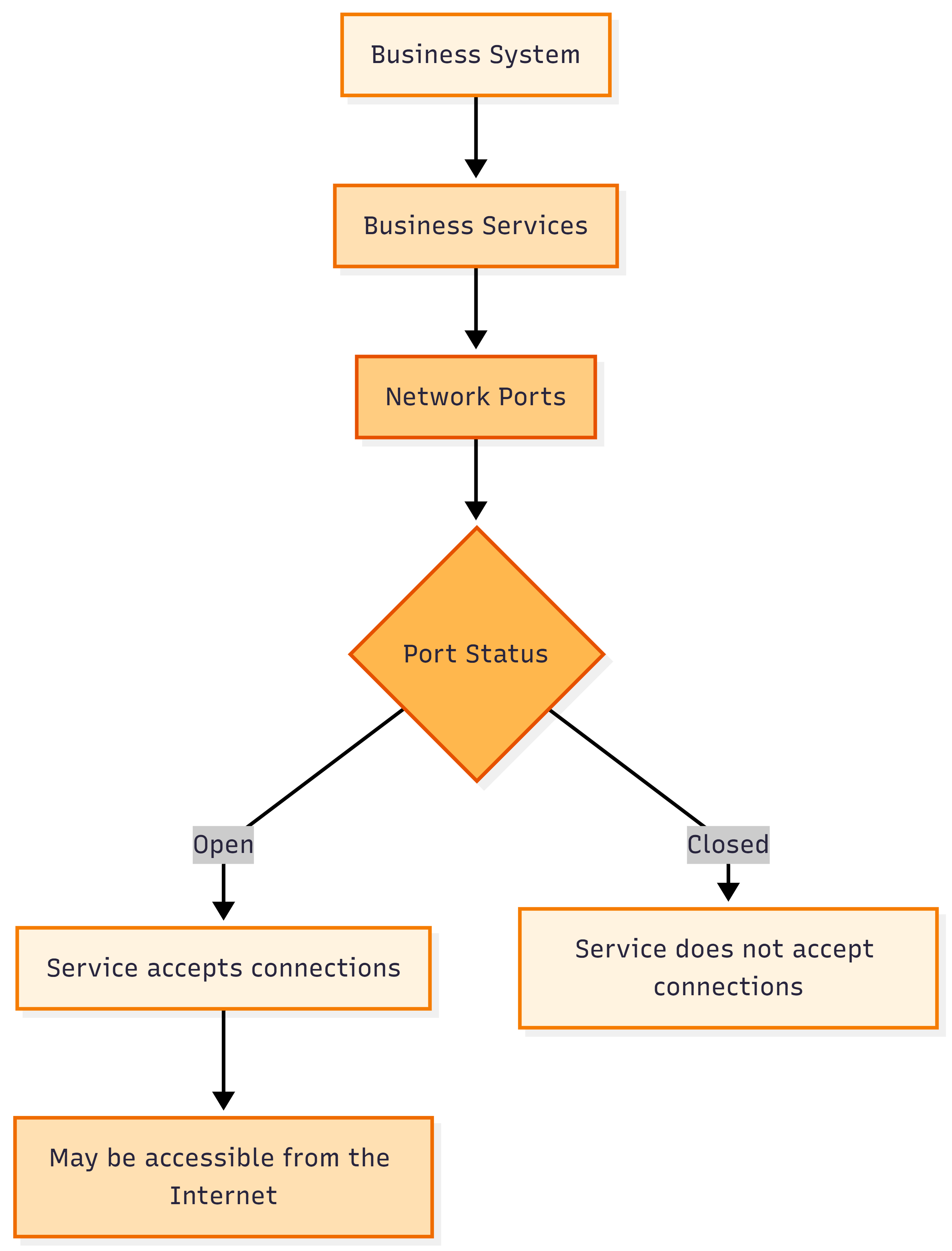
When a business puts a website, application, or other service online, that service needs to accept connections from users and other systems. Network ports provide these connection points. The open ports mean a service is listening for connections and may be accessible from the internet.
Checking open ports gives IT teams a clear view of the services exposed to the internet. The results can show web servers, remote access services, databases, and other applications running on an internet-facing system. This information helps teams check if these services are part of the intended system setup.
This article explains what open ports reveal about an internet-facing system, what an open port does not tell you, and how to check open ports using Geekflare.
What Are Open Ports?
A port is a numbered connection point that lets a computer exchange information with other devices over a network. Think of a port as a door used by a specific service on a computer.
Different services use different port numbers to receive requests. For example, a company website may use port 80 for regular web traffic and port 443 for secure web traffic.
A port is open when a service is ready to accept incoming connections through it. If the system is connected to the internet and its firewall rules permit access, people outside the company network may be able to reach that service.
A port scanner checks a system for open ports and reports the ports that respond to connection requests. IT teams can use these results to see the services accessible from the internet and review if each service needs external access.
Common Open Ports and What They Indicate
Different services commonly use specific port numbers. These assignments provide a starting point for understanding the services exposed on an internet-facing business system.
| Port | Common Use | What It May Indicate |
|---|---|---|
| 21 | FTP | File transfer service |
| 22 | SSH | Remote administration |
| 25 | SMTP | Email service |
| 53 | DNS | Domain name service |
| 80 | HTTP | Website or web application |
| 443 | HTTPS | Secure website or web application |
| 3306 | MySQL | Database service |
| 5432 | PostgreSQL | Database service |
| 8080 | HTTP alternative | Web application or server |
The port number gives an initial idea of the service. Applications can use different ports based on their configuration, so the number alone does not confirm the exact software or service. Use the port as a starting point for further review.
Open ports can also provide useful information about a business system:
- Unexpected access: Highlight ports that do not match the system’s expected configuration.
- Internet-facing services: Show the services available to external users.
- Remote administration: Indicate potential access for system administrators outside the company network.
- Public applications: Show if business websites or applications are reachable from the internet.
- Private services: Identify services such as databases that may have external access.
Limits of an Open Port Check
An open port shows that a service is accepting network connections, but the result alone does not provide a complete picture of the service or its security.
- Service security: An open port does not mean the service has a security problem. A separate review is needed to assess its security.
- Software details: The port number does not identify the exact software, version, or configuration.
- Access permissions: The result does not show the users who can access the service or the authentication controls in place.
- System status: An open port does not confirm if the service is actively used or remains open due to an old configuration.
- Vulnerabilities: An open port does not confirm a vulnerability. A separate security assessment is needed to identify potential security issues.
Open Ports and Security
Open ports help businesses understand the services accessible from the internet. This view is useful when reviewing the external exposure of websites, applications, and other business systems.
For example, an online payment system may need a web service accessible to customers, but its administrative interface may only need access for authorized employees.
An open port for the administrative interface could indicate that the service is accessible from outside the intended user group. This makes the port worth reviewing as part of a security check.
The next step is to understand how that access is controlled. Firewall rules can restrict connections to specific ports based on the network setup. Port forwarding can direct internet traffic to a specific system inside a private network. Reviewing these settings alongside open port results gives a clearer view of the access available to each service.
Checking Open Ports with Geekflare
Geekflare provides APIs and tools for businesses and developers working with web and network data. The Geekflare Port Scanner API is Nmap Powered and checks port status on a target using active TCP connections.
The API gives users control over the ports they want to check. It supports a single port, such as 22, a list such as 80, 443, or a full port range such as 8000-9000. The topPorts parameter supports scans of the most common 50, 100, 500, 1000, or 5000 ports frequently used by services and malware.
The API performs active TCP connections to confirm the current status of each port. This gives a direct result for every port in the request.
Geekflare provides two main ways to access the Open Ports API:
- SDKs: Geekflare provides SDKs for various programming languages, and these SDKs support port checks in applications and development workflows.
- Geekflare Playground: Users can run API requests through the Geekflare Playground. It provides a no-code way to test the API and view port results.
Geekflare also supports MCP. This lets compatible AI applications connect to Geekflare’s API capabilities and use port checks as part of supported workflows.
Using Geekflare SDKs
Geekflare provides SDKs for Python, Node.js, Go, PHP, Java, Ruby, and C. Developers can use these SDKs to add port checks to applications and development workflows. We will use Python for this example.
Prerequisites
Before running the example, prepare the following:
- Geekflare API key: Create a Geekflare account if you do not have one. Open the Geekflare dashboard, find your API key, and copy it for the request.
- Geekflare Python SDK: Install the SDK with the following command:
pip install geekflare-apiOnce the SDK is installed and the API key is ready, you can run the port check for GitHub as shown in this example. You can replace the GitHub URL with your own website when running the check.
from geekflare_api.client import GeekflareClient
from geekflare_api.models import OpenPortsDto

with GeekflareClient(api_key="YOUR_GEEKFLARE_API_KEY") as client:
    result = client.open_ports(
        OpenPortsDto(
            top_ports=100,
            # Replace the URL below with your own website URL
            url="https://github.com/",
            port_ranges="80-90"
        )
    )

print(result)
The main parameters in the request are:
top_ports: Sets the number of common ports to scan. The available values are50,100,500,1000, and5000.url: Specifies the website to check. The example uses the GitHub page. You can replace it with a website you want to check.port_ranges: Defines a custom set of consecutive ports for the scan. The value80-90checks ports 80 through 90. This includes 11 ports in total.
API Response
The API returned a successful response for https://github.com/. The data field shows 80, meaning port 80 responded during the scan.
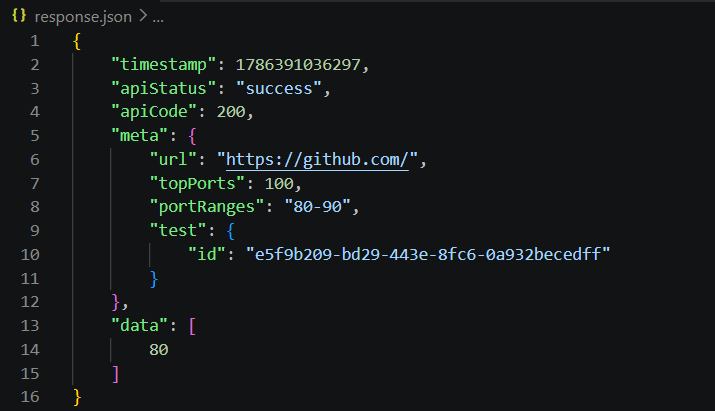
Port 80 is commonly used for regular web traffic. In this example, the result shows that GitHub accepted a connection on port 80 during the check.
Using the Geekflare Playground
The Geekflare Playground is a no-code platform for testing Geekflare APIs. It lets users run the Port Scanner API from the browser and set scan options directly in the interface.
- Log in to your Geekflare account and open the Playground.
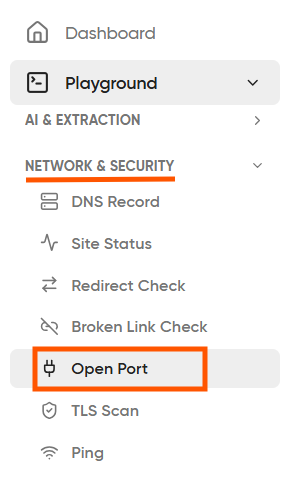
- Go to Network & Security and select Open Port.
- Enter
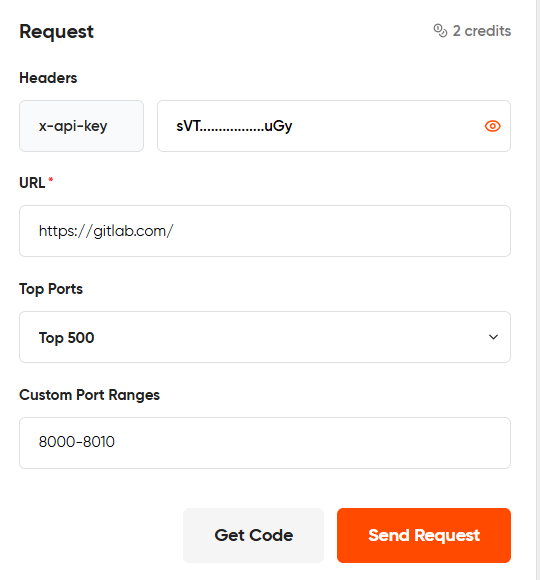
https://gitlab.com/in the URL field. - Set Top Ports to
500. This selects the 500 most common ports for the scan. - Enter
8000-8010in the Port Range field. This checks 11 ports from port8000through port8010.
- Click Send Request to start the scan.
- The API response appears in the Playground after the request completes.
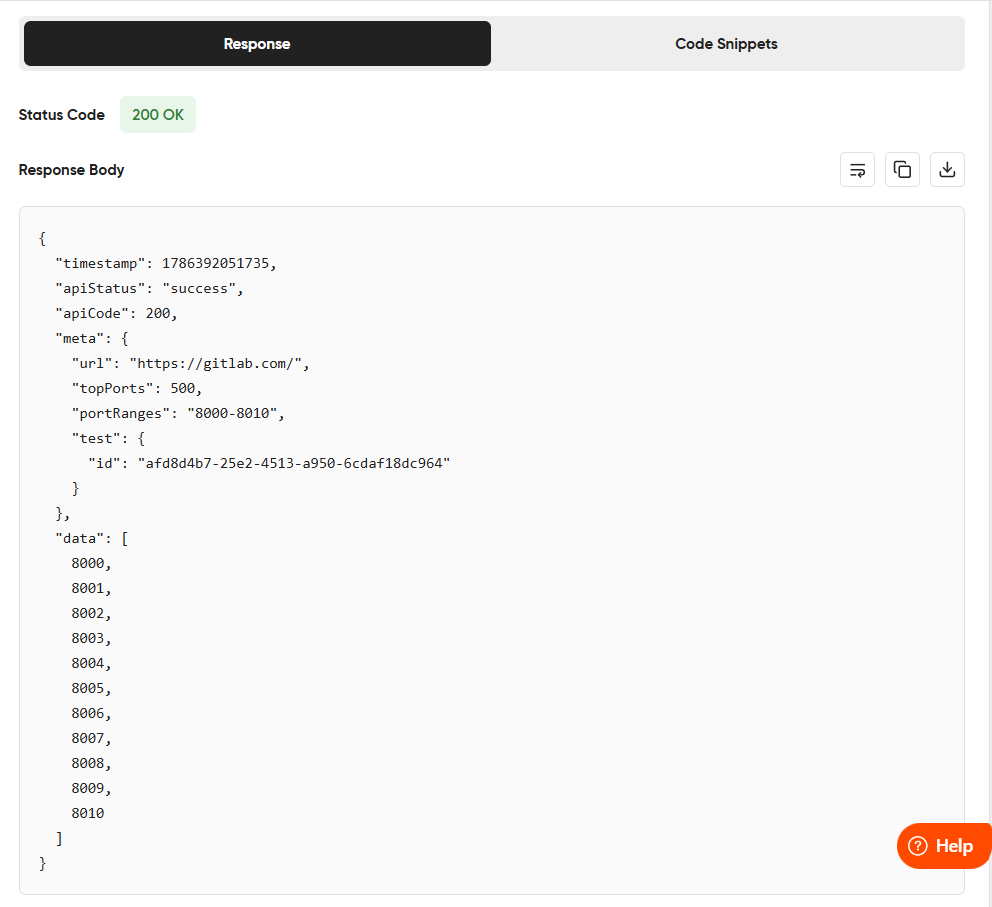
In this example, ports 8000 through 8010 are returned, showing that all 11 ports in the selected range responded to the TCP check. The result identifies the open ports but does not identify the software or service running on each port.
Select Get Code to view the request as a code snippet. You can choose Python, cURL, PHP, or Node.js.
Open Port Check Use Cases
Open port checks can support several routine tasks for businesses that run websites, applications, and internet-facing systems.
- External security reviews: Check public systems and review the services accessible from the internet.
- Cloud infrastructure checks: Review exposed ports after deploying servers or applications in cloud environments.
- Network configuration checks: Confirm that firewall and port forwarding settings match the intended access.
- Application deployment: Check newly deployed applications and confirm that the required ports are accessible.
- Change monitoring: Compare port scan results after server or network configuration changes and identify unexpected exposure.
- Security assessments: Use open port results as an initial step in reviewing the external exposure of a system.
Conclusion
Open ports provide a clear view of the services available on an internet-facing system. This information helps businesses understand their external setup and keep access aligned with their business needs.
Regular port checks can support system reviews, application deployments, and network changes. They also provide useful information for reviewing web services, remote access, databases, and other internet-facing applications.
The Geekflare Port Scanner API provides a practical way to check port status through SDKs or the no-code Geekflare Playground. Custom port ranges and common port lists give users flexibility when checking different systems.
Frequently Asked Questions
What does an open port indicate?
An open port indicates that a service is listening for incoming network connections on that port. The port number can provide an initial idea of the service, but it does not identify the exact software or configuration.
Is an open port a security risk?
An open port is not automatically a security risk. Its importance depends on the service using the port, its purpose, and the access required for the business system.
How can I check open ports?
You can use a port scanner such as the Geekflare Port Scanner API. It supports custom port ranges and common port lists. You can access it through Geekflare SDKs or the no-code Geekflare Playground.





