Managing accounts payable has never been easy. Most businesses struggle as they juggle third-party apps, carry out manual data entry, and pay hidden transaction fees.
Traditional AP (Accounts Payable) solutions lack direct integration with your accounting software and bank portal. Managing these can lead to data sync issues while increasing the time to finalize payments, as data needs to be rekeyed between them. Moreover, there are hidden processing fees with each transaction. These issues might sound small but can add up if you’re running a small- to medium-scale business.
However, all of these can be mitigated if you opt for QuickBooks Bill Pay. It is an integrated, all-in-one AP solution.
QuickBooks Bill Pay is available directly within a QuickBooks subscription, giving businesses the right tool to schedule payments, manage vendors, track 1099s, and close books without leaving the platform.
In this review post, we’ll look into QuickBooks Bill Pay’s key features and benefits. We’ll also look into its security, compliance, and approvals, while exploring its user interface and platform experience. We’ll finish the review by doing a deep price breakdown, discussing pros & cons, and taking a sneak peek at Intuit Intelligence.
Let’s get started.
Key Features and Benefits
In this section, we’ll look into QuickBooks Bill Pay’s key features, including:
- Fee-Free Standard ACH (Automated Clearing House) Payments
- Smart Automation
- Flexible Payment Scheduling
- Cash Flow Visibility
Fee-Free Standard ACH Payments
QuickBooks Bill Pay’s free standard ACH payments feature saves businesses on transaction fees if they use the standard method, which takes 3-5 business days to settle. However, if you need to do it faster or pay by check, then there is a small fee associated with it.
Below are the transaction fees:
- Standard ACH → No fees.
- Faster ACH → $10, next-business-day delivery
- Instant payment → 1% of transaction (max $100 fee with $10 minimum transaction)
- Check → $1.50 per check
As a business, it is important to plan accordingly and release payments based on vendor due dates. This way, businesses can save on unnecessary transaction fees by defaulting to standard ACH. Only opt for faster ACH/instant if you’re late or pay by check if the vendor requires it.
Smart Automation
QuickBooks Bill Pay allows for smart automation by giving users the option to bulk upload or forward bills directly to QuickBooks.
Users can do it in three ways:
- Forwarding email invoices to a dedicated Bill Pay email address (unique to each account)
- Use the bulk upload option to upload 20 bills at once (supports PNG, JPG, JPEG, and PDF).
- Use QuickBooks Business Network to directly deliver bills from vendors.
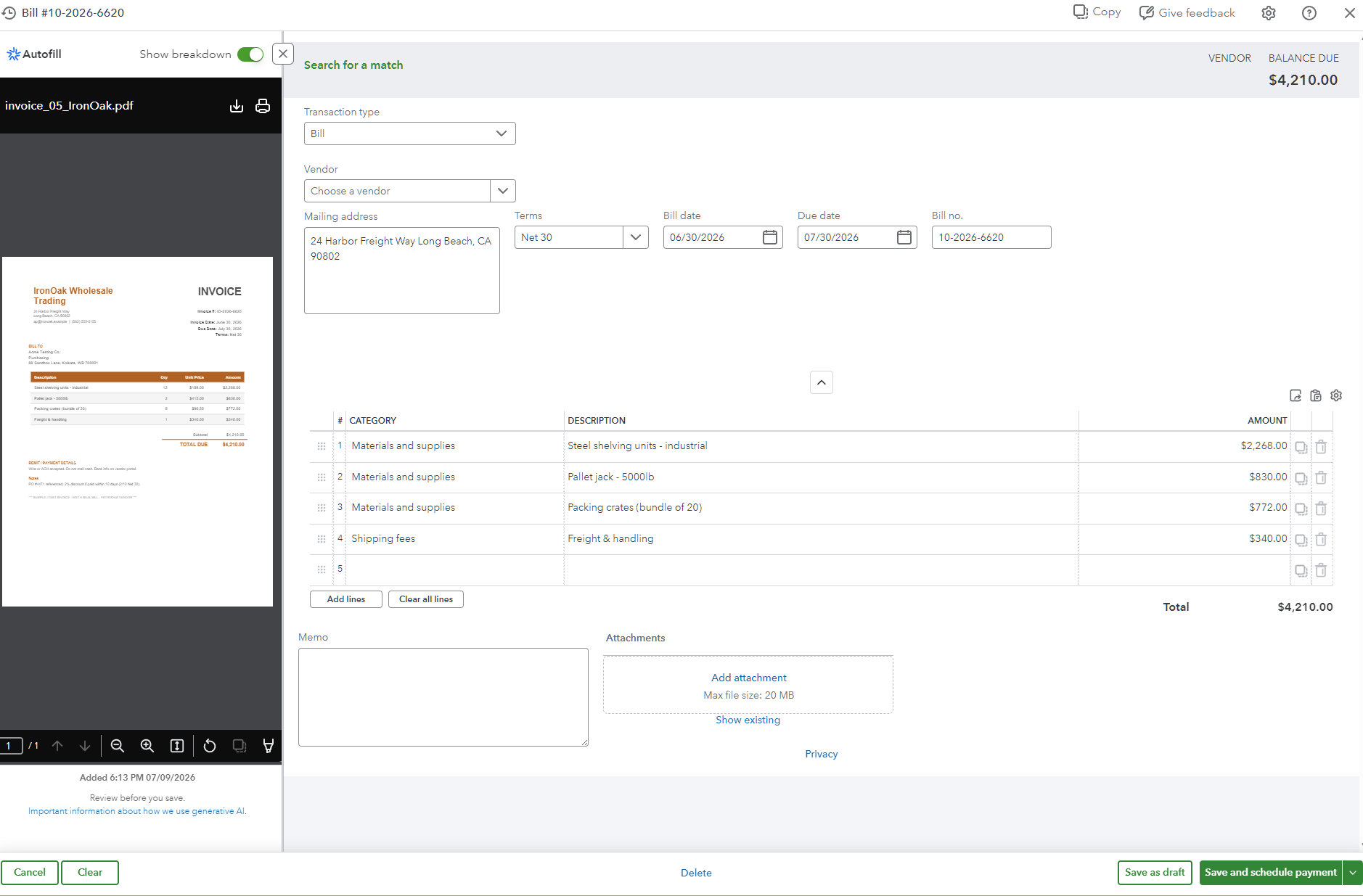
These invoices are then read by AI automation to create a pre-filled bill for review. This helps businesses skip a lot of manual work. All they need to do is review, match the bill, and approve it. This human checkpoint is necessary to ensure high accuracy before a bill is approved.
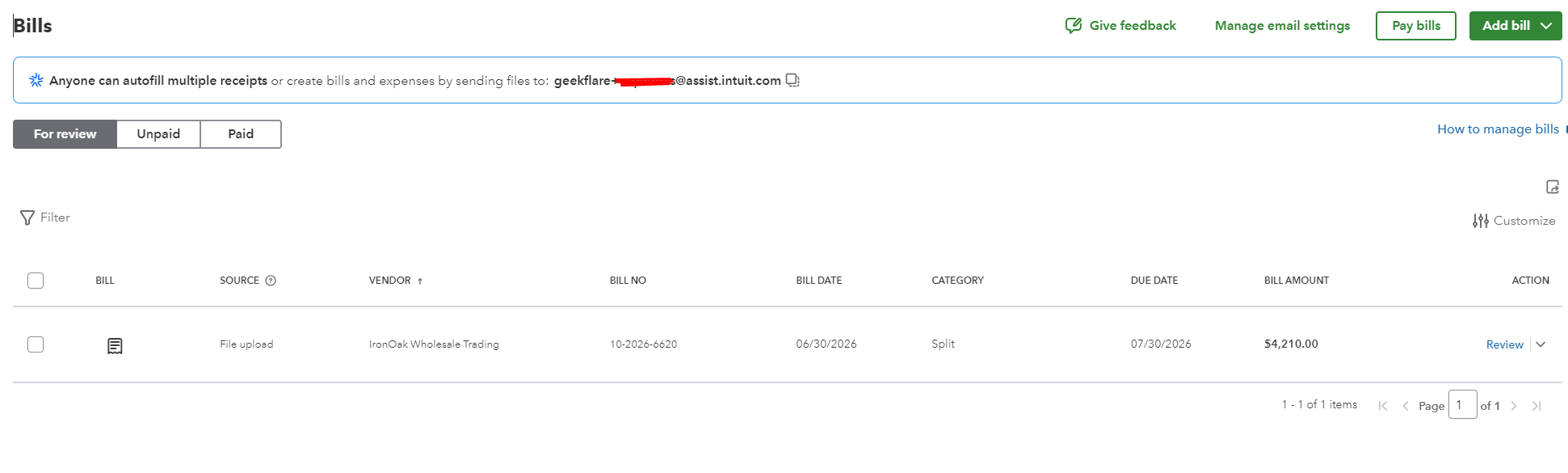
The AI automation automatically creates a new vendor without any input. Below is how the edit bill window looks.
Flexible Payment Scheduling
QuickBooks Bill Pay offers flexible payment scheduling. It includes scheduling in advance or using instant payment options when needed. The approach ensures that vendors are paid on time.
Scheduling payment is easy and covered in depth in QuickBooks FAQs. Vendors can also choose when they want to get paid. Additionally, recurring transactions can also be set up and executed in a timely manner without any failure across all payment methods, including standard ACH, Faster ACH, and so on.
QuickBooks Bill Pay also supports batch payments to multiple vendors.
Cash Flow Visibility
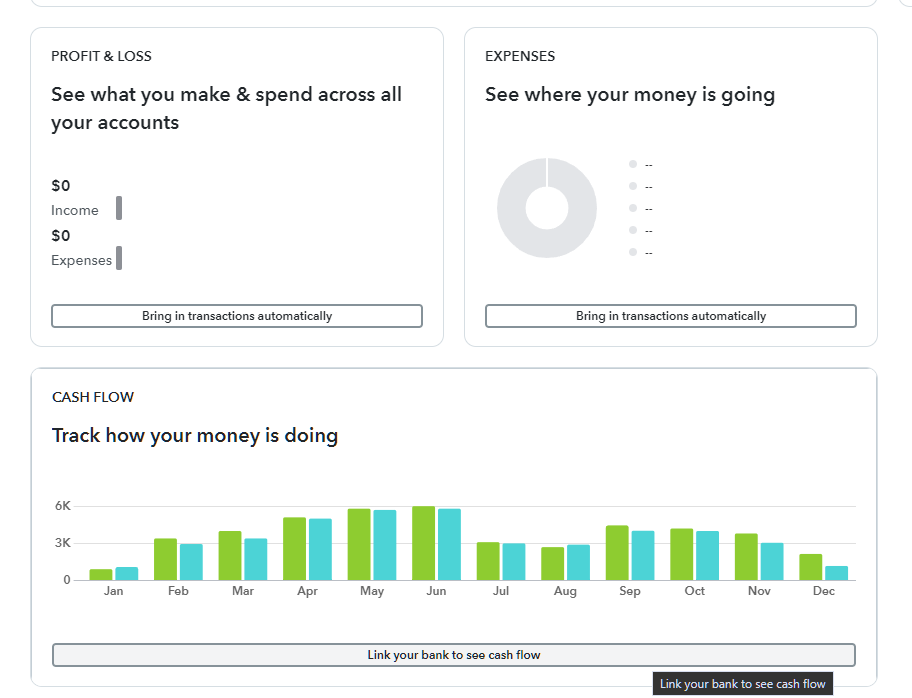
With QuickBooks Bill Pay, I found that businesses can stay informed with real-time AP aging reports and cash flow projections. It’s visible directly from the Home dashboard (if your bank is connected).
Security, Compliance, and Approvals
In this section, we’ll take a look at QuickBooks Bill Pay security, compliance, and approvals by going over two key points:
- Cash Flow Protection
- Automated Rules
Cash Flow Protection
Even with automation in place, businesses can designate an approver so that payment never gets approved before sign-off. This means that human input is required before the bill is paid.
Bill Approver ensures that everything is correct before approving payments. It protects against fraudulent bills and ensures 100% accuracy for genuine bills.
Automated Rules
QuickBooks Bill Pay also supports automated rules (premium features available in the Elite tier and QBO Advanced). These rules can be used effectively to set conditions on different aspects of the billing process, such as amount, location, vendor, and combinations.
These conditions can be used to set approval requirements before a bill is recorded or paid. For example, you can set a maximum bill amount and ensure that no automated payment crosses it.
Additionally, there are other fail-safes in place, such as auto-deny timers. This automatically declines bill payment release if the bill is not reviewed within 30 days.
I found it only in the Elite plan, which is slightly expensive. However, if you’re already part of QuickBooks Online Advanced, note that Intuit is natively including the Bill Pay Elite subscription at no additional cost starting August 1, 2026.
User Interface & Platform Experience
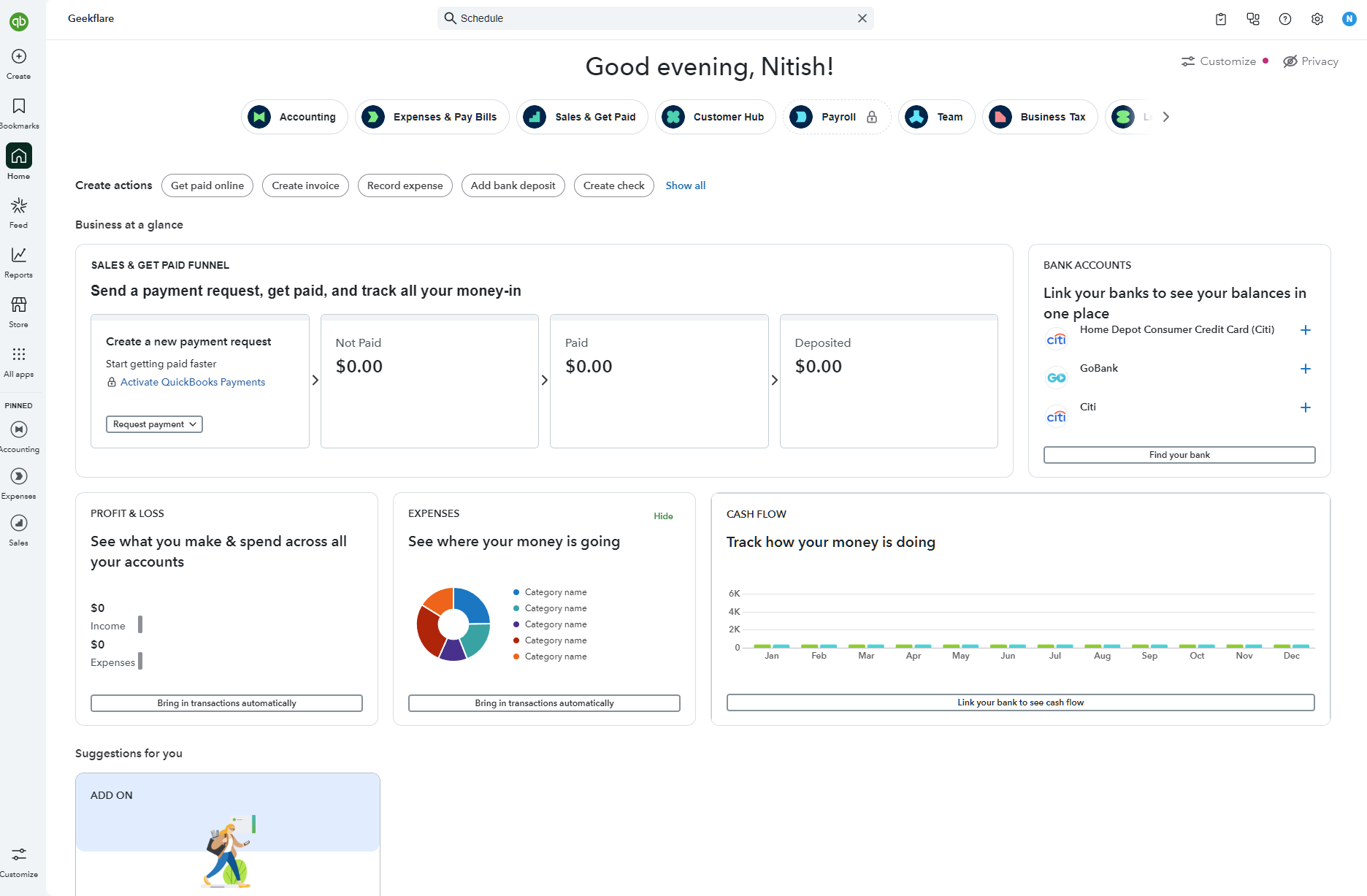
The QuickBooks Bill Pay interface is intuitive and easy to use. The “Home” dashboard is well-designed with a focus on visibility and customizability.
At the top, you get access to key QuickBooks features such as “Accounting”, “Customer Hub,” and so on.
It also provides access to key actions such as “Get Paid Online,” “Create Invoice,” “Record Expense,” and so on.
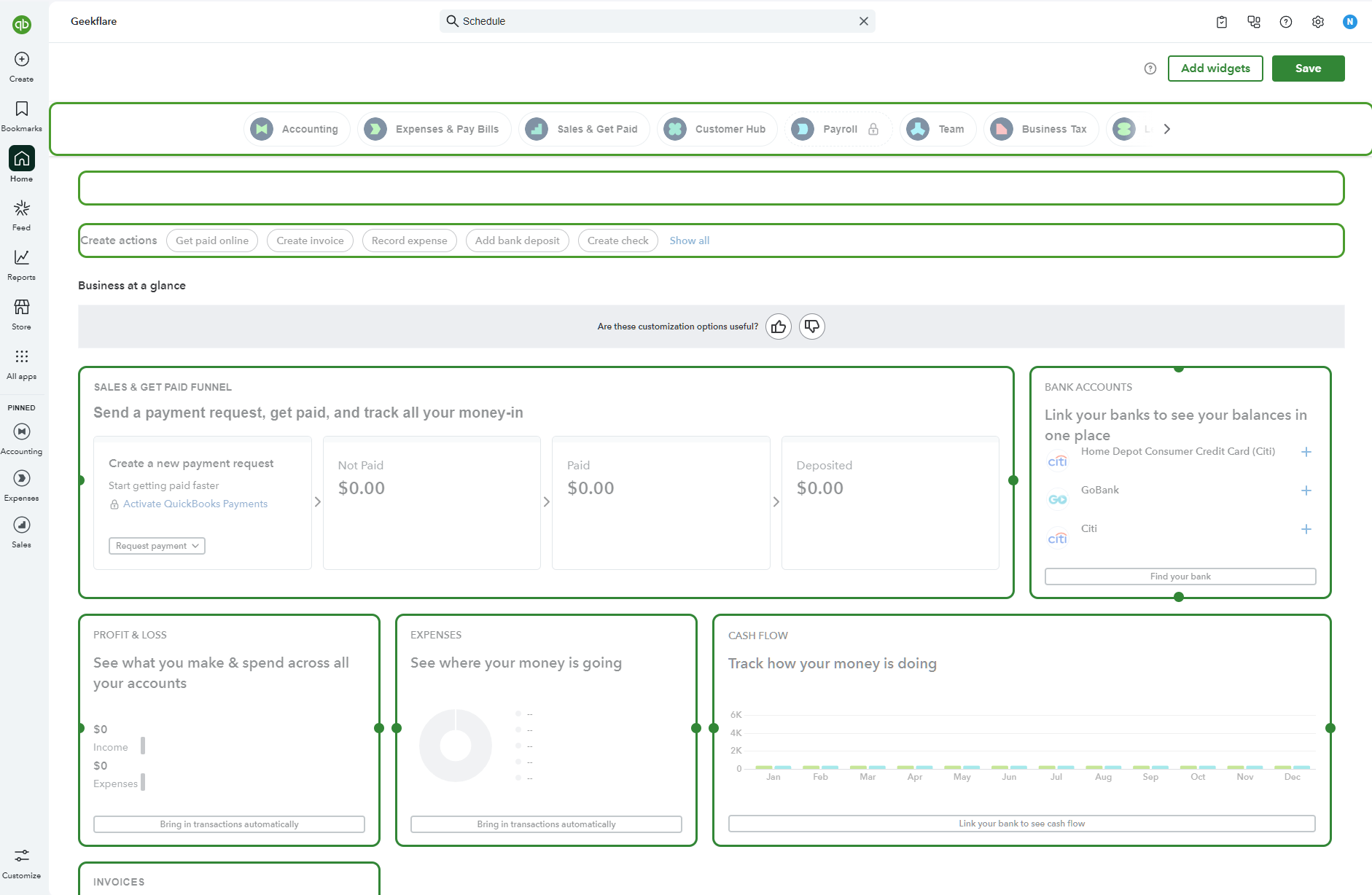
The dashboard is also completely customizable, so you can add or remove widgets as per your needs. It supports 25 widgets (mileage, sales, etc.), of which the basic dashboard has only 8 activated.
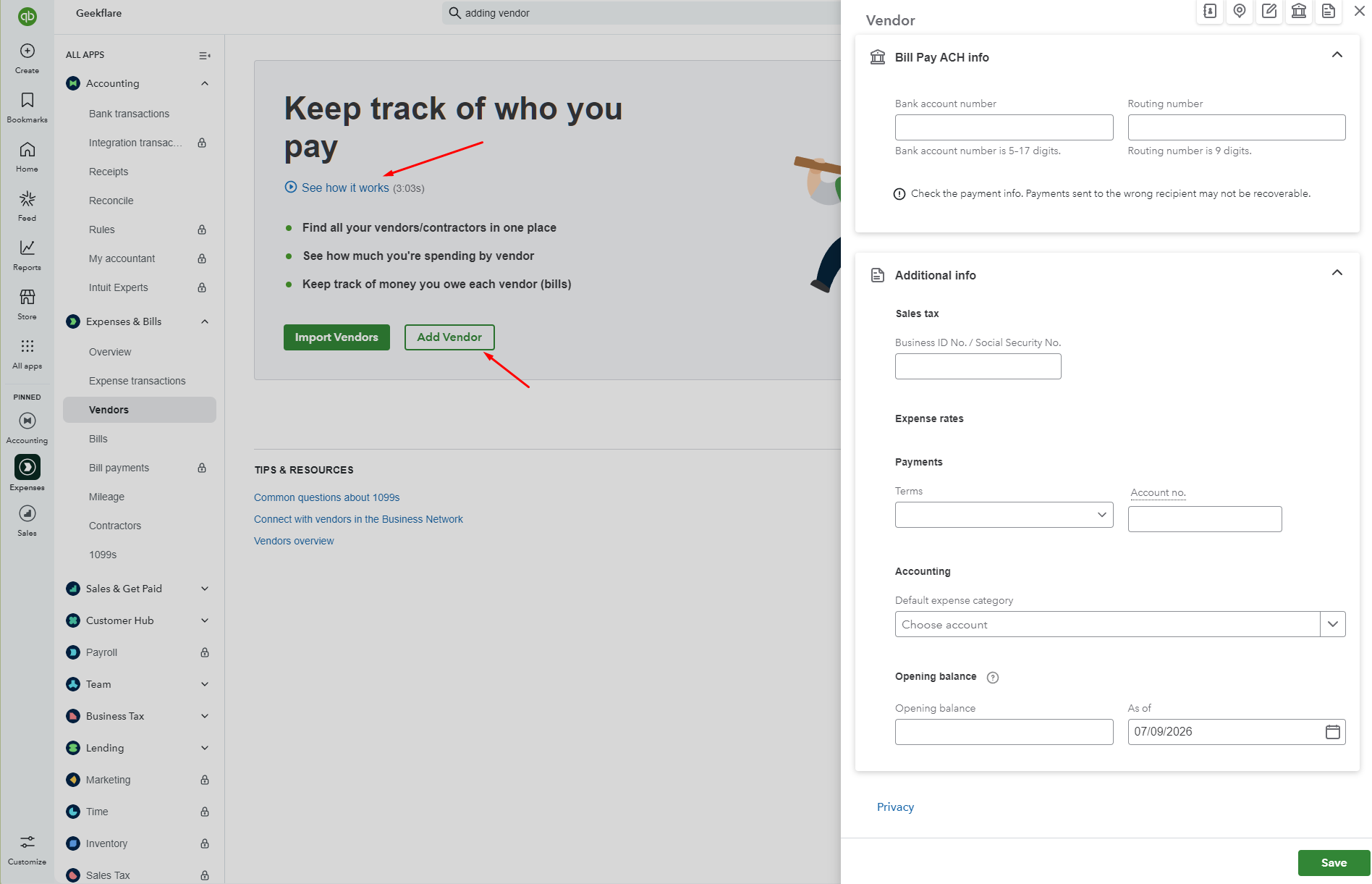
I found adding vendors easy via Expenses > Vendors > Add Vendors. You can also use the search bar to quickly jump to this option. It gives you a detailed form to fill out. Additionally, there are helpful videos to guide you on how to do it.
Pricing Breakdown
QuickBooks Bill Pay has three tiers: Basic, Premium, and Elite. So, which one to choose?
- Bill Pay Basic: This tier is included at no cost with standard QuickBooks subscriptions. It allows businesses to use free standard ACH and carry out basic vendor management. Other features included are AI-powered bill creation, access to a dedicated bills inbox, auto-match transactions, and support for additional users.
- Premium/Elite Upgrades: If you need to do unlimited 1099 e-filing, set controls via roles & permissions, or use custom automated approval workflows. I suggest premium/elite upgrades for a higher volume of instant payments or the need to designate an approver.
The premium tier starts at $7.50 per month (first 3 months, and then $15 per month), whereas Elite starts at $22.50 per month (first 3 months, and then $45/mo.)
Note: The per-transaction fee changes depend on which transaction type you choose. For standard ACH, it’s $0. If you opt for Faster ACH, you need to pay $10; whereas Instant is 1% (max $100, $10 min).
Pros & Cons
PROS
CONS
Intuit Intelligence
Intuit Intelligence is an umbrella term for AI features on the platform.
My experience with Intuit Intelligence started with bill capture that uses AI. I tested it and found it very accurate. However, I didn’t get a chance to try more powerful Intuit Intelligence tools, such as agents.
Its search is also AI-powered and helps navigate and answer queries when needed.
Most of these are currently work-in-progress and will grow in time.
Verdict: Who Should Use QuickBooks Bill Pay?
QuickBooks Bill Pay is a great pick for small to medium-sized businesses already using QuickBooks Online, as they get access to eliminate ACH fees and streamline their AP workflow and reconciliation process.
It helps in consolidating their stack, which means not juggling between tools.
QuickBooks Bill Pay is cost-effective and highly efficient in helping pay and manage vendors, especially for businesses with large-volume payments. It is also a great fit for teams that want approval controls.