


Website performance affects user experience, search engine rankings, and conversions. A Lighthouse API helps you identify issues related to performance, accessibility, SEO, and best practices.
It provides an easy way to automate website audits and monitor website quality over time. Different users have different needs. Developers may want to add Lighthouse audits to their applications. Others may only need to check a website from time to time.
Geekflare supports both use cases. You can integrate the Lighthouse API into your application, test requests in the Geekflare Playground, or use the free Website Audit Tool to analyze any public website. This article explains each option so you can choose the one that best fits your workflow.
Why Choose the Geekflare Lighthouse API?
The Geekflare Lighthouse API gives you an easy way to run Google Lighthouse audits through a REST API. You can analyze any public website and receive detailed reports and best practices. You can use it to automate website audits, monitor performance, and include Lighthouse checks in your applications or workflows.
The API supports desktop and mobile audits. It also includes advanced Lighthouse options that let you customize audits based on your requirements. You can generate reports in JSON or HTML format and choose proxy locations to test websites from different regions.
Geekflare offers three ways to run Lighthouse audits, so you can choose the option that best matches your workflow.
- API: Integrate the Lighthouse API into your application and automate website performance audits.
- Playground: Test different audit settings, preview the response, and generate ready to use code snippets.
- Free Website Audit Tool: Analyze any public website directly from your browser. No coding or API integration is required.
Method 1: Audit Website Performance Using the Lighthouse API with Node.js
This method explains how to use the Lighthouse API in a Node.js application. You will send an API request, create a Lighthouse report, and review the audit results. This example uses the Geekflare Node.js SDK.
Prerequisites
Before you begin, make sure you have:
- A Geekflare API key. Sign in to access your API key from the dashboard.
- Node.js 18 or later installed.
Install the Geekflare Node.js SDK:
npm install @geekflare/api-nodeSend a Lighthouse API Request
Create a new JavaScript file and add the following code. Replace <api-key> with your Geekflare API key. The example audits the TechCrunch homepage. You can change the URL to any public website.
import { GeekflareClient } from "@geekflare/api-node";

const client = new GeekflareClient({
  apiKey: "<api-key>",
});

const result = await client.lighthouse({
  url: "https://techcrunch.com",
});

console.log(result);
Run the script:
node index.jsUnderstand the API Response
After you run the script, the API returns a response similar to the following:
{
  "timestamp": 1785408422409,
  "apiStatus": "success",
  "apiCode": 200,
  "meta": {
    "url": "https://techcrunch.com/",
    "device": "desktop",
    "followRedirect": false,
    "test": {
      "id": "7e1ddda8-0351-4a73-a901-ad670f7409eb"
    }
  },
  "data": "https://cdn.geekflare.com/tests/lighthouse/IJRsyHOiIjZ4rD14.json"
}
The response confirms that the request completed successfully. It also includes details about the audit.
timestampshows when the API completed the request.apiStatusindicates the result of the request.apiCodeis the HTTP status code. A value of200means the request succeeded.metacontains information about the audit, such as the website URL, device type, redirect setting, and test ID.datacontains the URL of the Lighthouse report inJSONformat.
View the Lighthouse Report
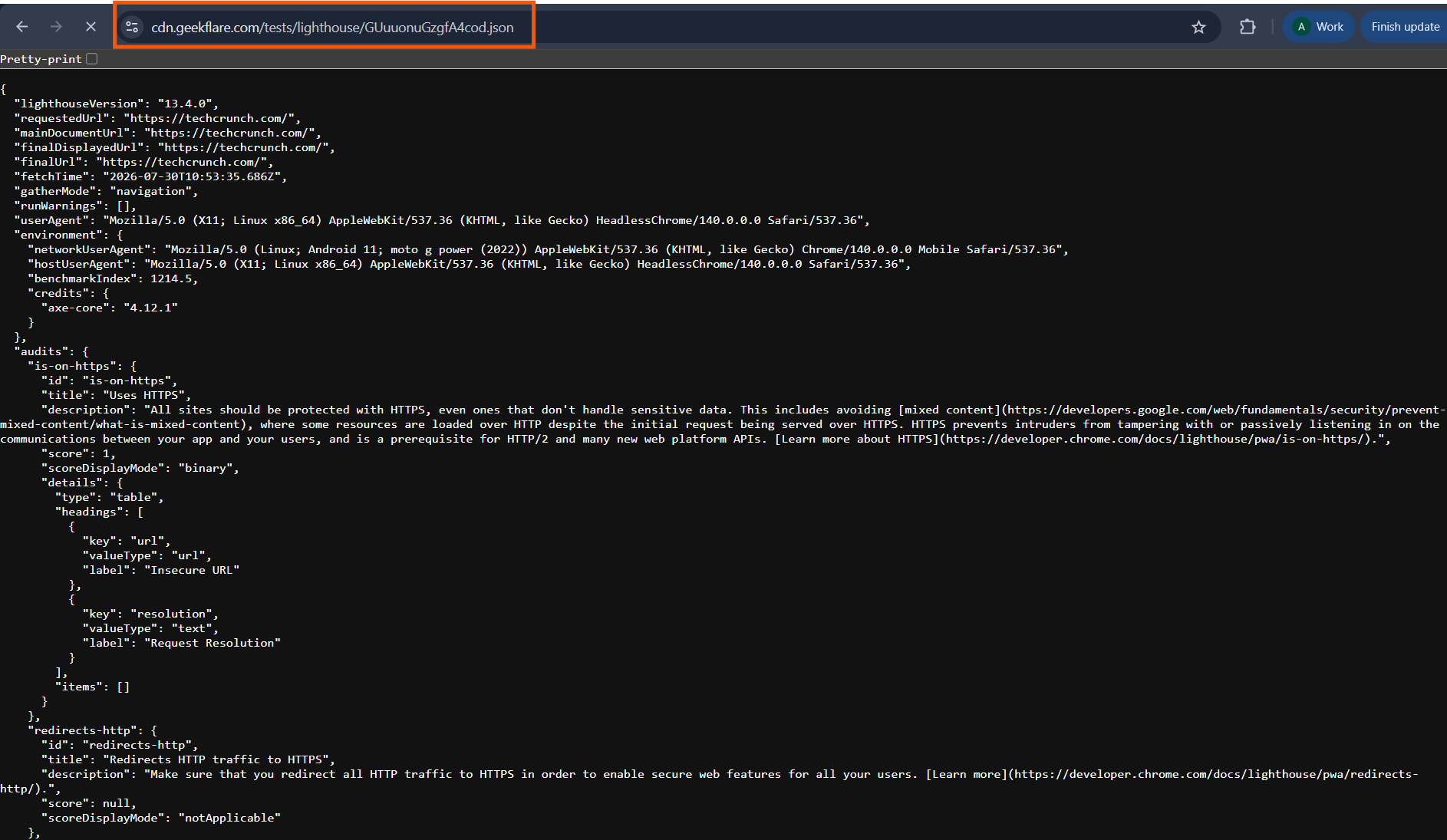
Open the URL from the data field in your browser. It displays the complete Lighthouse report for the audited website. The report includes performance metrics, accessibility results, SEO analysis, and best practice checks.
Method 2: Test the Lighthouse API in the Geekflare Playground
The Geekflare Playground lets you test the Lighthouse API from your browser. You can change the audit settings, add Lighthouse parameters, and generate sample code before you integrate the API into your application.
Open the Geekflare Playground and enter your API key. Next, enter the website URL you want to audit. This example uses the official MDN Web Docs website:
https://developer.mozilla.org/You can also add optional Lighthouse parameters in the Extra Parameters field. Here are a few examples:
- Audit only the SEO category:
--only-categories=seo - Audit only the Performance category:
--only-categories=performance - Audit only the Accessibility category:
--only-categories=accessibility - Generate the report in HTML format:
--output=html - Disable screen emulation:
--screenEmulation.disabled
You can also select a device type, choose a proxy country, and enable Follow Redirect if your website redirects to another URL. After you configure the request, click Send Request.
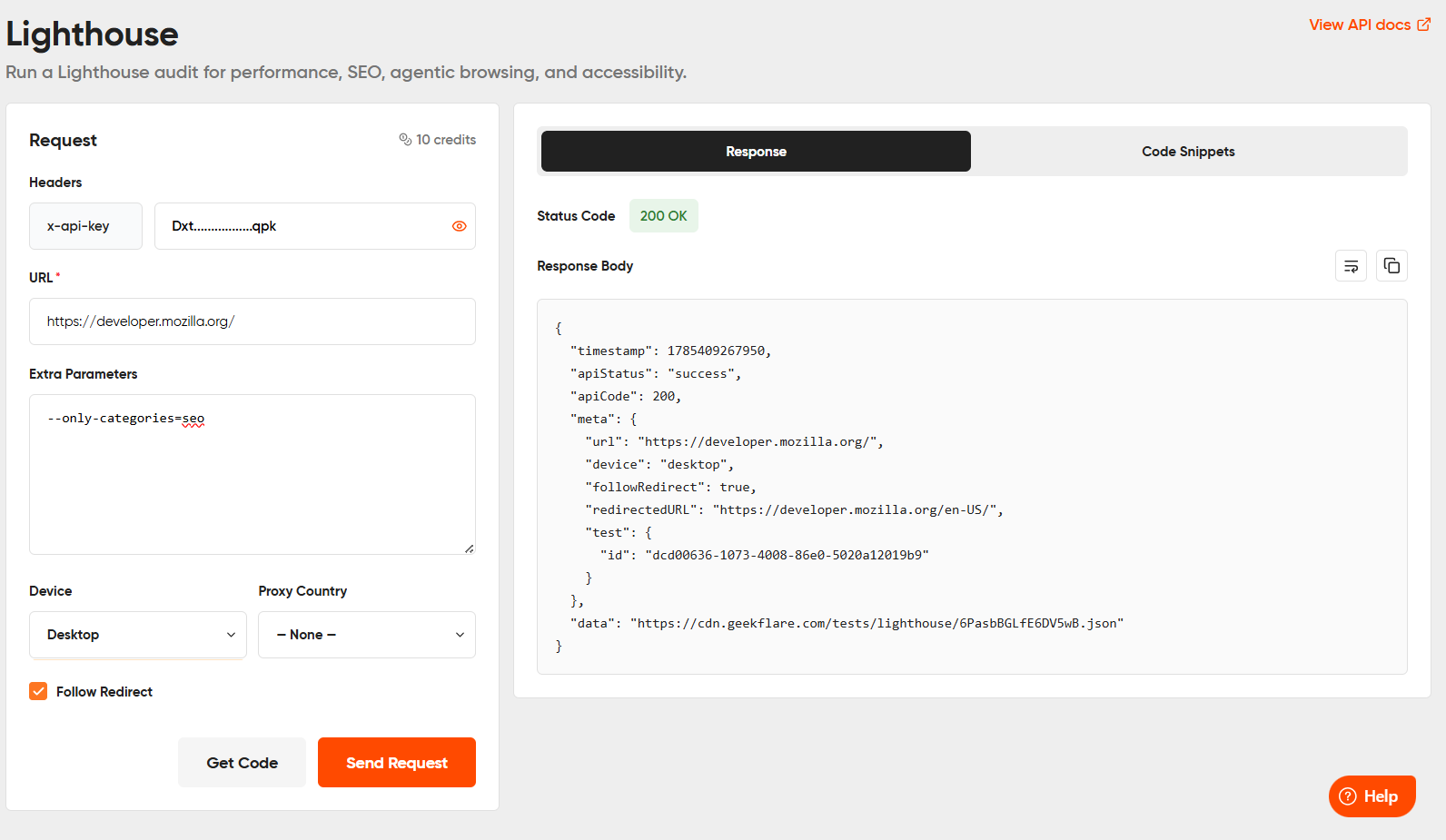
The Playground generates the audit report and also provides ready-to-use code snippets in multiple programming languages such as Python, cURL, Node, and PHP. You can copy the generated code directly into your project or adjust the settings to run another audit.
Method 3: Audit a Website Using the Free Website Audit Tool
The Geekflare Website Audit Tool is a good option if you want to run a Lighthouse audit from your browser. It does not require an API key or any code. Enter the website URL, choose the device type, and start the audit.
This example audits the BBC homepage in Mobile mode to see how the website performs on smartphones.
https://www.bbc.comSelect Mobile and click Run Audit.
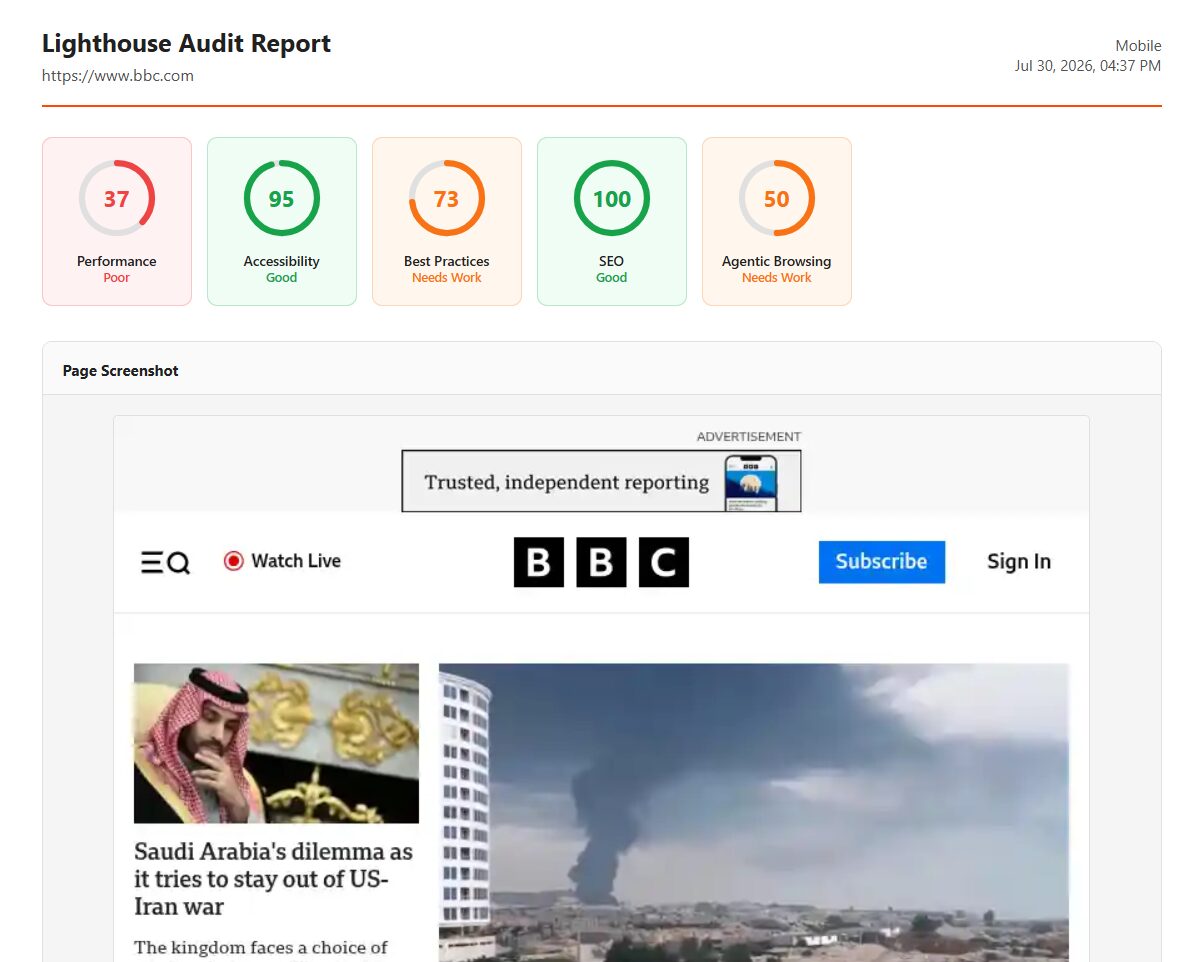
The audit report displays Lighthouse scores for performance, accessibility, best practices, and SEO. It also includes Core Web Vitals, page speed metrics, and recommendations to improve the website.
Which Option Should You Choose?
Each option is designed for a different workflow. Choose the one that best fits your requirements.
| Option | Best For |
|---|---|
| Lighthouse API | Automating website audits, integrating Lighthouse into applications, and running audits in CI/CD pipelines. |
| Geekflare Playground | Testing API requests, trying different Lighthouse parameters, and generating code snippets before adding the API to your application. |
| Free Website Audit Tool | Running quick Lighthouse audits from a browser. Ideal for website owners, marketers, SEO professionals, and users who do not want to write code. |
Conclusion
Website performance directly affects user experience and search visibility. Running Lighthouse audits regularly helps you identify issues early and verify the impact of every update. Pick the approach that fits your workflow and use the reports to keep your website fast, accessible, and optimized.
If you want to learn more about the Lighthouse API, explore the official Geekflare documentation. It covers all available request parameters, response formats, supported SDKs, and advanced configuration options to help you get the most out of the API.
Frequently Asked Questions
What is the Lighthouse API?
The Lighthouse API lets you run Google Lighthouse audits programmatically. It analyzes a website for performance, accessibility, SEO, and best practices, then returns a detailed report that you can use in applications, monitoring systems, or CI/CD pipelines.
Can I use the Lighthouse API with Node.js?
Yes. You can integrate the Lighthouse API into a Node.js application using the Geekflare Node.js SDK. It lets you send audit requests, generate Lighthouse reports, and automate website performance testing with a few lines of code.
Can I use the Lighthouse API as a website performance API?
Yes. The Lighthouse API works as a website performance API by measuring page performance, accessibility, SEO, and best practices. It also supports desktop and mobile audits, advanced Lighthouse parameters, and HTML or JSON reports.
What metrics does the Lighthouse API report?
The Lighthouse API reports website performance metrics, accessibility scores, SEO results, and best practice checks. Depending on the audit, the report also includes Core Web Vitals, page speed metrics, and recommendations to improve your website.





