


Make offers a built-in AI Web Search app to retrieve online information and generate AI-powered responses.
Since Make supports third-party integrations, you can also access similar search capabilities at a much lower cost through Geekflare Integration. Its search functionality offers more control over search sources.
Both options serve different purposes. This article compares their features, capabilities, and pricing to help you decide which search integration fits your workflow.
Understanding Make AI Web Search
Make AI Web Search is a built-in app that retrieves online information and generates AI-powered responses using OpenAI's GPT-5 nano model.
It provides a generate a response module where you can enter a prompt and optionally configure location parameters such as city, country, region, and time zone. You can also enable JSON parsing to receive structured responses.
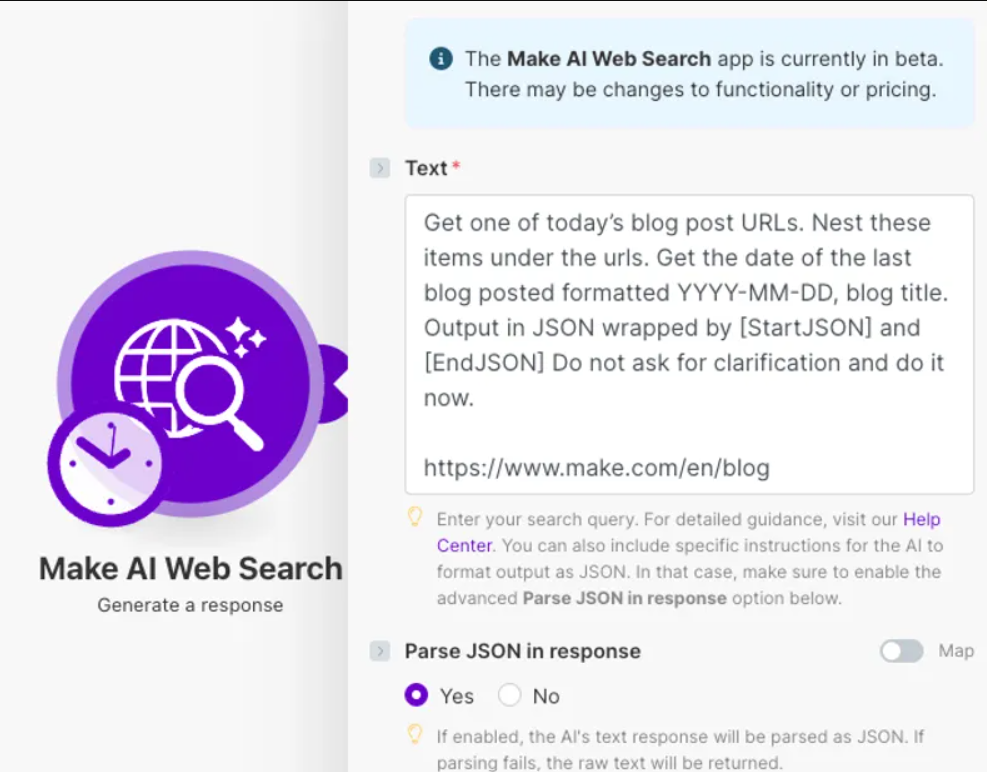
The app is available on paid Make plans and uses credits based on input and output token consumption.
It retrieves information from static HTML webpages and uses the retrieved content to generate responses.
Make AI Web Search vs Geekflare Web Search
Both integrations let you retrieve information from the web through Make scenarios, but they differ in how they handle search requests and return results.
Geekflare offers integrations with automation tools such as Make. These integrations let users access external web data directly within their workflows.
| Feature | Make AI Web Search | Geekflare Web Search |
|---|---|---|
| Availability | Paid Make plans | 500 free API credits |
| Search input | Natural-language prompts | Search queries |
| AI response generation | Built-in GPT-5 nano | Search results with optional page scraping for AI context |
| Search sources | Web search | Web, News, Images |
| Result limit | No configurable result limit exposed | Up to 100 results |
| Category filtering | Not exposed as a configurable option | General, Code, PDF, Research, LinkedIn, Wiki |
| Time filtering | Not exposed as a configurable option | Hours, days, weeks, months, years |
| Location filtering | City, country, region, timezone | Country using ISO alpha-2 code |
| Output formats | AI-generated text with optional JSON parsing | JSON, Markdown, HTML |
| Webpage extraction | Retrieves content from static HTML webpages | Can scrape search result pages for additional AI context |
Which One Should You Choose?
Choose Make AI Web Search if you want a straightforward way to search the web and receive AI-generated answers directly within Make.
Choose Geekflare Web Search if you want greater control over search parameters, multiple search sources, category and time filters, or the option to scrape webpages for additional context.
Geekflare also offers other web data extraction actions through its Make integration. Its 500 free API credits provide a way to explore these capabilities and build search workflows at no initial API cost.
Set Up Geekflare Web Search in Make
Let’s create a Make scenario that uses Geekflare to retrieve web search results and explore its available search options.
Prerequisites
Before getting started, make sure you have:
- A Make account.
- A Geekflare API key from your Geekflare dashboard.
- A search query to test the integration.
Step 1: Create a New Scenario
Log in to your Make account and click Create a new scenario. Give the scenario a name, such as Web Search Workflow.
Step 2: Add the Geekflare Integration
Click the + icon in the scenario editor, search for Geekflare, and select the integration.
Step 3: Select the Search Action
Choose Search the web from the available Geekflare actions.
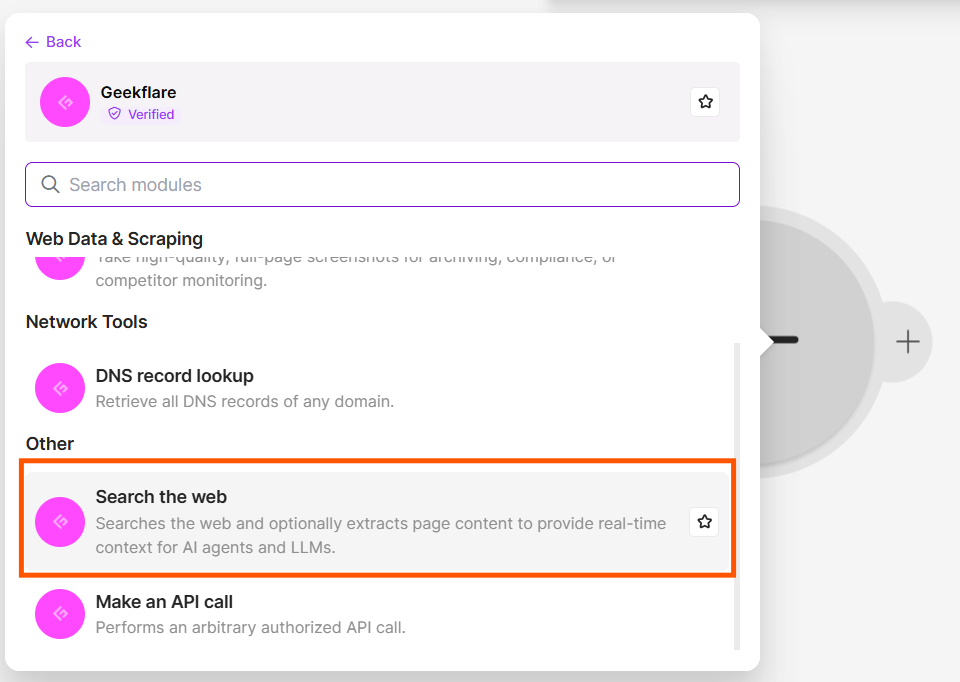
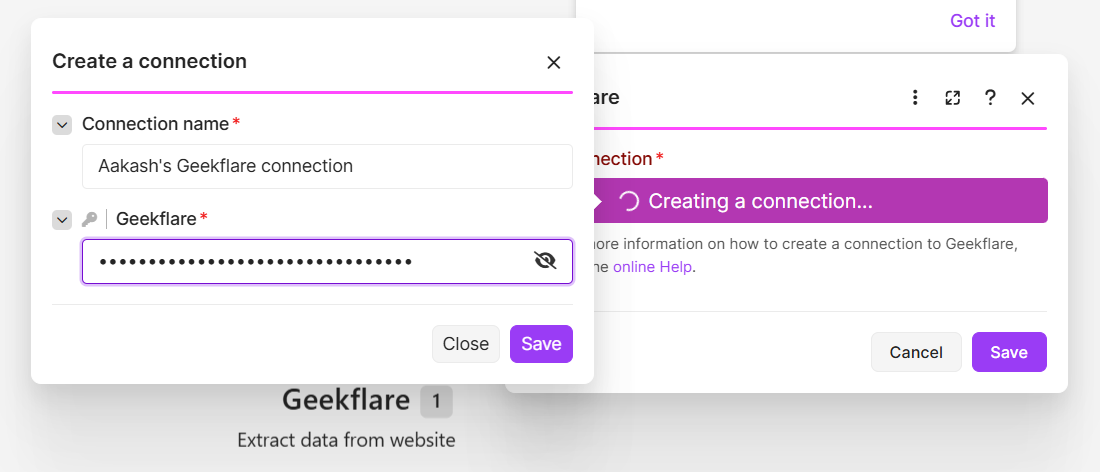
Step 4: Connect Your Geekflare Account
Click Create a connection and enter your Geekflare API key. Save the connection to authenticate the integration.
Step 5: Enter a Search Query
In the Search Query field, enter the topic you want to search for.
For this example, use:
Latest developments in artificial intelligenceStep 6: Configure the Search Parameters
Configure the following parameters based on your search requirements:
| Parameter | Description | Selected Value |
|---|---|---|
| Result Limit | Set the maximum number of search results to retrieve. You can request up to 100 results. | 10 |
| Scrape Pages for AI Context? | Enable this option to scrape returned search result pages and provide their content as additional context for an LLM. | No |
| Scrape Limit | Set the maximum number of result pages to scrape. You can scrape up to 10 pages. | 5 |
| Search Source | Choose Web, News, or Images. | Web |
| Category | Filter results by General, Code, PDF, Research, LinkedIn, or Wiki. | General |
| Output Format | Choose JSON, Markdown, or HTML. | JSON |
| Time Filter | Restrict results based on publication or indexing time. Options include hours, days, weeks, and months. | Not configured |
| Location (ISO alpha-2) | Enter a two-letter country code, such as us or gb, to prioritize results from a specific country. | Not configured |
For this example, I’ve selected Web as the search source and JSON as the output format. You can adjust the other parameters based on your search requirements.
Step 7: Execute the Module
Click Run once to execute the scenario. Once the execution finishes, open the Geekflare module output to inspect the search results.
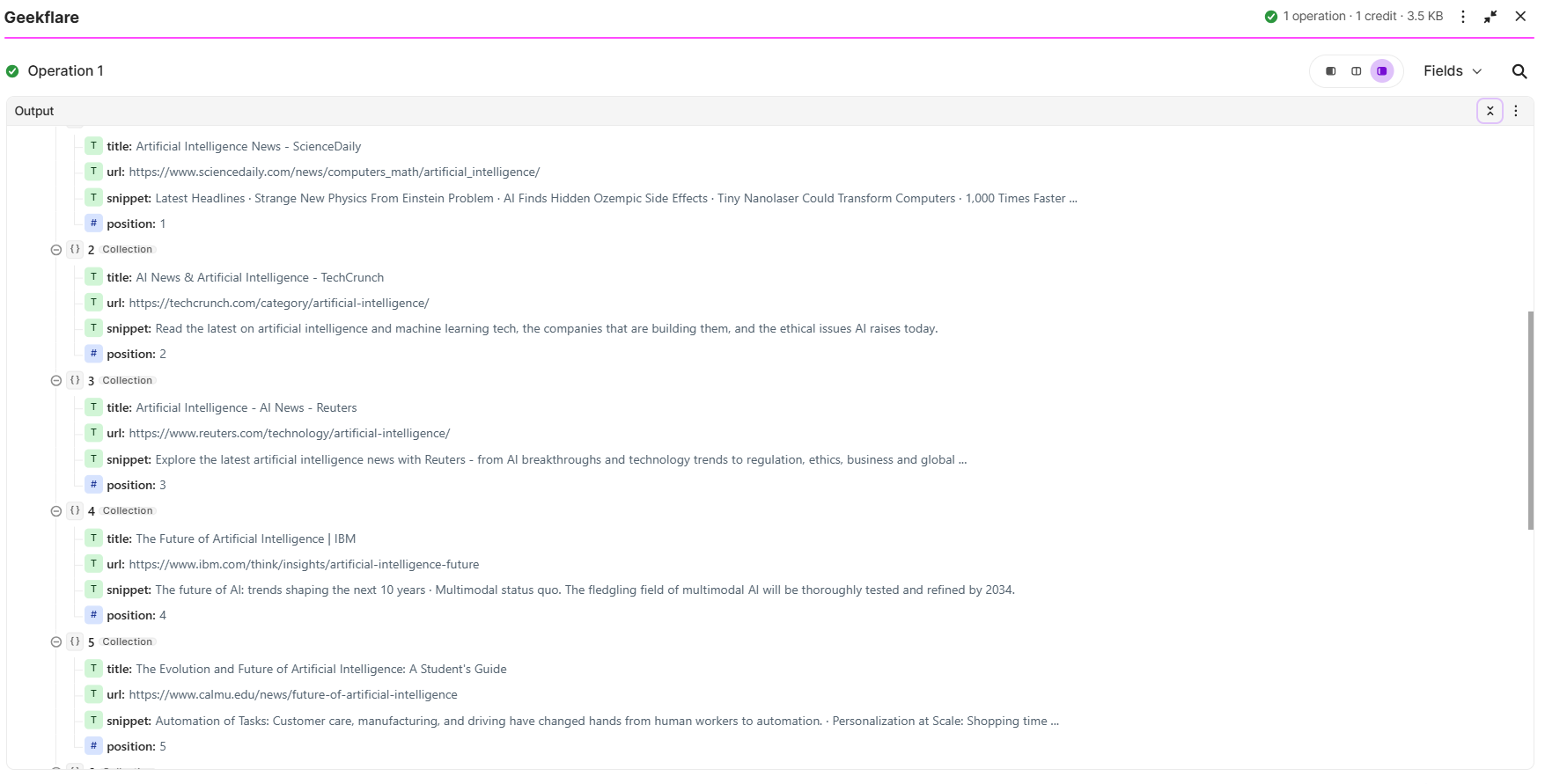
Check the returned titles, URLs, descriptions, and other available fields. You can also experiment with different search sources, categories, and time filters to see how they affect the results.
Try Other Search Types
You can also experiment with other search sources by changing the Search Source parameter.
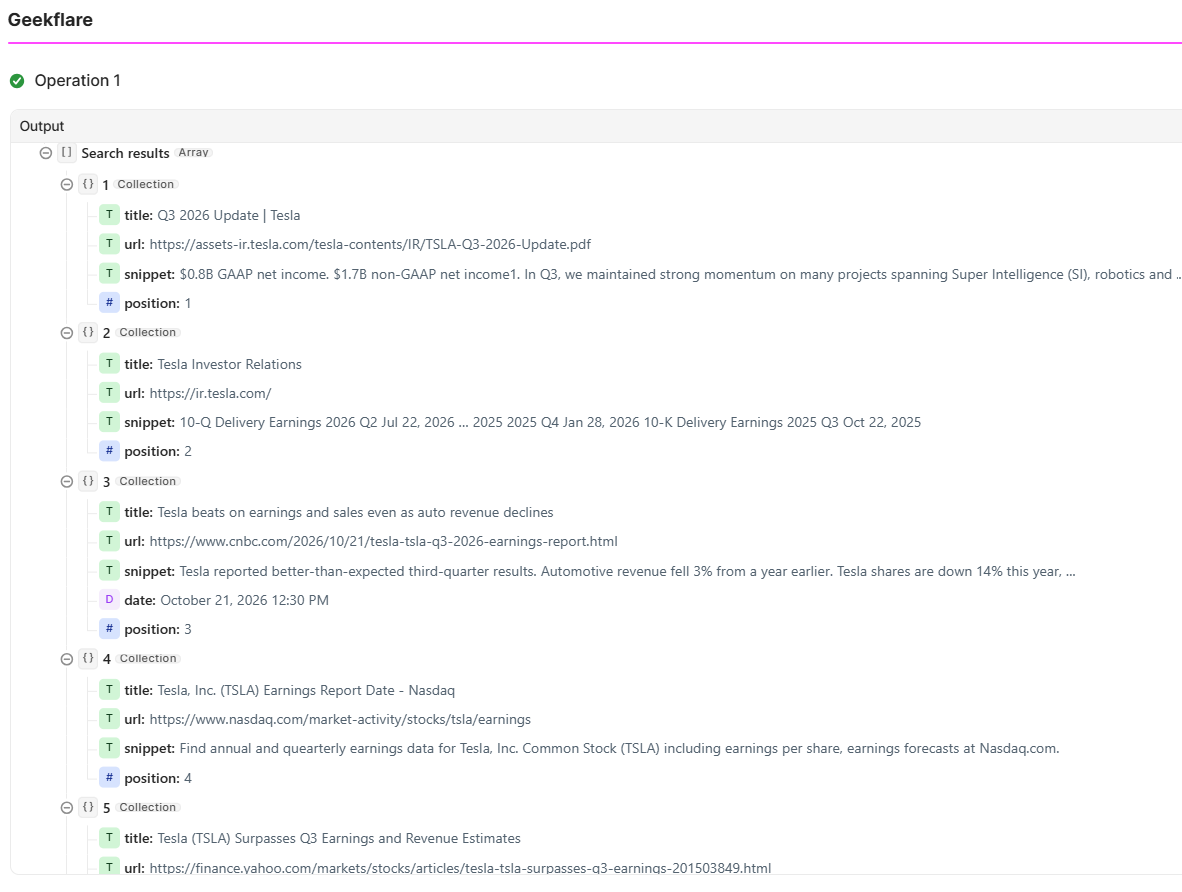
- News: Select
Newsto retrieve recent news articles. For example, use the queryTesla quarterly earnings and market developments.
- Images: Select
Imagesto find images related to a topic. For example, use the queryElectric vehicle technology and charging stations.
Run the module again after changing the search source and query. Inspect the output to see how the returned results differ between web, news, and image searches.
Frequently Asked Questions
Is Make AI Web Search free?
No. Make AI Web Search is available on paid Make plans. You can use Geekflare’s Make integration as an alternative, with 500 free API credits.
Can I search for news using Geekflare in Make?
Yes. Select News under the Search Source parameter to retrieve news-related results.
Can I limit web search results in Make?
Yes. Geekflare lets you configure the Result Limit parameter to retrieve up to 100 search results per request.
Can Geekflare scrape webpages from search results?
Yes. `Enable Scrape Pages for AI Context? to extract content from search result pages. You can configure the Scrape Limit to process up to 10 pages.
What output formats does Geekflare support for web search?
Geekflare supports JSON, Markdown, and HTML output formats.
Conclusion
Make AI Web Search and Geekflare Web Search serve different needs in Make scenarios. Make AI Web Search works well when you want AI-generated answers directly from a search prompt.
Geekflare gives you more control over search sources, result limits, filters, and output formats. You can also scrape search result pages to provide additional context to an LLM.
Choose the integration that fits your workflow. If you want to build more flexible web search workflows, Geekflare’s 500 free API credits give you a starting point to test its capabilities.