

An Android emulator runs the Android operating system inside a window on your Windows PC or Mac. You can play mobile games with a keyboard, mouse, or controller, use phone-only apps on a big screen, or test an app across devices you don’t own.
The right emulator depends on why you need one. Gamers want high frame rates and good key mapping, developers want accurate virtual devices and debugging tools, and QA teams usually need many devices in the cloud at once.
Android Emulators Comparison
| Tool | Type | Best for | Platforms | Price | Link |
|---|---|---|---|---|---|
| 01 TestMu AI | Online Android emulator | Testing apps on emulators and real phones in a browser | Browser (cloud) | Free plan, paid from $15/month | Visit |
| 02 Android Studio Emulator | Official developer emulator | Building and debugging Android apps | Windows, macOS, Linux, ChromeOS | Free | Visit |
| 03 BlueStacks | Gaming emulator | Playing Android games on Windows and Mac | Windows, macOS (BlueStacks Air) | Free, Prime $4.99/month | Visit |
| 04 Genymotion | Developer and QA emulator | Testing apps on desktop or in the cloud | Windows, macOS, Linux, cloud | Free for personal use, from $239.99/year | Visit |
| 05 Google Play Games on PC | Official gaming app | Playing supported Play Store games on Windows | Windows | Free | Visit |
| 06 LDPlayer | Gaming emulator | Multi-instance gaming on Windows | Windows | Free | Visit |
| 07 MEmu Play | Gaming emulator | A light emulator for older PCs | Windows | Free | Visit |
| 08 BrowserStack | Real device cloud | Testing on real phones without a device lab | Browser (cloud) | From $12.50/month | Visit |
| 09 Appetize | Browser-based emulator | Sharing app demos in a browser | Browser (cloud) | Free plan, paid from $59/month | Visit |
| 10 Sauce Labs | Virtual and real device cloud | Emulators and real devices for enterprise teams | Browser (cloud) | From $39/month | Visit |
Best Android Emulators
01. TestMu AI
Online Android emulatorTesting apps on emulators and real phones in a browser
TestMu AI runs Android emulators and real Android phones in the cloud, so you test from a browser tab. It covers web and app testing, with 3,000+ browsers and what the company says are more than 50,000 real devices.
Emulators are the cheaper way to check layouts and flows across Android versions and screen sizes, and real devices are there for the final pass. You can run tests by yourself or plug in Appium, Espresso, or another framework, and HyperExecute spreads automated runs across many machines to finish them faster.
I started a session on the free plan with the bundled sample app on a Galaxy S23 running Android 15. The phone appeared within seconds, with a countdown of under two minutes. I added a to-do item, ticked another one off, and filtered the device logs down to the app.
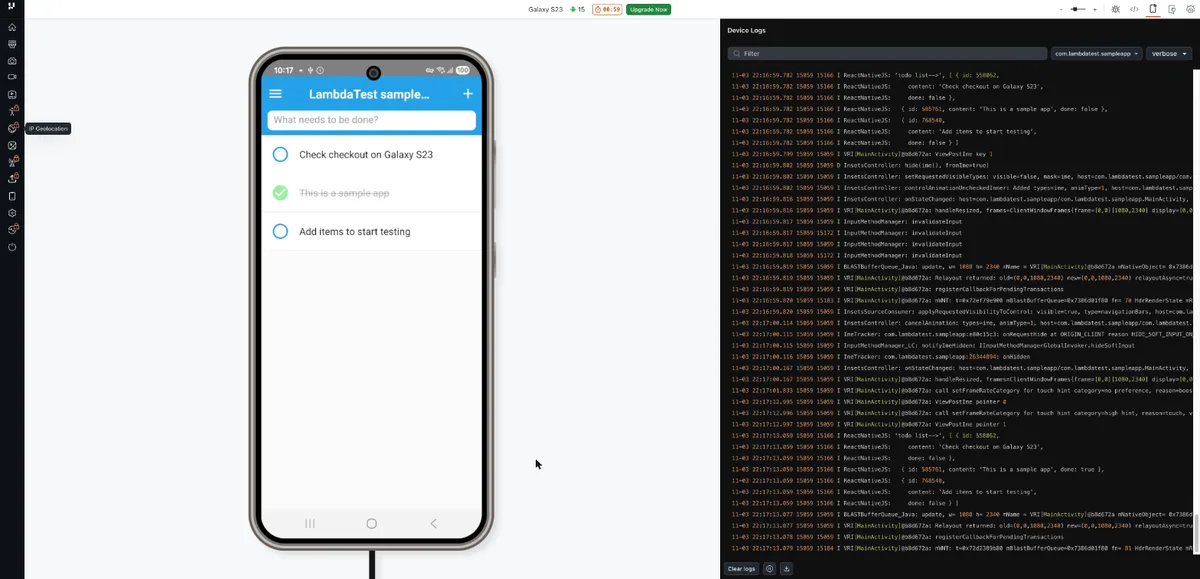
Time zone, language, and GPS location controls worked on the free plan, while network throttling and IP geolocation were locked. For teams that need more device controls, our mobile testing tools guide compares the main device clouds.
Our take: The quickest way to see an Android app on many devices without installing anything. The free plan is a short preview, and paid plans start low for live testing on emulators.
Standout features:
- Android emulators and real devices in one account
- Geolocation testing from more than 170 countries
- Logs, screenshots, and video recordings for every session
- Integrations with Jira, Slack, GitHub, and CI tools
Pros & Cons
PROS
CONS
Pricing
Live testing on emulators and simulators starts at $15 per month, and on real devices at $39 per month.
02. Android Studio Emulator
Official developer emulatorBuilding and debugging Android apps
Android Studio is Google’s official IDE for Android apps, and it has its own emulator. It’s the reference emulator for Android development, and new Android versions usually show up here first as system images.
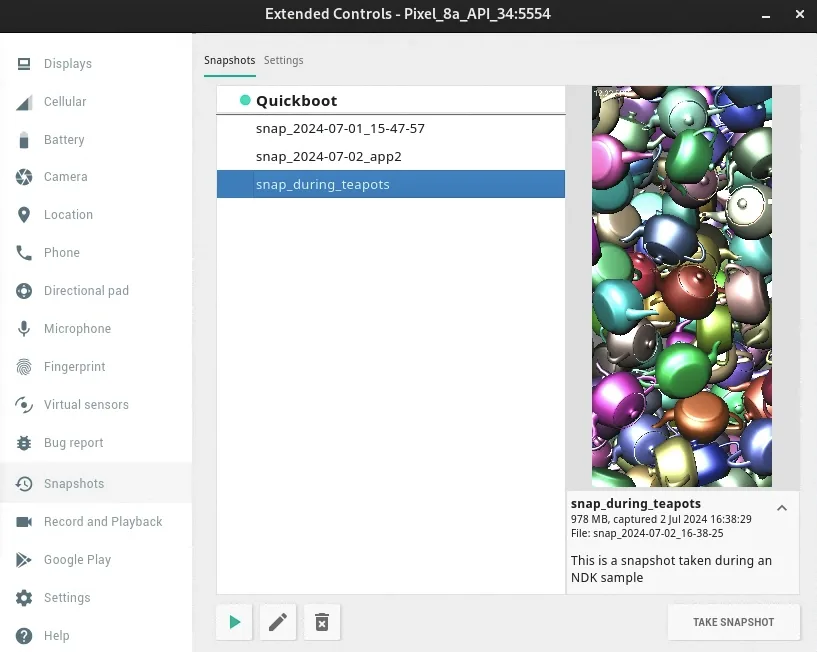
You create virtual devices in Device Manager for phones, tablets, Wear OS, Android TV, and Android Auto, each with its own screen size and Android version. Extended controls let you simulate GPS routes, battery level, calls and texts, fingerprint sensors, and rotation, and snapshots save a device’s state so it boots in seconds.
It works with Kotlin, Java, and C or C++ projects, and adb, Logcat, and the debugger connect to the emulator just like a real phone. Setting it up can take some time if you’re new to Android development.
Google recommends 16 GB of RAM for running the emulator, 32 GB for comfortable use, and an SSD with at least 16 GB free, on 64-bit Windows 10, macOS 12, or newer.
Our take: The first emulator to install if you build Android apps. It’s free, but it requires some development experience.
Standout features:
- Virtual devices for phones, foldables, tablets, TV, Wear OS, and Auto
- Simulated GPS, sensors, battery, calls, and network speed
- Quick Boot snapshots for fast restarts
- Full debugging with adb, Logcat, and Android Studio profilers
Pros & Cons
PROS
CONS
03. BlueStacks
Gaming emulatorPlaying Android games on Windows and Mac
BlueStacks is the best-known Android emulator for PC gaming. BlueStacks 5 is still the main download for Windows, BlueStacks Air brings it to Apple Silicon Macs, and BlueStacks 16 entered beta in October 2026 with Android 16.
When I tried it, setup was quick and games ran smoothly. Real-time translation was a nice surprise in LifeAfter, which has a lot of on-screen text in other languages. BlueStacks translated it instantly, so I could follow the story.
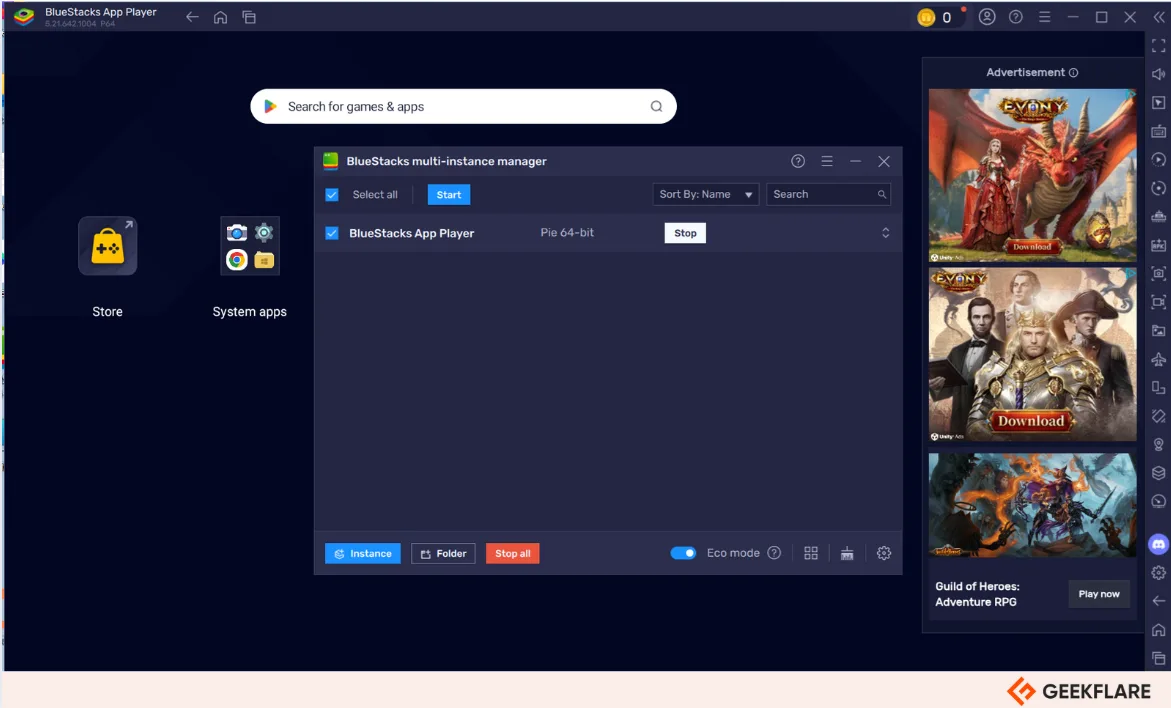
The Macros feature recorded a sequence of actions and assigned it to a key, which helped in RPGs and strategy games. Macros save as .json files, so you can share them. I also ran a game alongside a chat app, and Eco Mode kept CPU and GPU use down while I multitasked.
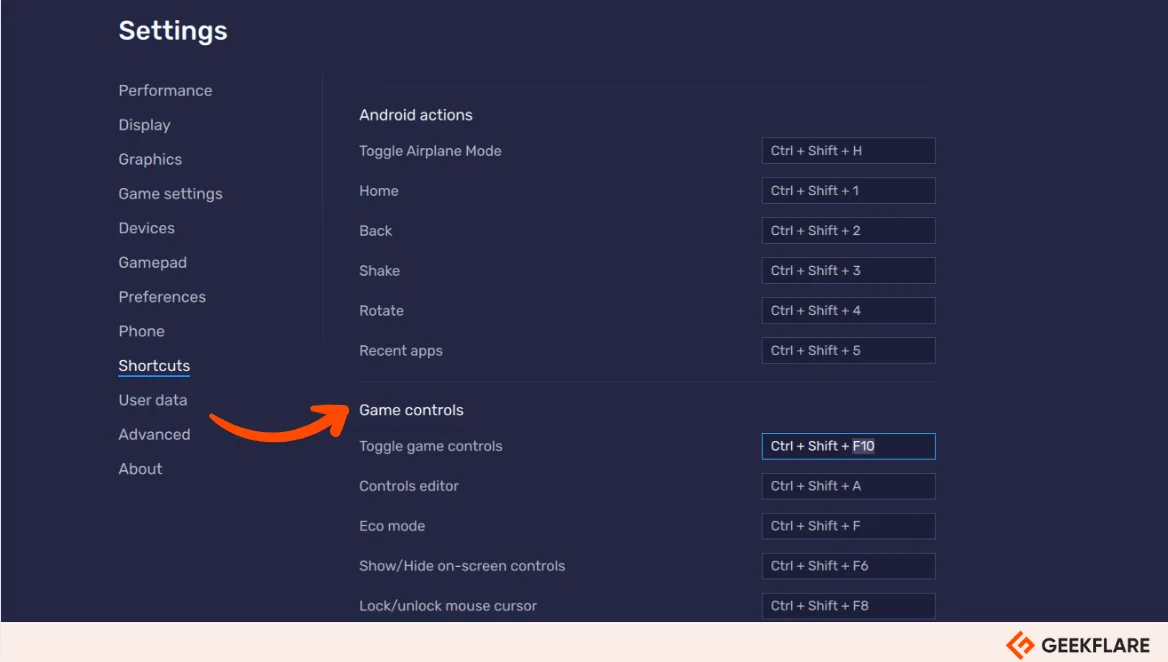
Streaming to Twitch or YouTube works from inside the app. The free version shows ads.
Our take: The easiest pick for gamers on Windows, and one of the few good options on a Mac.
Standout features:
- Preset game controls and a key mapping editor
- Macros and multi-instance manager with Eco Mode
- Real-time on-screen translation
- High frame rate mode and a choice of OpenGL, DirectX, or Vulkan rendering
Pros & Cons
PROS
CONS
Pricing
BlueStacks is free on Windows and Mac.
BlueStacks Prime removes ads for $4.99 per month.
04. Genymotion
Developer and QA emulatorTesting apps on desktop or in the cloud
Genymotion is a fast Android emulator for developers and testers, available as a desktop app or as virtual devices in the cloud. Desktop runs on Windows, macOS, and Linux, and the cloud versions run in a browser or on AWS, Google Cloud, or Azure.
You can simulate real-world conditions such as low battery, a weak network, or changing GPS locations. Genymotion supports Android up to 16, and hardware profiles cover a wide range of screen sizes and device models.
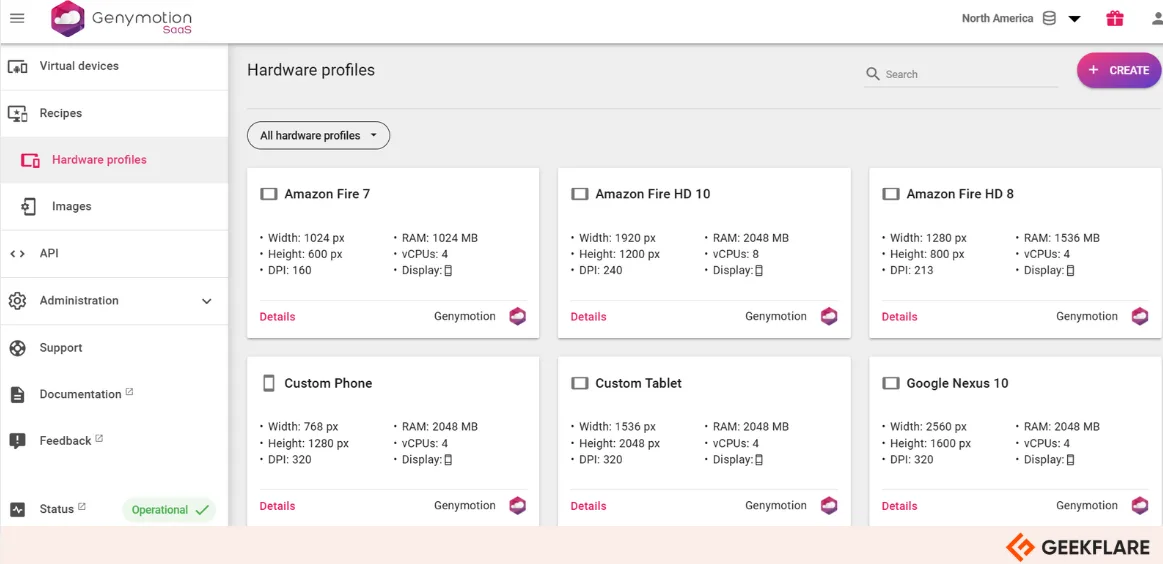
I found it fits well with Android Studio and IntelliJ IDEA, and Appium tests run against it like any device. In the cloud version, you can run the same test on several virtual devices at once to compare results.
Our take: A strong choice for app testers who want speed and fine control over device conditions. Personal use is free on desktop, and the cloud plans suit teams running tests at scale.
Standout features:
- GPS, battery, network, and sensor simulation
- Android Studio and IntelliJ plugins
- Parallel virtual devices in the cloud
- Images for Android versions up to 16
Pros & Cons
PROS
CONS
Pricing
Genymotion Desktop is free for personal use. Commercial licenses cost $239.99 per year for individuals and $479.99 for businesses.
Genymotion SaaS costs $0.06 per device-minute, or $219 per device per month for unlimited use.
05. Google Play Games on PC
Official gaming appPlaying supported Play Store games on Windows
Google Play Games on PC is Google’s own way to play Android games on Windows. It isn’t a general emulator, since you only get games whose developers make them available on PC, but those games run with keyboard, mouse, and controller support built in.
Progress and purchases sync with your phone, so you can start a game on mobile and continue on PC, and Google Play Points work as they do on Android.
Your PC needs Windows 10 or later, 8 GB of RAM, a 4-core CPU, an SSD with 10 GB free, and hardware virtualization turned on. Developers can use the separate Google Play Games on PC Developer Emulator to test their own games on Windows.
Our take: The safest way to play Android games on a Windows PC if your games are in its catalog. Choose a full emulator such as BlueStacks or LDPlayer for apps and games that aren’t.
Standout features:
- Official Google app with no third-party software
- Game progress synced between phone and PC
- Google Play Points on PC
- Developer Emulator for testing games on Windows
Pros & Cons
PROS
CONS
Pricing
Google Play Games on PC is free. Games cost the same as on Android.
06. LDPlayer
Gaming emulatorMulti-instance gaming on Windows
LDPlayer is a free, gaming-focused Android emulator for Windows. LDPlayer 14 runs Android 14, and LDPlayer 9 remains available for older games and lower-end PCs.
You can connect a game controller, record macros, and use preset key mapping for popular games, and it runs well on both Intel and AMD processors. Games from Google Play or APK files both install.
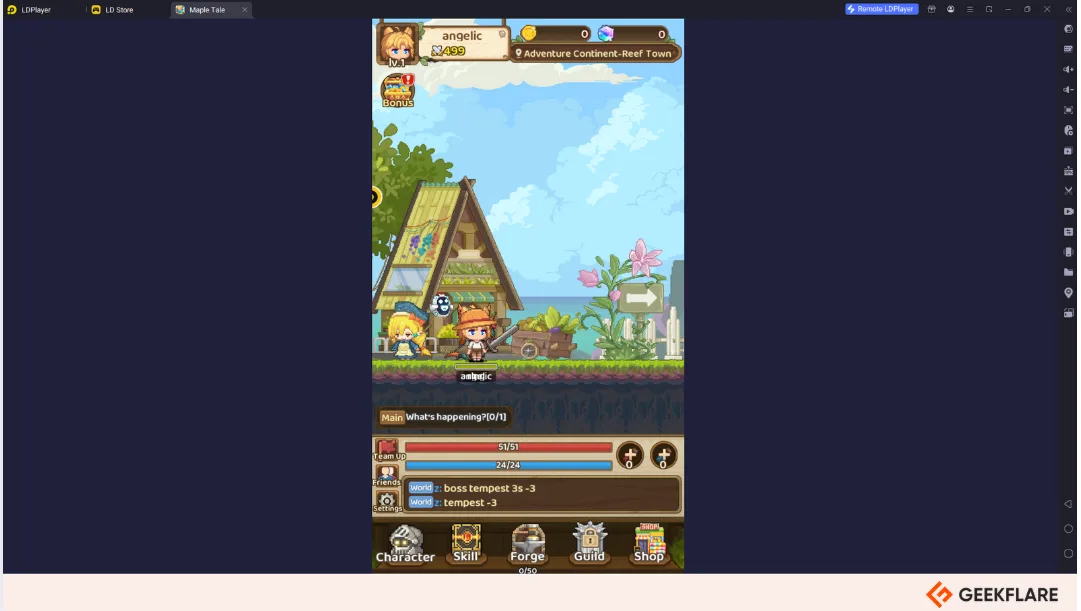
I played Maple Tale in portrait mode, and the controls and graphics were better than on my phone. The multi-instance manager can run several copies of a game at once, with a synchronizer that mirrors your clicks across all of them.
Our take: A good BlueStacks alternative for Windows gamers, especially if you run several accounts or instances at once.
Standout features:
- Android 14 engine in LDPlayer 14
- Unlimited multi-instance with click sync
- Cloud key mapping presets and full controller support
- Macro recording and auto click
Pros & Cons
PROS
CONS
07. MEmu Play
Gaming emulatorA light emulator for older PCs
MEmu Play is a free Android emulator for Windows that runs on both Intel and AMD chips. It gets regular updates.
You can install apps from its built-in app store or drag in an APK file, and custom keyboard and mouse controls make fast games easier to play.
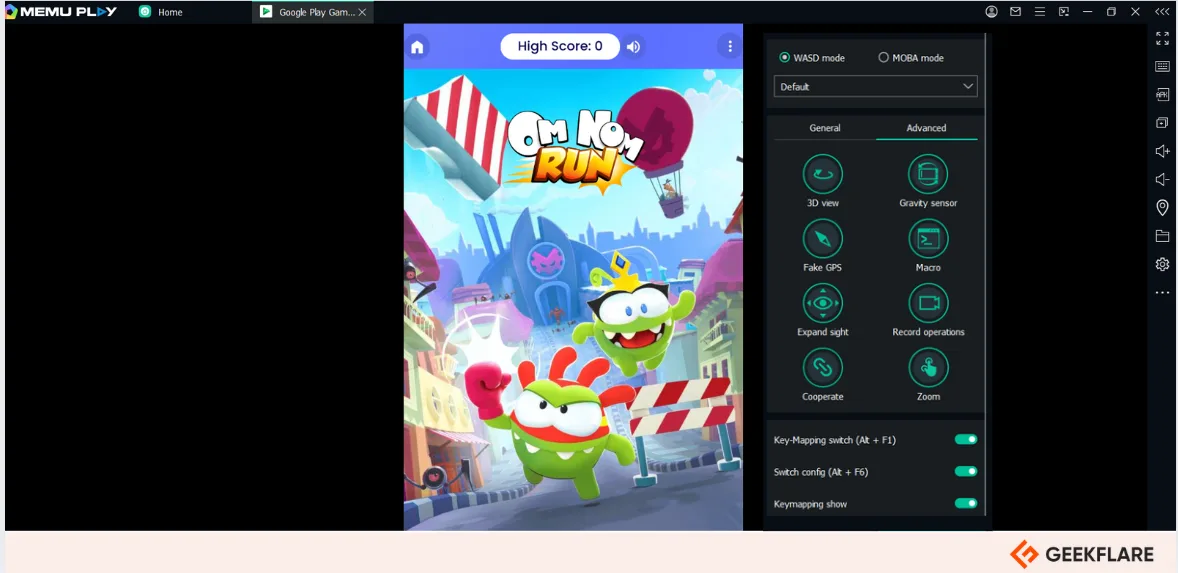
I tried the screen recorder while playing Om Nom Run, and it was simple to use. Custom controls also help in fast games like Subway Surfers and Geometry Dash.
Our take: A lightweight option for casual games on an older Windows PC.
Standout features:
- One-click APK install
- Custom keyboard and mouse mapping
- Built-in screen recorder
- Multiple instances
Pros & Cons
PROS
CONS
08. BrowserStack
Real device cloudTesting on real phones without a device lab
BrowserStack gives you real Android and iOS devices in the cloud rather than emulators. This is good when you need to see exactly how an app or site behaves on a specific phone. It has more than 30,000 real device units.
I’ve used it to check Geekflare’s site across phones. In my latest check, a real Galaxy S22 was ready with Chrome open about 10 seconds after I picked it. The live sessions include network logs, console logs, and controls for location, time zone, and device time. It integrates with Jira, Slack, GitHub, and Azure DevOps.
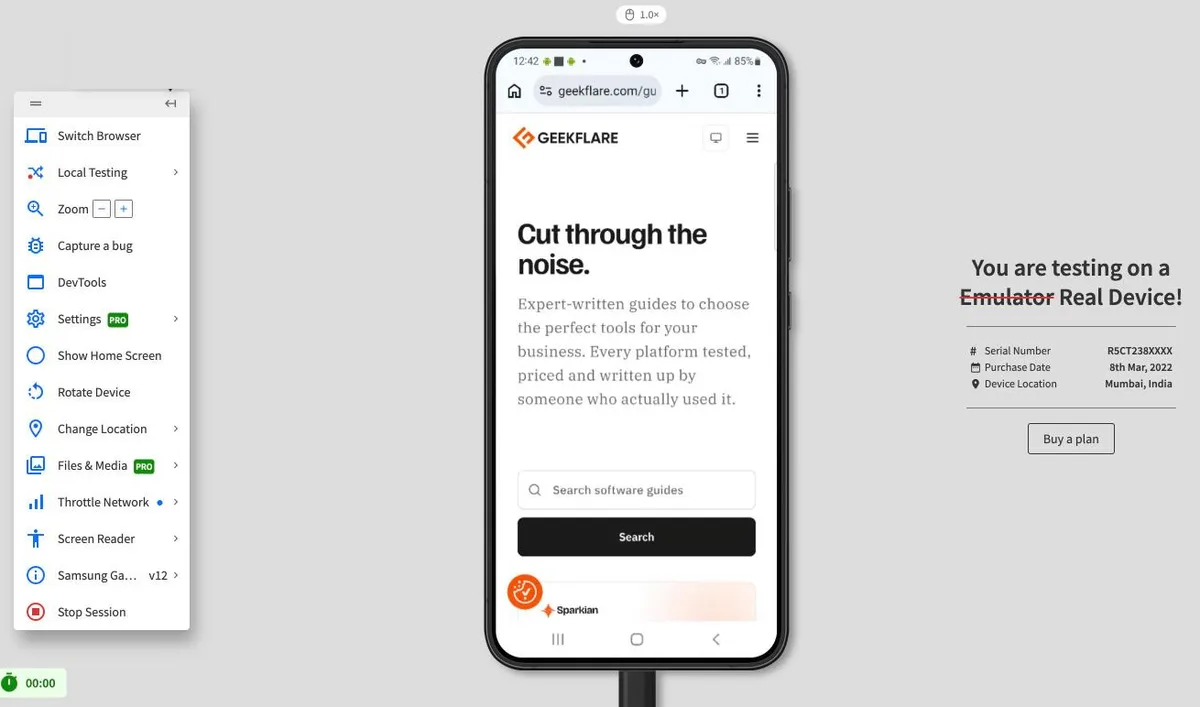
Our take: Choose BrowserStack when emulators aren’t enough and you need real hardware. Our mobile testing tools guide covers its plans in more detail.
Standout features:
- Real Android and iOS devices
- Local testing for staging sites and apps
- Location and time zone controls
- Accessibility testing tools
Pros & Cons
PROS
CONS
Pricing
A Freelancer plan offers 100 App Live minutes for $12.50 per month.
App Live starts at $39 per month for one user, billed annually.
09. Appetize
Browser-based emulatorSharing app demos in a browser
Appetize streams Android and iOS apps to a web browser. You upload an APK or iOS build, and within minutes anyone with the link can tap through it, with nothing to install.
Sharing demos with a team or clients is easy, and you can embed the app in a web page. I also tried the screenshot automation, which captures app screens across devices, languages, and orientations and can be scripted with the JavaScript SDK.
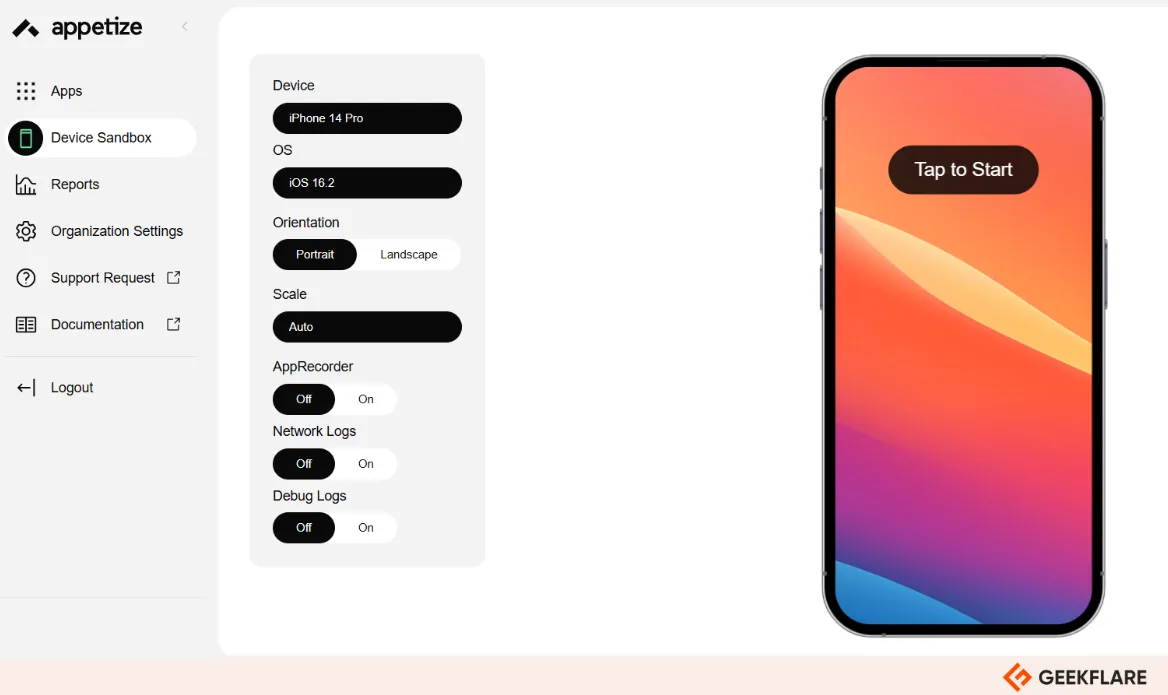
During testing, responses were slower when streaming apps in Firefox. The free plan is very limited, and paid plans can feel pricey for solo developers.
Our take: Best for showing an app to customers, support teams, or reviewers in a browser. Developers doing daily testing will get more from Android Studio or Genymotion.
Standout features:
- Apps run in any browser with nothing to install
- Embeddable app previews
- REST API and JavaScript SDK for automation
- Network and debug logs
Pros & Cons
PROS
CONS
Pricing
The free plan includes 30 minutes a month, with 3-minute sessions on up to 2 devices at once.
Starter costs $59 per month billed annually.
Premium costs $319 per month billed annually.
10. Sauce Labs
Virtual and real device cloudEmulators and real devices for enterprise teams
Sauce Labs runs Android emulators and iOS simulators in the cloud alongside real devices, so teams can run most tests on virtual devices and save real phones for the final pass. It supports Appium, Espresso, Selenium, Cypress, and Playwright.
When I tested it, every session came with a video recording, logs, and a screenshot history. In my latest run, a Pixel 9a emulator on Android 17 booted and loaded our site in under a minute. Sharing those with developers made it much easier to show what went wrong.
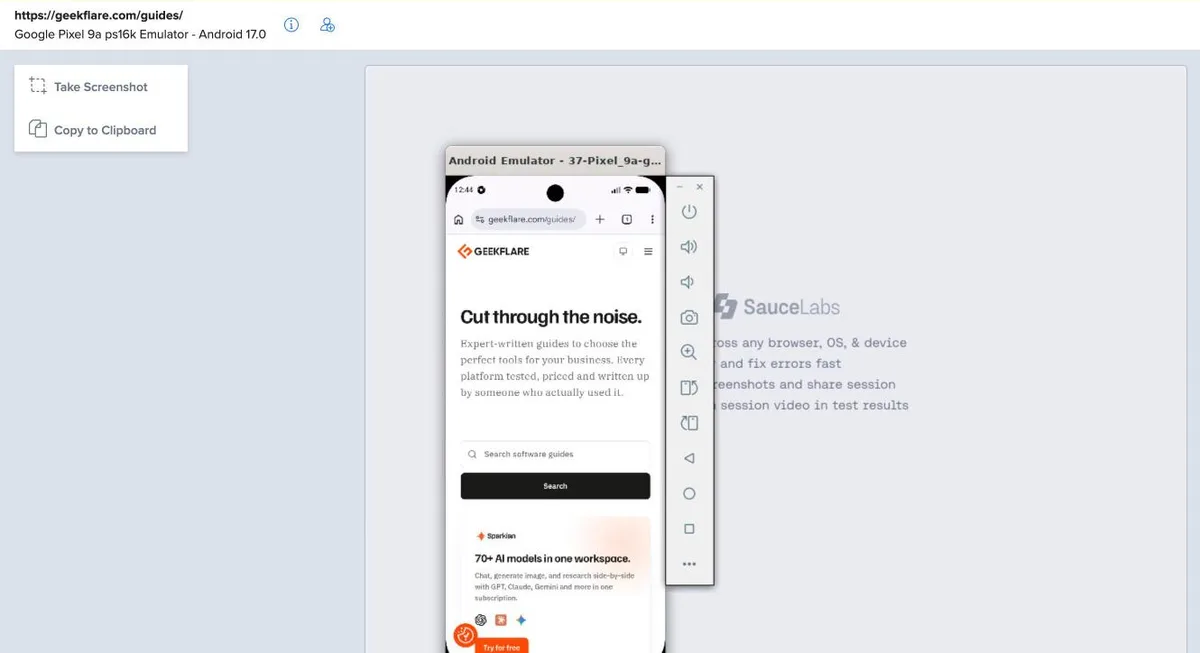
Our take: A good fit for larger teams that want emulators, real devices, and test analytics from one vendor.
Standout features:
- Android emulators and iOS simulators in the cloud
- Video, logs, and screenshots for every test
- Sauce AI for creating and analyzing tests
- SOC 2 Type II and ISO 27001 certified
Pros & Cons
PROS
CONS
Pricing
Live Testing costs $39 per month billed annually.
Virtual Device Cloud costs $149 per month billed annually for one parallel test.
Honorable Mentions
NetEase’s emulator for Windows and Mac can run Android 15 and Android 12 side by side. In February 2026, a security researcher alleged that the Mac app collected system details, so proceed with caution.
A free, open-source way to run Android in a container on Linux. It uses a LineageOS-based Android 13 image and runs apps at near-native speed, but it needs a Wayland desktop.
Amazon’s pay-as-you-go cloud of real Android and iOS devices costs $0.17 per device minute, with free minutes to start. It suits teams already on AWS.
A real device platform focused on performance, tracking load times, network behavior, and audio and video quality on devices in many countries.
A no-code testing platform with Android emulators and real devices, where tests are written in plain English. Pricing is by quote.
What Are Android Emulators Used For?
- Gamers use them to play mobile games on a bigger screen with a keyboard, mouse, or controller, and to run several game accounts at once.
- Developers use them to build and debug apps across Android versions and screen sizes without buying a drawer full of phones.
- QA teams run automated tests on many virtual devices in parallel, often in the cloud.
- Everyone else uses them to try Android apps that have no desktop version.
How Do Android Emulators Work?
An emulator creates a virtual Android device on your computer. It runs a real Android system image on virtualized hardware, using your CPU’s virtualization features to stay fast, and translates your mouse, keyboard, and screen into touch input and a phone display.
Most emulators need hardware virtualization turned on, and plenty of RAM.
Emulators vs. Real Devices
Emulators are free or cheap, quick to reset, and good enough for most development and gaming. They can’t fully reproduce a real phone’s battery drain, camera, heat, or carrier network, though, and some apps detect emulators and refuse to run.
For testing a release, most teams run their checks on emulators and finish on real devices.
Conclusion
For playing games on a PC, BlueStacks is the safest all-round choice, and LDPlayer is close behind for running several instances. Google Play Games on PC is worth installing first if your games are there.
Developers should start with the free Android Studio Emulator and look at Genymotion for flexible virtual devices. For testing across many devices from a browser, TestMu AI’s free plan is an easy place to start.