


Website screenshots can be useful for documentation, reporting, content review, and other workflows that rely on visual information from webpages. Capturing and sharing these images manually can take time, especially when the process involves multiple websites or applications.
Geekflare makes website screenshot capture easy, and its n8n integration lets you include this task in automated workflows. You can send the captured screenshots to other applications for storage, reporting, or further processing.
In this guide, you’ll learn how to set up website screenshot automation in n8n using Geekflare and use the captured screenshots in other applications.
Prerequisites
Before you begin, make sure you have:
- A Geekflare API key from the Geekflare dashboard.
- An n8n account.
- The URL of the website you want to capture.
Connecting Geekflare to n8n
Follow these steps to set up the integration.
Step 1: Install the Geekflare Node
Open n8n and create a new workflow. Click the + icon to add a node and search for Geekflare. Select the integration and install it if prompted.
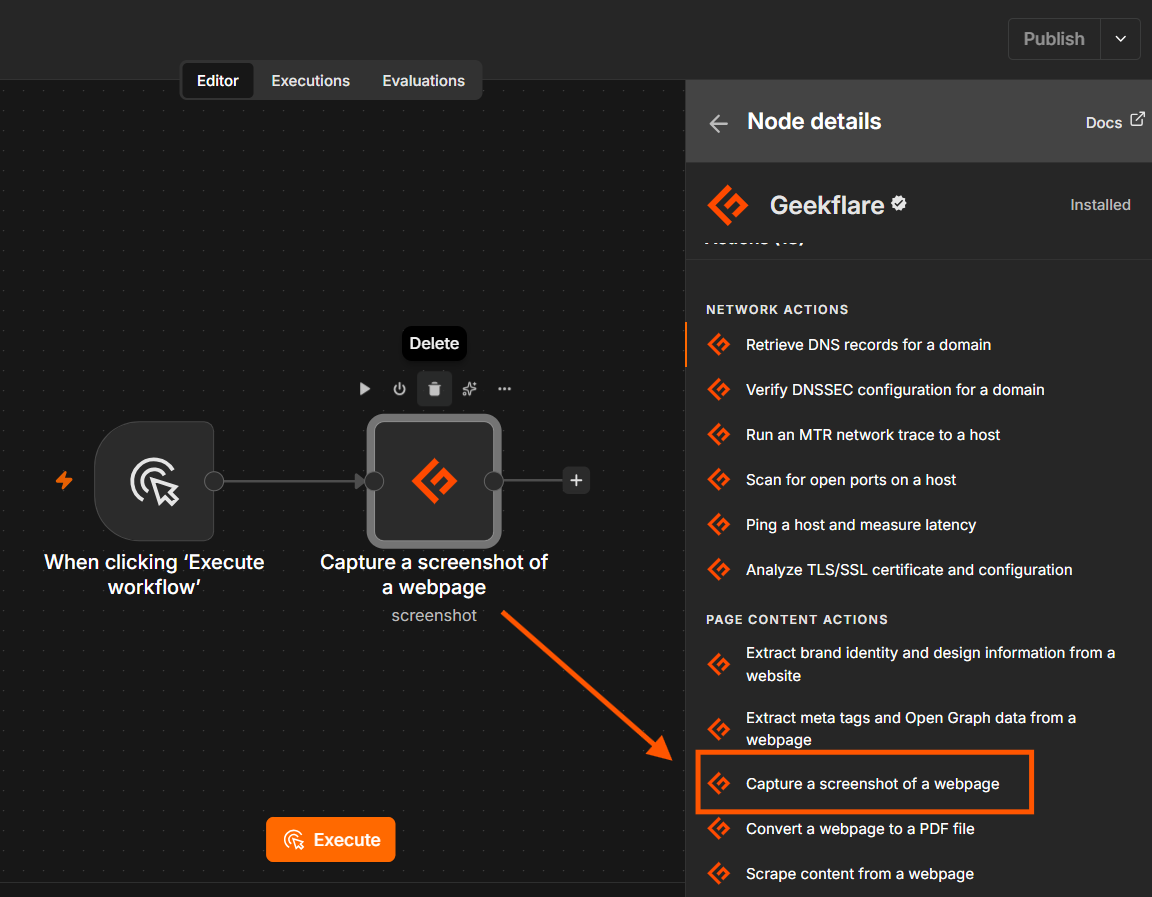
Step 2: Select the Screenshot Action
Geekflare provides 18 different actions in n8n. Select Capture a Screenshot of a webpage, under page content actions.
Step 3: Connect Your Geekflare Account
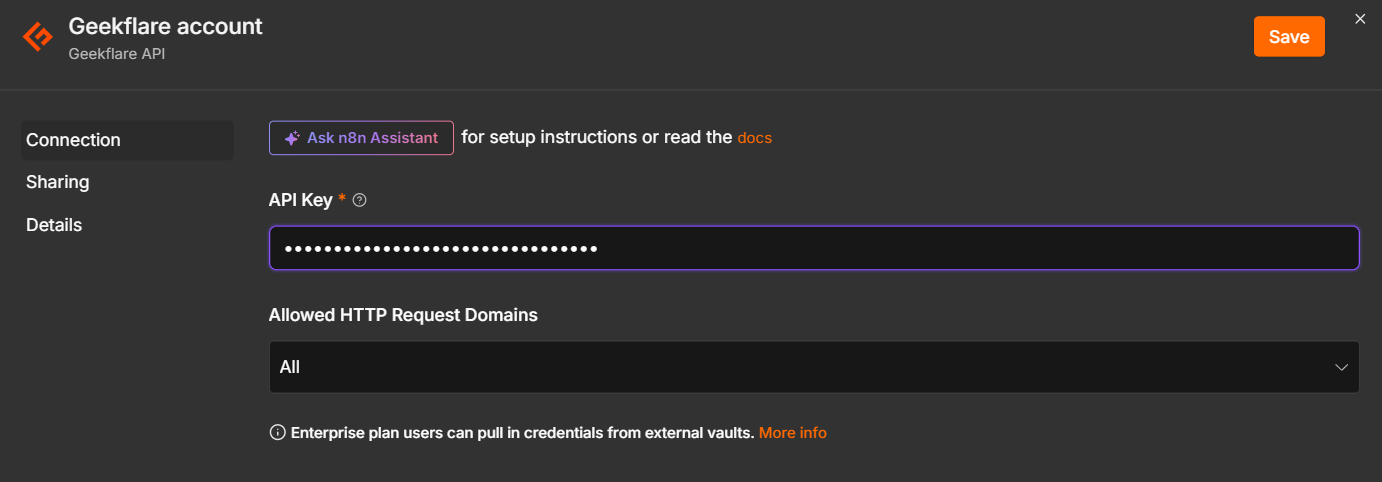
Click Connect and enter your Geekflare API key in the pop-up dialog. Now your Geekflare account is connected.
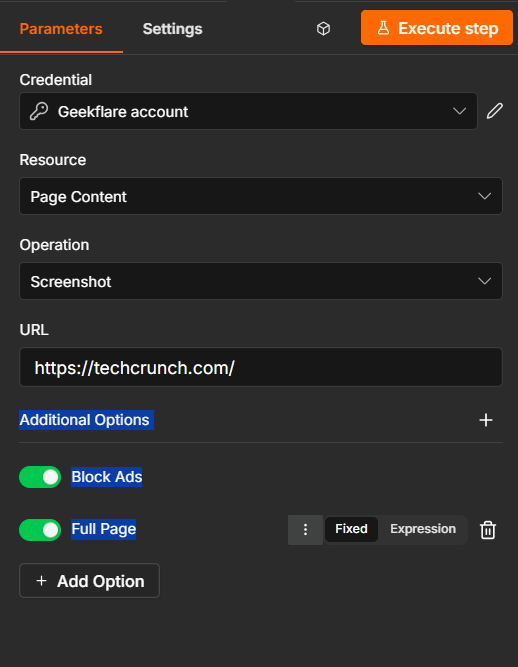
Step 4: Enter the Website URL
In the URL field, enter the address of the website you want to capture. For this example, we’ll use https://techcrunch.com/.
Step 5: Configure the Screenshot Options
Under Additional Options, click Add Option to add the settings you need. For this example, add Block Ads and Full Page separately.
- Block Ads: Enable this option to remove advertisements from the captured webpage and get a cleaner screenshot.
- Full Page: Enable this option to capture the entire webpage, including content below the visible screen.
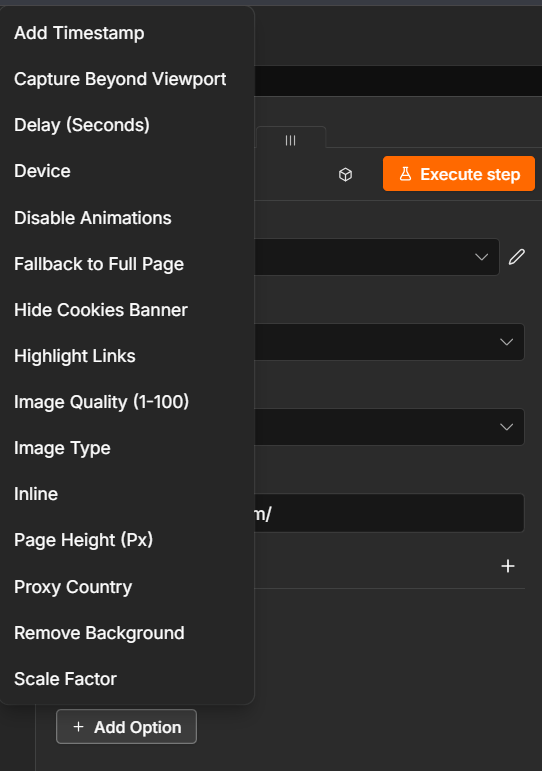
You can add other available options based on your requirements, such as delays, timestamps, CAPTCHA handling, animation controls, and so on.
Step 6: Execute the Node
Click Execute step to run the screenshot request. Review the output to confirm that the screenshot was captured successfully.
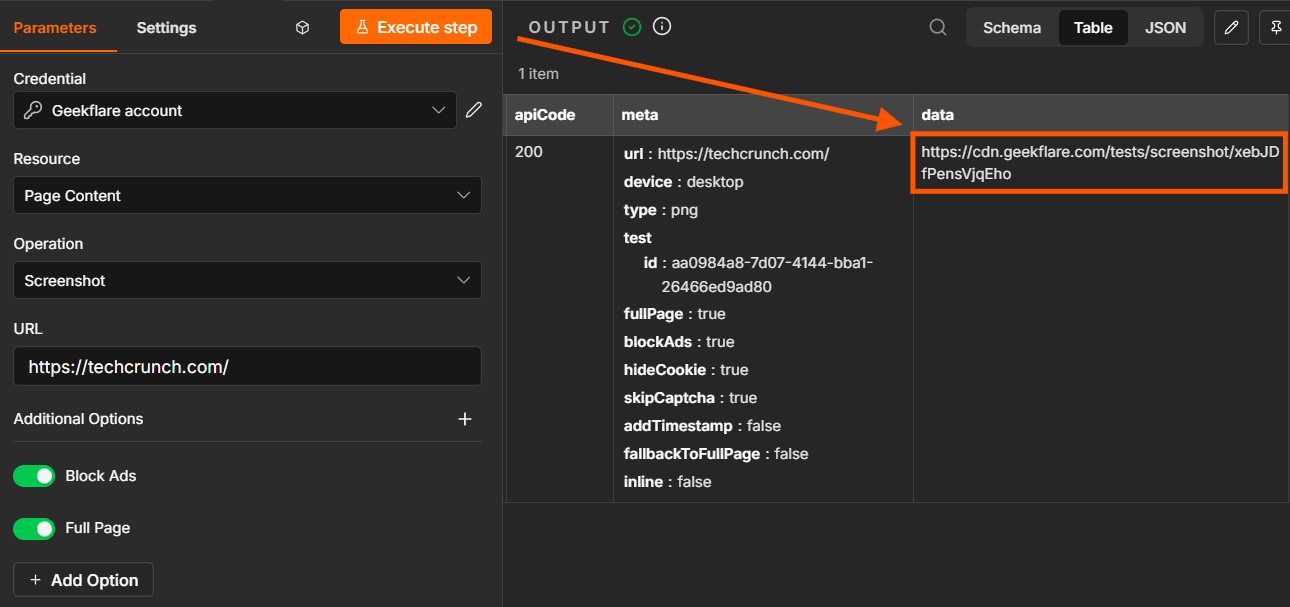
Once the node works as expected, you can connect it to other nodes to send or process the screenshot in your n8n workflow.
Here is the captured screenshot:
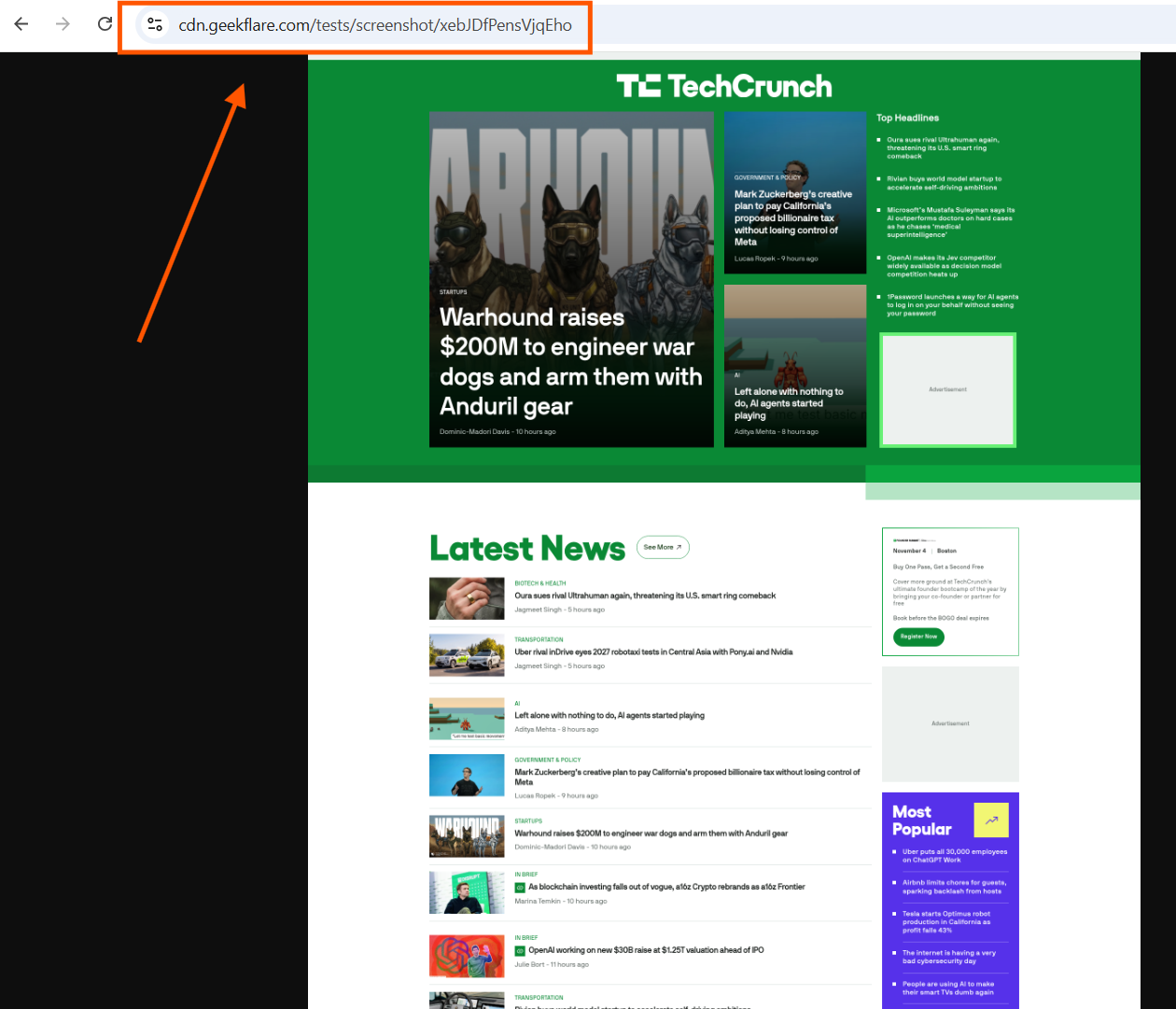
How Can You Use Website Screenshots in n8n Workflows?
Website screenshots offer many possibilities in n8n, depending on your workflow, the tasks you want to automate, and the applications you want to connect.
Here are a few examples:
- Website monitoring: Capture screenshots at scheduled intervals and save them to Google Drive to maintain a visual record of webpage changes.
- Competitor research: Capture competitor webpages and send the screenshots to Slack to share them with your team for review.
- Content documentation: Capture webpages and store the screenshots in Notion alongside research notes and reference material.
- Automated reporting: Add website screenshots to reports in Google Docs and share them with relevant team members.
- Website review: Send captured screenshots to an AI vision model through an n8n integration to analyze page layouts, identify visible UI issues, or review design elements.
Sending the Screenshot to Google Drive
Now that the Geekflare Screenshot node is configured, let’s execute the workflow and save the captured image to Google Drive.
Step 1: Retrieve the Screenshot
Add an HTTP Request node after the Geekflare node. Configure the following settings:
- Method: GET
- URL:
{{ $json.data }}
This expression passes the screenshot URL returned by Geekflare to the HTTP Request node.
Click Execute step. Open the Binary tab in the output panel to verify that the screenshot has been retrieved successfully.
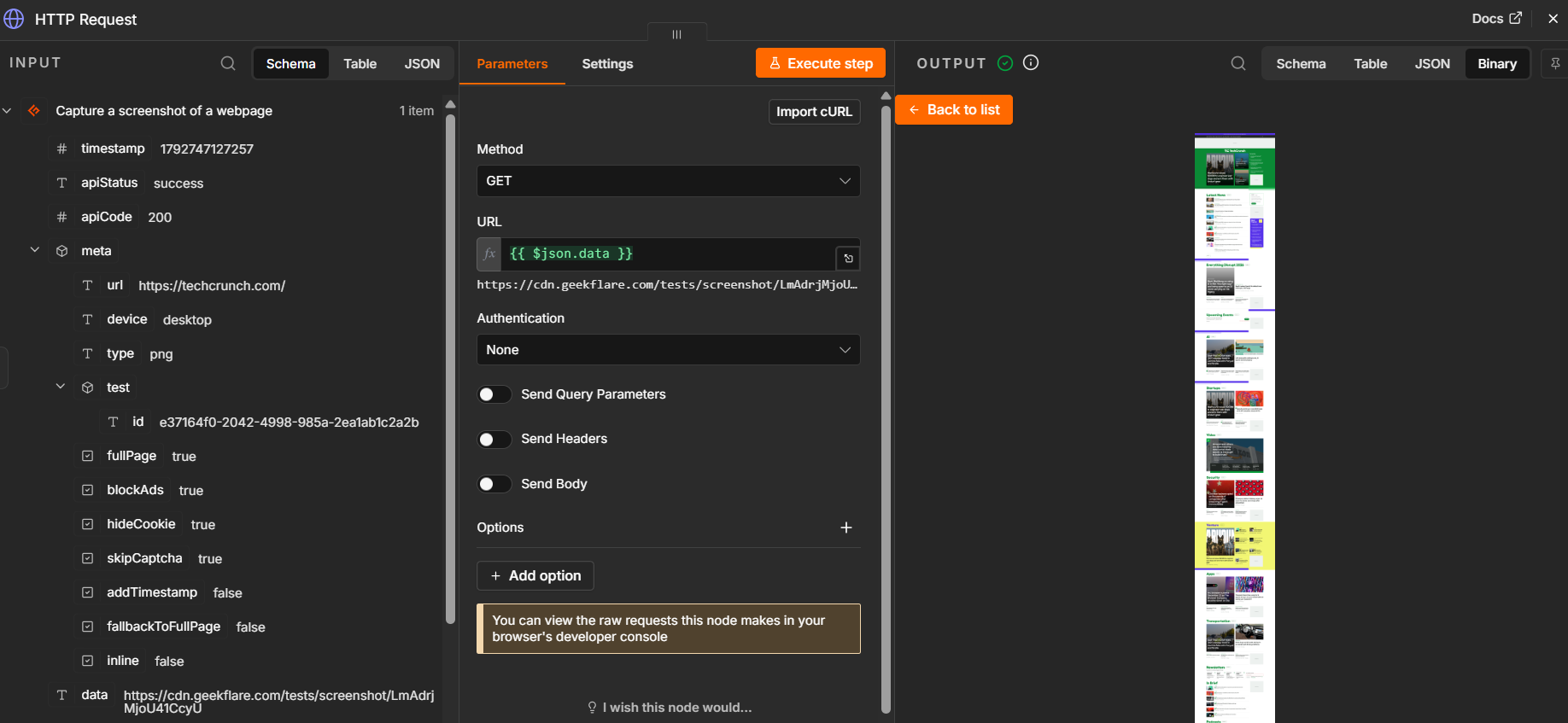
Step 2: Configure the Google Drive Upload
Add a Google Drive node after the HTTP Request node. Select File as the Resource and Upload as the Operation.
Connect your Google account if you haven’t already.
Configure the following fields:
- Input Data Field Name: Enter
datato use the binary image returned by the HTTP Request node. - File Name: Enter
Response.png. - Parent Drive: Select My Drive or your preferred drive.
- Parent Folder: Choose the folder where you want to store the screenshot.
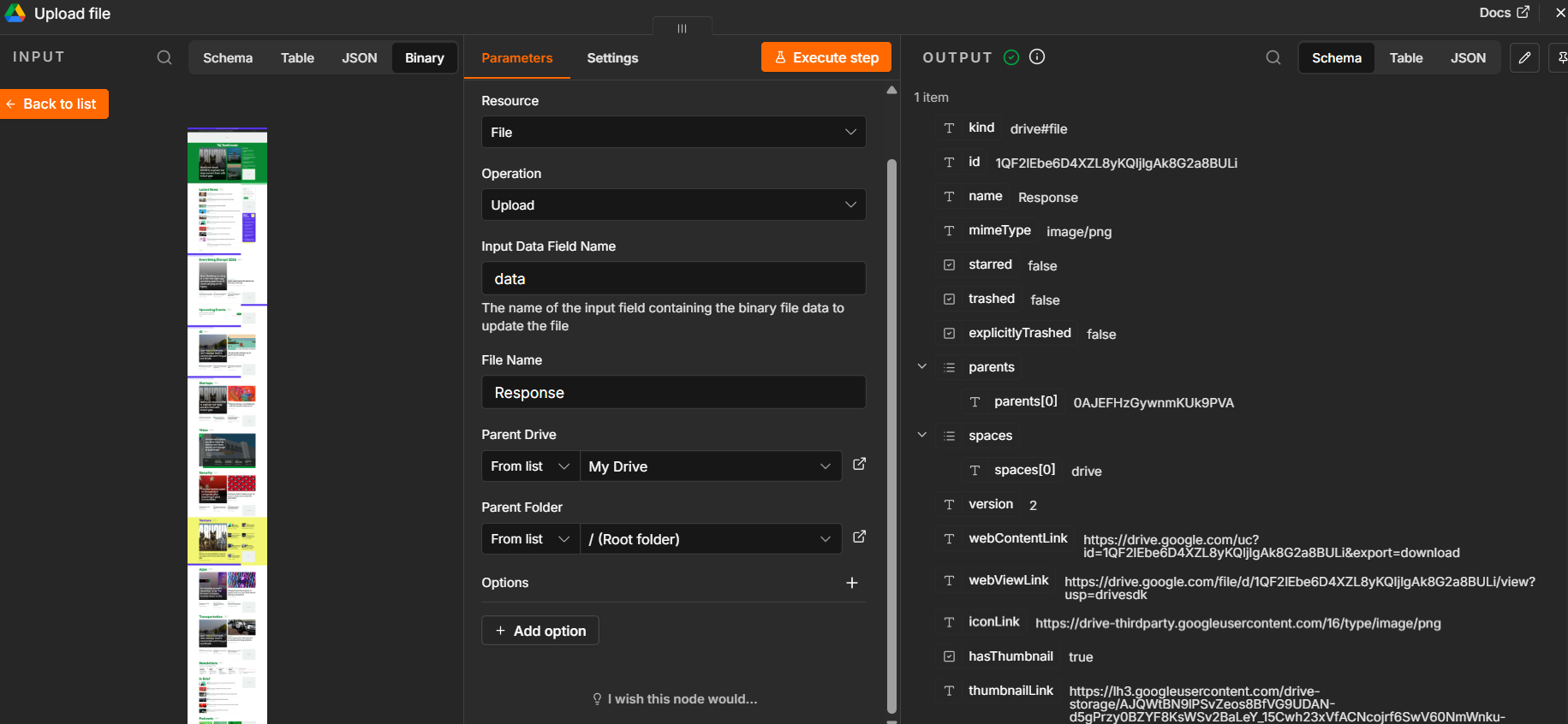
Step 3: Execute and Verify the Upload
Click Execute step to upload the screenshot to Google Drive. Once the operation succeeds, check the output panel for the uploaded file’s details.
Open Google Drive and navigate to your selected folder to verify that the screenshot is available. You can also use the returned webViewLink to open the uploaded image directly.
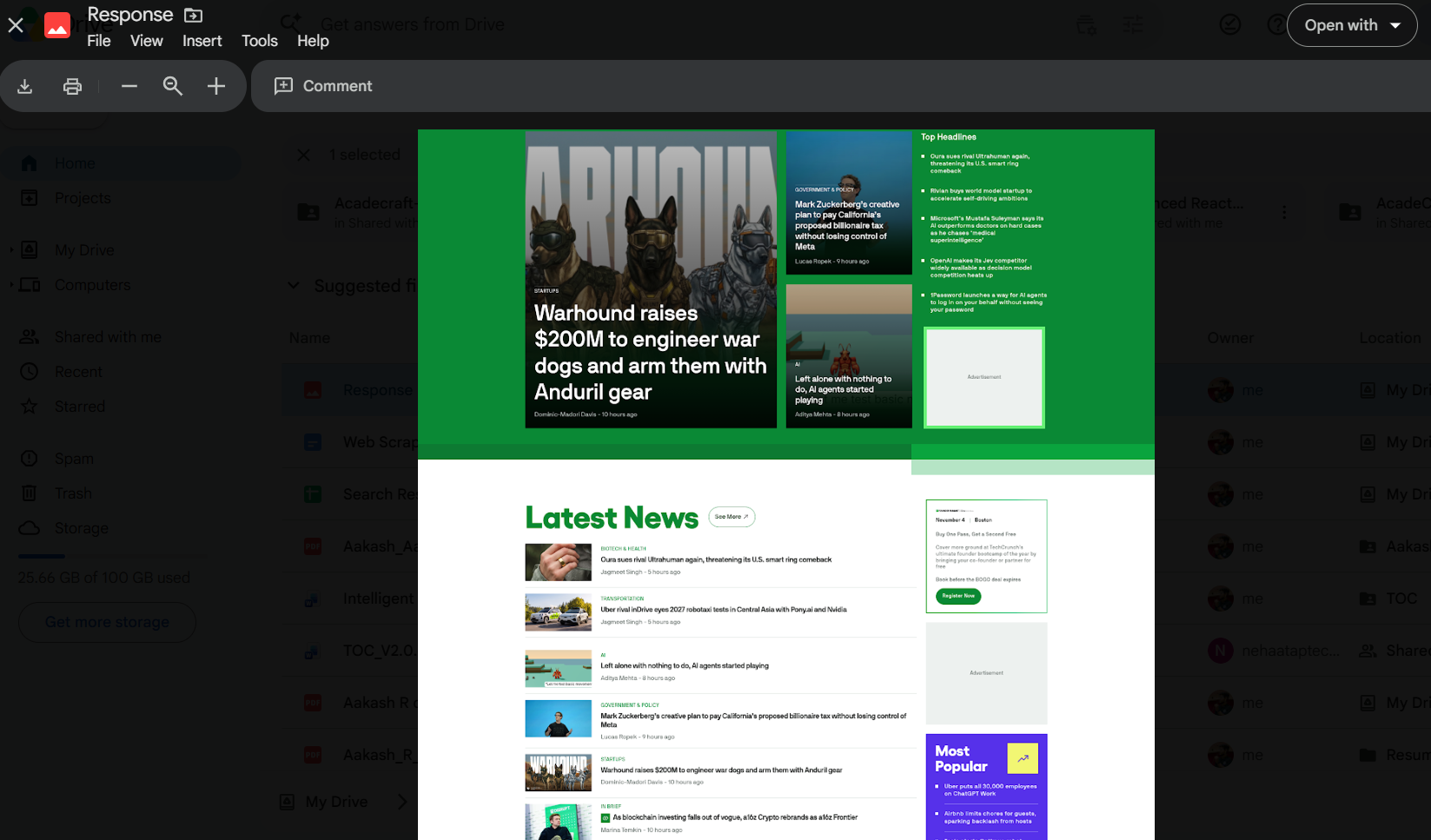
This workflow demonstrates how you can connect Geekflare’s Screenshot functionality with other applications through n8n. You can extend it with scheduled triggers or additional nodes to suit your requirements.
Frequently Asked Questions
Can I use Geekflare’s Screenshot feature with other n8n nodes?
Yes. You can connect the Screenshot action to other n8n nodes to store images, share them with your team, or use them in further workflow steps.
Can I capture an entire webpage with Geekflare in n8n?
Yes. Enable the Full Page option in the Screenshot node to capture the entire webpage, including content below the visible screen.
Can I remove advertisements from website screenshots?
Yes. Enable the Block Ads option to remove advertisements from the captured webpage and get a cleaner screenshot.
Can I schedule website screenshot capture in n8n?
Yes. Add a Schedule Trigger node to run the workflow at specified intervals. Connect it to the Geekflare Screenshot node to capture webpages automatically on your chosen schedule.
Can I save website screenshots directly to Google Drive?
Yes. Connect the Geekflare Screenshot node to an HTTP Request node to retrieve the screenshot image, then use Google Drive’s Upload action to save it to your preferred folder.
Conclusion
Website screenshot automation in n8n helps you connect screenshot capture with the applications you already use. Geekflare makes it easy to capture webpages and n8n lets you process the resulting images and send them to services such as Google Drive.
You can start with a simple screenshot workflow and add more nodes, scheduled triggers, or other Geekflare actions as your requirements evolve.





