



I am sure you have experience this – the backup script that ran fine for months starts exiting with an error after a password rotation, or the server it lives on gets rebuilt and nobody copies the crontab across.
Worst thing?
When cron fails, you don’t notice immediately but mostly find out weeks later when damage is done.
Cron job monitoring helps here. Your job checks in with a monitoring service every time it runs, and the service alerts you when a check-in reports a failure or doesn’t arrive on time. It’s one of the cheapest way to add reliability, and several good tools do it for free.
How Cron Job Monitoring Works
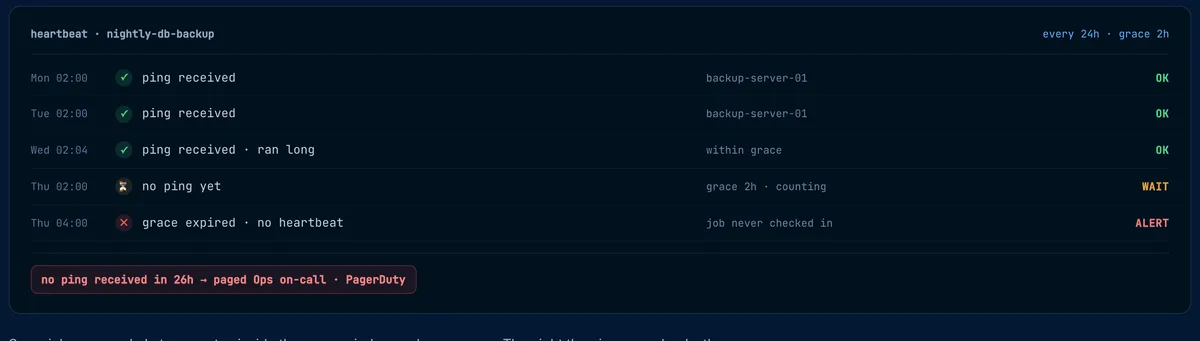
Most tools use the same heartbeat model. You create a monitor, tell it how often the job should run, and get a unique URL. Then you add one line to the job:
0 5 * * * /apps/scripts/backup.sh && curl -fsS -m 10 https://hc-ping.com/your-uuidIf the ping arrives on schedule, all is well. If it’s late by more than the grace period you set, you get an alert. Premium tools add three things on top:
- Start signals, so the tool can measure how long each run takes and warn you when a job hangs.
- Failure signals with exit codes and output, so a run that starts but fails shows up straight away with the error.
- Schedule awareness, where you give the monitor your actual cron expression and time zone.
Uptime monitoring is different. Uptime tool calls your website or API from the outside. It can’t see a script running on a private server, which is why heartbeats exist.
My Test: One Broken Backup Job, Three Tools
I set up a test job called nightly-backup-test on Healthchecks.io, Cronitor, and Better Stack, each expecting a check-in every minute with a one-minute grace period.
I used a script to test this, three good runs, then a failed run that exited with code 1 and a fake pg_dump connection error, three more good runs, and then nothing at all, as if the server had died.
| Healthchecks.io | Cronitor | Better Stack | |
|---|---|---|---|
| Failed run (signal sent 09:54:09) | Down at 09:54 | Issue opened, email at 09:54 | Incident opened, email at 09:54 |
| Exit code and error text kept? | Yes, in the event log | Yes, on the issue page | Yes, as received content |
| Run duration recorded | Yes (3 sec) | Yes (3s, plus a chart) | No |
| Missed run (last ping 09:57:09) | Down at 09:59 | Did not run by 9:59:00 | Incident at 09:59:42 |
| Recovery | Automatic on next ping | Automatic, with a recovery email | Automatic |
All three caught both problems on time, so the differences are in the details.
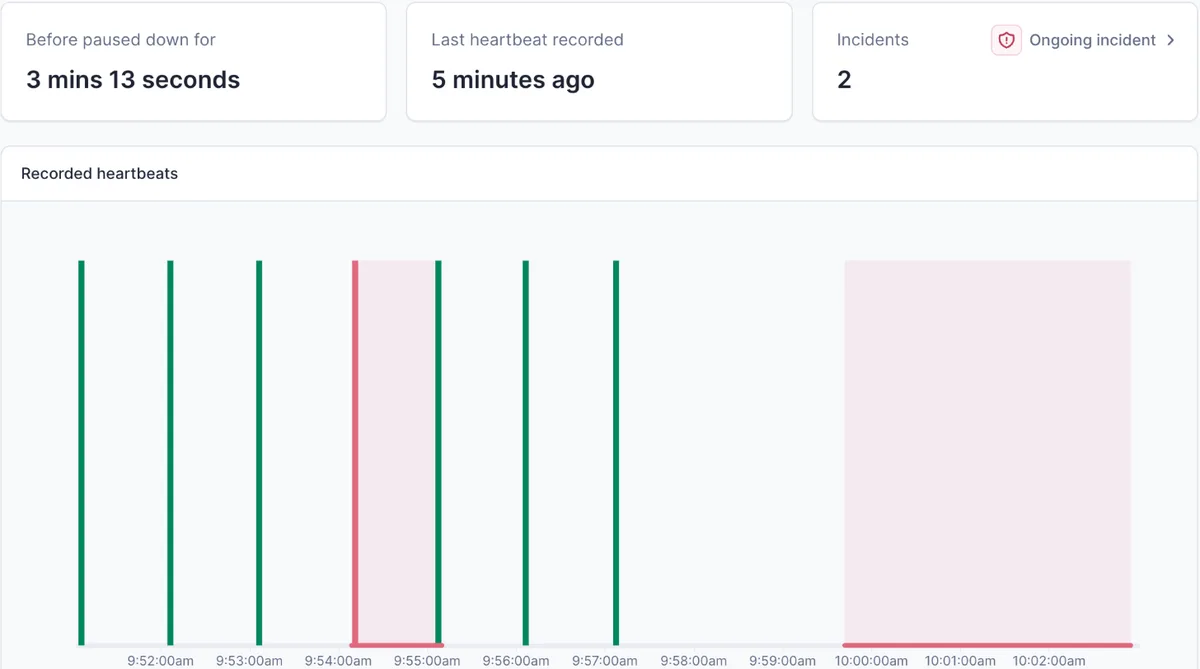
Cronitor was the most precise about the missed run. Because it knows the cron expression, it flagged the exact minute the 09:58 run was due plus the grace period, and it put the earlier failure and the missed run on the same issue so I could see the whole picture in one place.
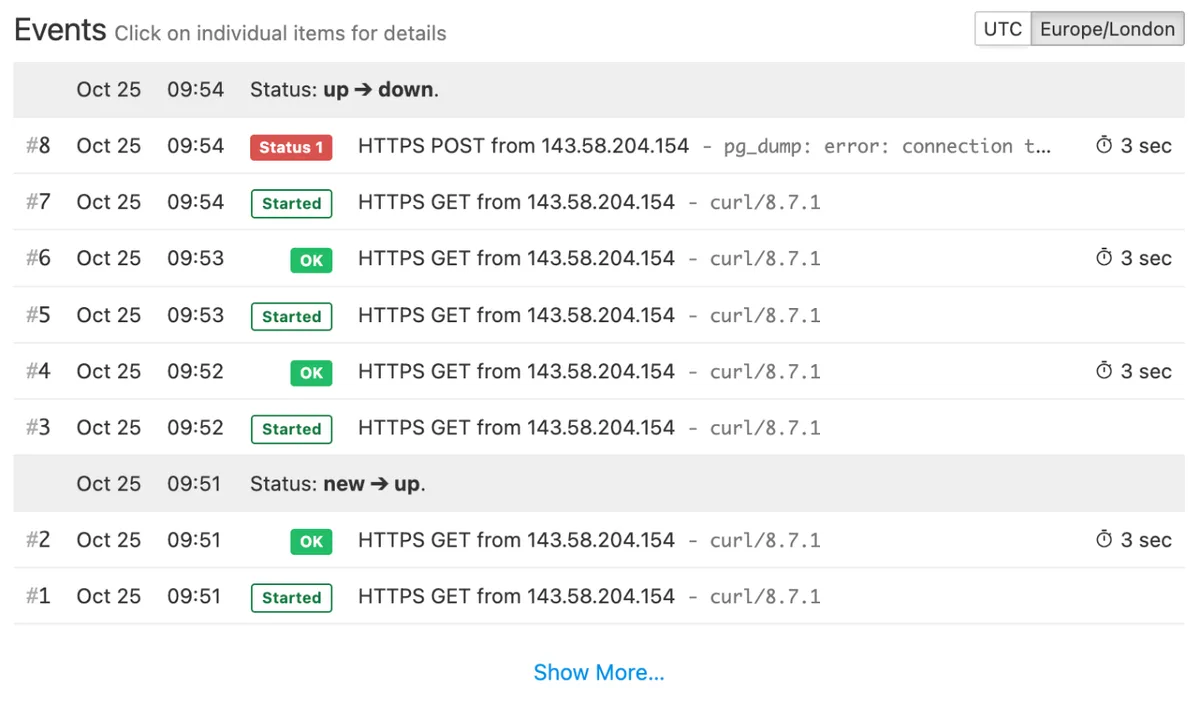
Healthchecks.io kept the full error output in its event log next to each run’s duration, which is exactly what you want when you’re debugging a production issue.
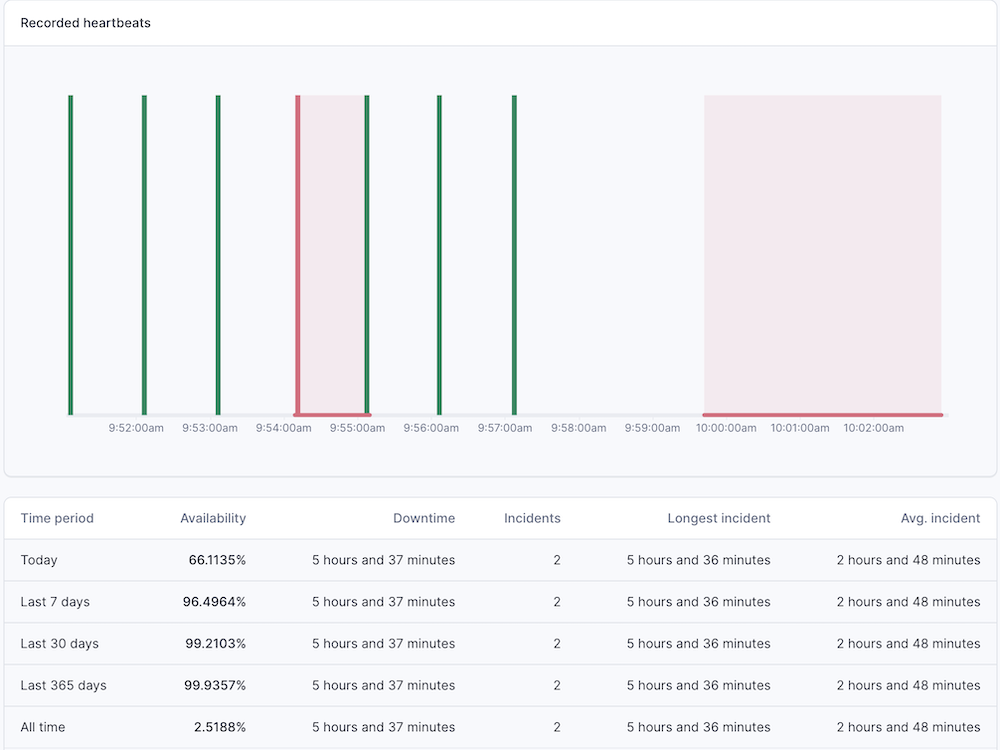
Better Stack was about 40 seconds slower on the missed run, but it was the only one that wrote an AI summary of the incident on its own, and its default grace period was five minutes, so check that setting when you create a heartbeat.
| Tool | Type | Best for | Free plan | Paid | Self-hosted | Link |
|---|---|---|---|---|---|---|
| 01 Cronitor | Cron job and background job monitoring | Teams that want schedule-aware alerts and run history for every job | 5 monitors | $2/monitor + $5/user per month | No | Visit |
| 02 Healthchecks.io | Open-source cron job monitoring | Developers who want a generous free plan or a self-hosted option | 20 jobs | From $5/month | Yes (open source) | Visit |
| 03 Better Stack | Uptime, heartbeats, and incident management | Teams that want cron monitoring, on-call, and status pages together | 10 monitors and heartbeats | From $29/month | No | Visit |
| 04 Sentry Crons | Cron monitoring inside error tracking | Teams already using Sentry for errors and performance | 1 cron monitor | $0.78/monitor per month | Yes (Sentry self-hosted) | Visit |
| 05 Dead Man's Snitch | Simple heartbeat monitoring | Small teams that want the simplest possible setup | 1 job | From $5/month | On-premise on request | Visit |
| 06 Hyperping | Cron, uptime, and status pages | Teams that want cron, uptime, and status pages on one bill | 20 monitors | From $290/year | No | Visit |
| 07 UptimeRobot | Budget uptime monitoring with heartbeats | Teams already using UptimeRobot for website monitoring | Yes, but no heartbeats | From $12/month | No | Visit |
| 08 Uptime Kuma | Self-hosted monitoring with push monitors | Homelabs and teams that want free, self-hosted monitoring | Free, open source | None | Yes (Docker) | Visit |
| 09 Checkly | Monitoring as code with heartbeats | Developer teams that manage monitoring in code and CI | Yes (Hobby) | From $24/month | No | Visit |
| 10 Site24x7 | Cron monitoring inside a full monitoring suite | IT teams that already monitor servers and apps with Site24x7 | 30-day trial | From $9/month | No | Visit |
Best Cron Job Monitoring Tools
01. Cronitor
Cron job and background job monitoringTeams that want schedule-aware alerts and run history for every job
Cronitor is built around jobs rather than pings. You give each monitor its cron schedule and time zone, and it alerts when a run fails, starts late, never starts, or takes too long. Run history, durations, and logs sit on one dashboard, and the CronitorCLI can read your crontab and add monitoring to every job in one go.
You can integrate with Kubernetes CronJobs, Windows Task Scheduler, Sidekiq, Celery, Airflow, Laravel, GitHub Actions, and SDKs for most languages. When I logged in, the onboarding even offered a plugin so an AI coding agent can set up monitors for you.
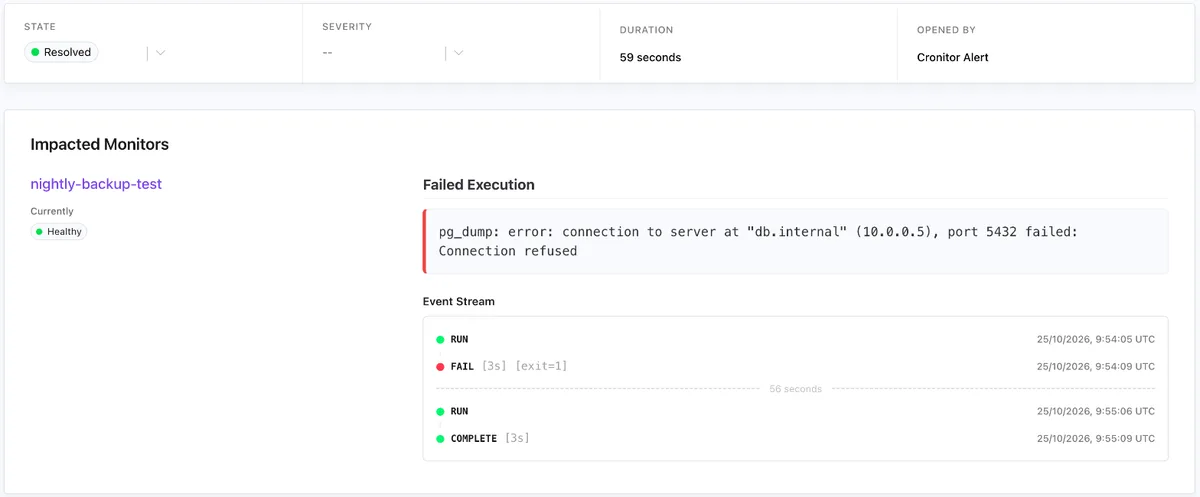
In my test, Cronitor turned the failed run into an issue with the error message, exit code, and run timeline, emailed me, and resolved the issue on its own when the next run succeeded. When the job stopped, it said exactly which scheduled run was missed.
Pros & Cons
PROS
CONS
Pricing
- The free plan includes 5 monitors and 1 user.
- The Business plan starts from $2 per monitor and $5 per user.
- Enterprise starts at $6,000 a year.
02. Healthchecks.io
Open-source cron job monitoringDevelopers who want a generous free plan or a self-hosted option
With Healthchecks.io, each check gets a ping URL and an email address, supports simple intervals or full cron and OnCalendar schedules with time zones, and understands start, success, and failure signals, including exit codes and up to 100 KB of output sent with the ping.
The free Hobbyist plan covers 20 jobs, which is enough for small projects. Alerts can go to email, Slack, Discord, Telegram, PagerDuty, Opsgenie, webhooks, and many other channels.
The code is open source under the BSD license, so you can run your own instance if your jobs can’t talk to an outside service.
In my test, the failed run showed up as “Status 1” with the pg_dump error and a 3-second duration, and the check went down in the same minute. The missed run was flagged at 09:59, right on time.
Pros & Cons
PROS
CONS
Pricing
- Hobbyist is free for 20 jobs.
- Supporter costs $5 a month.
- Business is $20 a month for 100 jobs, 1,000 log entries per job, and SMS, WhatsApp, and phone call credits.
- Business Plus is $80 a month for 1,000 jobs.
03. Better Stack
Uptime, heartbeats, and incident managementTeams that want cron monitoring, on-call, and status pages together
Better Stack treats a missed or failed job like an incident. Heartbeats live next to uptime monitors, on-call schedules, escalation policies, and status pages, so a broken backup can page the right person by phone at night instead of landing in an inbox.
You can report failures by adding /fail or an exit code to the ping URL, and anything you send in the request body is saved with the incident.
Since Better Stack also does logs, error tracking, and tracing, it suits teams that want one vendor for most of their monitoring.
In my test, the failed run opened an incident with the cause “Reported failure with code 1” and the error output, emailed me, and resolved itself on the next good run. It also wrote a short AI post-mortem without being asked.
Pros & Cons
PROS
CONS
Pricing
The free plan includes 10 monitors and heartbeats, 1 status page, and Slack and email alerts.
Paid plans start at $29 a month billed annually.
Extra heartbeats cost $17 per 10 a month on annual billing, and there’s a 60-day money-back guarantee.
04. Sentry Crons
Cron monitoring inside error trackingTeams already using Sentry for errors and performance
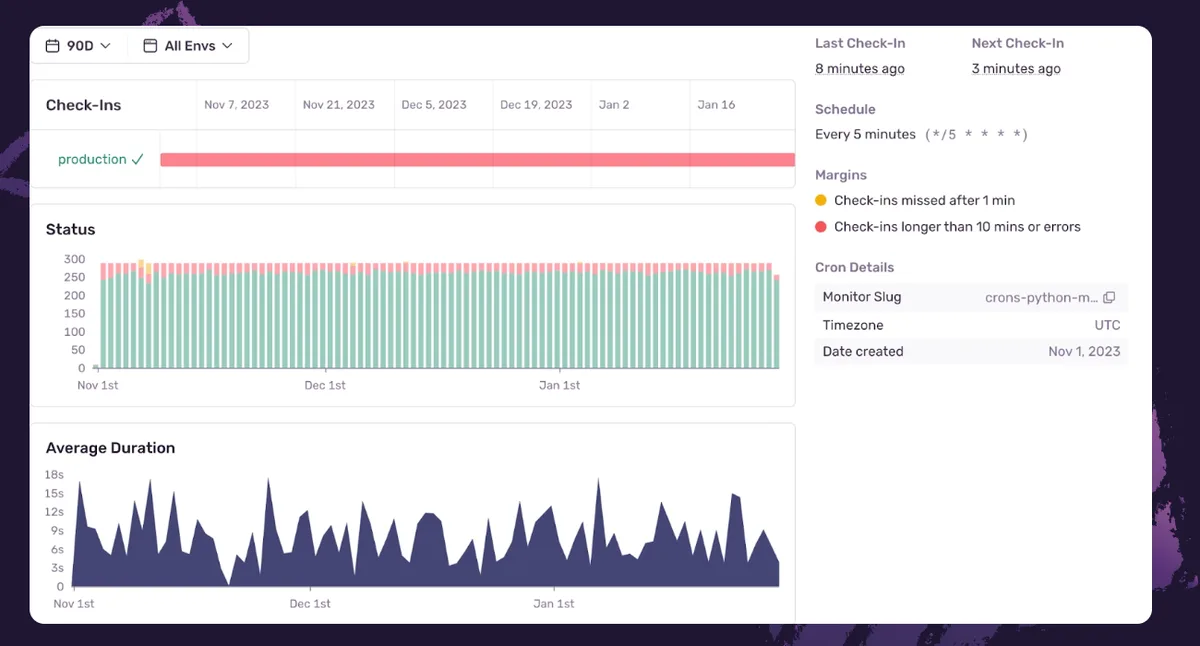
If your app already reports errors to Sentry, its cron monitoring is the obvious first thing to try. Monitors check in through the Sentry SDK, CLI, or plain HTTP, and when a job fails, Sentry links the failed check-in to the error that caused it, so you go straight from “the job failed” to the stack trace.
It tracks missed, failed, and overrunning jobs, shows check-in history and duration over time, and supports environments, so a failing staging job doesn’t get mixed up with production.
SDK integrations cover Celery, Sidekiq, Laravel, Node schedulers, and more.
Pros & Cons
PROS
CONS
Pricing
Every Sentry plan, including the free Developer plan, includes one cron monitor. Additional cron monitors cost $0.78 each per month and are billed from your pay-as-you-go budget on paid plans.
05. Dead Man's Snitch
Simple heartbeat monitoringSmall teams that want the simplest possible setup
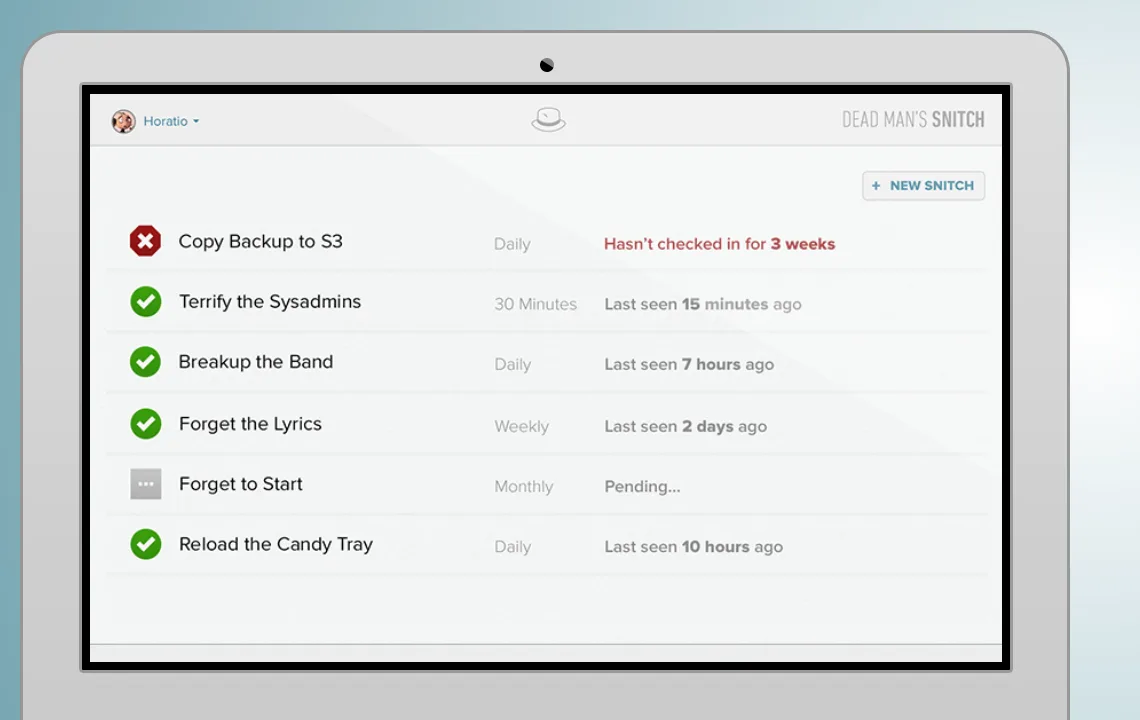
Dead Man’s Snitch has been doing one thing for over a decade. You create a “snitch” with an interval such as 15 minutes, hourly, daily, weekly, or monthly, add the curl line to your job, and get alerted if it stops checking in.
Every plan includes unlimited team members, and there are mobile apps for push alerts. It also has a Heroku add-on, which makes it handy for monitoring Heroku Scheduler tasks.
Pros & Cons
PROS
CONS
Pricing
The free Lone Snitch plan monitors one job. Little Birdy costs $5 a month for 3 snitches, Private Eye $19 a month for 100, and Surveillance Van $49 a month for 300. A free trial is available on paid plans.
06. Hyperping
Cron, uptime, and status pagesTeams that want cron, uptime, and status pages on one bill
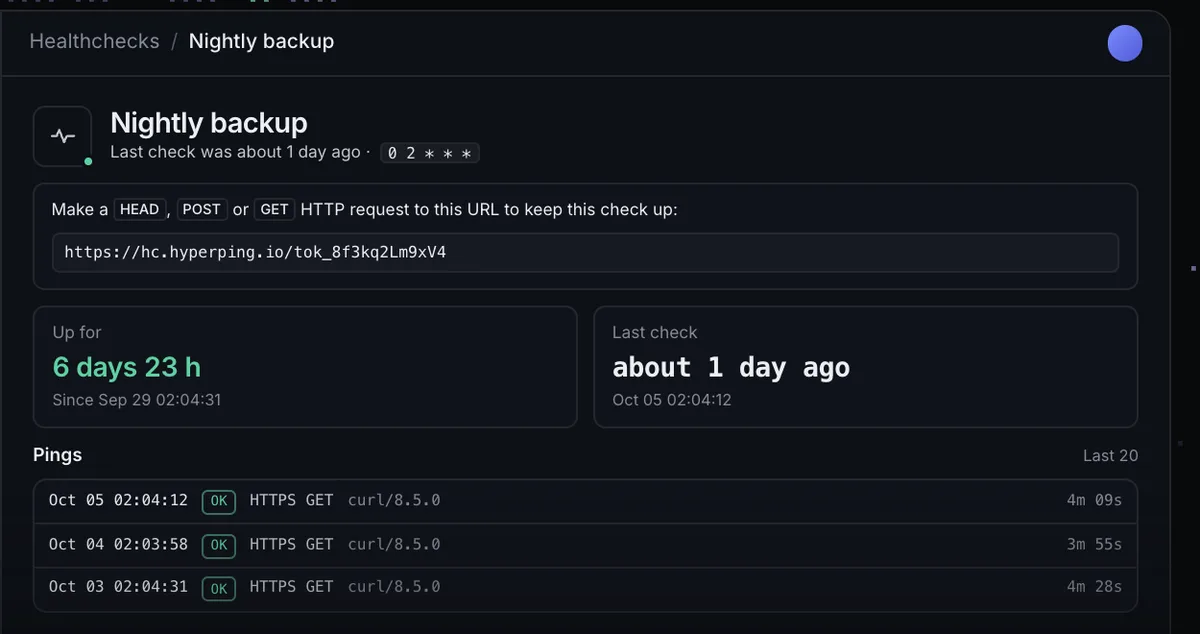
Hyperping started as uptime monitoring and status pages and added healthchecks for cron jobs. Each healthcheck can follow a simple interval or a cron expression in the job’s own time zone, with a grace period for slow runs, and a missed run becomes an incident that can go to Slack, email, SMS, PagerDuty, and other channels.
It has uptime checks, browser checks, on-call scheduling, and branded status pages are all in the same account. It’s a French company with EU hosting, which is recommended if you need to keep monitoring data in Europe.
Pros & Cons
PROS
CONS
Pricing
The free plan includes 20 monitors with no card.
Essentials costs $290 a year for 50 monitors and 3 seats, Pro $890 a year for 250 monitors and 10 seats, and Business $2,990 a year for 1,000 monitors and 20 seats.
07. UptimeRobot
Budget uptime monitoring with heartbeatsTeams already using UptimeRobot for website monitoring
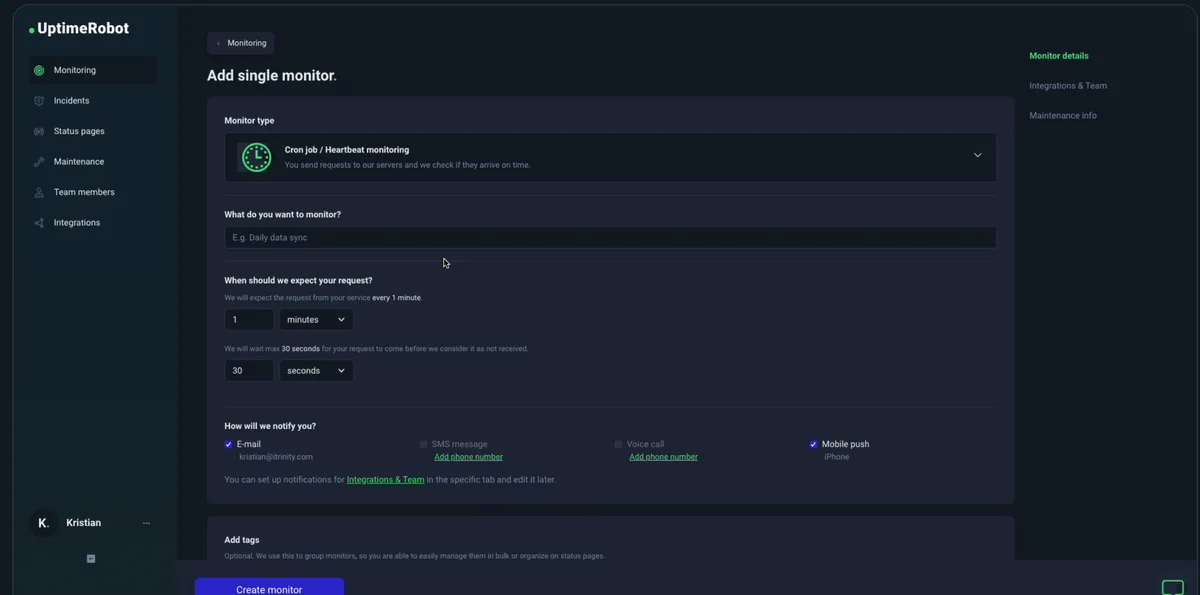
UptimeRobot is best known for free website monitoring, and its cron job monitoring uses the same heartbeat idea as everything else here. Your job requests a URL, and UptimeRobot alerts you if the request doesn’t arrive in time. It also works for Windows Task Scheduler jobs through a PowerShell request, and for checking that devices on a private network are still online.
Alerts go to email, SMS, voice calls, mobile push, Slack, and many other integrations, and you get status pages too. Just note that heartbeat monitoring is a paid feature.
Pros & Cons
PROS
CONS
Pricing
Heartbeat monitoring starts with the Solo plan at $12 a month billed annually. Team is $33 a month and Enterprise $67 a month on annual billing.
08. Uptime Kuma
Self-hosted monitoring with push monitorsHomelabs and teams that want free, self-hosted monitoring
Uptime Kuma is a popular open-source monitoring tool you can host it yourself as Docker container. It gives you a URL, your job calls it, and the monitor goes down if the call stops arriving. You can pass a status and message, so a script can report its own failure.
It handles HTTP, TCP, ping, DNS, Docker container, and other checks, plus public status pages, with notifications to more than 90 services including Slack, Telegram, Discord, and email.
The trade-off with self-hosting is that the monitor shares your infrastructure. If the box running Uptime Kuma goes down, nothing alerts you.
Pros & Cons
PROS
CONS
Pricing
Uptime Kuma is free and open source under the MIT license. You can get Kamatera VM to self-host.
09. Checkly
Monitoring as code with heartbeatsDeveloper teams that manage monitoring in code and CI
Checkly is mainly a synthetic monitoring platform for API and Playwright browser checks, and heartbeat monitors fill the gap for jobs that can’t be reached from outside. You set a period and grace, ping the URL when the job finishes, and Checkly opens an alert when the ping doesn’t arrive.
What sets it apart is monitoring as code. Heartbeat monitors can be defined as TypeScript constructs in your repo, reviewed in pull requests, and deployed from CI, or managed with Terraform, so your job monitoring lives next to the job.
Pros & Cons
PROS
CONS
Pricing
The Hobby plan is free. Starter costs $24 a month and Team $64 a month, both billed annually.
10. Site24x7
Cron monitoring inside a full monitoring suiteIT teams that already monitor servers and apps with Site24x7
Site24x7, from ManageEngine, includes cron monitoring alongside website, server, application, network, and cloud monitoring. You can track scheduled jobs and get alerts when a job fails, doesn’t run, or takes longer than expected, with notifications by email, SMS, and integrations such as PagerDuty and Slack.
It makes the most sense if your team already uses Site24x7 for infrastructure. Cron monitors count as basic monitors, and each one covers 25 cron jobs.
Pros & Cons
PROS
CONS
Pricing
Paid plans start at $9 a month billed annually, with a 30-day free trial.
Other Cron Monitoring Tools Worth a Look
Error tracking with check-ins for cron jobs and heartbeats included, so a missed job and the exception behind it show up in the same app.
Simple check-in monitoring with configurable grace periods. The first 10 monitors are free, each extra monitor is $1 a month, and users are free.
Website monitoring with scheduled task monitoring, especially strong for Laravel apps. Every plan starts with a 10-day free trial.
Application monitoring for Ruby, Elixir, Node.js, and Python with check-ins for cron jobs and heartbeats, a free plan, and a 30-day trial.
Uptime and heartbeat monitoring with paid plans from $19 a month and a 14-day free trial.
Low-cost website and cron job monitoring with status pages, a free plan, and paid plans from $9 a month.
Need a job scheduler instead?
The tools above watch jobs that something else runs. If you want to replace cron itself with a scheduler that has retries, dependencies, and a UI, look at workload automation platforms such as ActiveBatch and RunMyJobs by Redwood, or open-source options such as Rundeck, Cronicle, and Supercronic.
How to Choose a Cron Monitoring Tool
→ Start with where the job runs. Kubernetes CronJobs, Sidekiq, Celery, or Airflow are easier with Cronitor or Sentry, which have native integrations.
→ Decide whether you need failure details or just missed-run alerts. If you only care that a job ran, Dead Man’s Snitch or UptimeRobot is enough. If you want exit codes, output, and durations, use Healthchecks.io, Cronitor, or Sentry.
→ Think about alerting channels. Email is fine for a weekly report. For backups and billing jobs, you probably want phone or PagerDuty alerts and an escalation policy, which points to Better Stack, Hyperping, or an integration with your on-call tool.
→ Per-monitor pricing is cheap at 10 jobs and noticeable at 500. Healthchecks.io’s flat tiers and Site24x7’s 25-jobs-per-monitor model scale gently, while Cronitor charges per monitor and per user.






