


Converting a URL to PDF helps you save web pages for offline reading, create reports, archive online content, and share information in a format that is easy to view and print.
Different users have different requirements. Developers may want to integrate PDF generation into their applications, while others may only need to convert a web page occasionally.
Geekflare supports both use cases. You can integrate the URL to PDF API into your application, test requests in the Geekflare Playground, or use the free online URL to PDF tool. This article shows you how to use each option so you can choose the one that best fits your needs.
Why Choose Geekflare for URL to PDF?
Geekflare makes it easy to convert web pages into PDFs with the settings you need. You can choose the page size, change the page orientation, adjust margins, control page scaling, and add timestamps to create PDFs for archiving, reports, or record keeping.
Many websites load content with JavaScript. Geekflare loads the page before creating the PDF, so the final document looks like the original web page. It also lets you generate PDFs from different locations with rotating residential proxies, and its global network helps deliver fast and reliable results.
Geekflare offers three ways to convert a URL to PDF, so you can choose the one that best fits your workflow.
- API: Integrate URL to PDF generation into your application and automate PDF creation.
- Playground: Test different settings, preview the output, and generate ready-to-use code snippets.
- Free Tool: Convert a web page into a PDF directly from your browser without writing code.
Method 1: Convert a URL to PDF Using the API
The Geekflare URL to PDF API lets you generate PDFs from any public web page with a single request. You can customize the PDF with options such as page format, orientation, margins, page scaling, and more before generating the final document.
Note: Geekflare provides SDKs for Python, Node.js, Next.js, Django, PHP, Go, Laravel, and more. This example uses Python. To use other SDKs, check out the documentation.
Prerequisites
Before you begin, make sure you have:
- A Geekflare API key. (You can create the account and get the key)
- Python 3.8 or later installed.
- The Geekflare Python SDK.
Install the SDK using:
pip install geekflare-apiThen continue with the Python example you already have:
from geekflare_api.client import GeekflareClient
from geekflare_api.models import Url2PdfDto

with GeekflareClient(api_key="<api-key>") as client:
    result = client.url2_pdf(
        Url2PdfDto(
            url="https://example.com",
            device="desktop",
            format="A4",
            full_page=True,
            block_ads=True
        )
    )
    print(result)
Replace <api-key> with your Geekflare API key and https://example.com with the web page you want to convert.
Run the script to send the request to the Geekflare API. If the request is successful, the API generates the PDF and returns a response containing details such as the download URL, request status, and other metadata.
Understand the API Response
{
  "success": true,
  "data": {
    "timestamp": 1785362296192,
    "apiStatus": "success",
    "apiCode": 200,
    "meta": {
      "url": "https://geekflare.com/",
      "device": "desktop",
      "format": "a4",
      "orientation": "portrait",
      "scale": 1,
      "test": {
        "id": "2f9df8c6-805f-4d6f-8499-0fb587006a7c"
      }
    },
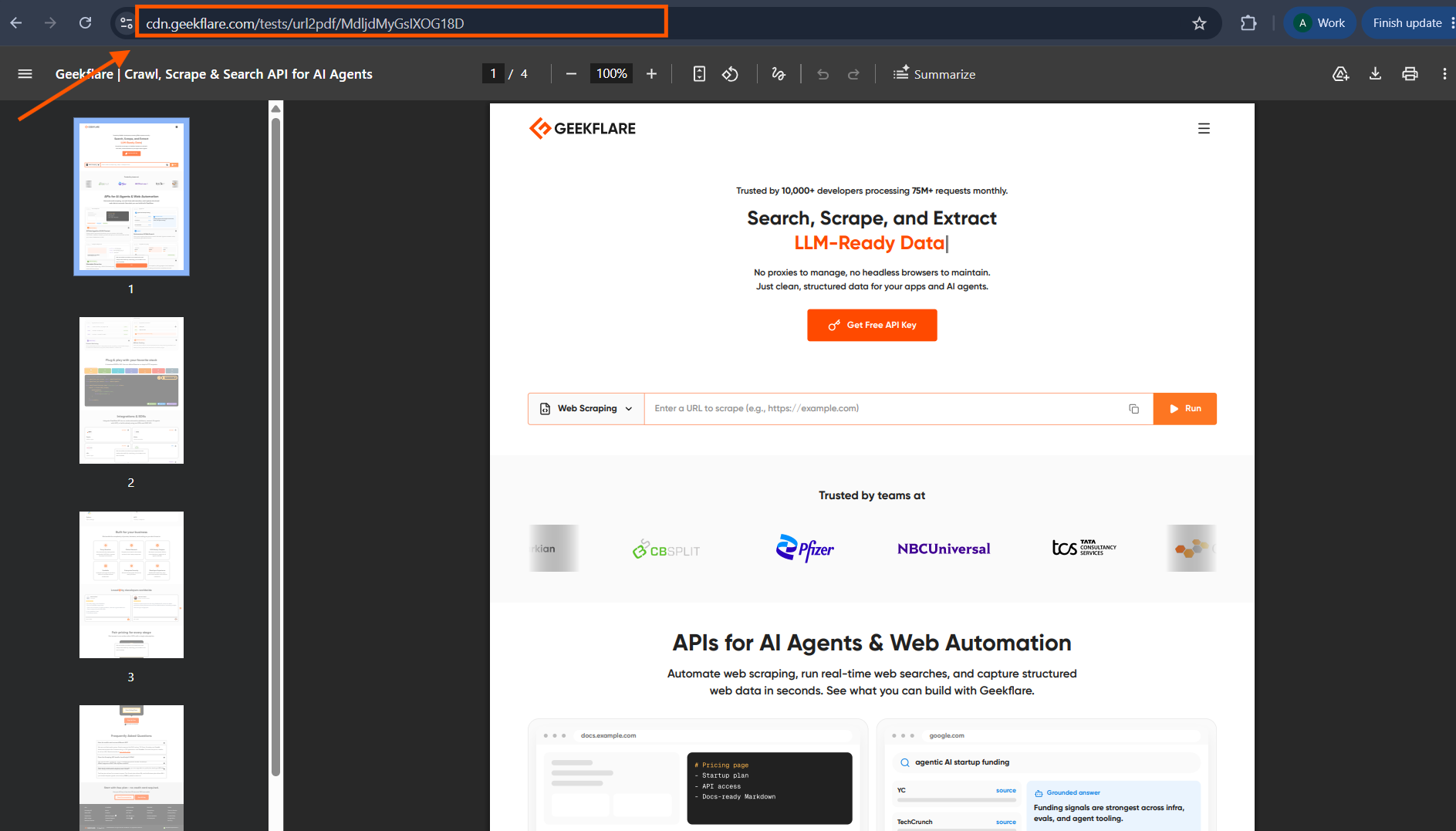
    "data": "https://cdn.geekflare.com/tests/url2pdf/MdljdMyGsIXOG18D"
  }
After the request is processed, the API returns a JSON response with details about the generated PDF.
success: Indicates whether the request completed successfully.apiStatus: Shows the status of the API request.apiCode: Returns the HTTP status code.meta: Contains information about the generated PDF, including the source URL, device type, page format, orientation, and scale.data: Contains the URL of the generated PDF. You can use this URL to download or share the PDF.
In this example, the PDF was generated successfully for https://geekflare.com/ in A4 format with portrait orientation, and the download link is available in the data field.
Method 2: Convert a URL to PDF Using the Geekflare Playground
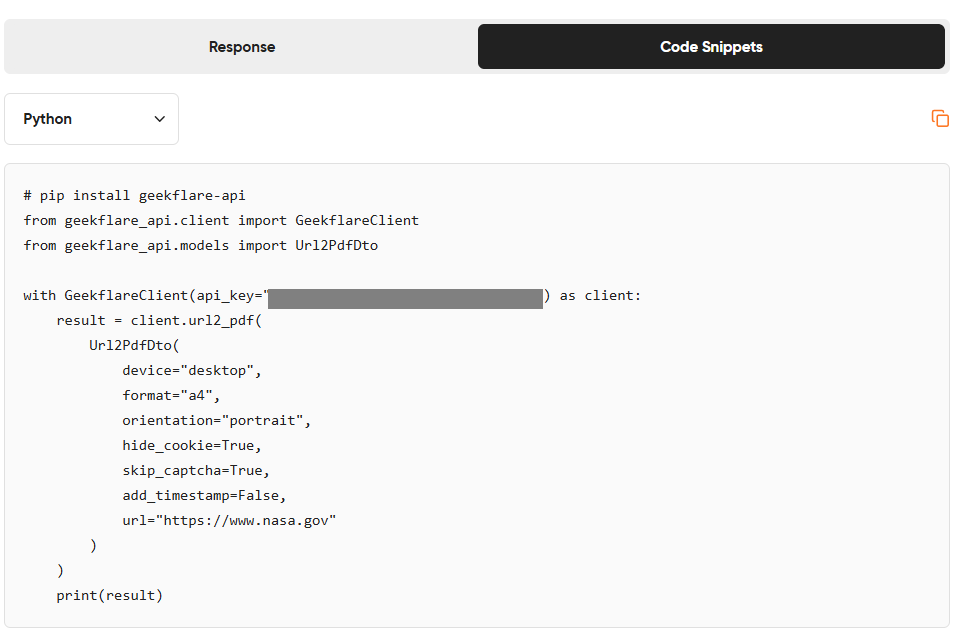
The Geekflare Playground lets you test the URL to PDF API before adding it to your application. In this example, we’ll generate a PDF of the NASA website.
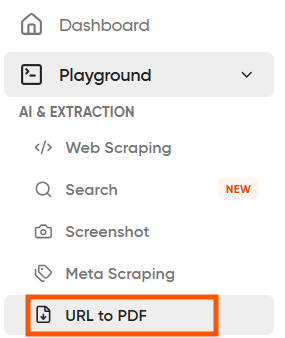
- Log in to your Geekflare account and open the Playground.
- Select the URL to PDF option from the available API tools.
- Enter the website URL you want to convert. For this example, use
https://www.nasa.gov. - Configure the PDF settings, such as page format, page orientation, margins, page scaling, and other available options.
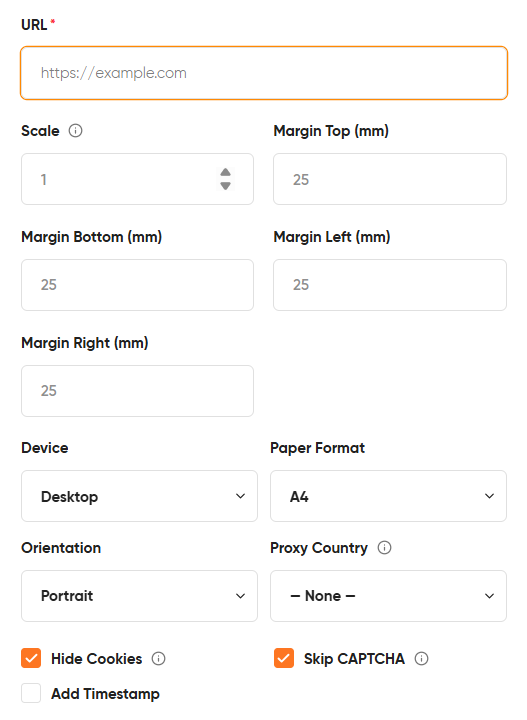
- Configure the available settings, including scale, margins, device type, paper format, orientation, proxy country, and options such as Hide Cookies, Skip CAPTCHA, and Add Timestamp.
- Click
Send Requestto generate the PDF.
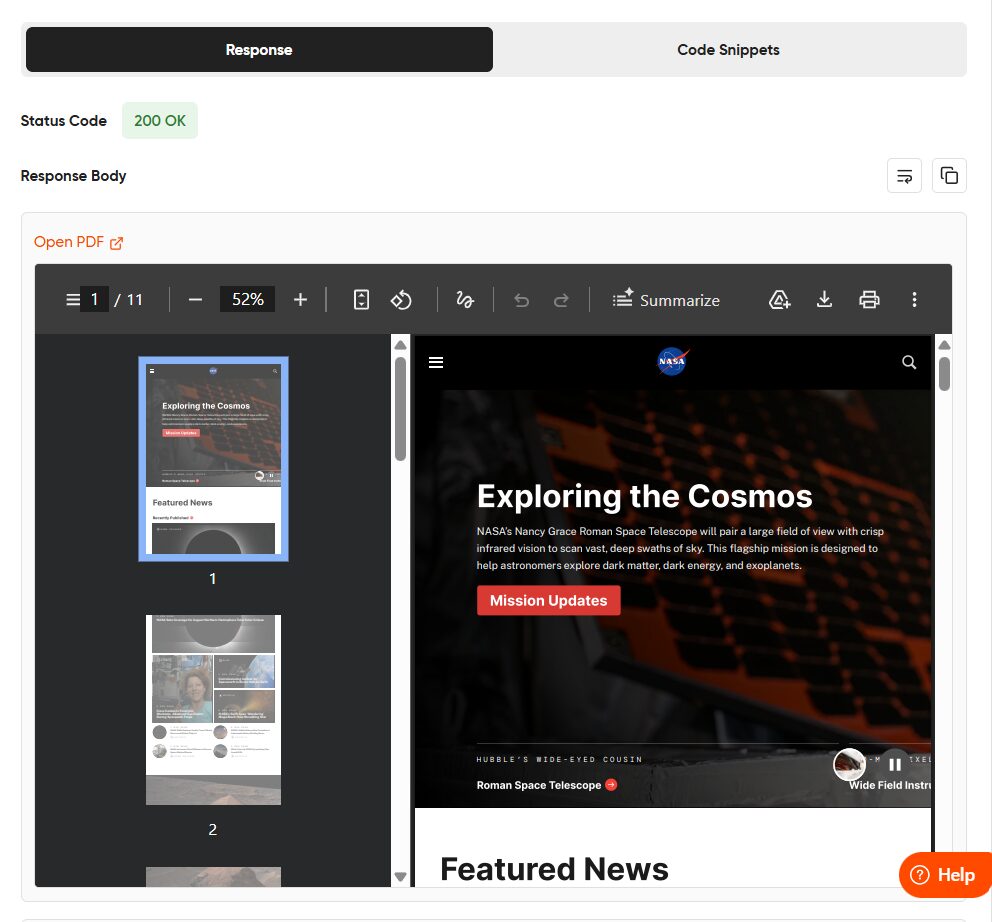
The Playground displays the generated PDF and also creates ready-to-use code snippets in Python, cURL, and Node.js. You can copy the generated code and use the same settings in your application.
Method 3: Convert a URL to PDF Using the Free Online Tool
The Geekflare URL to PDF tool lets you convert any public web page into a PDF directly from your browser. No coding or API integration is required.
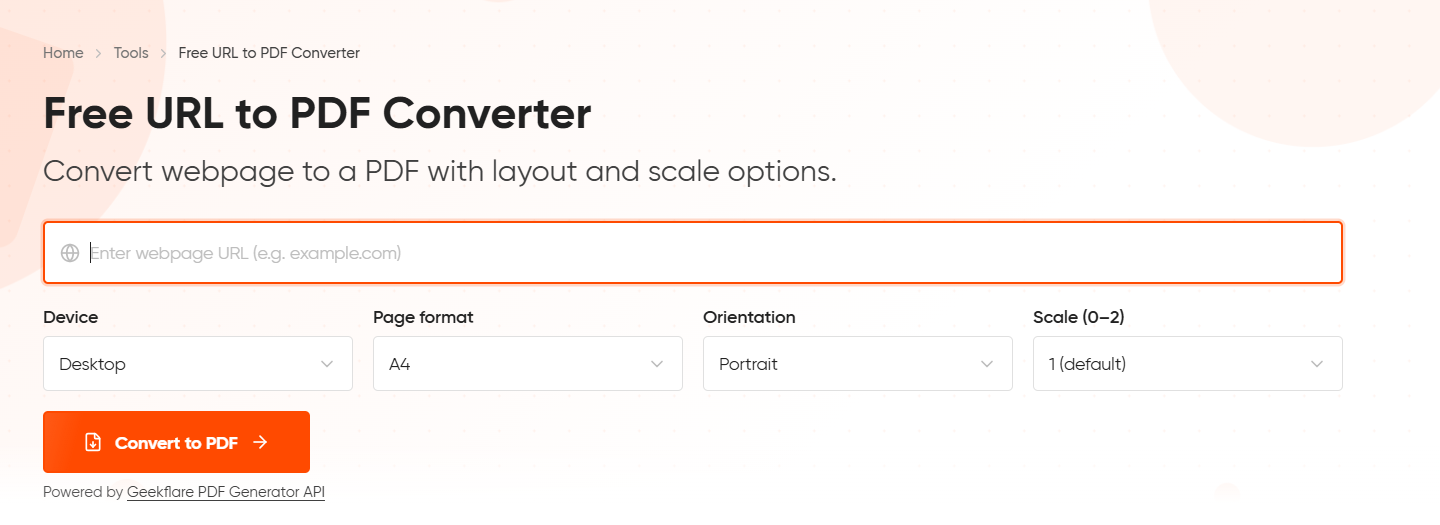
- Open the Geekflare URL to PDF tool.
- Enter the website URL you want to convert. For this example, use
https://www.primevideo.com/region/eu/. - Click Convert to PDF.
- Configure the available options, including Device, Page Format, Orientation, and Scale, based on your requirements.
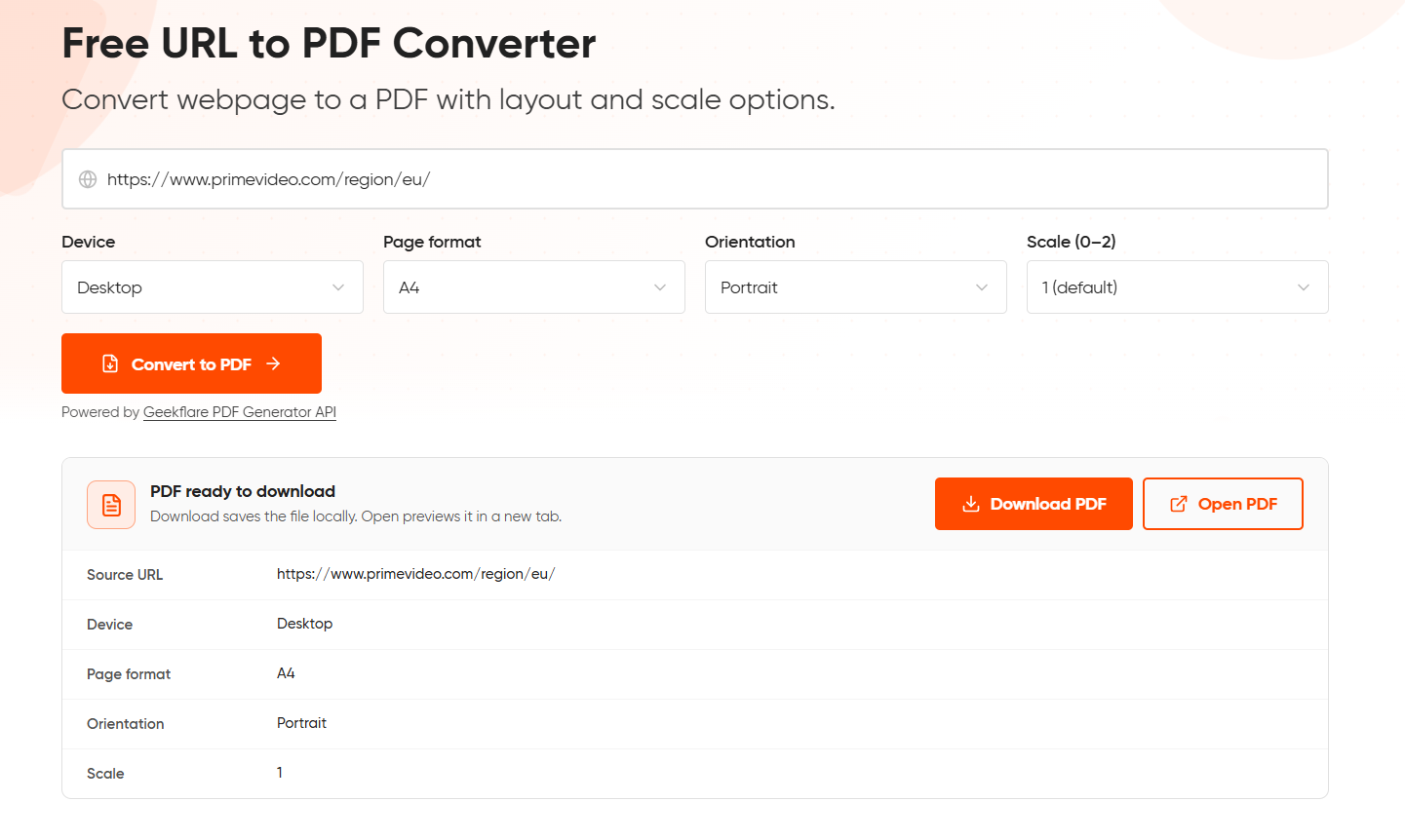
- Download the generated PDF to your device.
This method is ideal for quick, one time PDF generation without writing code.
Here is the outcome:
Common Uses of URL to PDF
Converting web pages to PDFs is useful in many situations. Here are some common use cases:
- Archive Web Pages: Save web pages as PDFs to preserve important information, even if the original content changes or is removed.
- Generate Reports: Convert dashboards, analytics pages, invoices, and other online reports into PDFs for sharing and record keeping.
- Offline Access: Save web pages as PDFs so you can read them later, even when you don’t have an internet connection.
- Compliance and Documentation: Keep PDF copies of web pages for audits, legal records, and internal documentation.
- Content Sharing: Share articles, product pages, and documentation in a format that is easy to view, print, and distribute.
- Automated Workflows: Generate PDFs from web pages and integrate them into applications, reports, and business processes using the Geekflare API.
Conclusion
The Geekflare URL to PDF API provides a simple way to convert any public web page into a PDF. You can automate PDF generation using the API, test requests in the Playground, or use the free online tool for quick conversions. Choose the method that fits your workflow and start converting URLs to PDFs in minutes.





