


Zapier helps automate repetitive tasks across different applications, and Geekflare’s Search API adds search capabilities to these workflows. You can use the integration to retrieve search results for a given query and pass the data to other apps for further processing.
The Geekflare Zapier integration connects Geekflare’s Search API with your existing workflows. This can support tasks such as competitor research, keyword analysis, and gathering information for reports.
In this guide, you’ll learn how to connect Geekflare with Zapier, configure the Search API, and create an automated workflow.
What Is Geekflare’s Zapier Integration?
Geekflare offers over 15 web-based APIs for tasks such as search, web scraping, website monitoring, and so on. Its Zapier integration connects these APIs to automated workflows in Zapier.
Zapier uses triggers and actions to connect apps and automate tasks. You can add a Geekflare API request to a workflow and send its results to another connected app.
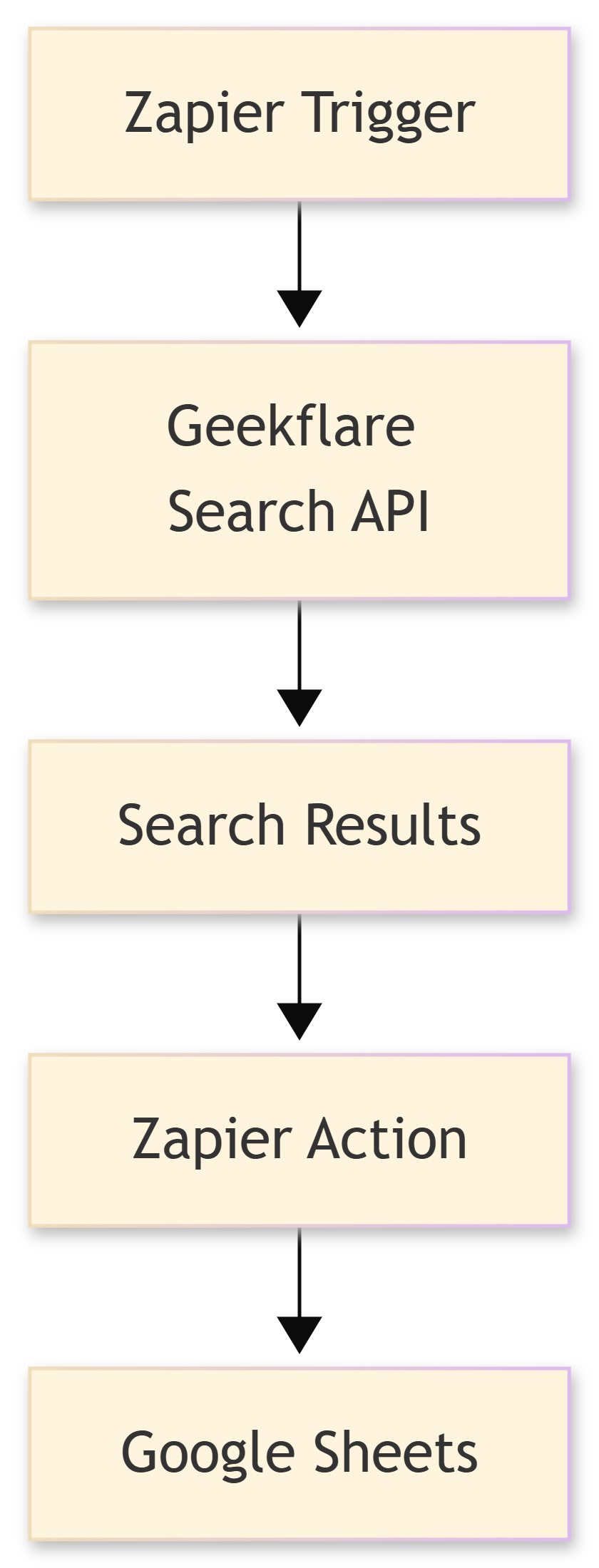
For example, you can use Geekflare’s Search API to retrieve results for a product or competitor name and send those results to a Google Sheets spreadsheet. Zapier handles the steps between the search request and the destination app, so you don’t have to transfer the results manually.
Here is the workflow:
Prerequisites
Before setting up the Geekflare Zapier integration, make sure you have:
- Your Geekflare API key.
- A Zapier account.
- A Google Sheets account for the example workflow.
How to Connect Geekflare with Zapier
Let’s see how to connect your Geekflare account to Zapier.
Step 1: Open the Geekflare Integration Page
Visit the Geekflare integration page on Zapier.
Step 2: Start the Connection
Click Connect Geekflare to 9000+ apps. If you’re not logged in to Zapier, sign in to your account first, then click the same button.
Step 3: Connect Your Geekflare Account
Zapier will redirect you to the New Zap editor.
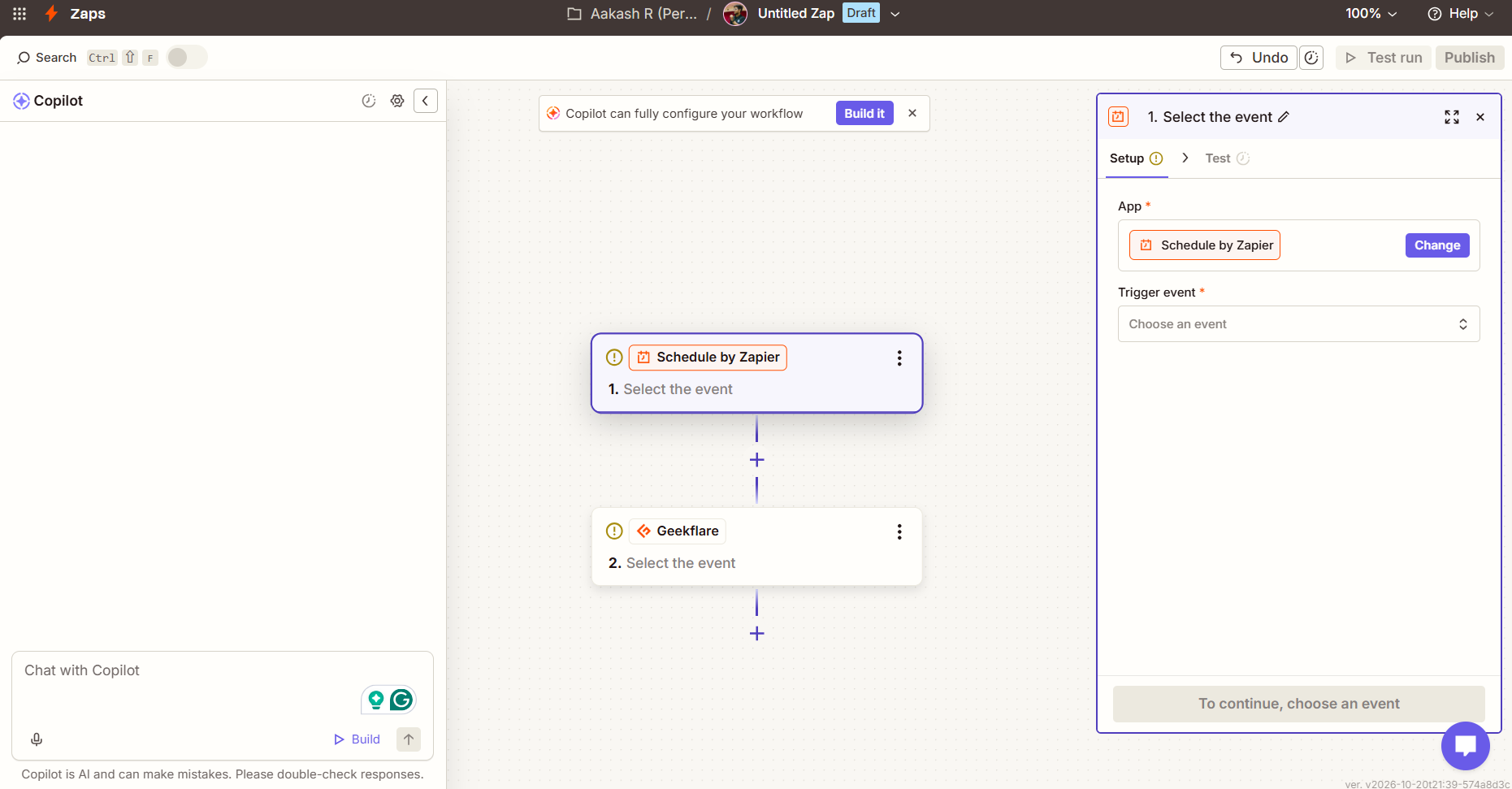
Click the Geekflare node in the workflow editor. In the right-side panel, open the Account section and click Connect.
Zapier will ask for your Geekflare API key. Open your Geekflare dashboard, copy your API key, and enter it in the connection prompt and Click Connect to complete the setup.
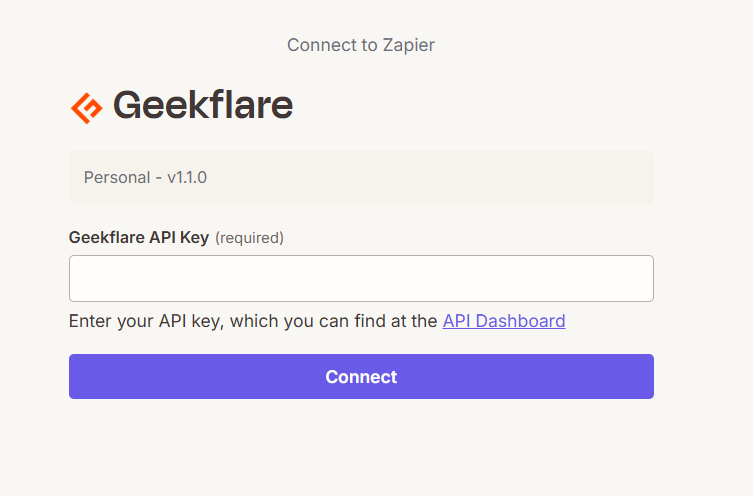
Once the connection is complete, you can access Geekflare’s available tools in your Zapier workspace and use them to build automated workflows.
What Can You Do with Geekflare’s Search API in Zapier?
How you use Geekflare’s Search API in Zapier is entirely up to you. Your use case depends on your workflow, the tasks you want to automate, and the apps you plan to connect.
Here are some interesting ideas to get you started.
- Competitor research: Collect search results about competing products, brands, or services.
- Content research: Find relevant web pages and sources for upcoming articles or blog posts.
- Market research: Gather search results about industry trends, products, or customer interests.
- Brand monitoring: Search for web mentions of a company, product, or brand.
- Keyword research: Retrieve search results for target keywords to support content planning.
- Research reports: Send search results to connected apps for review, analysis, or reporting.
How to Automate Web Search with Geekflare and Zapier
Now that Geekflare is connected to Zapier, let’s configure the Search API.
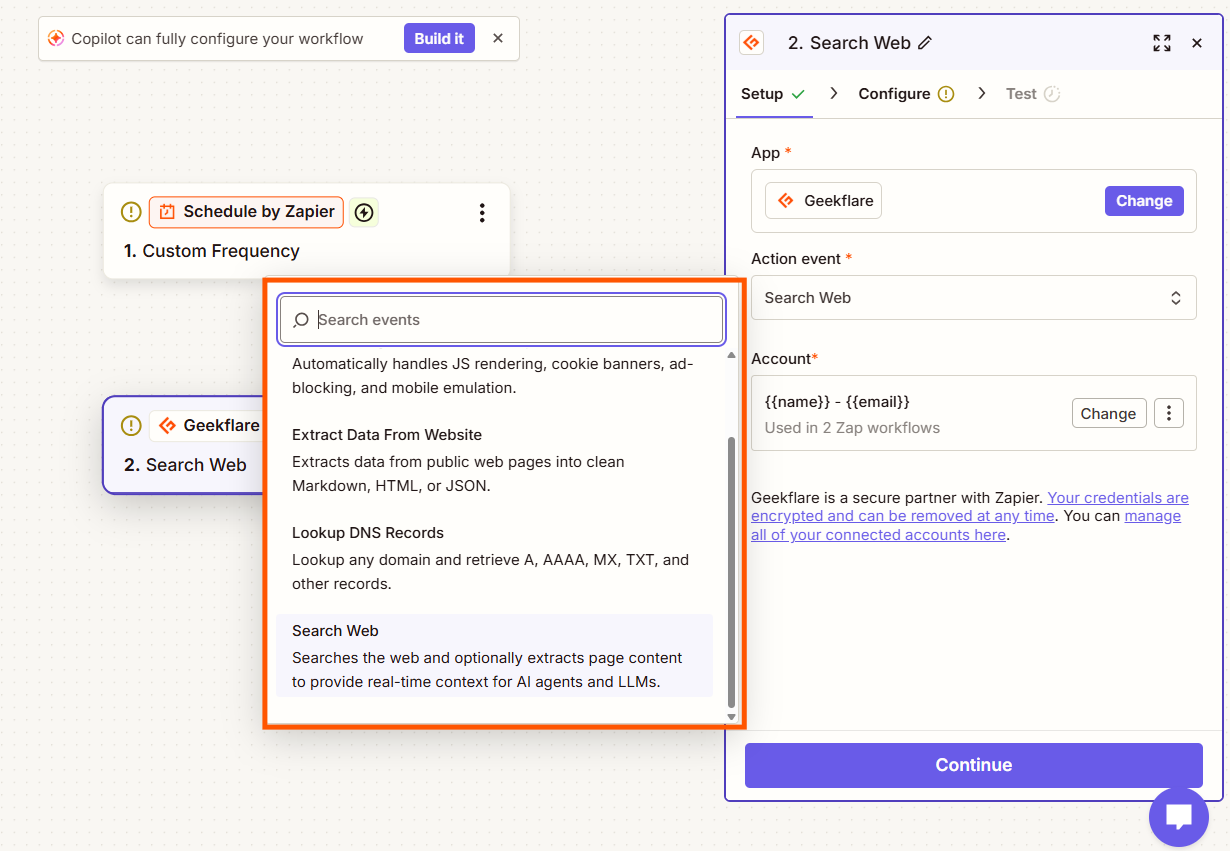
Step 1: Select the Search Web Action
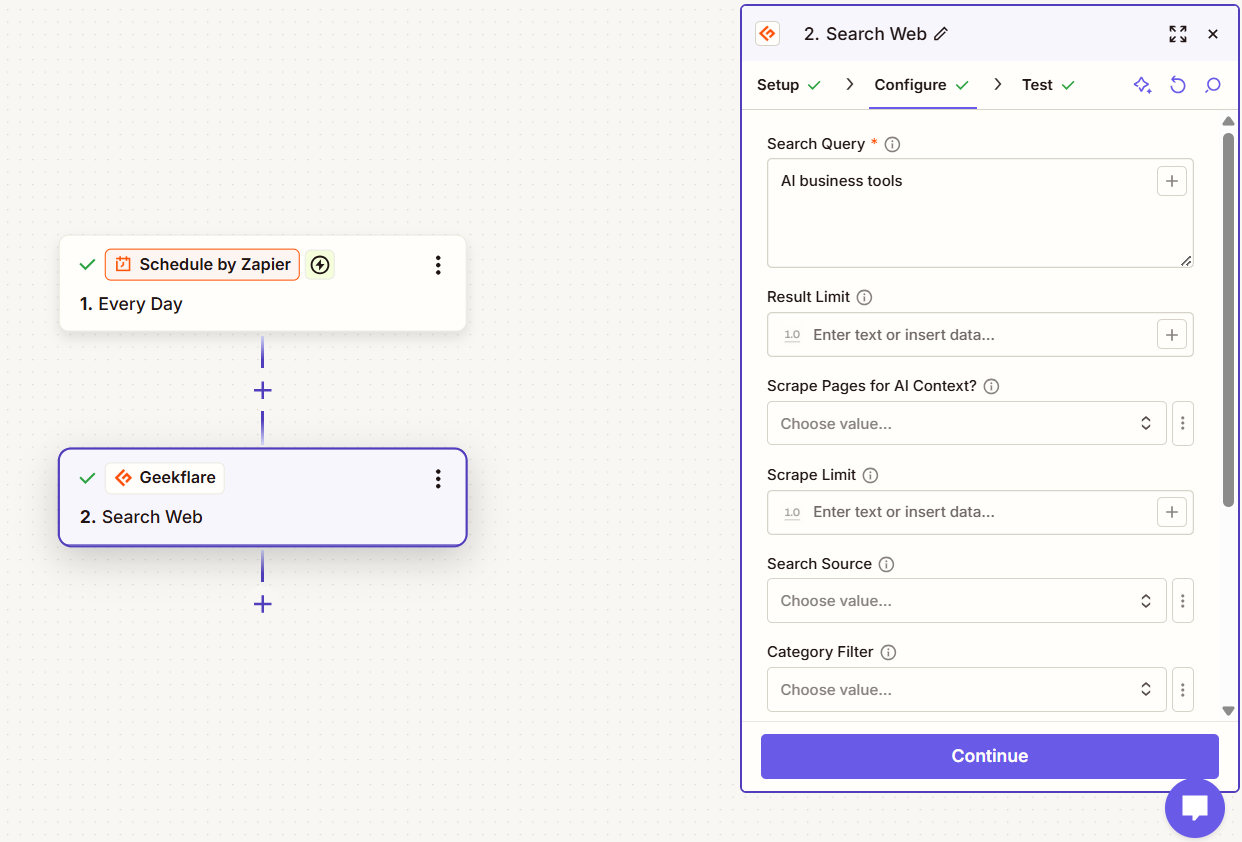
Click the Geekflare node in your Zap. Under Action event, select Search Web and click Continue to open the configuration form.
Step 2: Configure the Search API
The Search API has several optional fields to customize your request. You can configure them based on your needs, but you don’t have to fill in every field.
- Search Query: Enter the keyword or phrase you want to search for. For this example, use
AI automation tools. - Search Result Limit: Set the maximum number of results to retrieve.
- Scrape Pages for AI Context?: Set this to
trueif you need page content for an LLM or AI agent. Choosefalseif you only need search results. - Scrape Limit: Set the maximum number of pages to scrape when AI context extraction is enabled.
- Search Source: Choose Web, News, or Images, based on the type of results you need.
- Category Filter: Select a category, such as General, Code, Research, LinkedIn, PDF, or Wiki, to narrow your search. Leave it empty to search without a category restriction.
- Output Format: Choose JSON, Markdown, or HTML for the response format.
- Time Filter: Enter a supported time filter if you want results from a specific period.
- Location (Country Code): Enter a country code to target a specific country. The default is the United States (
US).
For this example, I’ll enter the search query and leave the other fields at their default or empty values. You can adjust the optional parameters later to suit your workflow.
Click Continue to proceed. Test the Search API to verify the results, or skip the test and continue.
Step 3: Configure Google Sheets
Add Google Sheets as the next action in your Zap. Select Create Spreadsheet Row as the action event, then choose your Google account, spreadsheet, and worksheet.
Under the input fields, map the Geekflare search results to the relevant columns. Select the /data output from Geekflare to pass the search response to Google Sheets.
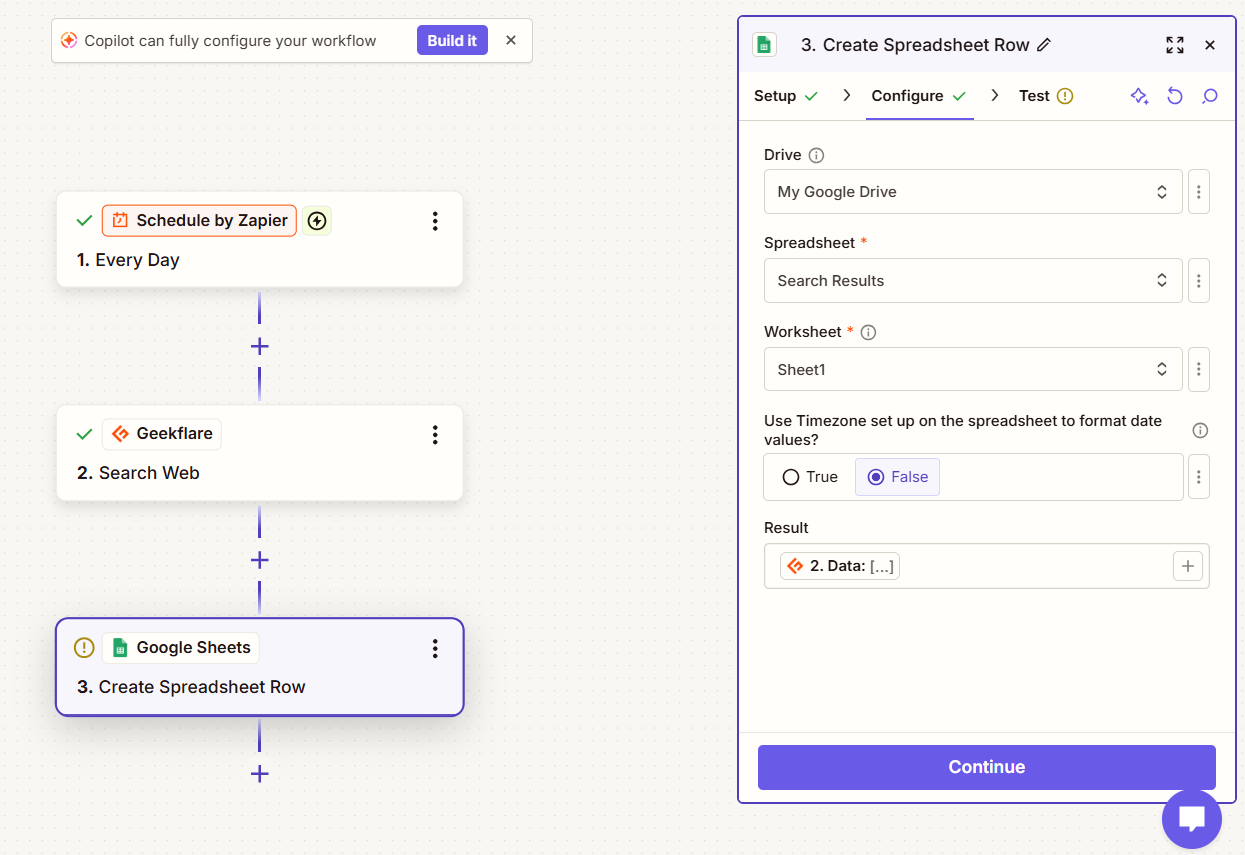
Click Continue and test the action to verify that the search data appears in your spreadsheet.
Step 4: Test and Publish the Zap
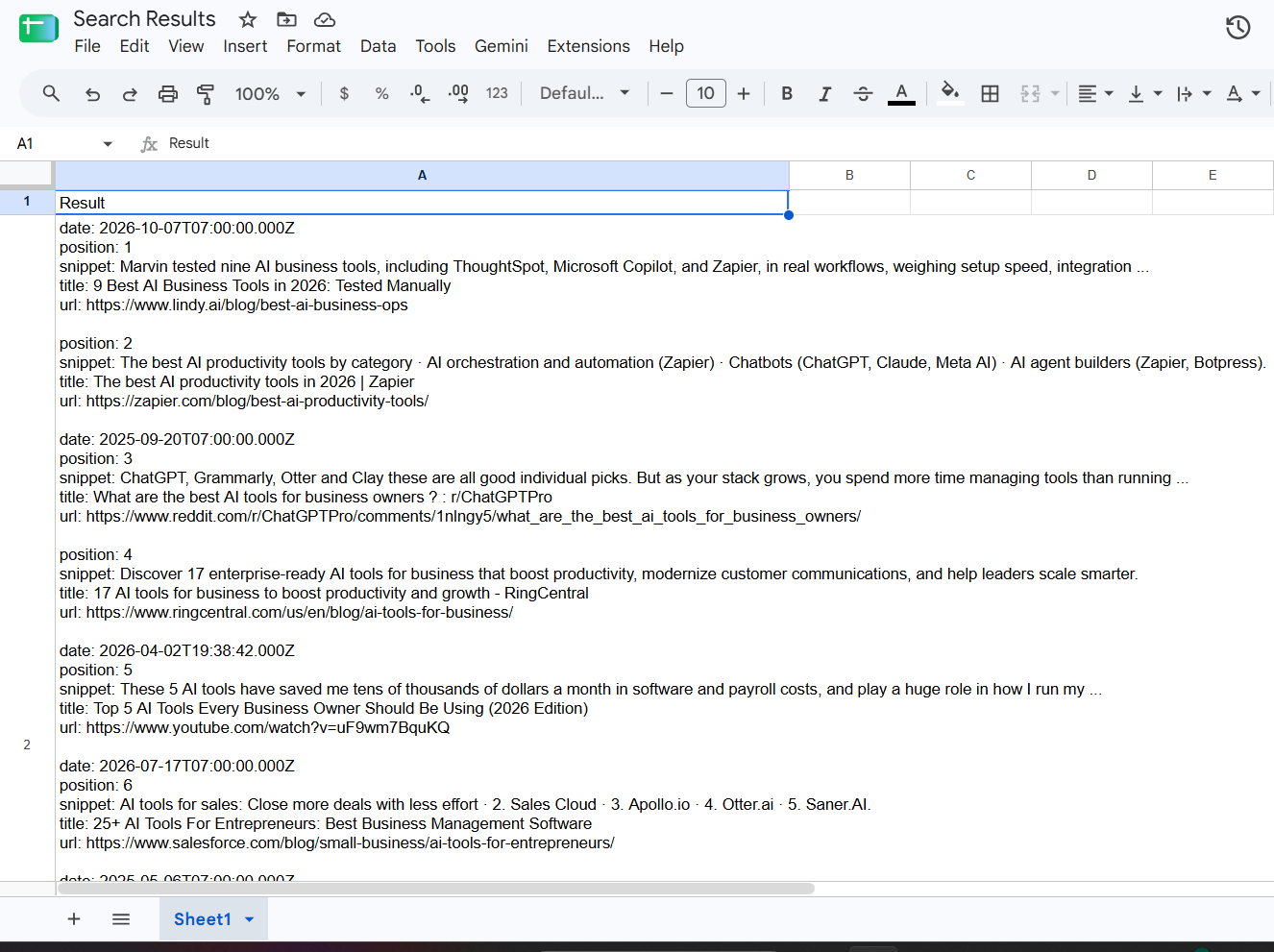
Test the workflow and check your Google Sheet to confirm that the search results appear correctly. If everything works as expected, publish the Zap to automate the process.
Here is the outcome of this workflow:
Frequently Asked Questions
What is Geekflare’s Zapier integration?
Geekflare’s Zapier integration connects Geekflare’s APIs to Zapier workflows. You can use supported API tools alongside other apps to automate tasks.
Do I need coding skills to use Geekflare with Zapier?
No. You can configure the integration through Zapier’s visual workflow editor and enter the required API parameters in the available fields.
Can I use Geekflare’s Search API with other Zapier apps?
Yes. You can pass search results to other connected apps based on your workflow requirements and the actions those apps support.
How do I connect Geekflare to Zapier?
Open the Geekflare integration page on Zapier, click Connect Geekflare to 9000+ apps, and sign in to Zapier if prompted. In the Zap editor, connect your Geekflare account with your API key from the Geekflare dashboard.
Conclusion
Geekflare’s Zapier integration gives you a simple way to add API capabilities to automated workflows. You can connect your Geekflare account, configure the Search API, and pass the returned results to different apps based on your requirements.





