


Collecting website data in a spreadsheet can be tedious when you have to copy each entry manually. Importing that data directly into Google Sheets helps you organize information in one place, analyze it, and share it with others through the cloud.
Google Sheets offers two functions for this task. IMPORTHTML imports tables and lists from web pages, while IMPORTXML extracts specific elements using XPath expressions. Both are useful starting points for simple scraping tasks.
For websites that need more advanced extraction, web scraping APIs offer additional capabilities, such as JavaScript rendering and proxy support.
In this guide, we’ll test both approaches using testingurl.dev. You’ll learn how to import website data using Google Sheets formulas and explore an API-based approach for more complex scraping tasks.
Which Method Should You Use?
There are two ways to scrape website data into Google Sheets. You can use its built-in import functions for simple extraction or connect a web scraping API for more advanced requirements.
1. Google Sheets IMPORT functions
Google Sheets provides two functions for retrieving website data.
IMPORTHTML: Retrieves tables and lists from web pages. It works well when the information is organized into HTML tables or lists.IMPORTXML: Extracts specific elements, such as headings, links, and product details, using XPath expressions.
2. Geekflare Web Scraping API
Geekflare’s Web Scraping API extracts website data and supports features such as JavaScript rendering and proxy configuration. These capabilities are useful for pages that load content dynamically or require additional scraping controls.
Geekflare also provides a Google Sheets Website Scraper template to help connect API-based extraction with a spreadsheet.
The following table highlights the main differences to help you choose the right approach.
The following comparison highlights the main differences.
| Comparison criteria | Google Sheets IMPORT functions | Geekflare Web Scraping API |
|---|---|---|
| Setup | Enter a formula | Configure API access and the companion template |
| Data selection | HTML tables, lists, and elements selected using XPath | Extraction based on supported API options |
| JavaScript rendering | Limited when content is absent from accessible HTML | Supports browser rendering |
| Proxy options | No built-in proxy configuration | Supports proxy options |
| Data processing | Results populate cells through formulas | API responses must be mapped to spreadsheet columns |
| Maintenance | Update formulas when page structures change | Maintain the script, API configuration, and field mapping |
Scrape Website Data Using Google Sheets IMPORT Functions
Let’s start with a simple example to see how Google Sheets imports website data using its built-in functions.
Import a Table or List with IMPORTHTML
Let’s import a product table from testingurl.dev into Google Sheets.
Step 1: Paste https://testingurl.dev/ into cell A2.
Step 2: Enter this formula in cell B2.
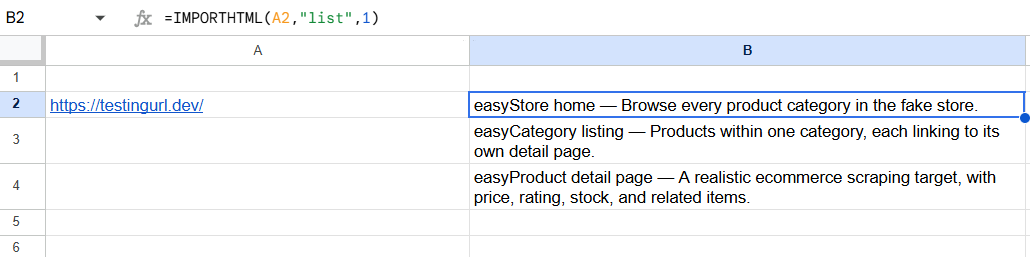
=IMPORTHTML(A2,"list",1)A2contains the source URL."list"tells Google Sheets to retrieve an HTML list.1selects the first list on the page.
Google Sheets imports the available lists into separate rows. In this example, the homepage returns descriptions of the easyStore home page, category listing, and product detail page.
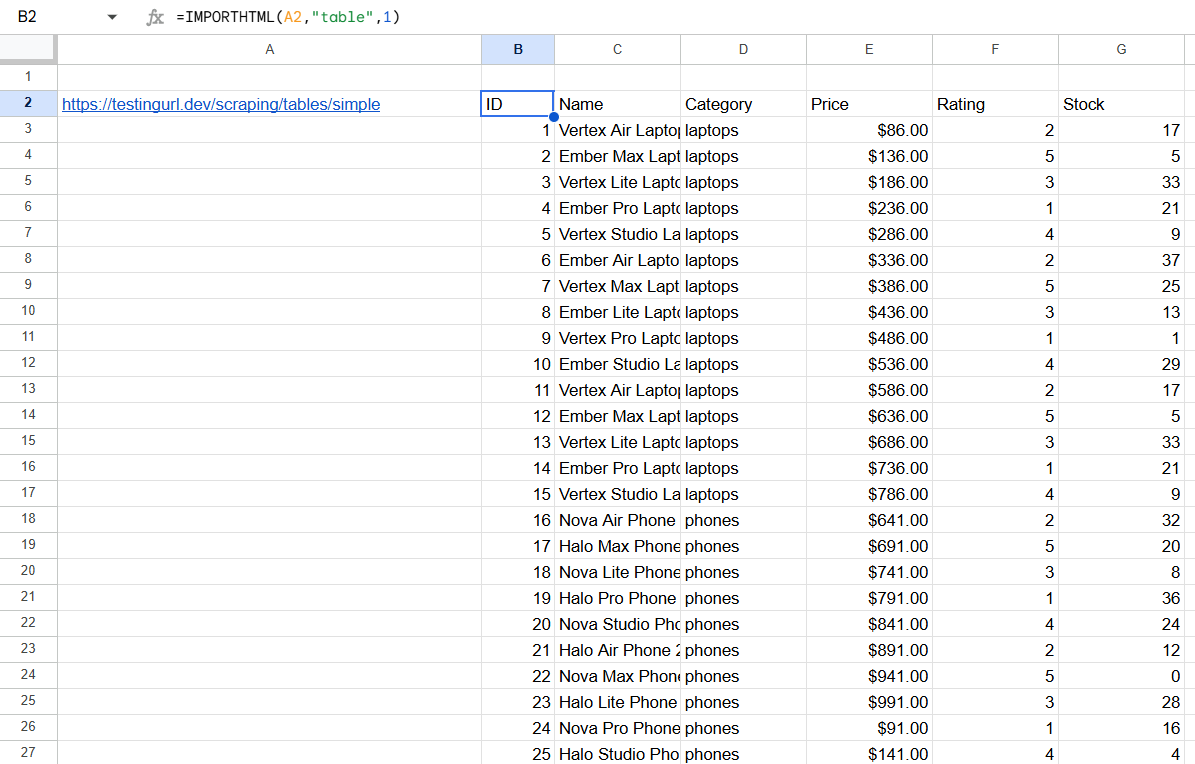
To import the product table instead, use =IMPORTHTML(A2,"table",1) with https://testingurl.dev/scraping/tables/simple in cell A2. Google Sheets retrieves the table with product IDs, names, categories, prices, ratings, and stock quantities, as shown below.
Extract Specific Elements with IMPORTXML
Use IMPORTXML to extract specific elements from a web page instead of importing an entire table or list. It uses XPath expressions to identify the content you want.
Example 1: Extract the page heading
Enter the TestingURL.dev homepage URL in cell A2 and use this formula in B2.
=IMPORTXML(A2,"//h1")The //h1 expression selects the page’s H1 heading. In this example, Google Sheets returns Developer & Web Scraping Sandbox.

Example 2: Extract all H2 headings
To retrieve all H2 headings from the same page, use this formula.
=IMPORTXML(A2,"//h2")The //h2 expression selects every H2 element and returns the headings in separate rows.
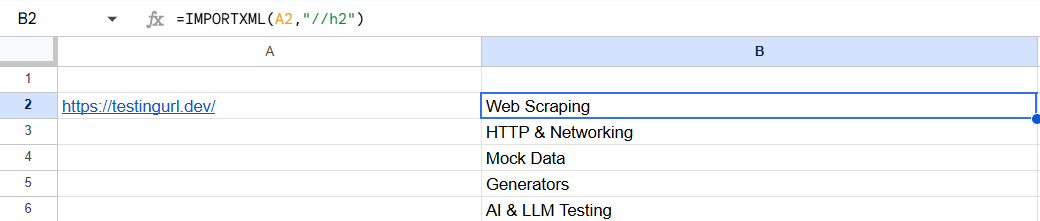
These examples show how XPath lets you choose specific elements instead of importing all the content on a page.
Troubleshoot Missing or Incorrect Results
If a formula returns an error or unexpected data, check these common issues.
- Wrong table or list: Change the index in
IMPORTHTMLto select the correct table or list. - No matching elements: Check the XPath expression in
IMPORTXML. For example,//h1selects H1 headings, while//h2selects H2 headings. - Missing content: Open the source page and check whether the required data exists in its HTML. Content loaded through JavaScript might not be available to these functions.
- Page access errors: Check whether the URL is correct and the page is publicly accessible.
Google Sheets refreshes imported data approximately every hour while the spreadsheet is open. You cannot force an immediate refresh simply by reopening the document.
If the required content isn’t available to Google Sheets, a web scraping API may offer a more suitable way to retrieve it.
Scrape Website Data with Geekflare and a Google Sheets Template
The import functions have limitations when the required content isn’t available in the page’s HTML. Geekflare’s Web Scraping API provides another way to retrieve that content through a ready-made Google Sheets template.
Copy the Companion Template
Open the Google Sheets Website Scraper template and click Copy the template to create an editable copy in your Google Drive.
Configure API Access
Open your Geekflare dashboard and copy your API key. Return to the spreadsheet and select Website Scraper → Set API key from the menu bar.
Complete the authorization process, grant the requested permissions, and paste your API key into the dialog box.
Add URLs and Define the Fields to Extract
Enter https://testingurl.dev/ in the URL column to test the scraper. You can also specify CSS selectors in the CSS selector column to target particular elements on the page.
The template includes columns for the page title, description, content in Markdown, word count, scraping status, and last scraped time.

Run the Scraper and Review the Results
Select Website Scraper → Scrape new rows to process the URL. The template populates the corresponding columns with the extracted information and records the scraping status and timestamp.
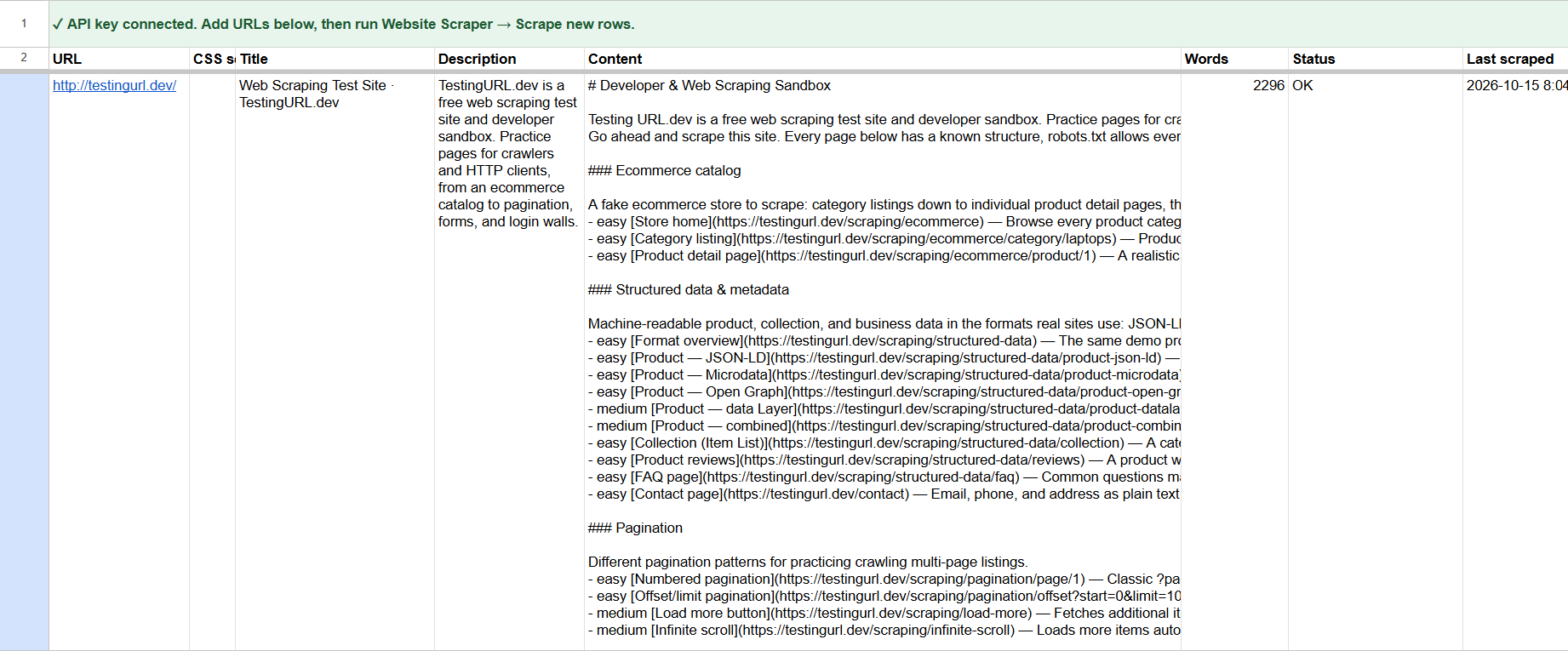
You can enter multiple URLs and process them in one run. Review the extracted content and status columns to confirm that the scraper returned the expected information.
Schedule Automatic Updates
The template also supports scheduled scraping. Select Website Scraper → Re-scrape daily at 6 AM to schedule daily runs. Use Re-scrape all rows to refresh existing entries or Stop daily runs to disable the schedule.
These options let you refresh collected website data without manually starting every run.
Frequently Asked Questions
Can I scrape a website into Google Sheets without coding?
Yes. Google Sheets provides IMPORTHTML and IMPORTXML for basic data extraction. You can also use Geekflare’s Google Sheets Website Scraper template to extract website content through its Web Scraping API with minimal coding.
What is the difference between IMPORTHTML and IMPORTXML?
IMPORTHTML imports complete HTML tables or lists from a web page. IMPORTXML uses XPath expressions to extract specific elements, such as headings and links.
Why is my import formula returning no data?
Check the source URL, table index, and XPath expression. The required content must also be accessible to Google Sheets. Pages that load data through JavaScript may require a web scraping API with rendering support.
How can I refresh imported data automatically?
Google Sheets checks IMPORTHTML and IMPORTXML results for updates approximately every hour while the spreadsheet is open. For scheduled scraping, Geekflare’s template provides a daily run option that you can enable from the Website Scraper menu.
Conclusion
Google Sheets’ built-in import functions are a practical starting point for extracting tables, lists, and individual elements from accessible web pages. They require little setup and work directly within your spreadsheet.
For more advanced extraction, Geekflare’s Web Scraping API and Google Sheets Website Scraper template provide additional capabilities, such as JavaScript rendering, CSS selector-based extraction, and scheduled scraping.
Choose the method that fits your data source and extraction needs.





