


Make lets you connect different apps and automate workflows but scraping website data requires a suitable extraction tool.
In this tutorial, you will use a web scraping integration to extract data from any website and pass it to other Make modules for further automation.
Prerequisites
Geekflare provides web scraping capabilities through integrations with automation platforms such as Make. You can use its integration to extract website data and pass the results to other modules in your scenarios.
Before creating the scenario, make sure you have:
- A Make account.
- A Geekflare API key, available from your Geekflare dashboard. The free plan includes 500 credits.
- The URL of the website you want to scrape.
Create a Website Scraping Scenario in Make
Let’s create a scenario that extracts content from a website using Geekflare and makes the results available for further automation.
Step 1: Create a New Scenario
Log in to your Make account and click Create a new scenario. Give your scenario a name, such as Website Scraper.
Step 2: Add the Geekflare Integration
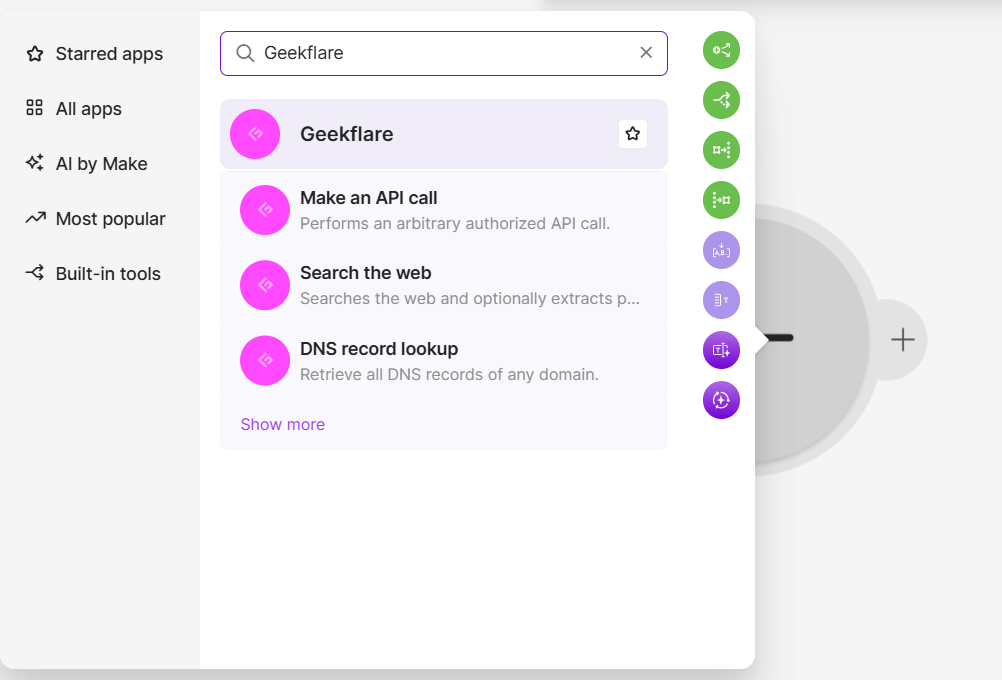
Click the + icon in the scenario editor, search for Geekflare, and select the integration.
Step 3: Select the Web Scraping Action
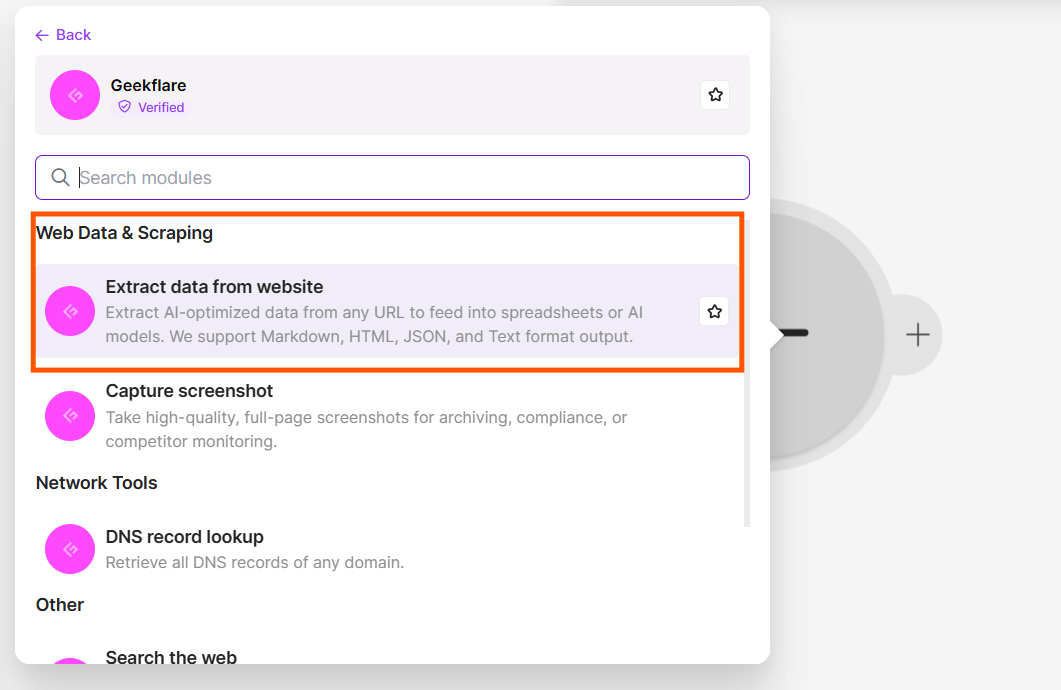
Choose Extract data from website from the available Geekflare actions.
Step 4: Connect Your Geekflare Account
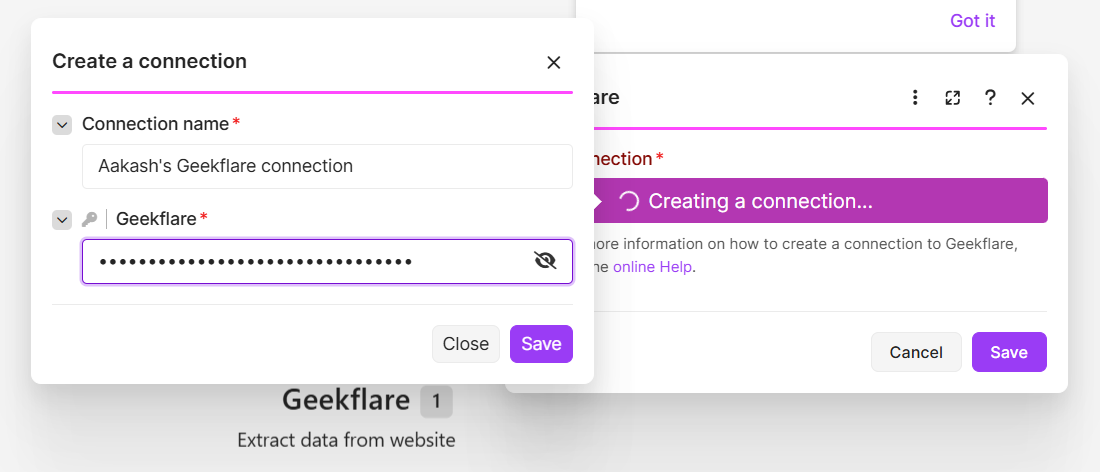
Click Create a connection and enter your Geekflare API key. Save the connection to authenticate the integration.
Step 5: Enter the Website URL
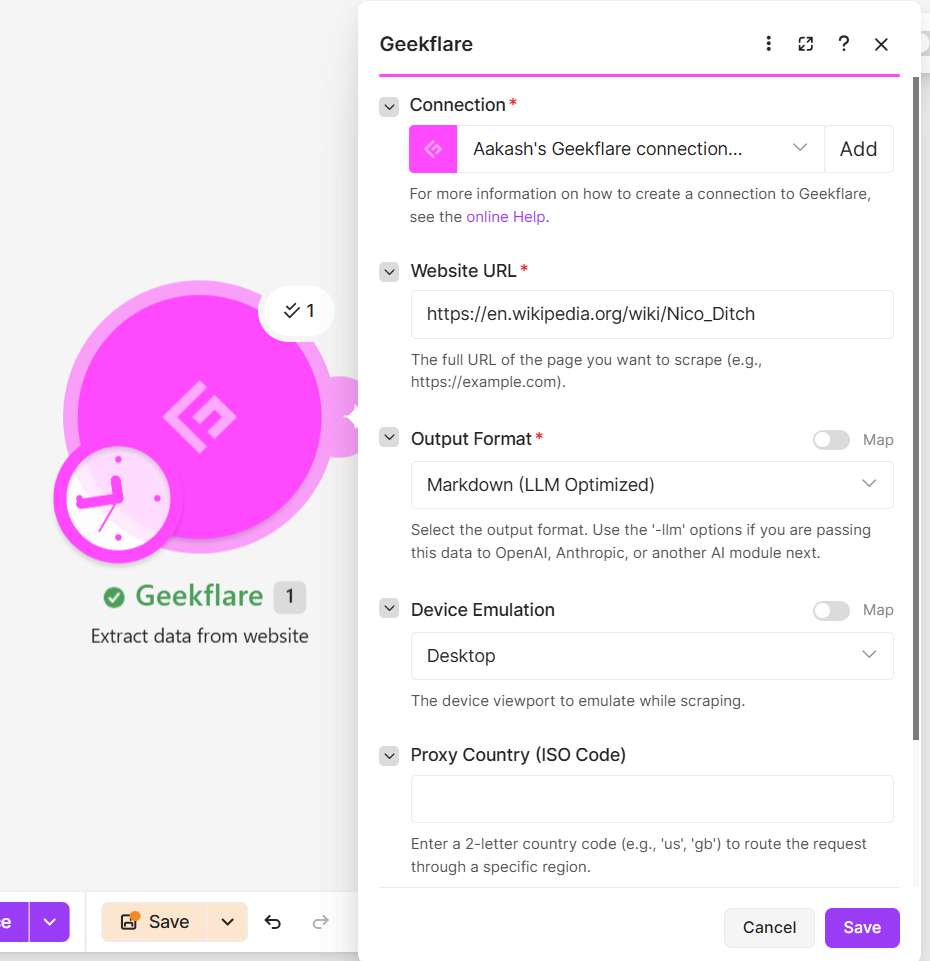
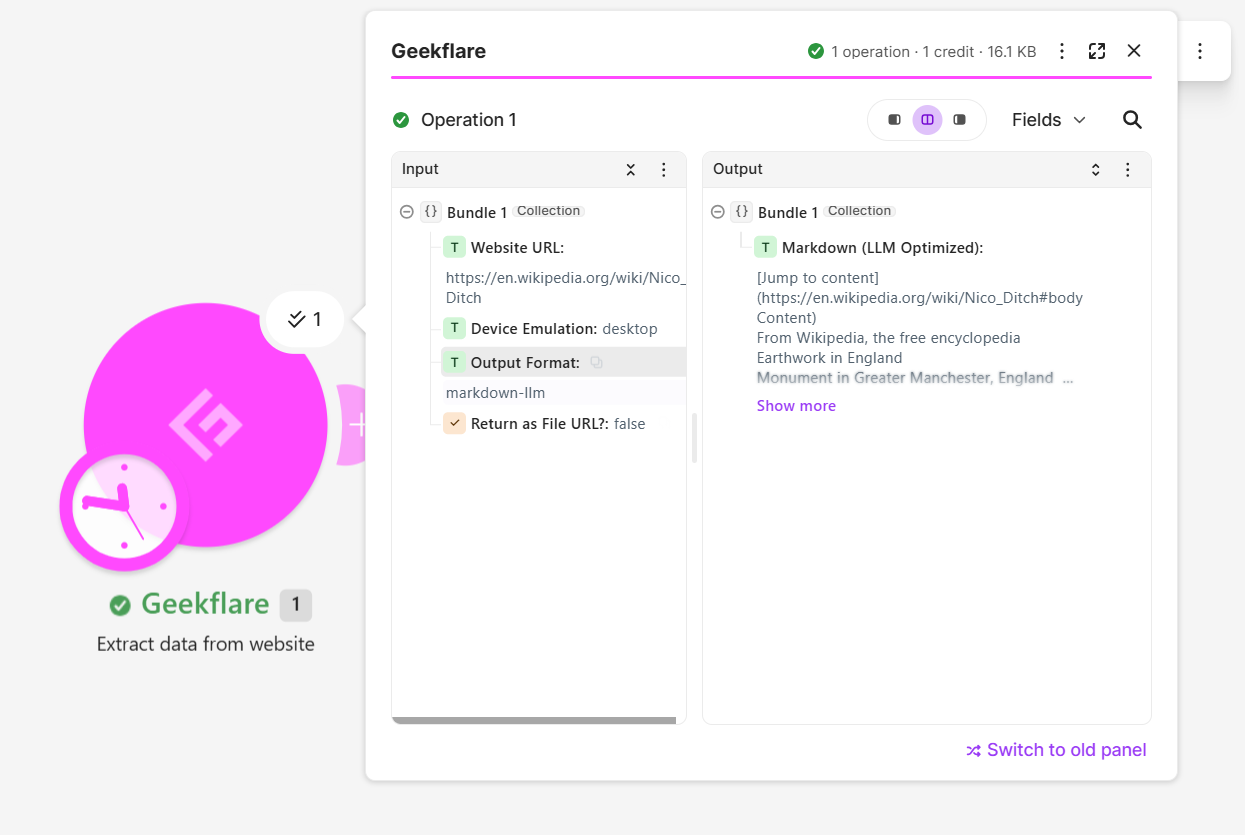
In the URL field, enter the webpage address you want to scrape. For this example, we’ll use the Nico Ditch Wikipedia page.
Step 6: Configure the Parameters
Configure the following parameters based on your scraping requirements:
| Parameter | Description | Selected Value |
|---|---|---|
Output Format | Choose the format for the extracted content. Options include Markdown (LLM Optimized), Markdown, Text (LLM Optimized), Text, HTML (LLM Optimized), HTML, and JSON. | Markdown (LLM Optimized) |
Device Emulation | Select the device viewport to emulate while scraping. | Desktop |
Proxy Country (ISO Code) | Enter a two-letter country code (e.g., us or gb) to route the request through a specific region. This is optional. | Not configured |
Return as File URL? | Select Yes to receive a downloadable file URL instead of raw text. | No |
You can adjust these parameters based on your scraping requirements.
Step 7: Run the Scenario
Click Run once to execute the scenario. Once the module finishes, open its output to inspect the extracted webpage content.
Send the Scraped Data to Another Application
You can pass the extracted webpage content to other applications for storage, analysis, or further use. For this example, we will use Slack to send the scraped content to a channel.
Step 1: Add the Slack Module
- Click the + icon after the Geekflare module.
- Search for Slack and select the integration.
- Choose the action to
Send a message. - Connect your Slack account.
Step 2: Configure the Slack Module
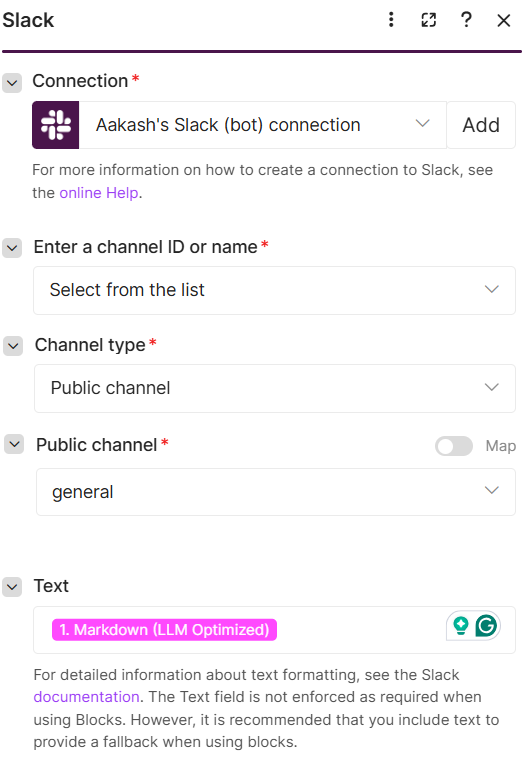
For this example, I used my Slack workspace and selected the general channel.
Your workspace may have different settings and channel names. Configure the fields based on your own workspace.
| Field | Value |
|---|---|
| Channel Type | Public channel |
| Public Channel | general |
| Text | Map the Markdown output from the Geekflare module |
In the Text field, use the mapping panel to select the Markdown (LLM Optimized) output from the Geekflare module. This passes the extracted webpage content directly to Slack.
Step 3: Run the Scenario
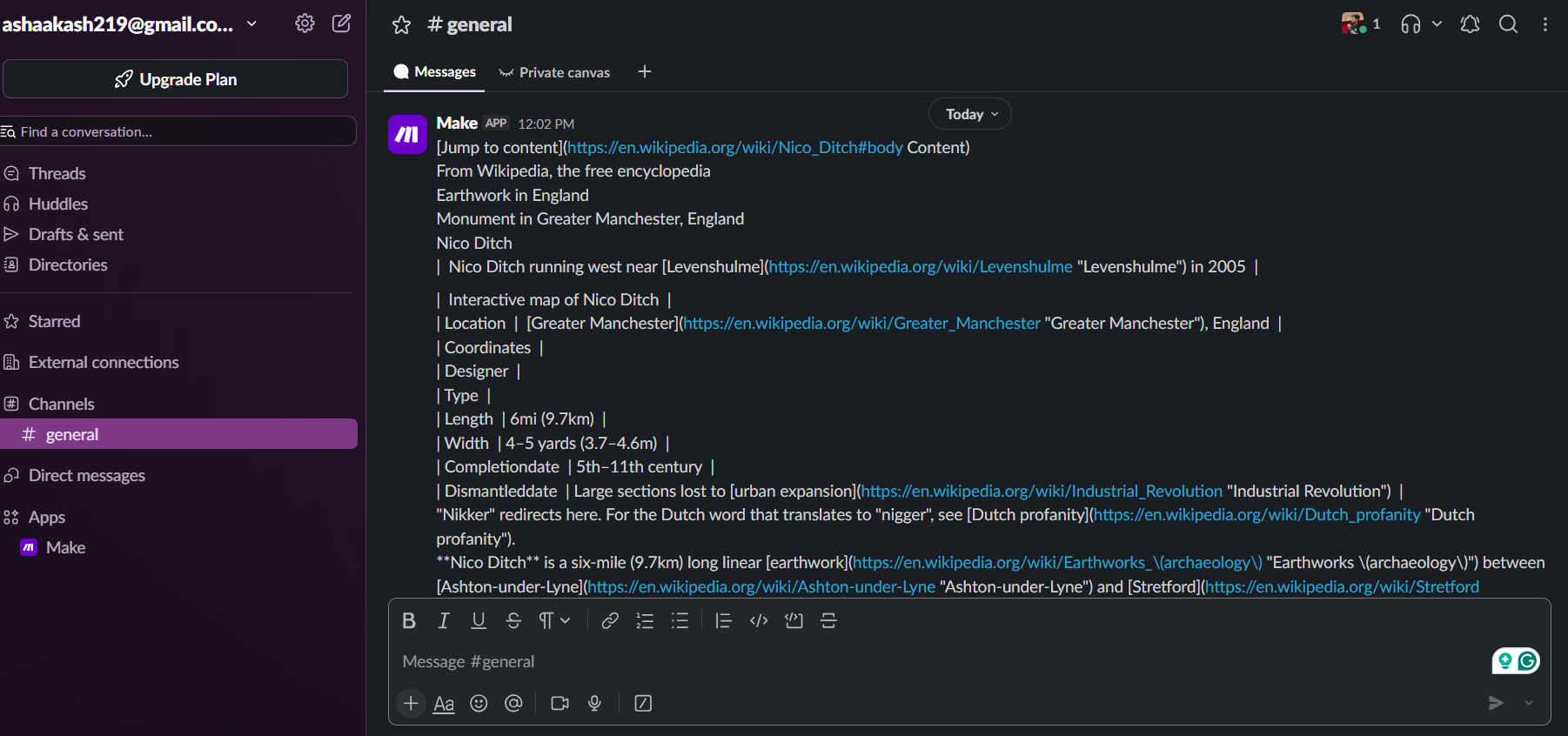
Click Run once to execute the scenario. Open your Slack workspace and check the selected channel to verify that the scraped webpage content appears as a message.
You can use the same approach to connect other applications supported by Make and build automation workflows around your scraping requirements.
Frequently Asked Questions
Can I scrape any website using Make?
You can scrape many websites using Make with a web scraping integration such as Geekflare. The results depend on the website’s access restrictions, content structure, and scraping configuration.
Does Make support web scraping?
Make supports web scraping through integrations and HTTP Request modules. You can connect external scraping services to extract webpage content and use the results in your scenarios.
What output formats does Geekflare Web Scraping support?
Geekflare supports HTML, HTML LLM Optimized, JSON, Markdown, Markdown LLM Optimized, Text, and Text LLM Optimized formats.
Can I scrape multiple websites in one Make scenario?
Yes. You can use an array of URLs with Make’s Iterator module to process multiple webpages individually. Connect the Geekflare module to the Iterator output to scrape each URL.
Conclusion
You have now created a website scraping scenario in Make using Geekflare’s Web Scraping integration. The scenario extracts webpage content and sends it to a Slack channel.
You can extend this workflow to scrape multiple URLs, process the extracted content using AI, or send results to other applications.
Explore the available Make modules and Geekflare scraping options to adapt the scenario to your requirements.