

In this tutorial, you will build a web scraping workflow in n8n to extract content from webpages, process the results and pass the scraped data to other nodes for further automation.
Prerequisites
For this workflow, Let us use Geekflare’s Web Scraping API to extract webpage content and return it in different structured formats. Before getting started, make sure you have:
- A Geekflare API key. You can generate one from your Geekflare dashboard. The free plan includes 500 credits.
- A webpage URL that you want to scrape.
Build the Web Scraping Workflow in n8n
Follow these steps to configure the Geekflare node, scrape a webpage, and inspect the extracted content.
Step 1: Install the Geekflare Node
Open n8n and create a new workflow. Click the + icon to add a node and search for Geekflare. Select the integration and install it if prompted.
Step 2: Select the Web Scraping Action
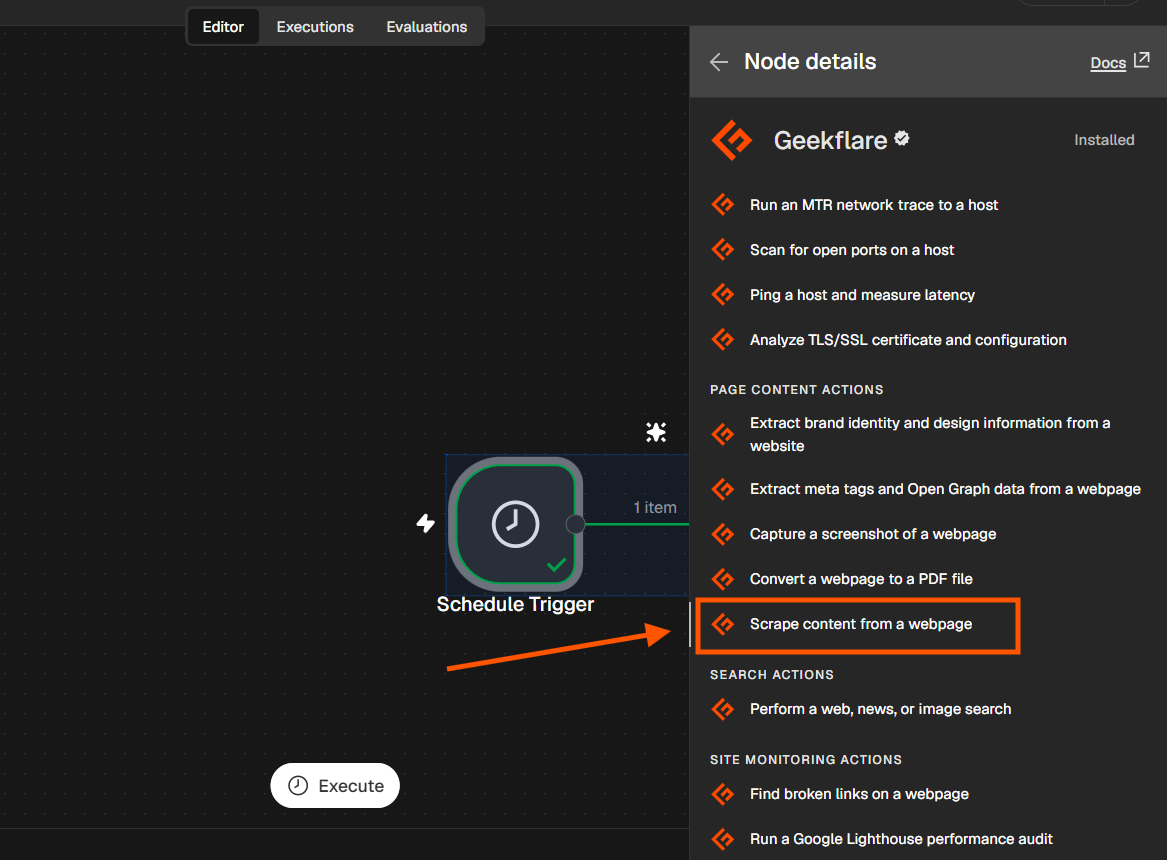
Geekflare provides 18 different actions in n8n. Under Page Content Actions, select Scrape content from a webpage.
Step 3: Connect Your Geekflare Account
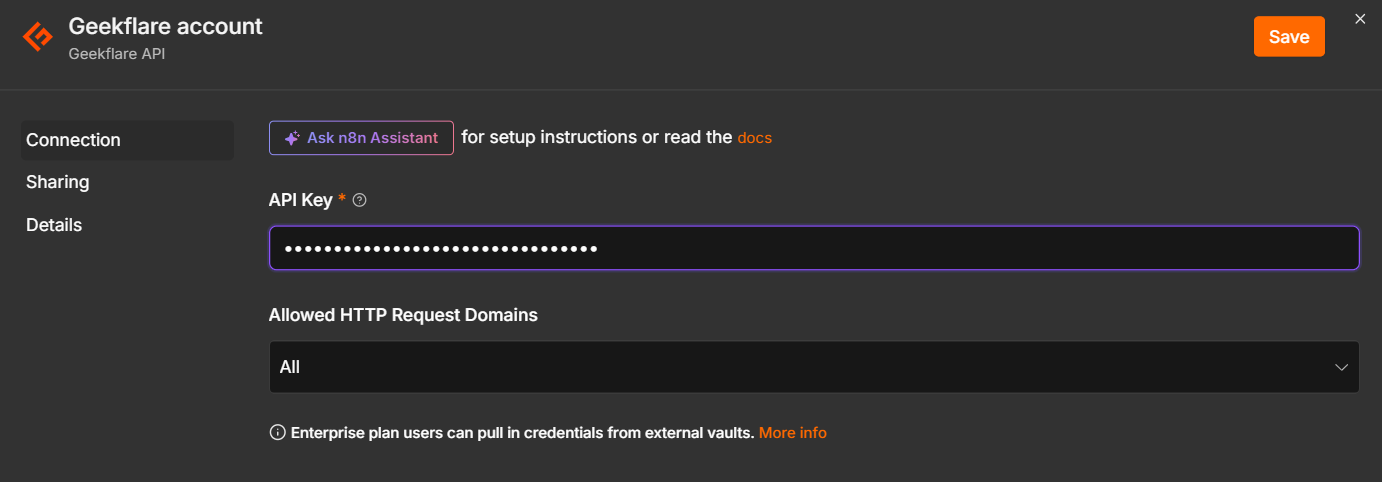
Click Connect and enter your Geekflare API key in the pop-up dialog. Once authenticated, your Geekflare account will be connected to n8n.
Step 4: Enter the Website URL
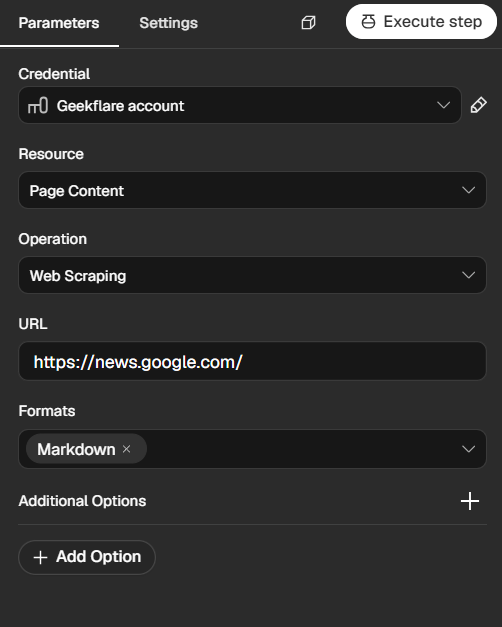
In the URL field, enter the address of the webpage you want to scrape. For this example, we will use Google News.
Next, select the output format. The available formats include HTML, HTML LLM, JSON, Markdown, Markdown LLM, Text, and Text LLM. For this execution, select Markdown.
Step 5: Configure the Scrape Options
Click Add Option to configure additional scraping settings. The available options are AI Prompt (JSON), Block Ads, Device, Extraction Mode, Extraction Schema (JSON), File Output, Proxy Country, Proxy Mode, Render JavaScript, Stealth Mode, Template, and Wait Time (Seconds).
For this tutorial, select Block Ads to remove advertisements from the extracted webpage content. You can choose other options based on your scraping requirements.
Step 6: Execute the Node
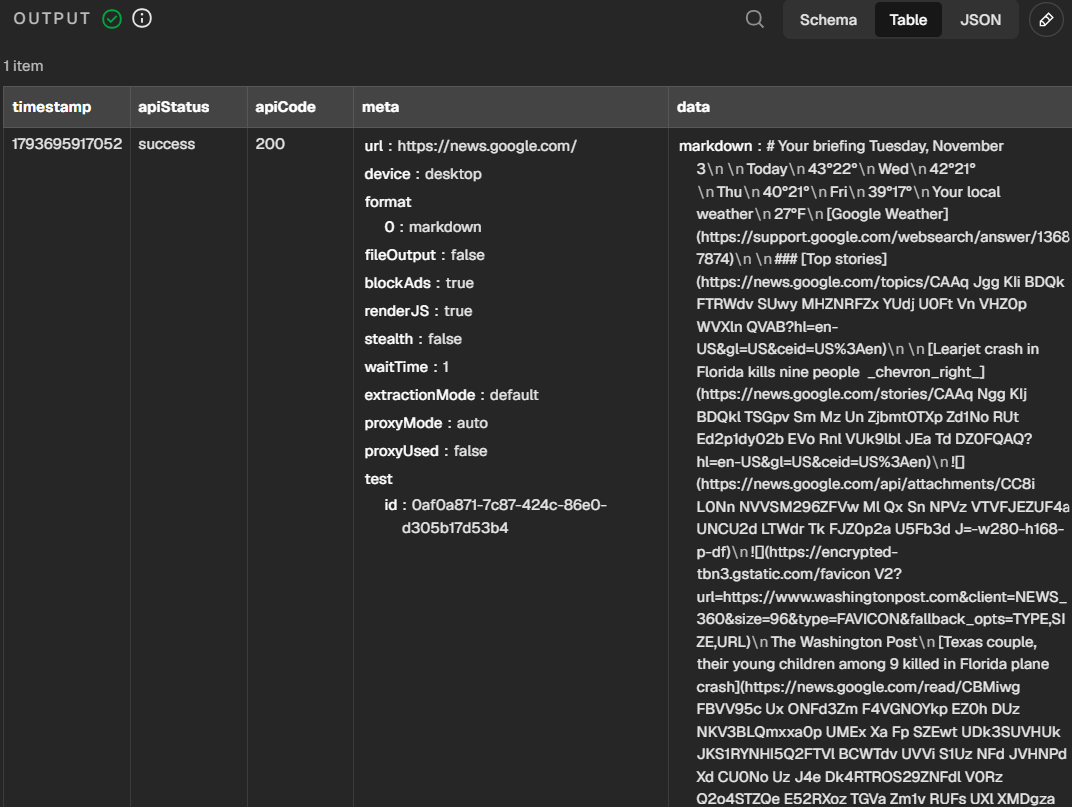
Click Execute Step to run the scraping request. Once execution completes, open the output panel to inspect the extracted content in Markdown format.
Pass the Scraped Content to Other n8n Nodes
The scraped content can be passed to other n8n nodes for storage, analysis, summarization, or further automation.
For this example, we’ll use Google Docs to demonstrate how to transfer the extracted webpage content to another application. You can choose any other tool or action based on your requirements and build a workflow around your use case.
Step 1: Add the Google Docs Node
Add a Google Docs node after the document creation node. Select Update a document as the operation and connect your Google account if you haven’t already.
Step 2: Map the Scraped Content
Configure the following fields:
- Doc ID or URL: Enter the document URL that you created for this workflow.
- Object: Select
Text. - Action: Select
Insert. - Insert Segment: Select
Body. - Insert Location: Select
At End of Specific Position. - Text: Switch to Expression mode and enter the following expression to retrieve the Markdown content from the Geekflare node:
{{ $json.data.markdown }}This passes the scraped Markdown content to the Google Docs node.
Step 3: Execute the Workflow
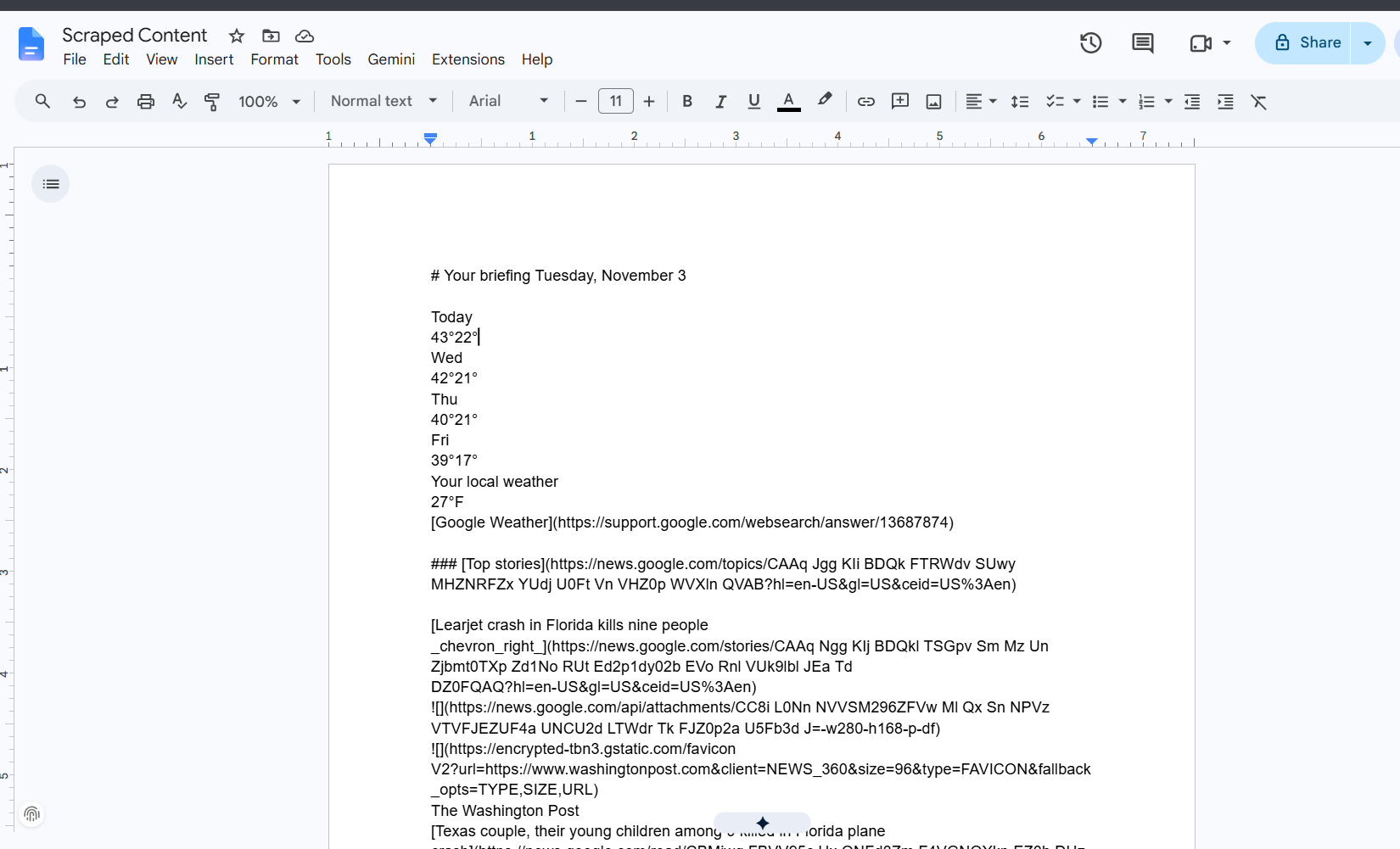
Click Execute Workflow and open Google Docs to verify that the scraped webpage content has been added to the document.
You can follow the same approach to pass scraped data to other n8n nodes and build workflows around your specific requirements.
Frequently Answered Questions
Can I use n8n for web scraping?
Yes. n8n supports web scraping through integrations, HTTP Request nodes, and external APIs. You can use these nodes to extract webpage content and process the results in automated workflows.
Does Geekflare Web Scraping API support JavaScript-rendered websites?
Yes. You can enable the Render JavaScript option in the Geekflare node to extract content from webpages that rely on JavaScript.
What output formats does Geekflare Web Scraping API support?
The API supports HTML, HTML LLM, JSON, Markdown, Markdown LLM, Text, and Text LLM formats.
Can I scrape multiple URLs using n8n?
Yes. You can pass multiple URLs to the workflow and use nodes such as Loop Over Items to process them individually.
Conclusion
You have now built a web scraping workflow in n8n using Geekflare’s Web Scraping API. The workflow extracts webpage content and passes it to Google Docs through a separate node.
You can extend this setup to process multiple URLs, summarize extracted content with an AI model, store results in a database, or trigger other automated tasks.
Explore different n8n integrations and scraping options to adapt the workflow to your requirements.