Building an AI agent that can search the web in real time helps you answer questions using current information. This is useful for researching recent developments, checking updated facts, and finding relevant sources for a query.
n8n lets you build this workflow by connecting an AI Agent node to a chat model and a web search tool. The agent interprets the user’s question and decides when it needs external information to prepare an answer.
The web search tool retrieves relevant results that the agent can use to respond. The quality of the answer depends on the search results, the query, and how the agent interprets the retrieved information.
In this tutorial, you’ll learn how to build a real-time web search agent in n8n using Geekflare’s Web Search integration.
Why Connect Web Search to an n8n AI Agent?
An AI agent can use a web search tool to retrieve external information when its language model cannot answer a query using its existing knowledge. In n8n, the AI Agent node can call a connected search tool, process the returned results, and use them to generate a response.
Web search adds several capabilities to the workflow:
- Retrieve current information: Search for recent news, product updates, and industry developments.
- Research complex questions: Gather relevant webpages to support multi-step research.
- Verify claims: Compare retrieved information across sources before generating an answer.
- Automate research tasks: Pass search results to other nodes for summarization, reporting, or storage.
The agent uses its model to decide when to call the search tool, based on the user’s query and the instructions you configure.
Understanding the n8n AI Agent Workflow
An AI agent in n8n combines a chat model with tools that let it retrieve information and perform tasks.
For real-time web search, Geekflare provides the search capability through its Web Search API, which the agent can call when it needs current information to answer a question.
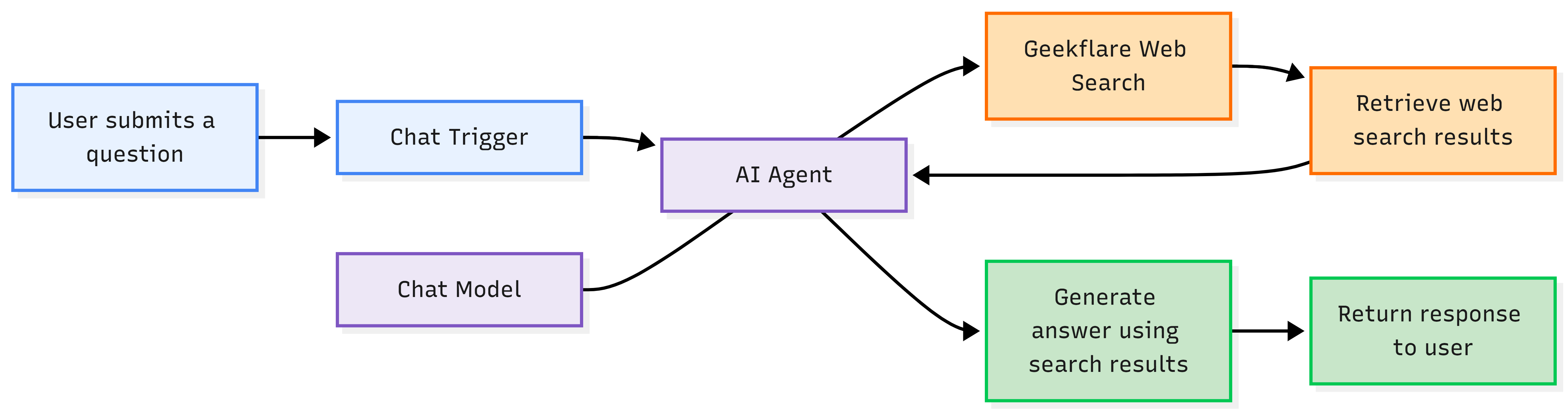
The workflow consists of these components:
- Chat Trigger: Receives the user’s question and starts the workflow.
- AI Agent: Interprets the question and decides when to call the search tool.
- Chat Model: Processes the question and generates the final response using the available context.
- Geekflare Web Search: Retrieves relevant web results for the agent to use.
- Final Response: The agent uses the retrieved information to formulate an answer for the user.
In n8n, you connect the chat model and Geekflare search tool to the AI Agent through their respective AI connections. When a query requires current information, the agent can call Geekflare, process the returned results, and use them to prepare its response.
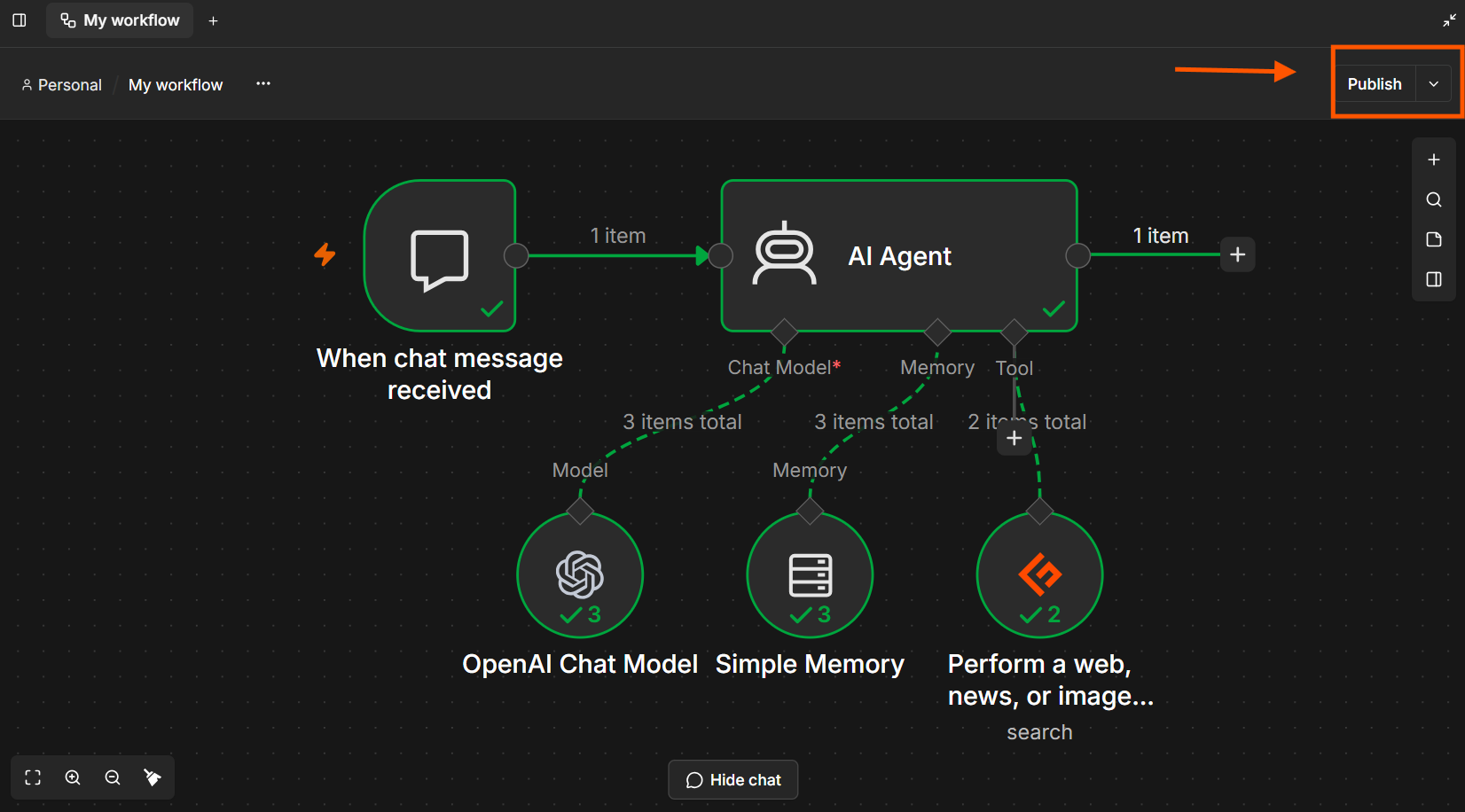
The following workflow shows how these components work together to answer a user’s question using web search.
Building the Real-Time Web Search Agent in n8n
Let’s build a chat-based AI agent that uses Geekflare to search the web and generate answers with relevant source links.
Step 1: Create a New Workflow
Open n8n, click Create Workflow, and name it Geekflare Research Agent.
Step 2: Add the Chat Trigger
Click Add first step, search for Chat, and select On new chat event.
Under Parameters, click Add Option, select Response Mode, and set it to Streaming to display responses as they are generated.
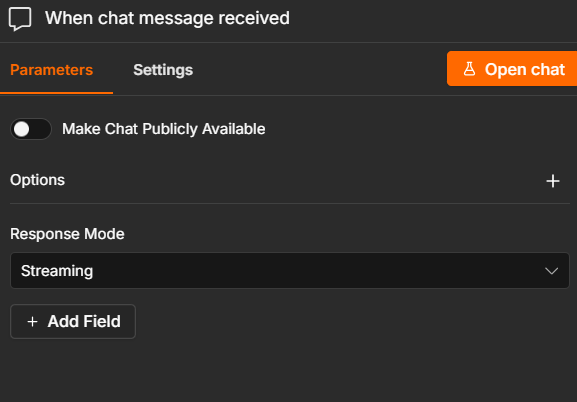
Click Open chat and enter a test question:
What are the latest developments in AI in October 2026?
Step 3: Configure the AI Agent
Add an AI Agent node and connect it to the Chat Trigger. Set Source for Prompt to Connected Chat Trigger Node.
Under Add Options, select System Message and enter the following instructions:
You are a research assistant. Today is {{ $now.toFormat("yyyy-MM-dd") }}.
Use the web_search tool for every user question. Make no more than 3 searches per question. Summarize the results clearly and cite source URLs. If no relevant results are found, say so instead of guessing.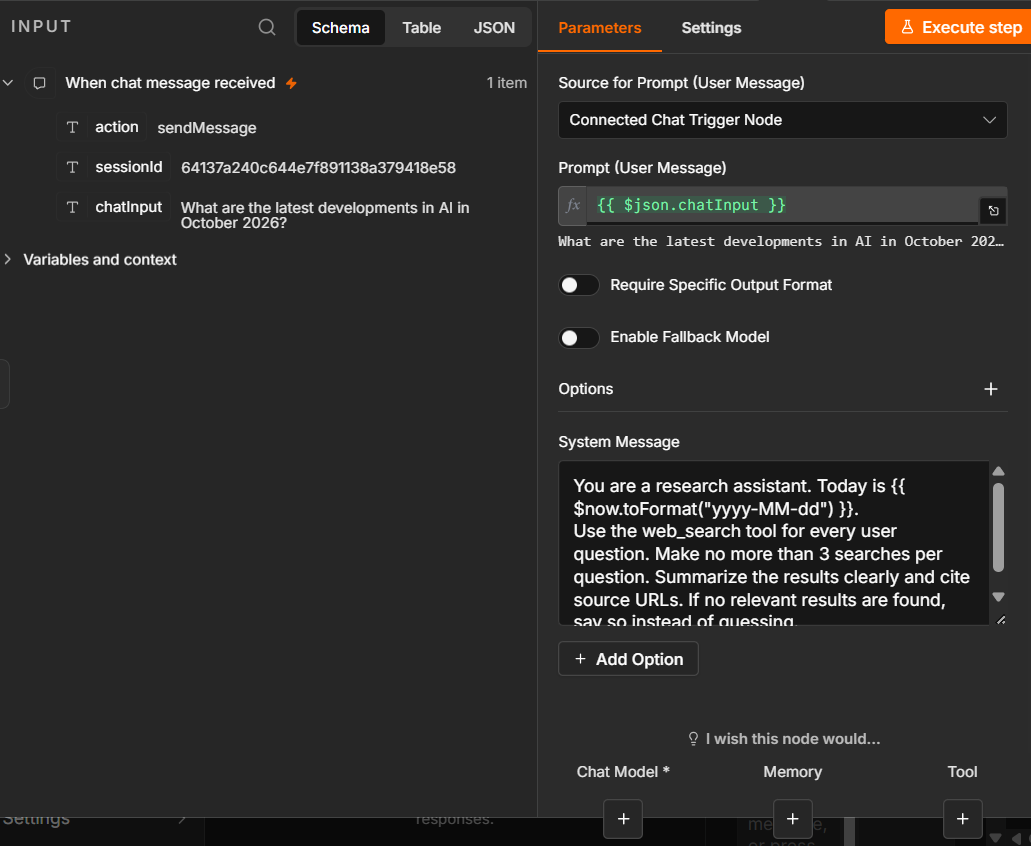
Step 4: Connect a Chat Model
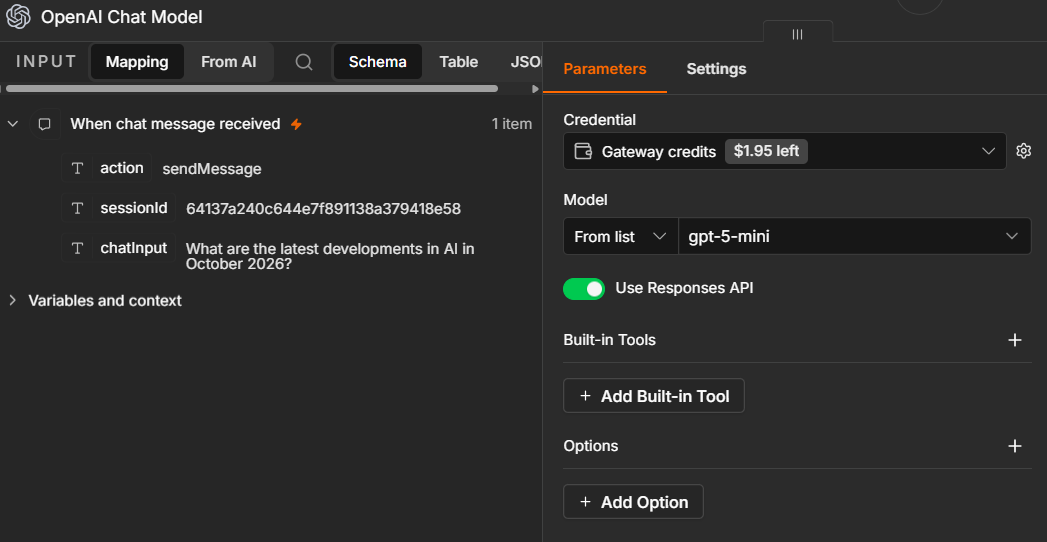
Add an OpenAI Chat Model to the AI Agent’s Chat Model connection. Configure your OpenAI API credentials and select a supported model.
Step 5: Add Memory (Optional)
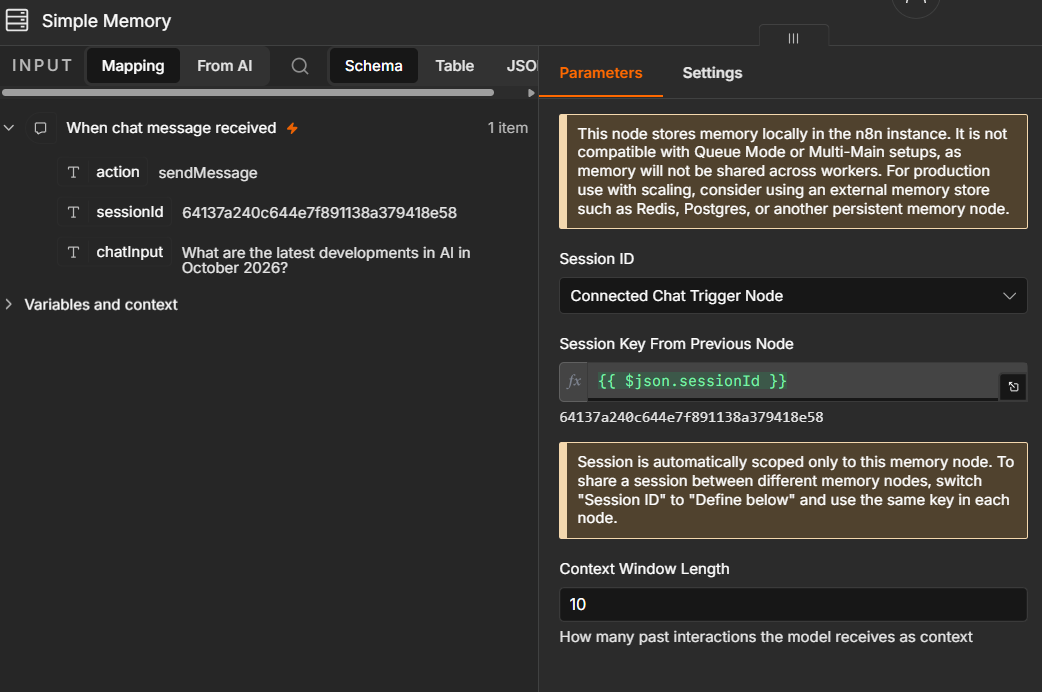
Add Simple Memory to the AI Agent’s Memory connection and set Context Window Length to 10.
This helps the agent retain recent conversation context and respond to follow-up questions.
Step 6: Add Geekflare Web Search
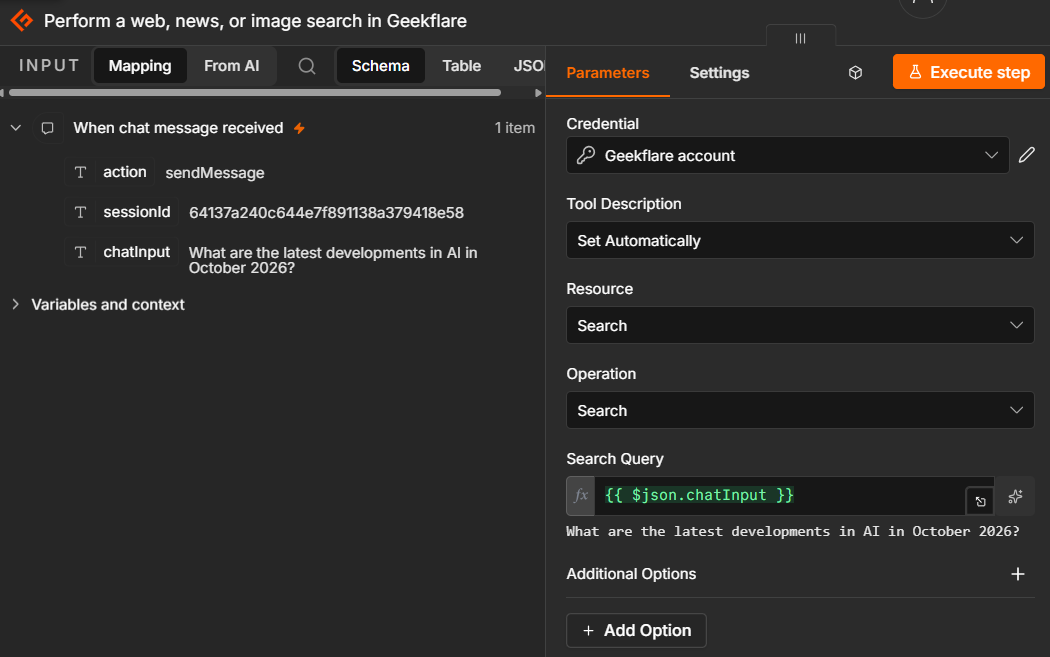
Click the AI Agent’s Tool connection and add Geekflare. Connect your Geekflare account using your API key. You can retrieve the key from the Geekflare dashboard.
Under Resource, select Search. Set the query input to:
{{ $json.chatInput }}This passes the user’s chat message as the search query. You can also configure additional options, such as the output format and search type. Depending on the available settings, you can select web, news, image, or PDF search.
Step 7: Test the Agent
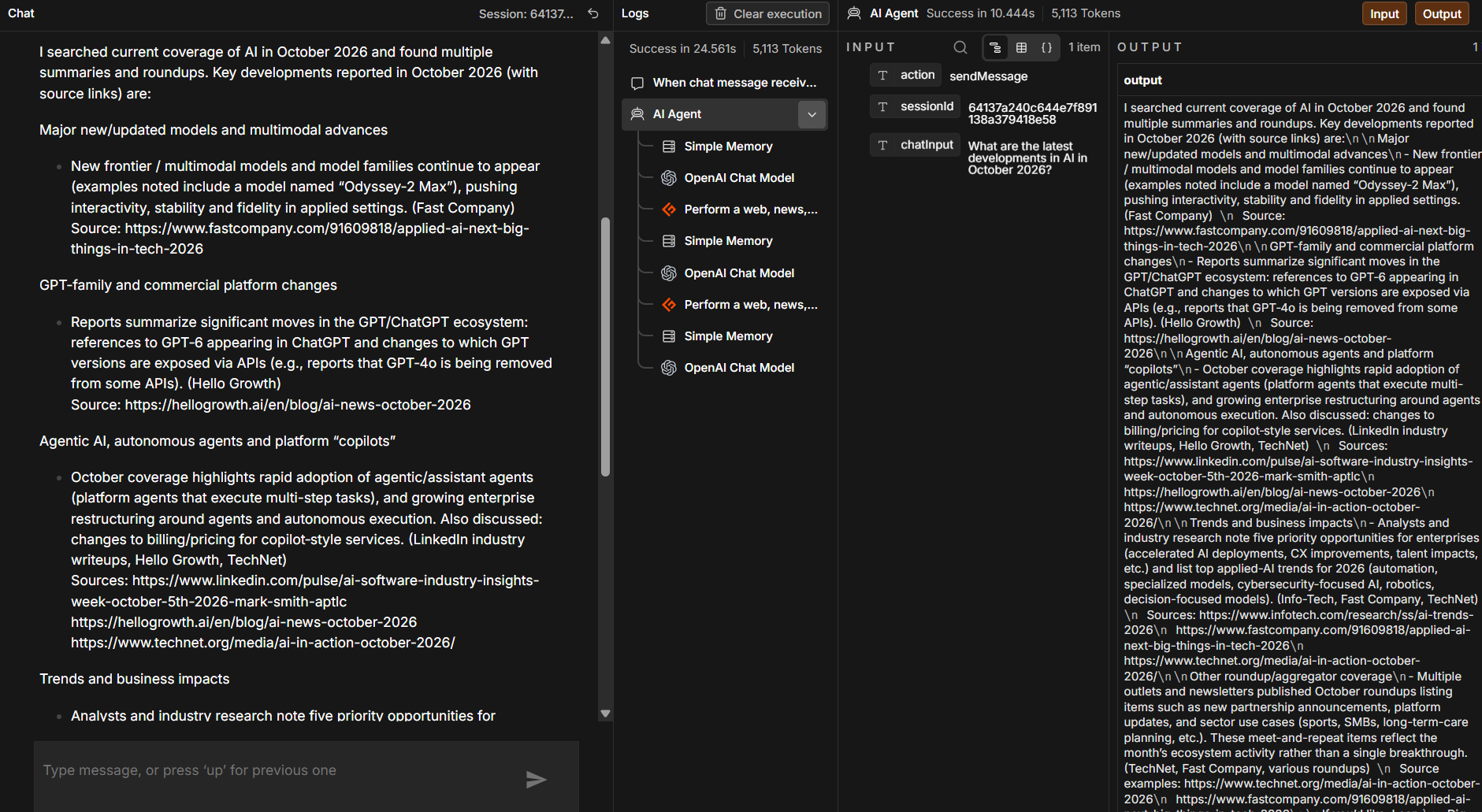
Save the workflow and click Open chat.
Submit a question that requires current information, such as “What are the latest developments in AI in October 2026?”
Check the execution logs to confirm that Geekflare returns search results and the AI Agent generates a response with relevant source links.
Step 8: Publish the Workflow (Optional)
Once testing is complete, enable Make Chat Publicly Available in the Chat Trigger and click Publish if you want others to access the agent.
Frequently Asked Questions
What is an AI web search agent in n8n?
An AI web search agent in n8n uses a language model and a search tool to retrieve current web information and answer user questions. You can connect it to chat triggers and other workflow nodes to automate research tasks.
How do I connect Geekflare Web Search to n8n?
Add the Geekflare node through the AI Agent’s Tool connection. Authenticate with your Geekflare API key, select Search as the resource, and configure the search query. The AI Agent can then use the tool to retrieve web results.
Can an n8n AI agent search the web in real time?
Yes. Connect a web search tool such as Geekflare Web Search to the AI Agent. The agent can retrieve current search results when it receives a question. The freshness and accuracy of its answer depend on the returned results and how the agent interprets them.
Can I add memory to an n8n AI agent?
Yes. Connect the Simple Memory node to the AI Agent’s Memory input and configure the context window length. Memory helps the agent retain recent conversation details and answer follow-up questions.
Can I make my n8n web search agent publicly available?
Yes. Enable Make Chat Publicly Available in the Chat Trigger settings and publish the workflow. Review access controls and API usage before sharing the agent with other users.
Conclusion
Building a real-time web search agent in n8n connects conversational AI with current information from the web. Geekflare Web Search gives the AI Agent access to search results that it can use to answer questions with relevant source links.
You can extend the workflow with memory for follow-up questions or publish it as a chat interface for other users. Test the agent with different queries and verify its source links to check the quality of its responses.