


Website scraping helps you extract information from web pages and use it in other applications. Dedicated third-party scraping platforms simplify data extraction, but you may still need a way to move the collected data into your existing workflows.
Zapier connects different apps through automated workflows. When you connect a scraping platform to Zapier, you can pass extracted website data to other apps based on your requirements.
This integration helps you automate tasks that follow data extraction and connect scraping activities to the tools you already use.
In this guide, you’ll learn how to connect Geekflare with Zapier and configure a website scraping workflow using a practical example.
What Is Geekflare’s Zapier Integration?
Geekflare offers over 15 web-based APIs for tasks such as search, web scraping, website monitoring, and data extraction. Its Zapier integration connects these API capabilities to automated workflows built in Zapier.
Zapier uses triggers and actions to connect applications. A trigger starts a workflow when a specified event occurs, and an action performs a task in response. Geekflare’s available API actions can retrieve web data and pass the response to subsequent steps in a workflow.
For website scraping, you can configure a request with a target URL and the supported parameters. Zapier then passes the request to Geekflare and makes the returned data available to other connected apps. This lets you automate the steps that follow data extraction based on your workflow requirements.
Prerequisites
Before setting up website scraping in Zapier, make sure you have the following:
- Your Geekflare API key.
- A Zapier account.
- Keep the URL of the web page you want to scrape ready.
- Choose an app to receive the extracted data.
How to Connect Geekflare with Zapier
Let’s see how to connect your Geekflare account to Zapier.
Step 1: Open the Geekflare Integration Page
Visit the Geekflare integration page on Zapier.
Step 2: Start the Connection
Click Connect Geekflare to 9000+ apps. If you’re not logged in to Zapier, sign in to your account first, then click the same button.
Step 3: Connect Your Geekflare Account
Zapier will redirect you to the New Zap editor.
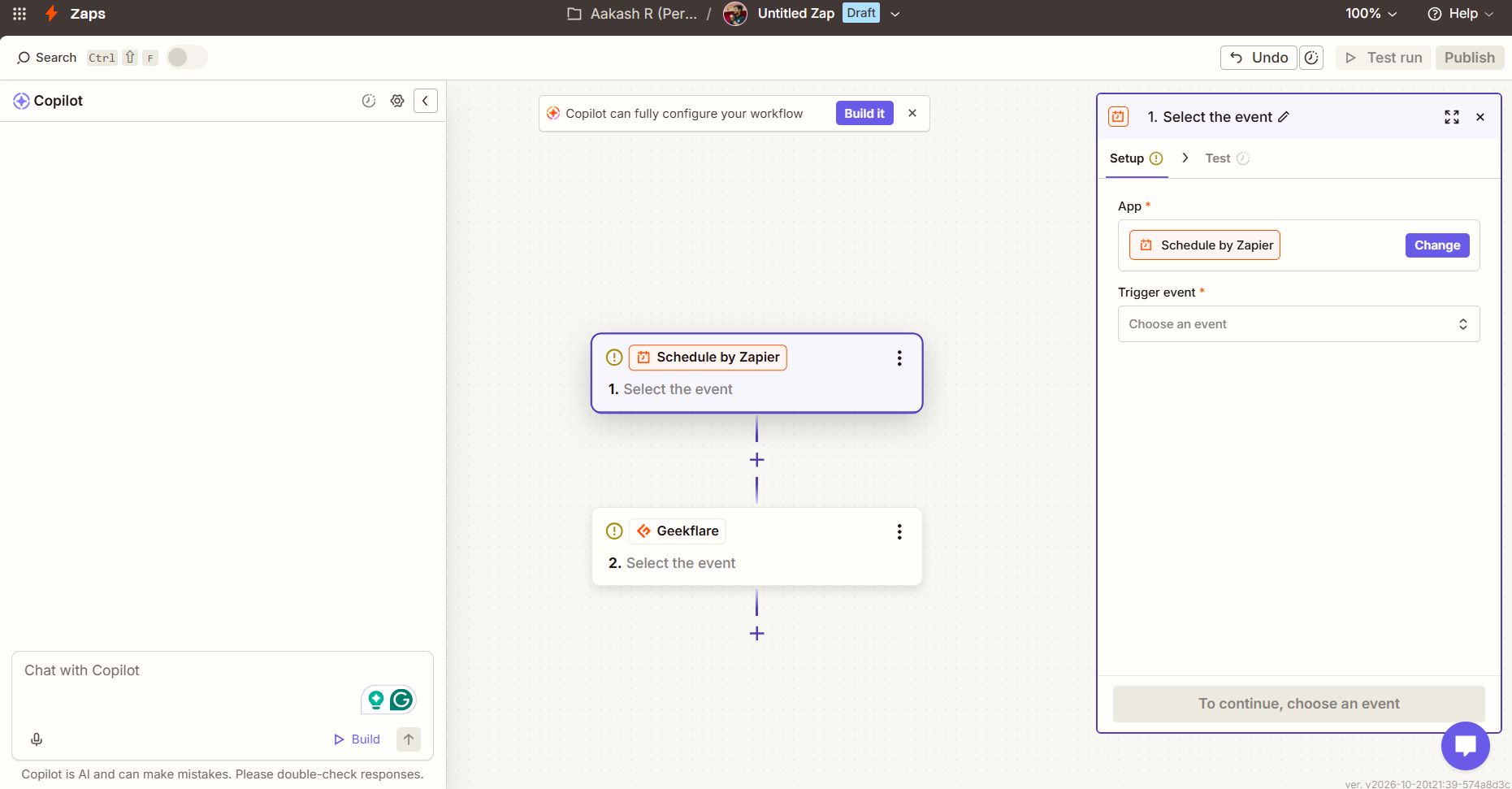
Click the Geekflare node in the workflow editor. In the right-side panel, open the Account section and click Connect.
Zapier will ask for your Geekflare API key. Open your Geekflare dashboard, copy your API key, and enter it in the connection prompt and Click Connect to complete the setup.
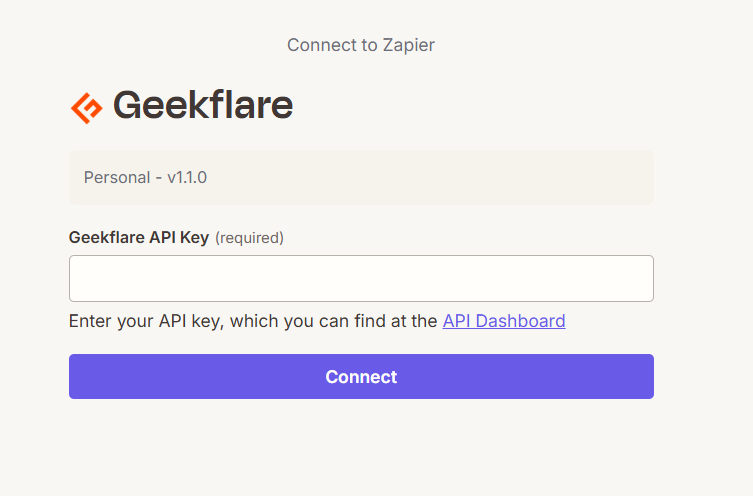
Once the connection is complete, you can access Geekflare’s available tools in your Zapier workspace and use them to build automated workflows.
What Can You Do with Geekflare’s Web Scraping API in Zapier?
The ways you use Geekflare’s Web Scraping API in Zapier depend on the data you need and the workflows you want to build. You can connect scraping tasks to different apps to handle the extracted data automatically.
Here are a few possible use cases:
- Collect product details: Extract product names, prices, and other details from e-commerce pages for analysis.
- Track competitor websites: Gather pricing and product information from competitor pages.
- Gather article content: Extract page titles and text for research or content workflows.
- Collect business information: Gather publicly available details from business websites.
- Store scraped data: Send extracted content to Google Docs, Google Sheets, or other connected apps.
How to Automate Website Scraping with Geekflare and Zapier
Now that Geekflare is connected to Zapier, let’s configure the Web Scraping API and send the extracted content to Google Docs.
Step 1: Select the Web Scraping Action
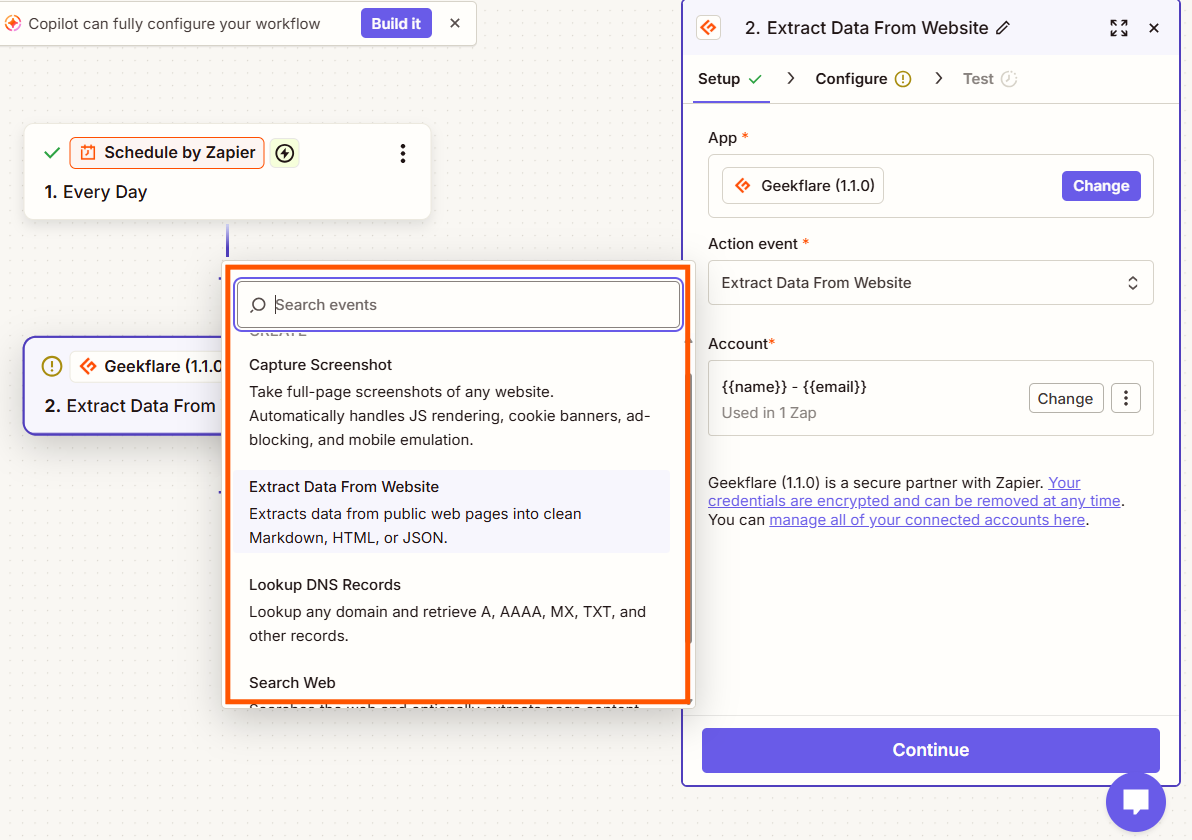
Click the Geekflare node in your Zap. Under Action event, select Extract Data From Website and click Continue to open the configuration form.
Step 2: Configure the Web Scraping API
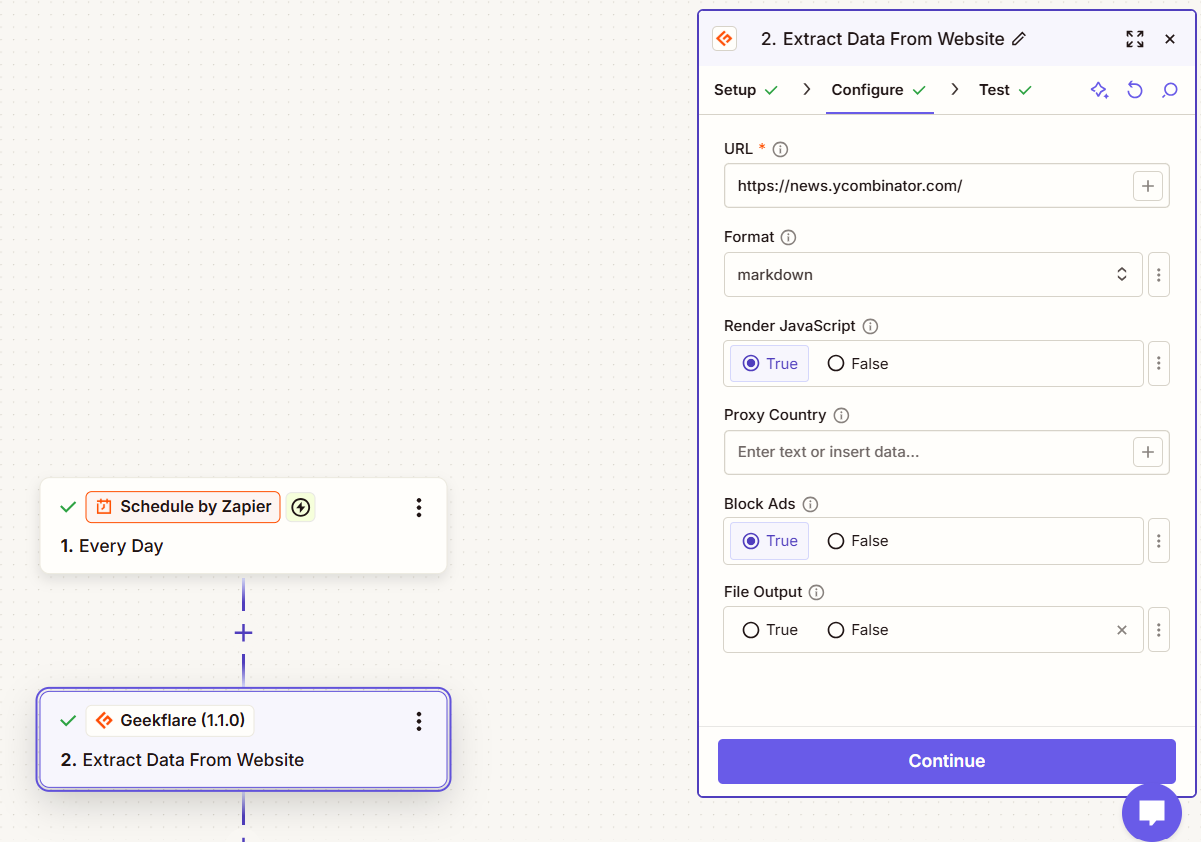
Enter the URL of the website you want to scrape. For this example, we’ll use Hacker News: https://news.ycombinator.com/
Configure the remaining options based on your requirements:
- Format: Select Markdown to receive the extracted content in a readable text format. You can also choose JSON or HTML based on your use case.
- Render JavaScript: Enable this option if the target website requires JavaScript rendering to load its content.
- Proxy Country: Specify a country if you need the request to use a proxy from a particular location.
- Block Ads: Keep this enabled to remove ads from the extracted content.
- File Output: Enable this option if you want the response as a downloadable file.
Click Continue to proceed with the request.
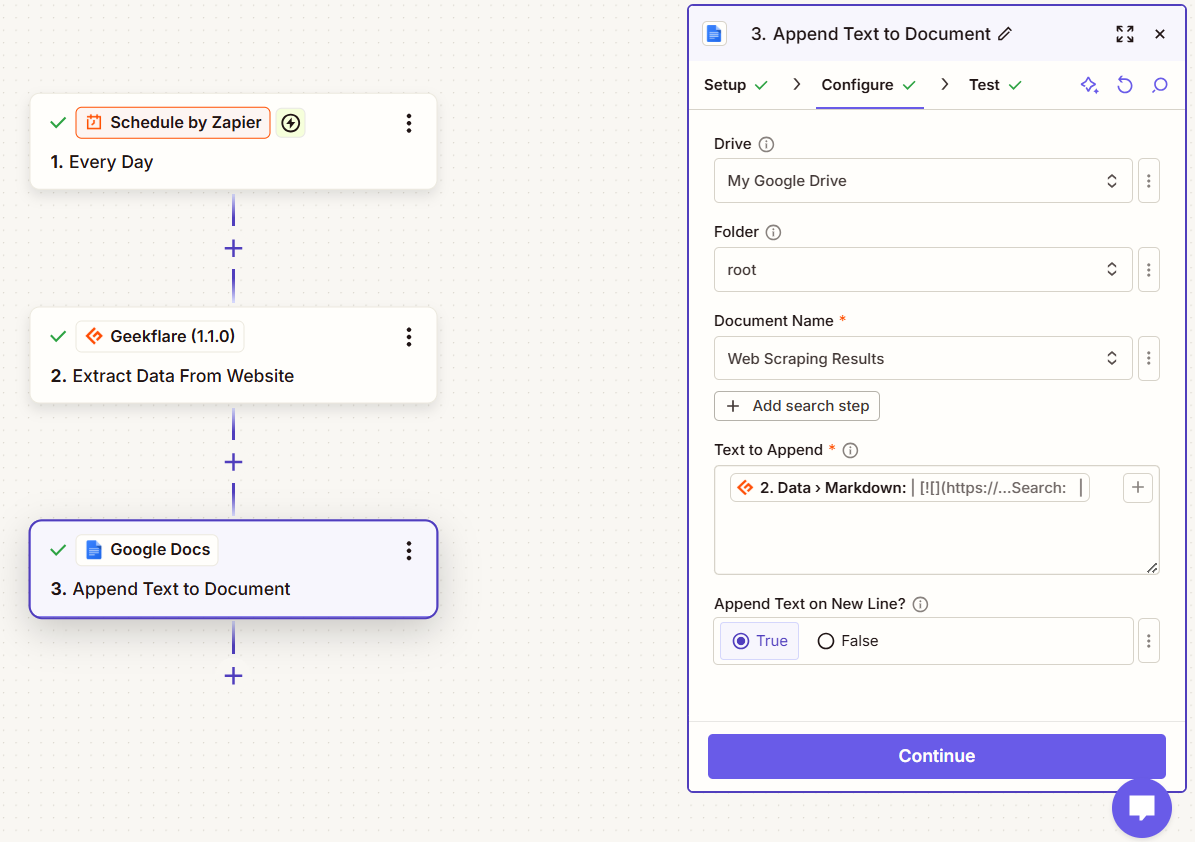
Step 3: Configure Google Docs
Add Google Docs as the next action in your Zap. Connect your Google account and complete the authorization process.
Under Action event, select Append Text to Document and click Continue.
Choose the Google Drive location and the document you want to update. In the Text to append field, select /data from the Geekflare response to insert the scraped content into the document.
Click Continue to proceed.
Step 4: Test and Publish the Zap
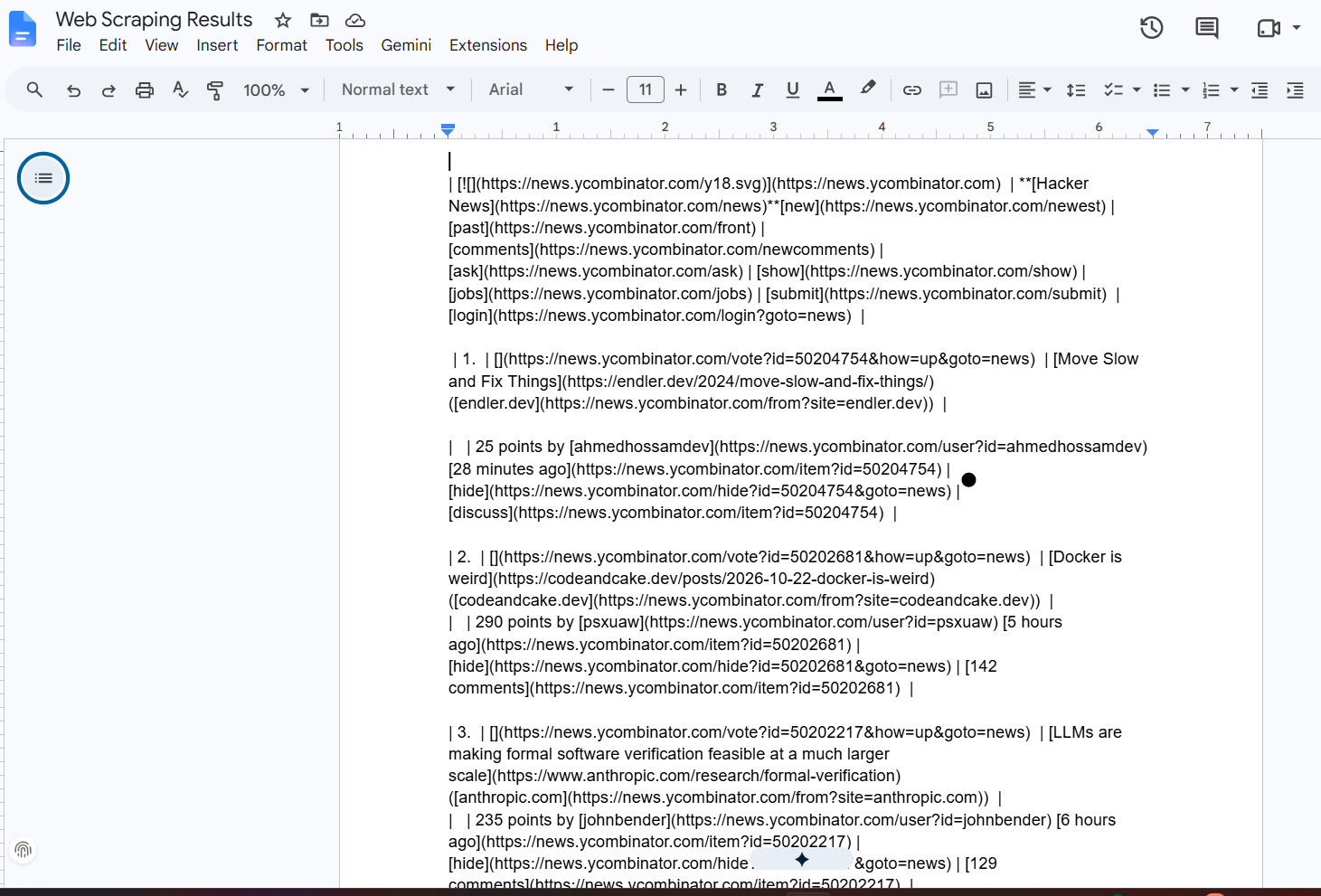
Test the workflow to verify that Geekflare extracts the website content and Google Docs appends it to the selected document. Open the document and check that the content appears as expected.
If everything works correctly, publish the Zap to automate the workflow.
Here is the outcome of this workflow:
Frequently Asked Questions
Can I use Geekflare’s Web Scraping API with other apps in Zapier?
Yes. You can connect Geekflare’s Web Scraping API to supported apps in Zapier and send extracted website data to your preferred destination.
Which output formats does Geekflare’s Web Scraping API support?
The integration offers Markdown, JSON, and HTML formats. Choose the format based on how you want to process or use the extracted content.
Can I scrape JavaScript-rendered websites?
Yes. Enable the Render JavaScript option when the target website requires JavaScript rendering to load its content.
Can I save scraped website data to Google Docs automatically?
Yes. Add Google Docs as an action in your Zap and map the data returned by Geekflare to the document. You can use the Append Text to Document action to add the extracted content to an existing document.
Conclusion
Automating website scraping in Zapier helps you connect data extraction with the apps you already use. Geekflare’s Web Scraping API retrieves website content, and Zapier passes the response to your chosen destination based on your workflow configuration.
Start with a simple workflow, test the extracted data, and configure additional steps as your requirements grow.





