


Geekflare MCP connects Claude Code and Claude Desktop to Geekflare through a single MCP server. After the setup is complete, Claude can access and use Geekflare tools with natural language.
This guide walks through the complete setup process for Claude Code and Claude Desktop. It also covers the steps to verify the connection after the setup is complete.
What Is Geekflare MCP?
Geekflare MCP is a managed MCP server that connects AI assistants such as Claude to Geekflare through a single endpoint.
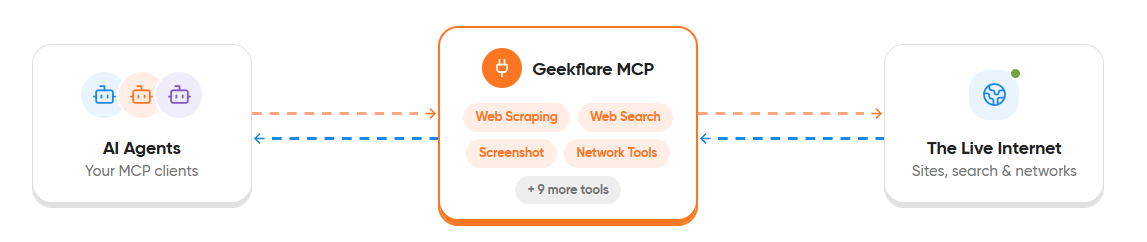
After the connection is complete, Claude can access Geekflare tools directly from your prompts. It supports both cloud and local deployment and works with MCP-compatible AI clients.
What Can You Do with Geekflare MCP?
Geekflare includes 13 tools for web, infrastructure, and network tasks. You can use natural language prompts to access these tools from Claude.
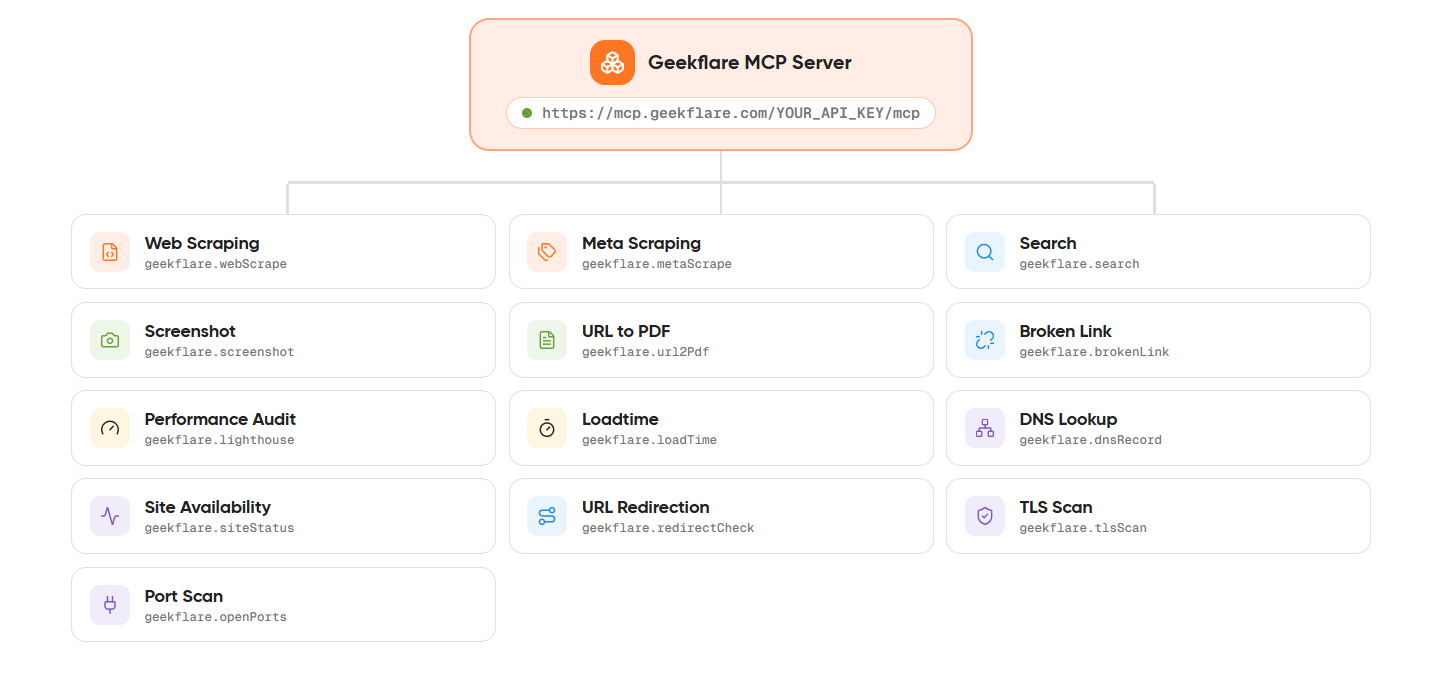
Here are the capabilities of Geekflare:
| Capability | Description |
|---|---|
| Web Scraping | Extract content from web pages. |
| Web Search | Search the web for current information. |
| Website Screenshots | Capture full-page screenshots. |
| URL to PDF | Convert web pages into PDF files. |
| Performance Audit | Analyze website performance. |
| DNS Lookup | Retrieve DNS records for a domain. |
| Site Availability | Check whether a website is online. |
| URL Redirection | Inspect redirect chains. |
| TLS Scan | View SSL and TLS certificate details. |
| Port Scan | Identify open ports on a host. |
Prerequisites
Before connecting the MCP to Claude, make sure you have the following:
- A Geekflare API key. You can generate one from the Geekflare dashboard.
- Claude Code or Claude Desktop installed on your system.
How to Connect Geekflare to Claude Code
After you have your Geekflare API key, you can configure the MCP in Claude Code in a few steps.
Step 1: Add the Geekflare MCP Server
Geekflare supports both a hosted MCP server and a local MCP server.
Remote URL (Recommended)
Run the following command in your terminal:
claude mcp add --transport http geekflare
https://mcp.geekflare.com/YOUR_API_KEY/mcp
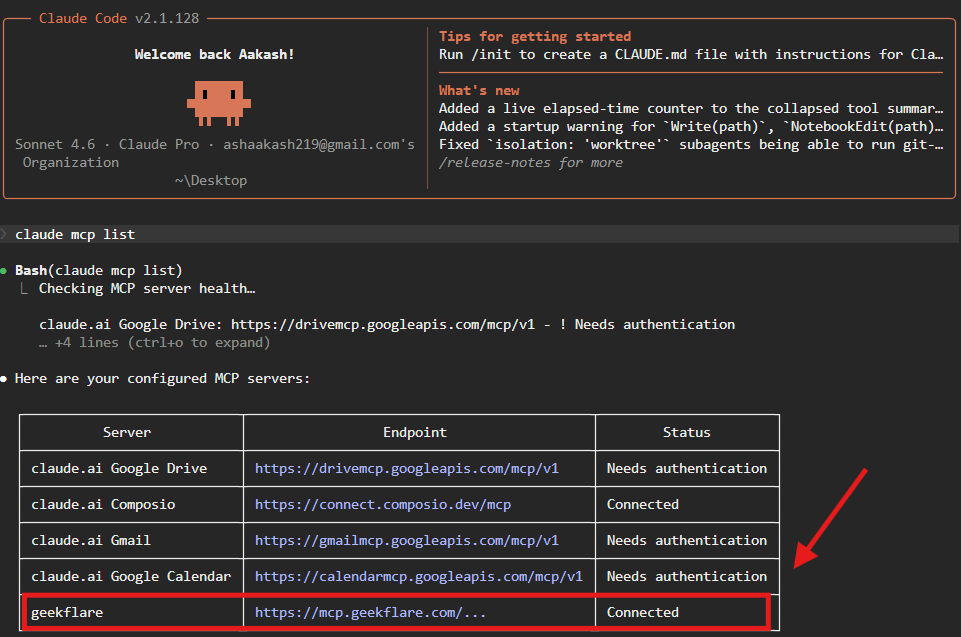
Step 2: Verify the Connection
Run the following command:
claude mcp listIf the setup is successful, geekflare appears in the list of configured MCP servers.
Example: Scrape a Web Page
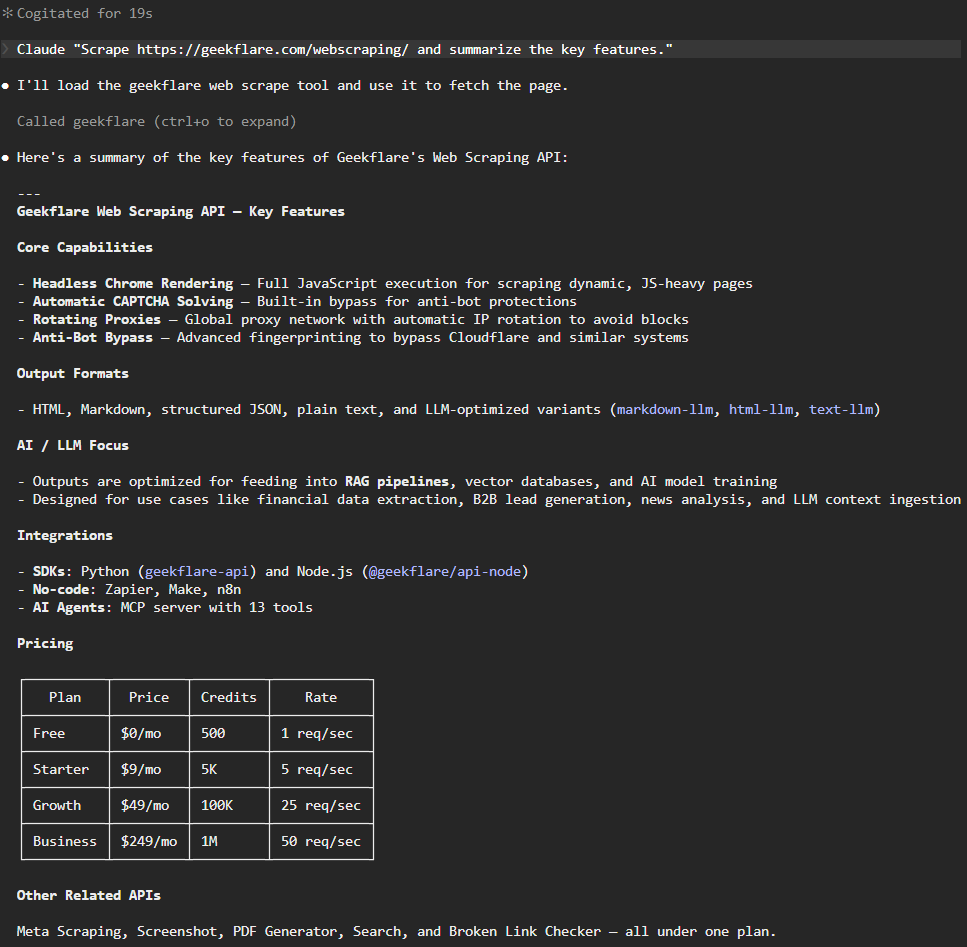
Run the following prompt in Claude Code:
claude "Scrape https://geekflare.com/webscraping/ and summarize the key features."Claude returns the page content and a summary, confirming that the MCP is connected successfully.
How to Connect Geekflare to Claude Desktop
Claude Desktop now supports custom MCP servers through Connectors. You can connect Geekflare MCP directly from the Claude interface without editing configuration files.
Note: If you are using more than one connector, you will require a Pro plan or higher.
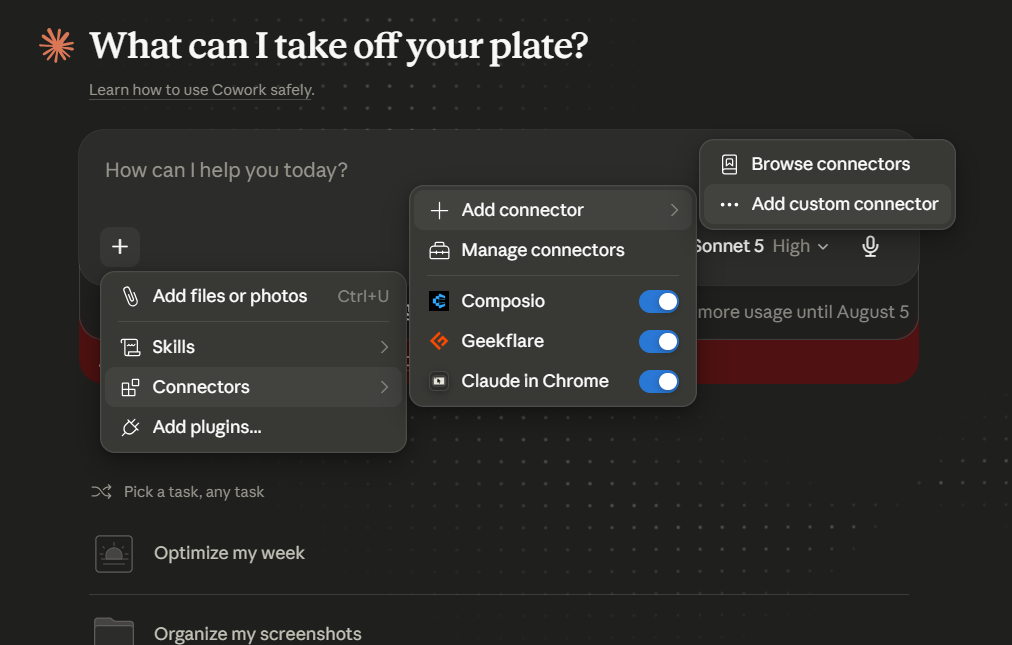
Step 1: Add a Custom Connector
Open Claude Desktop and click the + button in the chat box.
Select Connectors → Add custom connector.
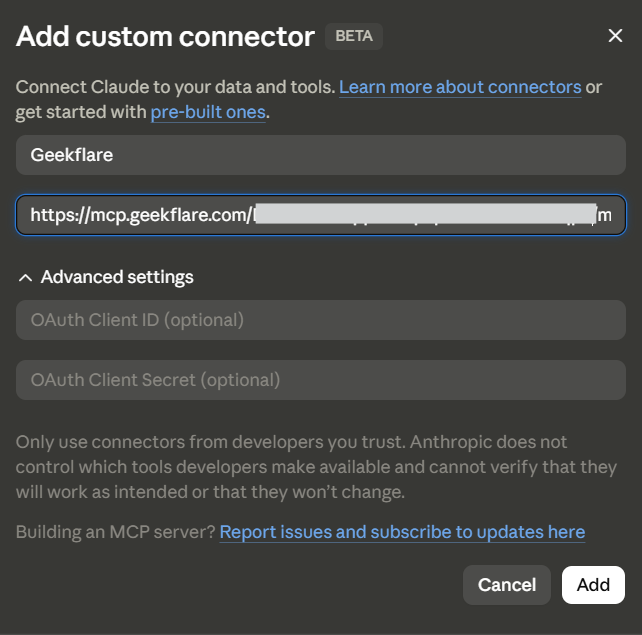
Step 2: Configure the Geekflare Connector
Enter the following details:
- Name:
Geekflare - Server URL:
https://mcp.geekflare.com/YOUR_API_KEY/mcp
Replace YOUR_API_KEY with your Geekflare API key, then click Add.
Step 3: Verify the Connection
Open Settings → Connectors and select Geekflare.
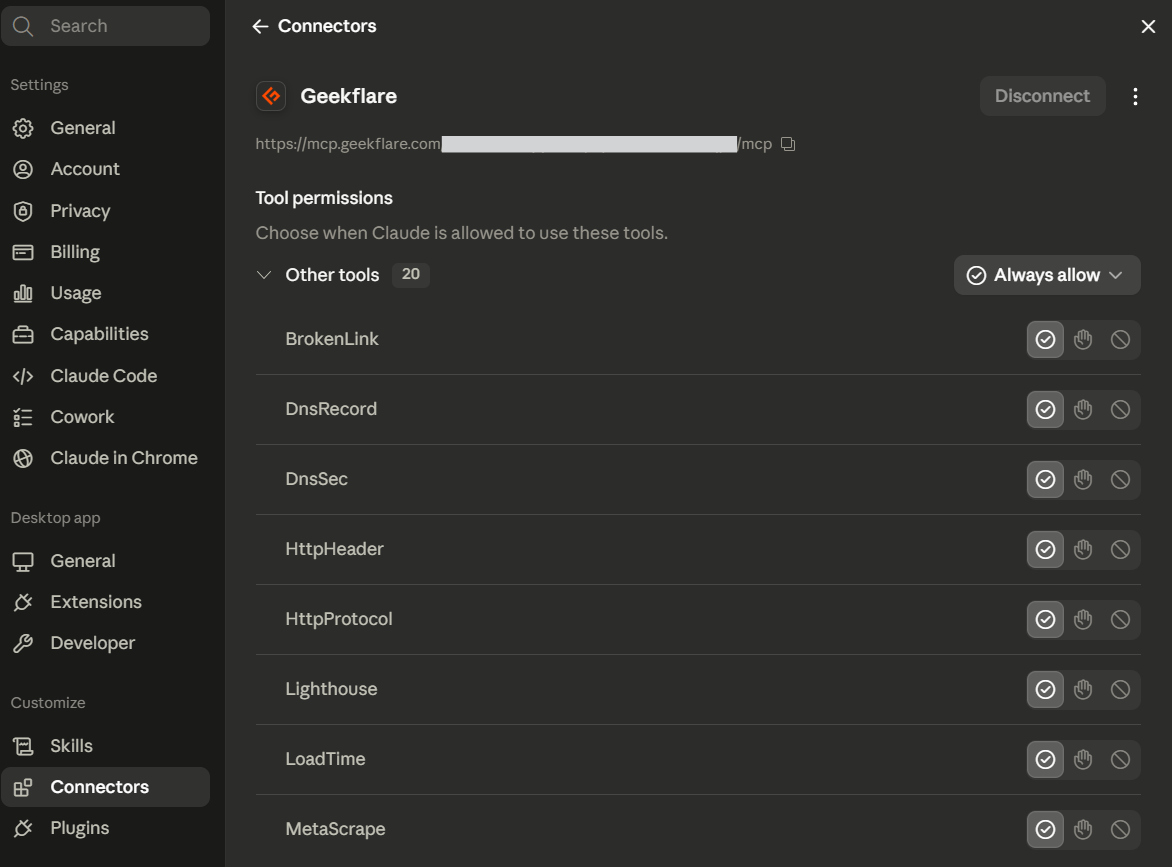
If the setup is successful, Geekflare appears in the connector list with the available tools. You can also review or update the tool permissions from this page.
Example: Retrieve DNS Records
Open a new chat and enter the following prompt:
Retrieve the DNS records for geekflare.com and explain what each record is used for.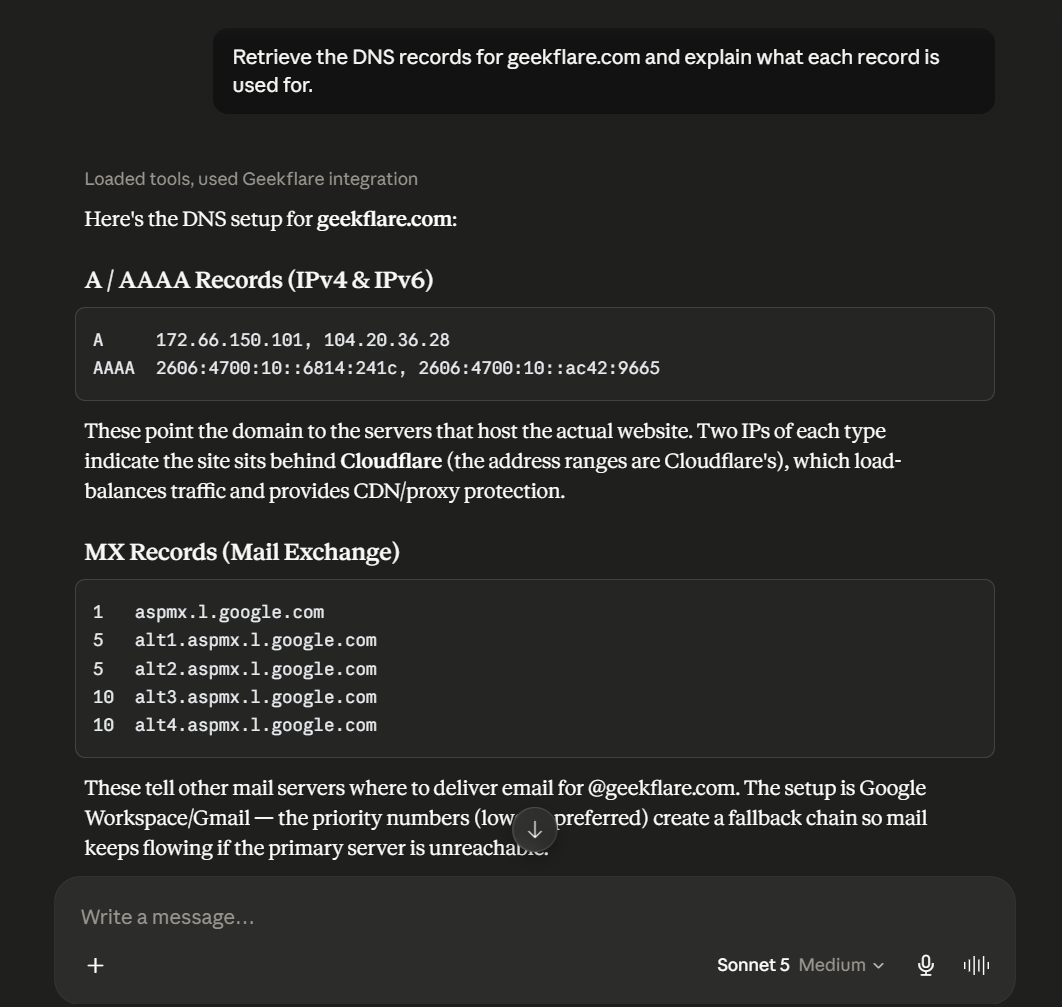
Example Prompts to Try
After connecting the MCP, try the following prompts to explore more Geekflare tools.
Search the Web:
Search for the latest AI news from today.Capture a Website Screenshot:
Take a full page screenshot of https://geekflare.com.Generate a PDF:
Convert https://geekflare.com into a PDF.Run a Website Audit:
Run a Lighthouse audit for https://geekflare.com and summarize the results.Check a TLS Certificate:
Check the TLS certificate for geekflare.com and show its expiration date.Check Website Availability:
Check whether https://geekflare.com is online.These examples demonstrate only a few of the tools available through Geekflare. You can also use it for additional web, infrastructure, and network tasks directly from Claude.
Conclusion
Ready to explore more? Visit the Geekflare Website to create your account, generate an API key, and discover the complete collection of APIs and MCP tools.
For advanced setup options, supported AI clients, and additional configuration examples, refer to the official Geekflare documentation.
Frequently Asked Questions
What is Geekflare MCP?
Geekflare MCP is a managed MCP server that connects AI assistants such as Claude to Geekflare. It gives Claude access to Geekflare tools through a single MCP endpoint.
Can Claude scrape websites?
Yes. Claude can scrape websites when connected to Geekflare MCP. After the setup is complete, you can use natural language prompts to extract content from web pages. For example:Scrape https://geekflare.com/webscraping/ and summarize the key features.
Does Claude support web scraping?
Claude does not provide built-in web scraping. You can add this capability by connecting Geekflare MCP. Once configured, Claude can scrape web pages and return structured content from your prompts.
Can Claude use external tools?
Yes. Claude supports external tools through MCP. Geekflare MCP provides access to multiple developer and infrastructure tools from Claude Code and Claude Desktop.





