



An FTP client is the app you use to connect to a server and move files. You can use it to upload a website, pull logs off a Linux box, drop a file on a partner’s SFTP server.
Sysadmins and developers use one almost every day, and the right one saves a good amount of time.
Most good clients now handle more than FTP. They can connect over SFTP and FTPS for secure transfers, and many also connect to Amazon S3, Google Drive, OneDrive, and other cloud storage from the same window.
If you’re looking to setup server side, see our guide to the best FTP and SFTP server software for Windows.
FTP, FTPS, or SFTP Client
Match the client to the server you’re connecting to. SFTP runs over SSH, usually on port 22, and is what most Linux servers and modern hosts offer. FTPS is classic FTP with TLS encryption, common on Windows servers and older business systems. Plain FTP sends passwords and files unencrypted, so only use it if nothing else is available.
Every client below supports SFTP. Termius and Bitvise SSH Client are SSH-first tools and don’t do FTPS, while the rest handle FTP and FTPS too.
| Client | Type | Best for | Price | Protocols | Platforms | Link |
|---|---|---|---|---|---|---|
| 01 FileZilla | Free cross-platform FTP client | Free everyday FTP, FTPS, and SFTP on any desktop | Free; Pro is a paid upgrade | FTP, FTPS, SFTP | Windows, macOS, Linux | Visit |
| 02 WinSCP | Free SFTP and FTP client for Windows | Windows users who want SFTP plus scripting and automation | Free | SFTP, SCP, FTP, FTPS, WebDAV, S3 | Windows | Visit |
| 03 Cyberduck | Free server and cloud storage browser | Mac and Windows users who also work with cloud storage | Free (donations welcome) | FTP, FTPS, SFTP, WebDAV, SMB, S3, cloud | macOS, Windows (CLI on Linux) | Visit |
| 04 Transmit 5 | Premium Mac file transfer client | Mac users who want a fast client | $45 one-time | FTP, SFTP, WebDAV, S3, cloud | macOS 13+ | Visit |
| 05 ForkLift 4 | Dual-pane file manager and FTP client | Mac power users who want a Finder replacement with remote access | $19.95 (lifetime license) | SFTP, FTP, WebDAV, SMB, S3, cloud | macOS 14.6+ | Visit |
| 06 Commander One | Dual-pane Mac file manager | Mac users who want a free file manager with an affordable FTP upgrade | Free; PRO Pack $29.99 | FTP, SFTP, WebDAV, S3, cloud | macOS 10.13+ | Visit |
| 07 Termius | SSH and SFTP client for every device | Developers who want SSH and SFTP on desktop and phone | Free; Pro $10/mo (billed yearly) | SFTP, SSH, Mosh, Telnet | Windows, macOS, Linux, iOS, Android | Visit |
| 08 MobaXterm | Terminal with built-in SFTP browser | Windows sysadmins who spend their day in SSH sessions | Free Home; Pro $69/user | SFTP, FTP, SSH, RDP, VNC | Windows | Visit |
| 09 Bitvise SSH Client | Free SSH and SFTP client for Windows | Windows users who want free SFTP with drive mapping and tunneling | Free, including for organizations | SFTP, SSH | Windows | Visit |
| 10 WS_FTP Professional | Commercial FTP client for Windows | Businesses that want a supported client with scheduled transfers | From $58 (perpetual) | FTP, FTPS, SFTP | Windows | Visit |
Best FTP and SFTP Clients
01. FileZilla
Free cross-platform FTP clientFree everyday FTP, FTPS, and SFTP on any desktop
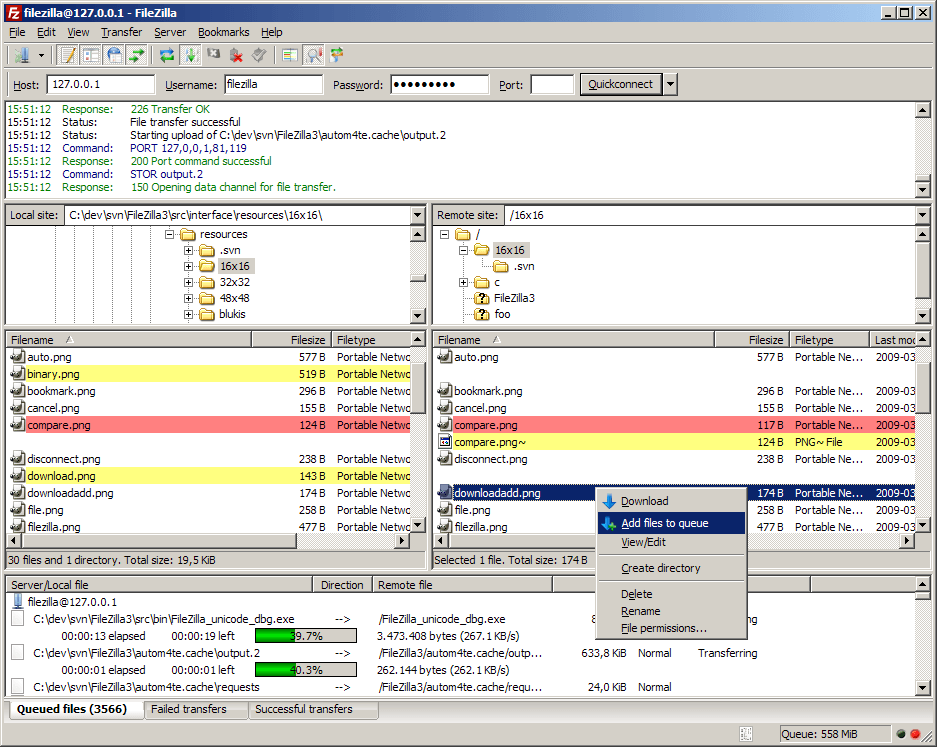
You might already knowFileZilla. It’s open source, runs on Windows, macOS, and Linux, and supports FTP, FTPS, and SFTP out of the box. The Site Manager stores your connections, the transfer queue handles large batches.
FileZilla Pro adds cloud storage including Amazon S3, Google Drive, Dropbox, OneDrive, Azure, Backblaze B2, Box, and WebDAV and folder synchronization, and a command-line edition is available for scripted transfers.
Pros & Cons
PROS
CONS
Pricing
FileZilla is free.
FileZilla Pro, which adds cloud storage and synchronization, is a paid upgrade sold through the FileZilla Pro site and app stores.
02. WinSCP
Free SFTP and FTP client for WindowsWindows users who want SFTP plus scripting and automation
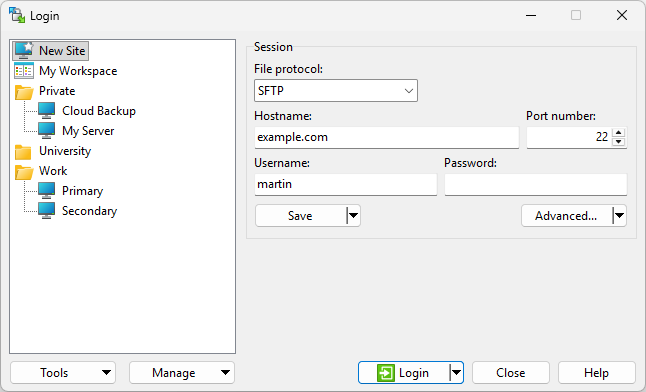
My favourite and go-to when I use Windows. WinSCP is the default SFTP client for a lot of Windows admins. It’s free, covers SFTP, SCP, FTP, FTPS, WebDAV, and Amazon S3, and offers both an Explorer-style and a two-pane Commander interface.
I really like its automation capabilities. You can script transfers from the command line or use its .NET and COM library from PowerShell or your own code, which makes it a favorite for scheduled jobs. Recently, they added OpenSSH ssh-agent support and an experimental 64-bit build.
- Integrated text editor for quick remote changes
- Directory synchronization, including between two local folders
- Portable mode that runs without installation
Pros & Cons
PROS
CONS
Pricing
WinSCP is free for personal and commercial use. You can download it from Microsoft Store as well.
03. Cyberduck
Free server and cloud storage browserMac and Windows users who also work with cloud storage
Cyberduck is a free, open-source client for Mac and Windows that treats servers and cloud storage the same way.
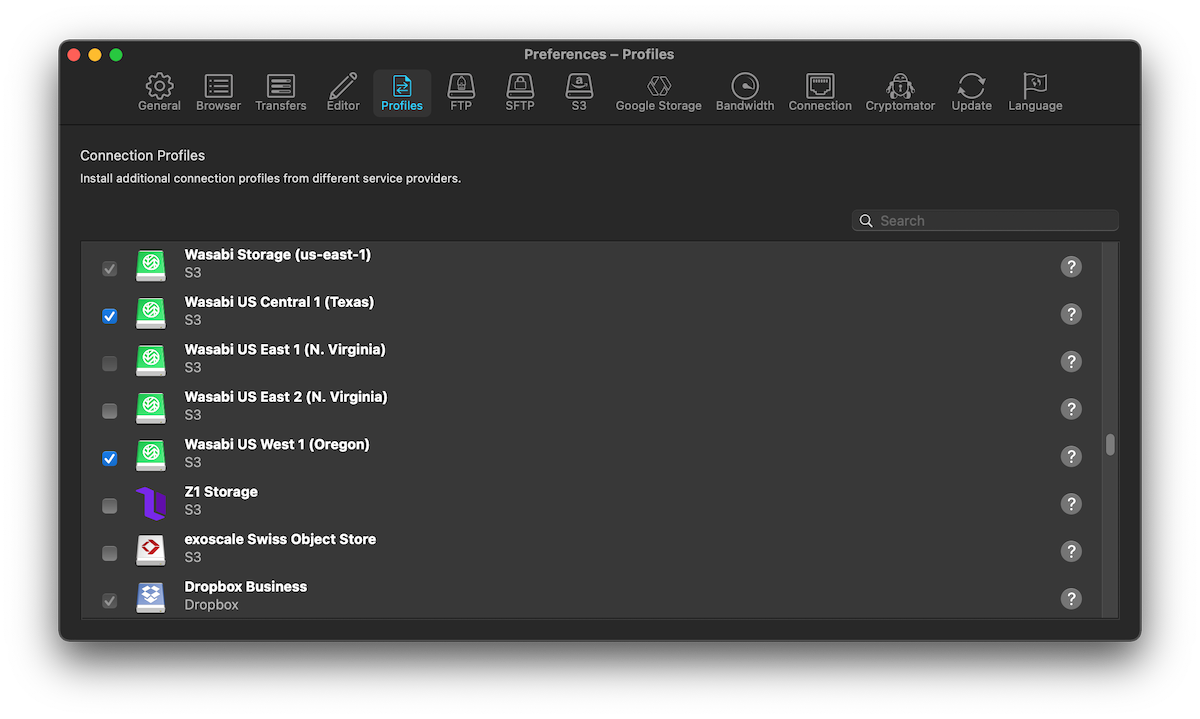
Alongside FTP, FTPS, SFTP, WebDAV, and SMB, it connects to Amazon S3, Azure, Google Cloud Storage, Google Drive, OneDrive, SharePoint, Dropbox, Box, Backblaze B2, Wasabi, and Nextcloud.
It also supports Cryptomator vaults, so you can encrypt file names and contents before they reach the server. You can edit remote files in any editor, sync folders with a preview, and reuse settings from your OpenSSH config. A command-line version runs on Linux too.
Pros & Cons
PROS
CONS
Pricing
Cyberduck is free.
Its sibling app Mountain Duck, which mounts servers and cloud storage as drives on Mac and Windows, costs $49 per user.
04. Transmit 5
Premium Mac file transfer clientMac users who want a fast client
Transmit from Panic is the client many Mac developers use it. It handles FTP, SFTP, WebDAV, and S3, plus cloud services like Backblaze B2, Box, Google Drive, Dropbox, Azure, OneDrive for Business, and OpenStack Swift.
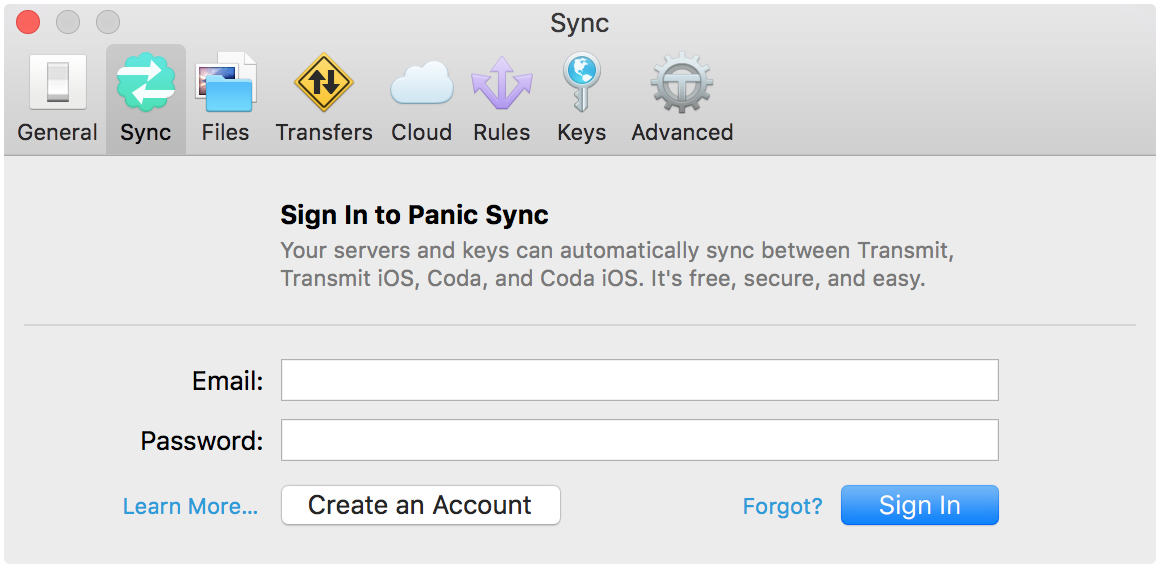
Panic Sync keeps your server list in sync across Macs, File Sync works between local and remote folders, and SFTP supports two-factor logins, YubiKeys, and proxy commands.
Pros & Cons
PROS
CONS
Pricing
Transmit costs $45 one-time.
A free 7-day trial is available.
05. ForkLift 4
Dual-pane file manager and FTP clientMac power users who want a Finder replacement with remote access
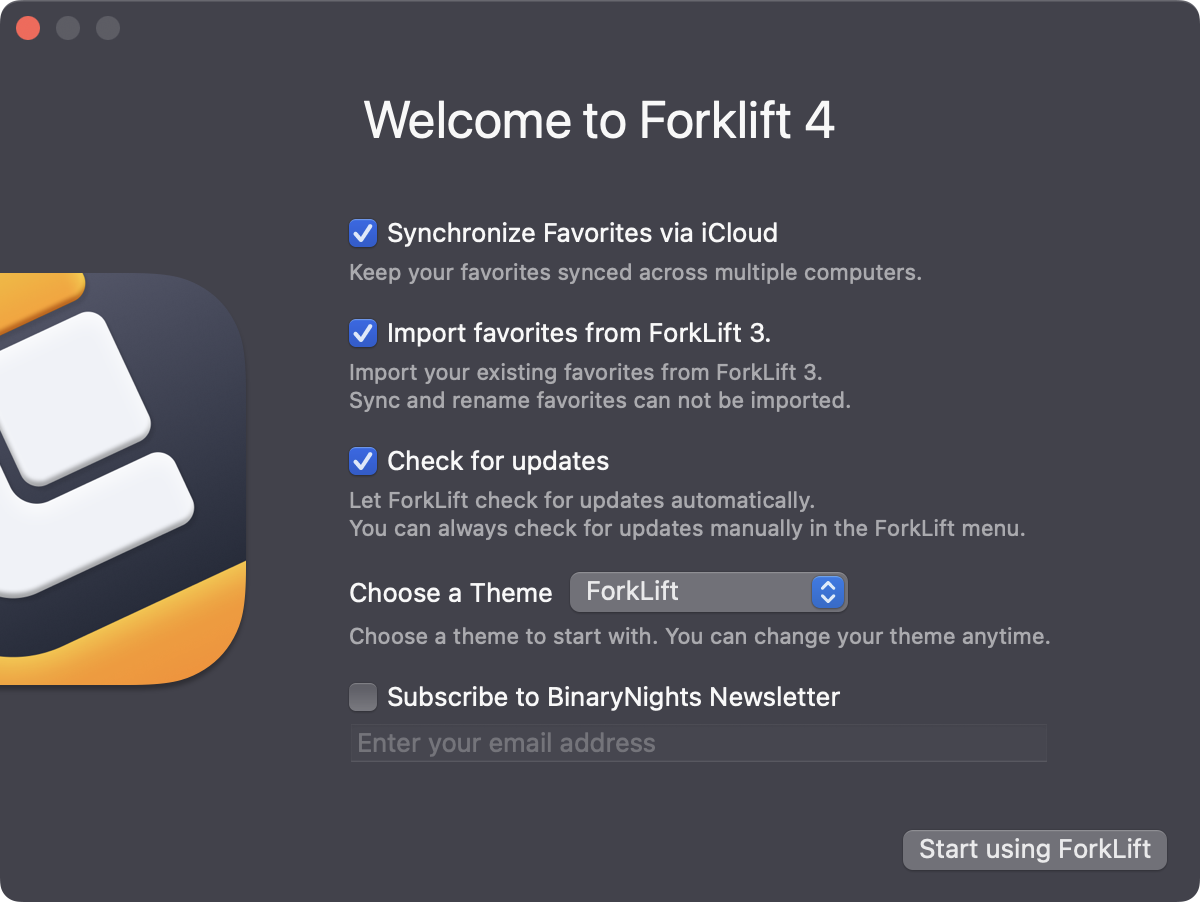
ForkLift is a dual-pane file manager first and a file transfer client second, which makes it great if you prefer Finder. It connects to SFTP, FTP, WebDAV, Amazon S3, Backblaze B2, Google Drive, OneDrive, Dropbox, SMB, AFP, and NFS, and shows remote folders next to local ones.
Version 4 adds one or two-way sync that’s much faster than ForkLift 3, remote editing in your preferred editor, tabs and workspaces, Git support, and Open in Terminal for apps like iTerm, Warp, and Ghostty.
Pros & Cons
PROS
CONS
Pricing
A single-user lifetime license costs $19.95 with a year of free updates, a family license $29.95, and a small business license for up to 5 Macs $69.95.
06. Commander One
Dual-pane Mac file managerMac users who want a free file manager with an affordable FTP upgrade
Commander One is a dual-pane file manager for Mac with unlimited tabs, regex search, and an archiver for ZIP, RAR, 7Z, and TAR files. The PRO Pack adds FTP and SFTP connections, WebDAV, Amazon S3, Google Drive, Dropbox, OneDrive, and Backblaze B2, plus encryption for files stored online.
It also works with iOS, Android, and MTP devices over USB, which is handy if you move files to phones as often as to servers.
Pros & Cons
PROS
CONS
Pricing
The free version is available on the Mac App Store.
The PRO Pack is a one-time purchase for $29.99 for a personal use, or $99.99 for a team license covering 5 Macs with commercial use.
07. Termius
SSH and SFTP client for every deviceDevelopers who want SSH and SFTP on desktop and phone
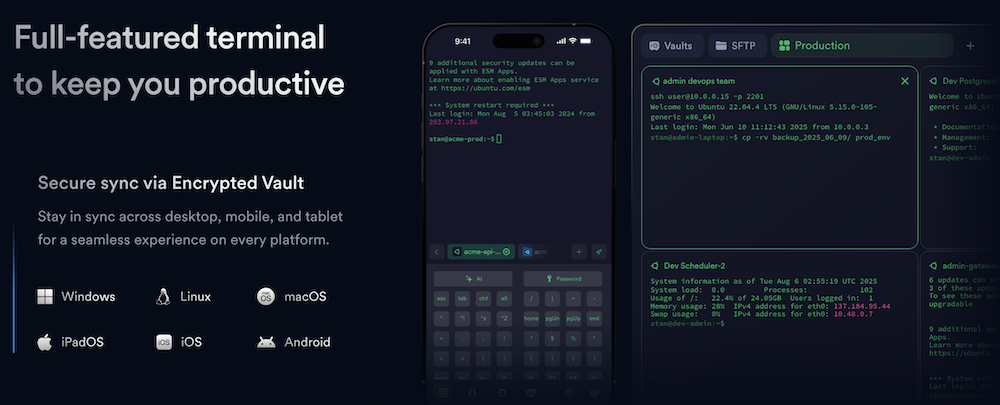
Termius is a modern SSH client with an SFTP file browser, and it’s cross-platform that runs on Windows, Mac, Linux, iPhone, and Android. If you need to grab a log file from your phone during an outage, this is the one.
It’s built for terminal work, so SSH, Mosh, port forwarding, jump hosts, AI-powered autocomplete, and FIDO2 and biometric keys. Pro adds an encrypted vault that syncs your hosts and keys across every device. It doesn’t support plain FTP or FTPS.
Pros & Cons
PROS
CONS
Pricing
The Starter plan is free, including for commercial use.
Pro costs $10 a month, Team $20 per seat a month, and Business $30 per seat a month.
08. MobaXterm
Terminal with built-in SFTP browserWindows sysadmins who spend their day in SSH sessions
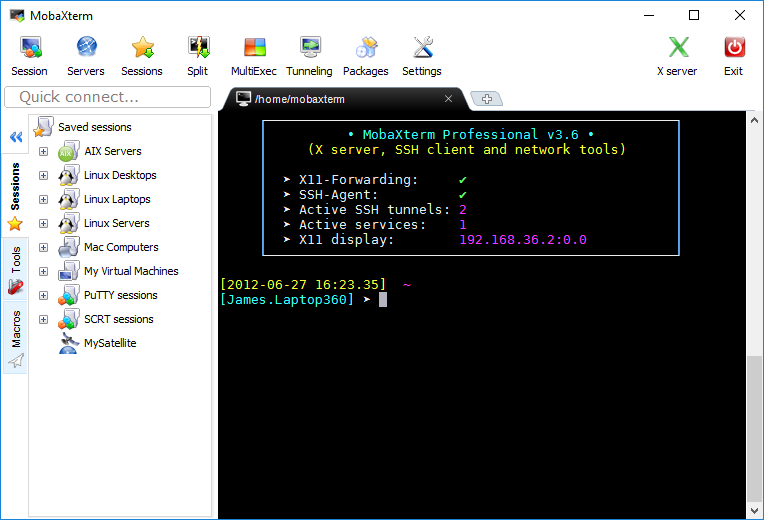
MobaXterm is a toolbox for Windows admins. It has a tabbed terminal based on PuTTY with an X server, RDP, VNC, and Unix commands built in. Its SFTP browser opens beside SSH session, so you can drag files in and out or edit them remotely without opening another app.
It runs as a single portable executable that doesn’t need admin rights, which is useful on locked-down work machines.
Pros & Cons
PROS
CONS
Pricing
The Home edition is free, with limits such as 12 saved sessions and 2 SSH tunnels.
The Professional edition costs $69 per user with lifetime use and 12 months of updates.
09. Bitvise SSH Client
Free SSH and SFTP client for WindowsWindows users who want free SFTP with drive mapping and tunneling
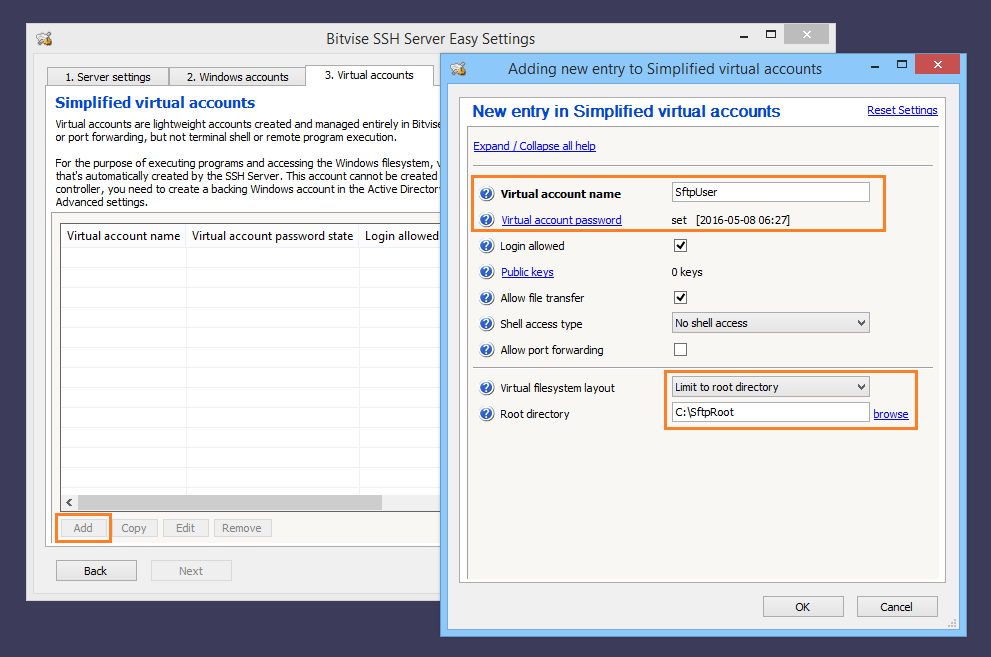
Bitvise SSH Client is free for personal and commercial use. Good thing is, it doesn’t contains ads or collect data. It gives you a graphical SFTP window, a terminal, and powerful port forwarding with a built-in SOCKS and HTTP proxy.
You can map an SFTP server as a Windows drive, script transfers with its command-line tools, and sign in with Kerberos single sign-on. It also offers an FTP-to-SFTP bridge so older FTP-only apps can talk to SFTP servers. It pairs naturally with Bitvise SSH Server.
Pros & Cons
PROS
CONS
10. WS_FTP Professional
Commercial FTP client for WindowsBusinesses that want a supported client with scheduled transfers
WS_FTP Professional from Progress is one of the oldest commercial FTP clients. It’s aimed at business users who want vendor support and built-in automation.
You can schedule one-time or recurring transfers, get email notifications when transfers succeed or fail, and roll it out silently across many machines. Transfers use strong encryption with integrity checking.
Pros & Cons
PROS
CONS
Pricing
A single-user license costs $58 and 5-license pack with support costs $410.
FTP and SFTP Tools Already on Your Computer
You may not need to install anything at all. Windows 10 and 11, macOS, and Linux all include the OpenSSH client, which gives you the sftp and scp commands in a terminal:
sftp [email protected]
sftp> put report.csv
sftp> get logs/app.log

scp backup.zip [email protected]:/srv/backups/
On Linux, GNOME Files and KDE Dolphin both open sftp:// addresses directly, so a remote server shows up like any other folder.
On a Mac, Finder’s Go > Connect to Server can open FTP servers, though only for reading files, so you’ll still want a client for uploads.
Other FTP Clients Worth a Look
A Windows client that supports FTP, FTPS, SFTP, WebDAV, Amazon S3, Google Drive, and OneDrive, with a built-in editor and automation.
A long-running Windows client from Globalscape. It’s still maintained.
Command-line tools for scripted transfers. lftp handles FTP, FTPS, and SFTP with mirroring, and rclone syncs files between SFTP servers and dozens of cloud storage providers.
An enterprise SSH and SFTP product from SSH.com for Windows, Linux, UNIX, and IBM z/OS, with FIPS compliance and smart card support.
A free iPhone and iPad app for FTP, FTPS, and SFTP, with a text editor and photo backup. The free version allows one connection, and a Pro app removes the limit.
How to Connect to an FTP or SFTP Server
The steps are almost the same in every graphical client:
- Get the server address, port, protocol, and your username from whoever runs the server. SFTP usually uses port 22, and FTP or FTPS usually uses 21.
- Open the client’s site manager or new connection screen and enter those details. Choose SFTP or FTPS rather than plain FTP whenever the server supports it.
- For SFTP, sign in with a password or, better, an SSH key. Check the server’s key fingerprint the first time you connect.
- Save the connection as a bookmark so you don’t have to type it again.
- Drag files between the local and remote panes to upload or download them.
Running the server yourself? Our guide to FTP and SFTP server software for Windows covers free and paid options.
FAQ
What is the best free FTP client?
FileZilla is the best free FTP client for most people because it runs on Windows, macOS, and Linux and supports FTP, FTPS, and SFTP. On Windows, WinSCP is an excellent free alternative with strong scripting, and Cyberduck is a great free choice on Mac.
What is the best FTP client for Mac?
Transmit 5 is the modern FTP client for Mac, and Cyberduck is the best free option. If you want a file manager that also handles FTP and SFTP, look at ForkLift 4 or Commander One.
Is FileZilla safe to use?
FileZilla is open source and widely used. To stay safe, download it only from filezilla-project.org. Use SFTP or FTPS rather than plain FTP for your connections.
Do I need an FTP client to use SFTP?
Not necessarily. Windows, macOS, and Linux all include the OpenSSH sftp and scp commands, which work from a terminal. A graphical client is easier for browsing folders and dragging files, especially for occasional users.






