A reverse image search starts with a picture. You upload a photo or paste its link, and the search engine finds where else it appears online, other sizes of the same image, and pictures that look like it.
It’s how journalists check whether a viral photo is really from last week, how photographers find sites using their work without permission, and how you can tell whether a dating profile is using someone else’s pictures. Every engine has a different index, though, so the tool you pick changes what you find.
I ran the same edited photo through some of the tools below. The results surprised me more than I expected.
My Test of One Photo, Two Edits, Seven Engines
I used a well-known lion photo from Wikimedia Commons (“Lion waiting in Namibia” by Kevin Pluck, CC BY 2.0) and made two versions. The first was a tight crop showing less than half the original frame.
The second was mirrored, color-boosted, and covered with a “SAFARI DEALS 2026” banner, the kind of edit you see when someone reuses a photo in an ad. A tool passed if it led me back to the original on Wikimedia Commons or Wikipedia.
| Tool | Tight crop | Mirrored, recolored, with text |
|---|---|---|
| Google Lens | Found the original | Found the original |
| Lenso.ai (free) | Found copies, sources locked | Found copies, sources locked |
| TinEye | Found it (2,492 matches) | 140 copies, no original on page 1 |
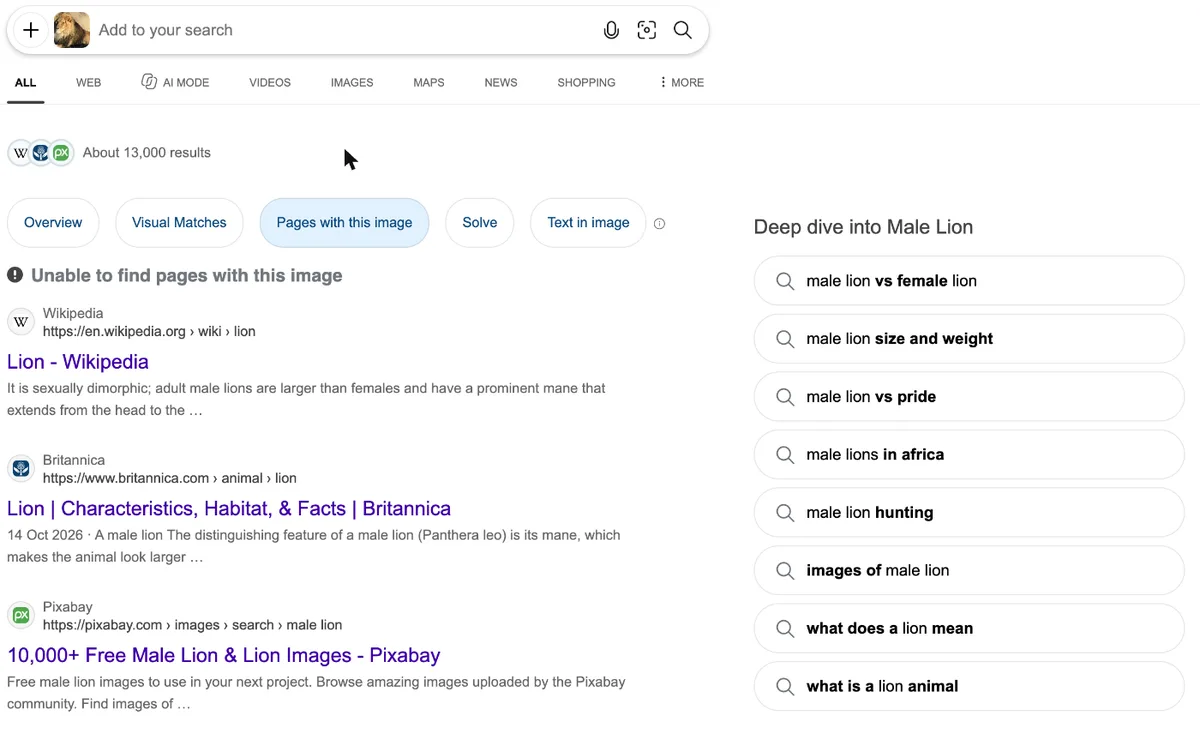
| Bing Visual Search | Unable to find pages | Unable to find pages |
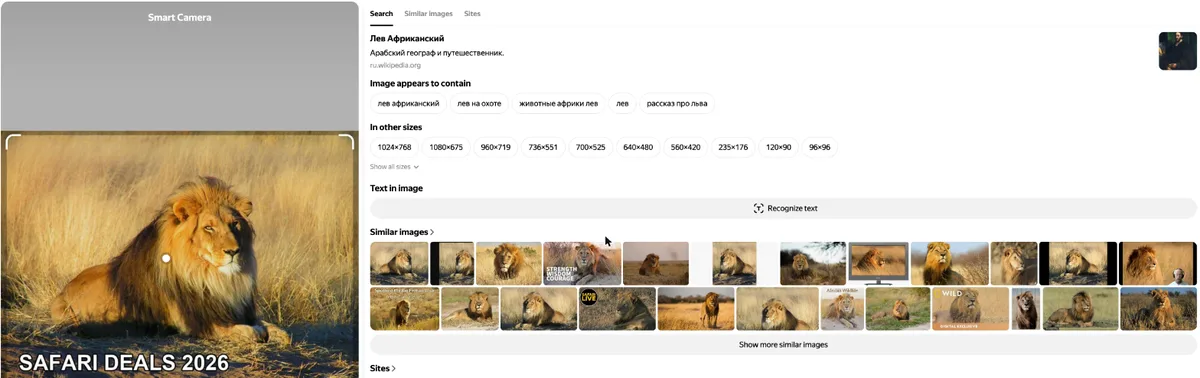
| Yandex Images | Copies in 17+ sizes, no original | Copies in 10 sizes, no original |
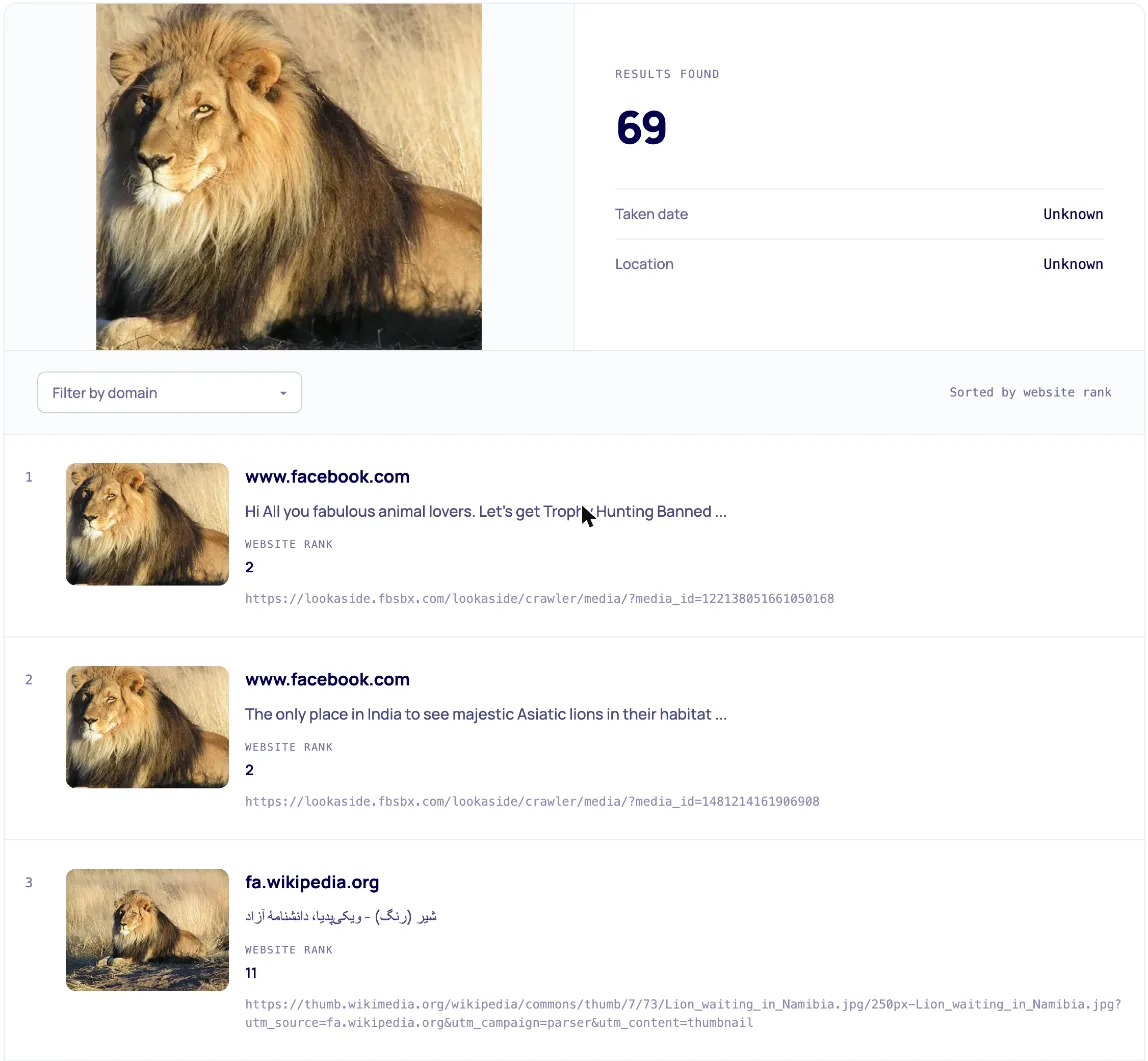
| Copyseeker | Found it (69 matches) | 17 copies, no original |
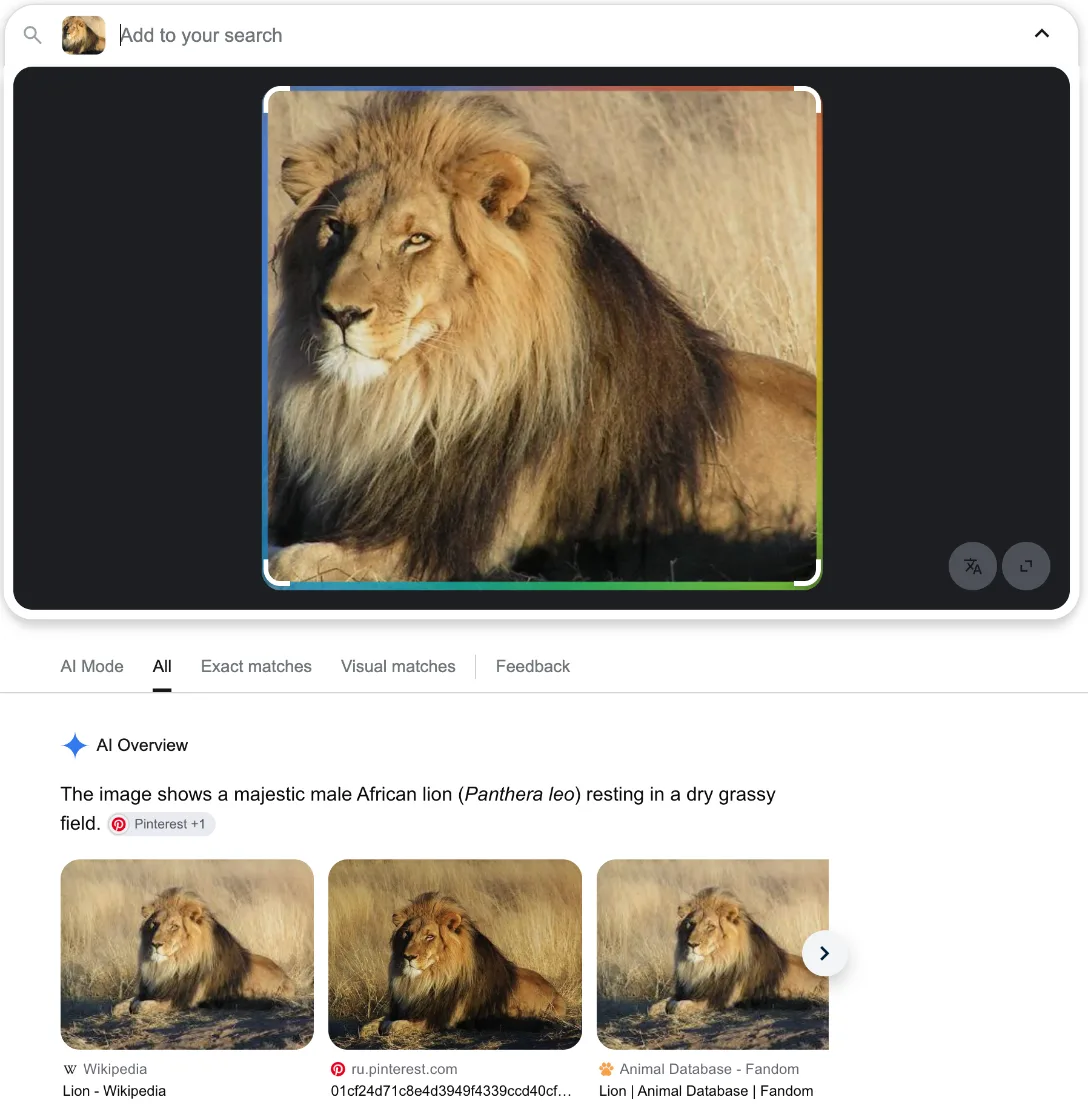
Google Lens was the only engine that passed both tests. On the edited version, it ignored the banner, cropped to the lion by itself, and still listed the Wikimedia Commons file in its exact matches.
TinEye and Copyseeker handled the crop well but lost the trail once the photo was mirrored. Bing never found a page with the photo at all. Yandex found plenty of copies and then confidently labeled the edited lion as Leo Africanus, a 16th-century Arab geographer, which is a fair reminder to check the results yourself.
| Tool | Type | Best for | Price | Sign-up | Link |
|---|---|---|---|---|---|
| 01 Google Lens | Google's reverse image search | Finding the original source of almost any image | Free | No | Visit |
| 02 Lenso.ai | AI reverse image search | Searching for places, duplicates, and similar images with filters | Free; $19.99/month for sources | No for basic search | Visit |
| 03 Geekflare Reverse Image Search | Free image search | Checking one image in several engines without uploading it four times | Free | No | Visit |
| 04 TinEye | Reverse image search for exact copies | Tracing edited copies and finding when an image first appeared | Free for non-commercial use | No | Visit |
| 05 Bing Visual Search | Microsoft's reverse image search | A second opinion alongside Google, especially for products | Free | No | Visit |
| 06 Yandex Images | Reverse image search from Yandex | Finding other sizes of a photo and images from Russian-language sites | Free | No | Visit |
| 07 Copyseeker | Reverse image search with AI detection | Verifying images, including whether AI made them | Free; premium $9/month | No | Visit |
| 08 Pixsy | Image theft monitoring and recovery | Photographers and creators who want to find and act on stolen images | Free for 500 images | Yes | Visit |
| 09 Berify | Image search with theft alerts | Finding stolen photos and videos across several engines at once | Free searches | For monitoring | Visit |
| 10 PimEyes | Face search engine | Finding photos of your own face across the web | From $29.99/month | No for basic search | Visit |
Best Reverse Image Search Tools
01. Google Lens
Google's reverse image searchFinding the original source of almost any image
Google’s reverse image search now runs through Google Lens. Click the camera icon on Google Images, right-click any image in Chrome and choose Search with Google Lens, or point the Google app at something in front of you. Results are split into tabs: All, Exact matches, Visual matches, and AI Mode for follow-up questions about the picture.
Lens is more than a source finder. It identifies products with shopping links, plants, animals, and landmarks, and it can copy or translate text inside a photo. You can also drag the selection box to search just one part of an image.
In my test, it was the clear winner. Both edited versions led back to the Wikimedia Commons original, and the crop turned up hundreds of pages using the photo.
Pros & Cons
PROS
CONS
Pricing
Google Lens is free.
02. Lenso.ai
AI reverse image searchSearching for places, duplicates, and similar images with filters
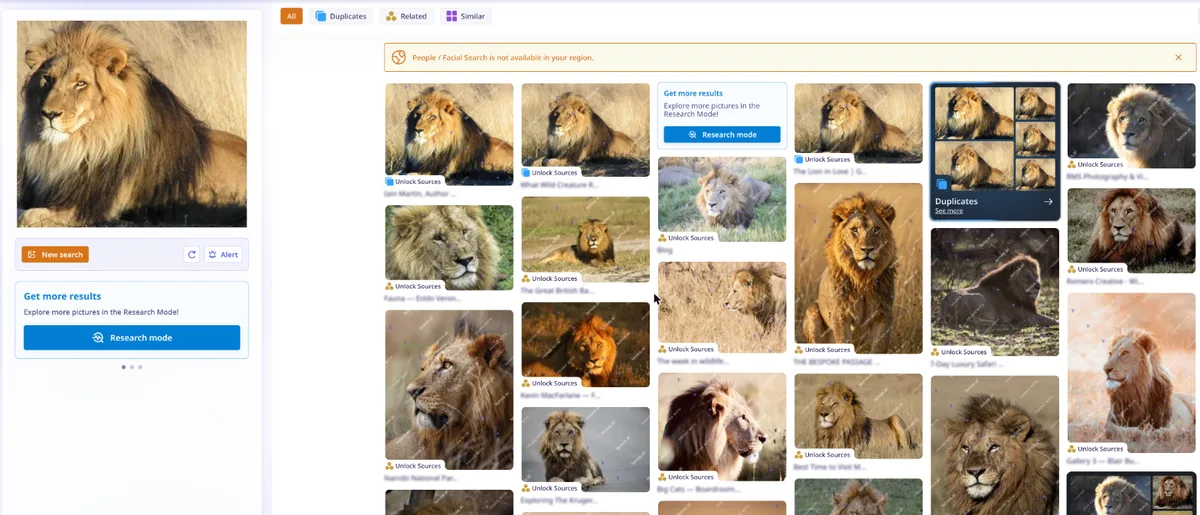
Lenso.ai is an AI-powered reverse image search engine that sorts results into categories: Duplicates, Related, Similar, Places, and People. That grouping makes it quick to see whether you’re looking at copies of your image or simply pictures that look alike, and filters let you narrow things down further.
You can set alerts to be notified when new matches appear, and Research Mode digs deeper for more results. Face search is available in many countries but not everywhere. When I searched from the UK, Lenso showed a notice that people and facial search isn’t available in my region.
In my test, Lenso grouped copies of both edited photos under Duplicates, but every result was watermarked and its source link said “Unlock Sources”, so you’ll need the paid plan to see where the images actually live.
Pros & Cons
PROS
CONS
Pricing
Basic searches are free with limited results.
The Starter plan costs $19.99 a month plus tax for unlimited searches, up to 50 results per search, source links, and no watermarks.
03. Geekflare Reverse Image Search
Free image searchChecking one image in several engines without uploading it four times
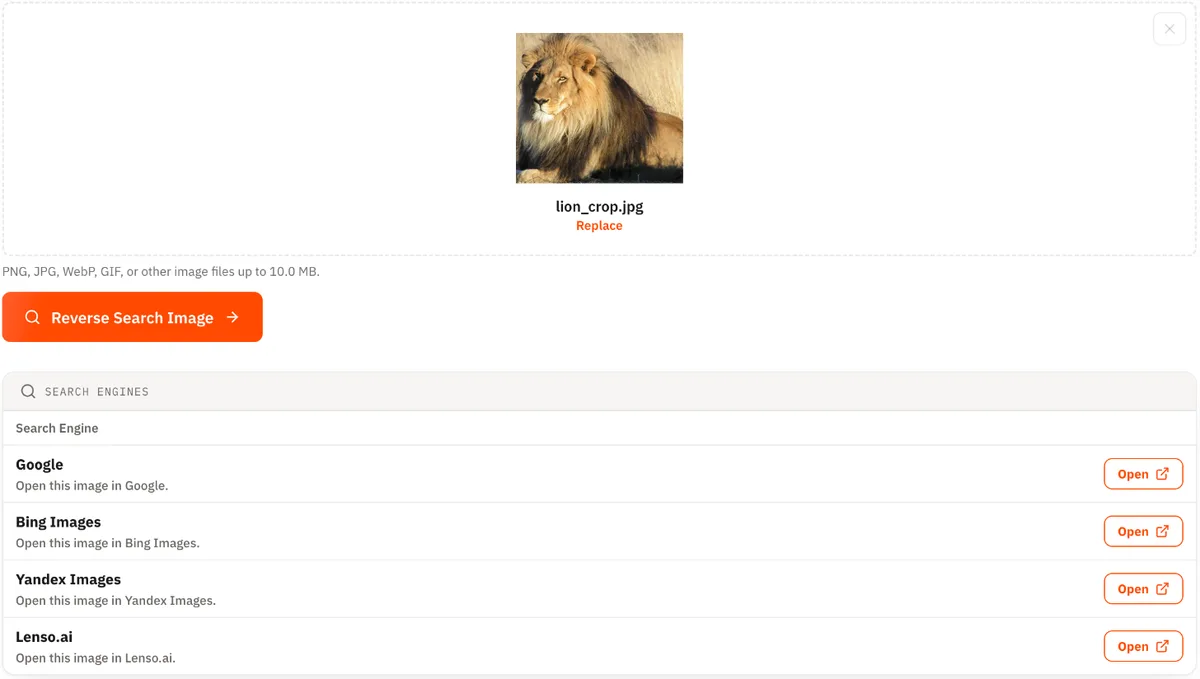
Geekflare’s free tool saves you from uploading the same picture to every search engine. Drop in a PNG, JPG, WebP, or GIF up to 10 MB, and it gives you one-click links to run that image in Google Lens, Bing, Yandex, and Lenso.ai.
As my test showed, each engine finds different things. Google might find the original while Yandex finds more resized copies and Lenso groups the duplicates. Running all four from one place takes seconds, and there’s no account to create.
Pros & Cons
PROS
CONS
Pricing
Geekflare Reverse Image Search is free.
04. TinEye
Reverse image search for exact copiesTracing edited copies and finding when an image first appeared
TinEye is one of the oldest dedicated reverse image search engine, with an index of more than 86 billion images. It focuses on finding copies of the same picture, including resized and lightly edited ones, rather than images that merely look similar.
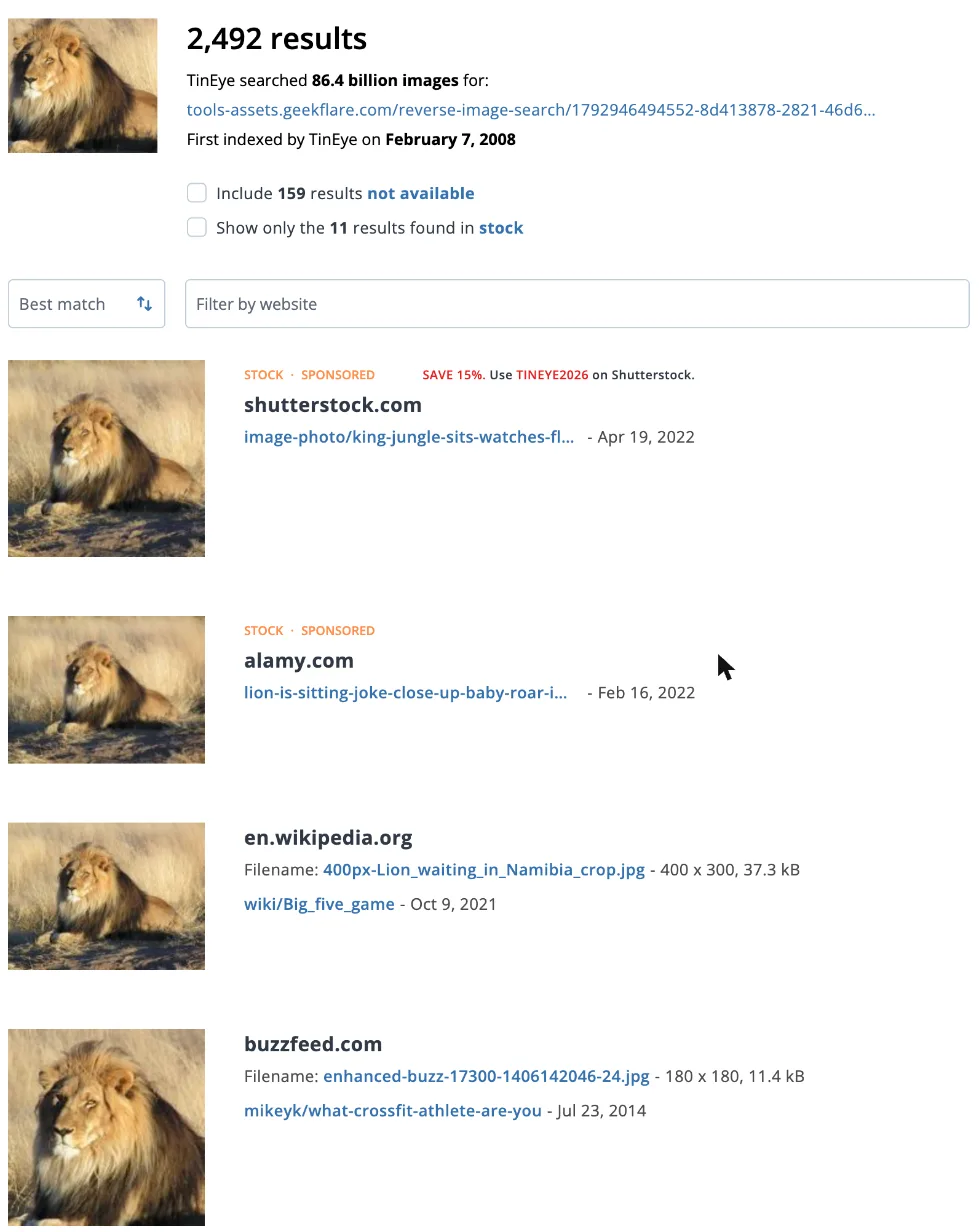
Its best feature for research is sorting. You can sort matches by oldest, newest, or most changed, and TinEye shows when it first indexed an image, which helps you work out where a photo started. Browser extensions let you search any image with a right-click, and businesses can use the TinEye API.
In my test, TinEye found 2,492 copies of the crop, dated the photo to February 2008, and listed a Wikipedia copy near the top. The mirrored version cut that to 140 copies on wallpaper sites, with no original on the first page. Its top two results for the crop were also sponsored stock listings.
Pros & Cons
PROS
CONS
Pricing
TinEye is free for non-commercial use. The API has no monthly fee: $200 buys 5,000 searches ($0.04 each) and $300 buys 10,000.
05. Bing Visual Search
Microsoft's reverse image searchA second opinion alongside Google, especially for products
Bing Visual Search works much like Google Lens. Upload an image, paste a link, or take a photo, and Bing shows an overview, visual matches, pages with the image, and any text it can read. It’s handy for shopping, identifying landmarks and animals, and copying text from pictures.
In my test, Bing was the weakest at finding sources. For both the crop and the edited photo, its Pages with this image tab said it was unable to find any pages, even though Google found hundreds. It did show one copy in its visual matches, so it recognized the photo but couldn’t trace it.
Pros & Cons
PROS
CONS
Pricing
Bing Visual Search is free.
06. Yandex Images
Reverse image search from YandexFinding other sizes of a photo and images from Russian-language sites
Yandex’s reverse image search is long known for strong matching, especially for faces and images from Russian and Eastern European websites. Its Smart Camera view lets you drag a frame around part of the image, and results show the picture in other sizes, similar images, and the sites where it appears. It can also recognize text in an image.
In my test, Yandex found the crop in 17 other sizes and the edited photo in 10, including the original 1024 × 768 version. But neither search surfaced the Wikimedia original, and the site list was mostly YouTube channel art and social posts. It also labeled the edited lion as “Лев Африканский”, Leo Africanus, a 16th-century geographer, apparently because “African lion” and his name are the same words in Russian.
Pros & Cons
PROS
CONS
07. Copyseeker
Reverse image search with AI detectionVerifying images, including whether AI made them
Copyseeker finds where an image appears and ranks the pages by website authority, which pushes original sources and big publishers above random reposts. The same upload can also check whether an image is AI-generated, flag explicit content, and pull out any text in it.
No account is needed, and each tool also has a REST API for developers who want to build image checks into their own apps.
In my test, Copyseeker found 69 matches for the crop and put a Wikipedia page linking to the Wikimedia original in the top three. The mirrored photo returned 17 reposts on Pinterest, Reddit, and news sites, but not the original.
Pros & Cons
PROS
CONS
Pricing
Copyseeker is free to use. Premium costs $9 a month, $90 a year, or $450 one-time for unlimited searches, faster results, and no ads.
08. Pixsy
Image theft monitoring and recoveryPhotographers and creators who want to find and act on stolen images
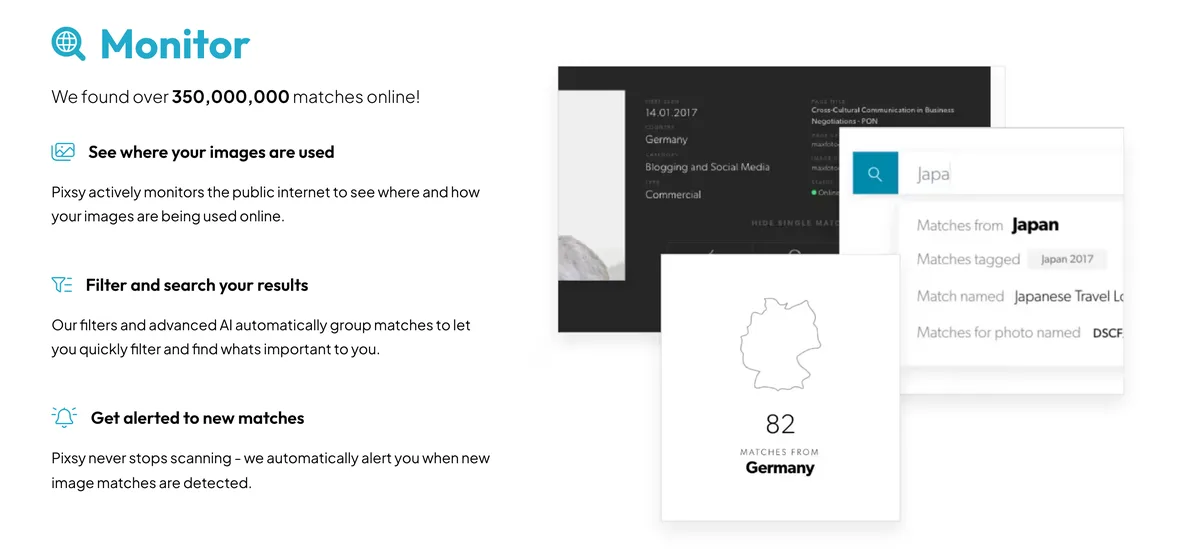
Pixsy is built for photographers and artists rather than one-off searches. You import your portfolio from your computer or services such as Flickr, Instagram, and Google Drive, and Pixsy keeps scanning the web for uses of your images, grouping matches by country, site, and tag, and alerting you to new ones.
When you find an unauthorized use, you can send a takedown notice or submit a case. Pixsy’s team and partner law firms then chase compensation on your behalf, and it can also help you register your work with the US Copyright Office.
Pros & Cons
PROS
CONS
Pricing
You can monitor 500 images for free. Submitting a case is free, and Pixsy charges 50% of the amount recovered only if the case succeeds. Paid plans add more monitored images.
09. Berify
Image search with theft alertsFinding stolen photos and videos across several engines at once
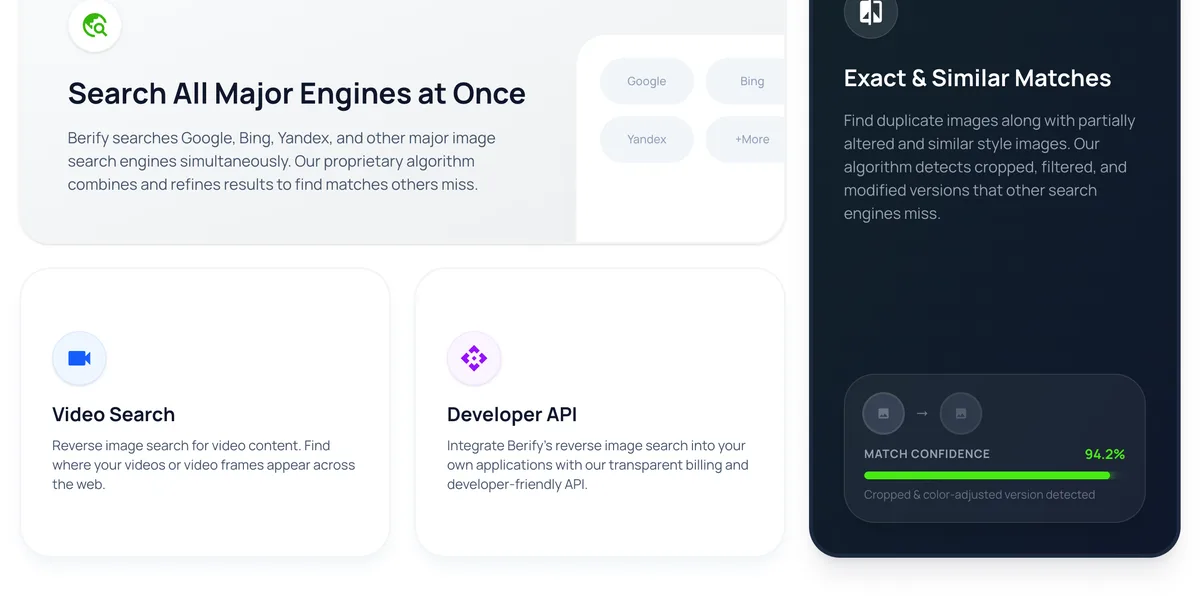
Berify combines its own index of more than 800 million images with results from Google, Bing, Yandex, and Baidu, then filters and groups them so you see exact and modified copies in one list. It says it can detect cropped, filtered, and color-adjusted versions that single engines miss.
Once you import your photos or videos, Berify keeps checking for them and emails you when new matches appear. It also offers video search and a developer API.
Pros & Cons
PROS
CONS
Pricing
Berify offers free searches with no credit card required. Sign up to see paid plans for monitoring more images.
10. PimEyes
Face search engineFinding photos of your own face across the web
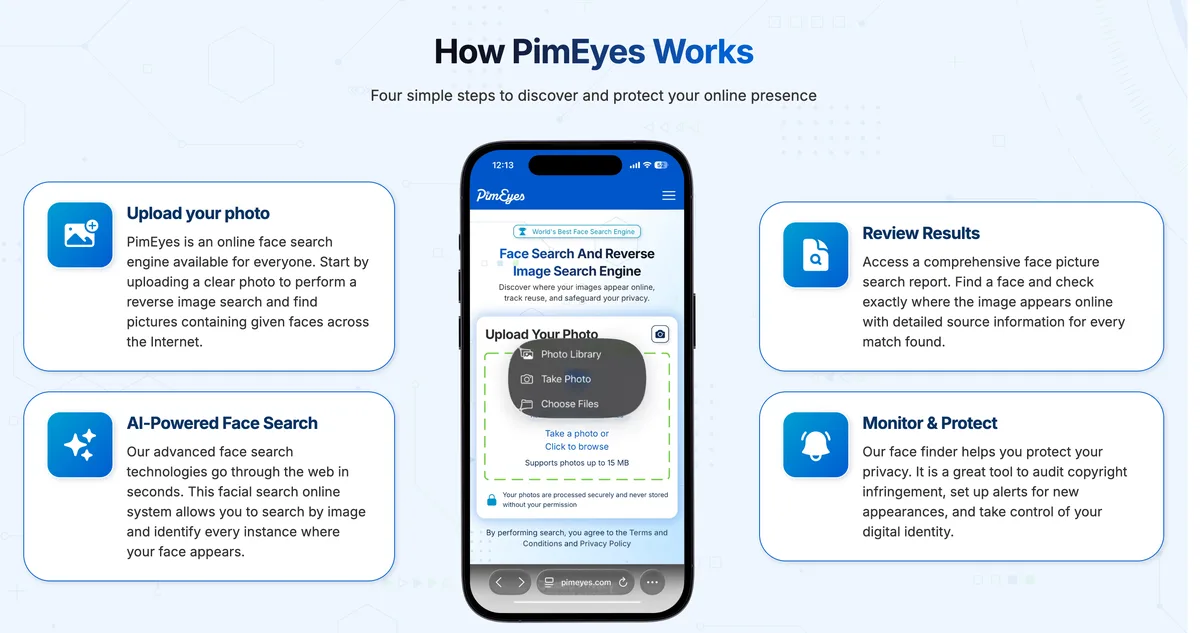
Most of the tools above match whole images. PimEyes matches faces, so it can find other photos of the same person even when the picture is completely different. It’s mainly meant for checking your own online footprint: you can set alerts for new appearances, opt out of results, and get help with takedown requests.
Because face search can be misused, use it on yourself or with permission. For more options, see our guide to the best face recognition search engines.
Pros & Cons
PROS
CONS
Pricing
Searches are free with blurred results. Plans start at $29.99 a month for up to 75 searches a day, and a $34.99 plan allows 125 searches a day.
Other Reverse Image Search Tools
China’s largest search engine has its own image search, which is the best place to look for images published on Chinese websites.
AI reverse image search with face search and an AI image detector, sold per search rather than by subscription.
A free reverse image search with no sign-up that says uploaded images are removed after the search.
Sends your image to Google, Bing, Yandex, and Baidu, with uploads from your device, Dropbox, Google Drive, a URL, or your camera.
A simple page by Digital Inspiration that lets you upload a photo from your phone and run it through Google.
A free multi-engine reverse image search that shows links to results from Google, Bing, Yandex, and other engines.
How to Get Better Results From a Reverse Image Search
- In my test, no two tools returned the same results. Google is the best first stop, and TinEye, Yandex, and Copyseeker often find copies it doesn’t.
- Search the original, not a screenshot. Screenshots add borders, interface elements, and compression.
- If a photo is part of a meme, collage, or ad, crop to the part you care about, or drag the selection box in Google Lens or Yandex.
- Mirrored images trip up most engines. If a photo looks flipped, flip it back before searching.
- Sort by date. TinEye’s oldest-first sort is the quickest way to see where an image first appeared online.
What Can You Use Reverse Image Search For?
- Fact-checking.
- Spotting fake profiles.
- Protecting your work.
- Finding better versions.
- Identifying things.
FAQ
What is the best reverse image search tool?
Google Lens gives the best results for most searches, and it was the only tool that found the original source of both edited photos in my test. TinEye is better for tracing exact copies and finding when an image first appeared, and Pixsy suits photographers who want ongoing monitoring.
Is reverse image search free?
Yes. Google Lens, Bing Visual Search, Yandex Images, Geekflare Reverse Image Search, and Copyseeker are free, and TinEye is free for non-commercial use.
How do I do a reverse image search on my phone?
On Android or iPhone, open the Google app or Chrome, tap the camera (Google Lens) icon, and choose a photo. In Chrome you can also long-press an image and choose Search with Google Lens.
Can I reverse image search a person?
General engines like Google limit results for faces. Face search engines such as PimEyes are built for it, but use them only to search for yourself or with permission.
Why can’t reverse image search find my image?
The image may not be indexed yet, it may only appear on pages that block search engines, or it may be too heavily edited. Try another engine, use the original file instead of a screenshot, and crop or flip the image back to its original form.