



WordPress runs 41.9% of all websites on the internet as of June 2026. That is not a small number. It means every accessibility problem baked into a popular WordPress theme or plugin ripples across millions of sites at once.
The 2026 WebAIM Million report tested one million homepages and found 252,302 WordPress sites among them. Those WordPress sites averaged 52.8 detectable WCAG errors each:
- Contact forms with missing labels
- WooCommerce galleries that block keyboard users
- Cookie banners that trap focus
- Page builders that generate broken heading structures.
These are not rare edge cases. They show up on WordPress sites every day.
Accessibility plugins exist to fix exactly this kind of a problem. A good plugin catches what themes and builders miss. It helps your team fix issues before they reach real users. Some plugins add a front-end widget that lets visitors adjust their own experience. Others scan your content and flag violations directly inside the WordPress editor. A few do both.
In this guide, we’ll discuss the best WordPress accessibility plugins.
Overlays vs. Remediation
Most WordPress accessibility plugins fall into two categories. Users often confuse overlays and remediation.
Overlay plugins inject a floating widget onto your site. Visitors use it to adjust text size, contrast, and spacing. The adjustments happen through JavaScript, which is layered on top of your existing code.
A screen reader user navigating by keyboard still hits every structural barrier the overlay never touched. The NFB, ACB, and hundreds of accessibility practitioners have criticised overlay-only approaches as insufficient for WCAG conformance.
Remediation and auditing plugins work differently. They scan your pages for accessibility violations and flag them inside the WordPress editor. Your team then fixes the underlying HTML, content, and structure, so no widget appears on the front end. The problems get solved at the source.
The most effective setups combine both approaches. A scanner finds the problems. A structural fix layer addresses theme-level issues. An overlay gives users runtime control while deeper remediation continues. No single plugin covers all three equally well.
Top WordPress Accessibility Plugins
WP Accessibility
WP Accessibility modifies your site’s HTML at page load time. It targets accessibility problems introduced by themes and known issues in WordPress core.
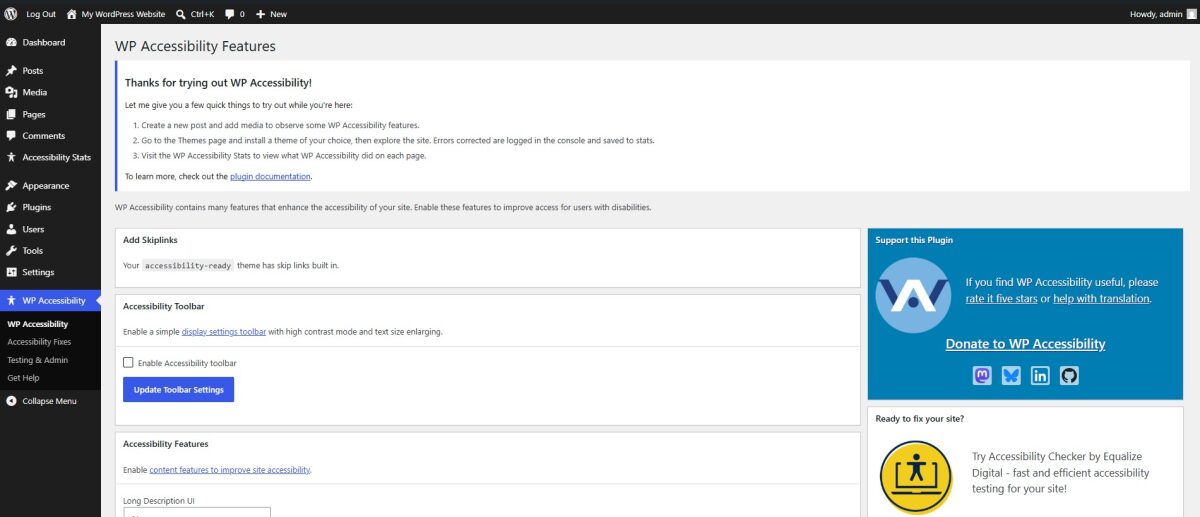
For theme-level issues, WP Accessibility:
- Adds skip links with customizable targets
- Injects language and text direction attributes into the HTML element
- Enforces visible keyboard focus outlines
- Adds long descriptions to images using the image’s description field
- Labels the standard WordPress search and comment forms
- Appends post titles to “read more” links
- Removes problematic tabindex values from non-interactive elements
- Enforces viewport scalability so users can zoom freely
For content-specific issues, WP Accessibility:
- Strips redundant title attributes from images and tag clouds
- Removes target attributes from links that open new windows without warning
- Includes built-in tools for your own accessibility review
- Provides a hex color contrast checker and diagnostic CSS that flags problems visually in the editor and on the front end.
Pros & Cons
PROS
CONS
Pricing
You can download and install the plugin for free.
WordPress Accessibility Plugin by Skynet Technologies
The WordPress Accessibility Plugin by Skynet Technologies covers a wide range of global compliance standards. It addresses ADA, WCAG 2.0, 2.1, and 2.2, EAA, UK Equality Act, AODA, ACA, Australia DDA, German BITV, BGG, and the Indian RPD Act. I find this level of coverage useful for organizations operating across multiple jurisdictions.
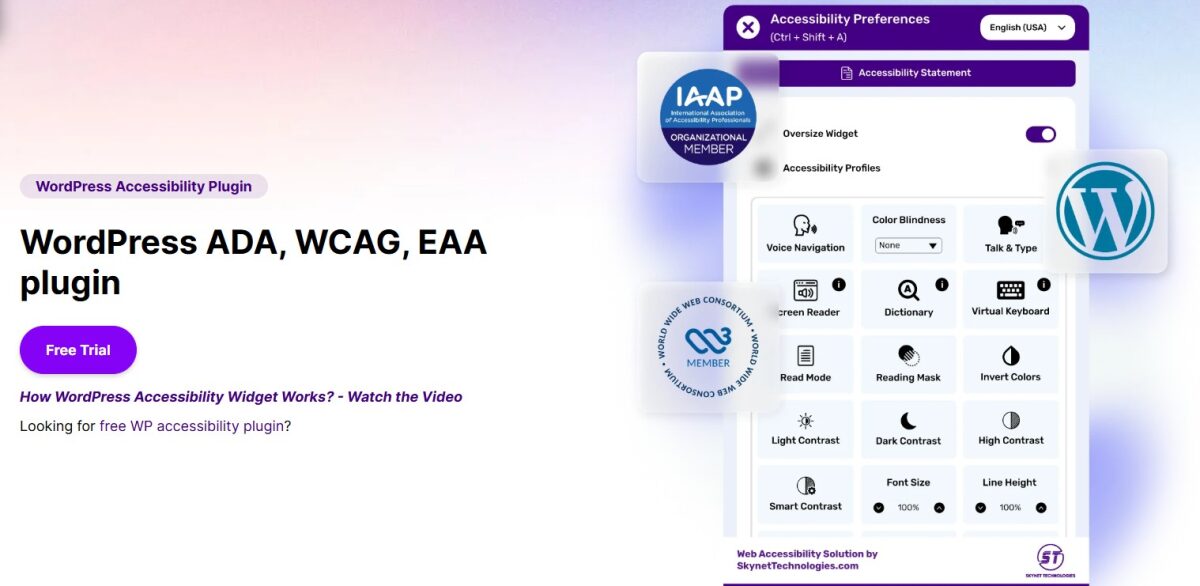
It also supports GDPR, HIPAA, CCPA, SOC 2 Type II, ISO 9001:2015, and ISO 27001:2022.
The plugin offers paid add-ons for teams that need more than the core widget. It includes a manual accessibility audit report, full site remediation, document and PDF accessibility remediation, VPAT/ACR reporting, white-label branding, live website translation, accessibility menu customization, and the SkynetAccessibility Scanner.
Pros & Cons
PROS
CONS
Pricing
Free plan available.
Single site plans:
- Small (up to 50K pageviews/month): $25/month
- Medium (up to 100K pageviews/month): $39/month
- Large (up to 500K pageviews/month): $99/month
- Extra Large (up to 1,000K pageviews/month): $139/month
Multi-site plans:
- Silver (up to 3 sites, 500K pageviews/month): $1,299/year
- Gold (up to 5 sites, 1,000K pageviews/month): $1,799/year
- Platinum (up to 10 sites, 2,000K pageviews/month): $2,499/year
Accessibility Checker
Accessibility Checker scans your posts and pages every time you save or publish. You can view the issues directly on the edit screen. Editors can easily catch problems before a page goes live.
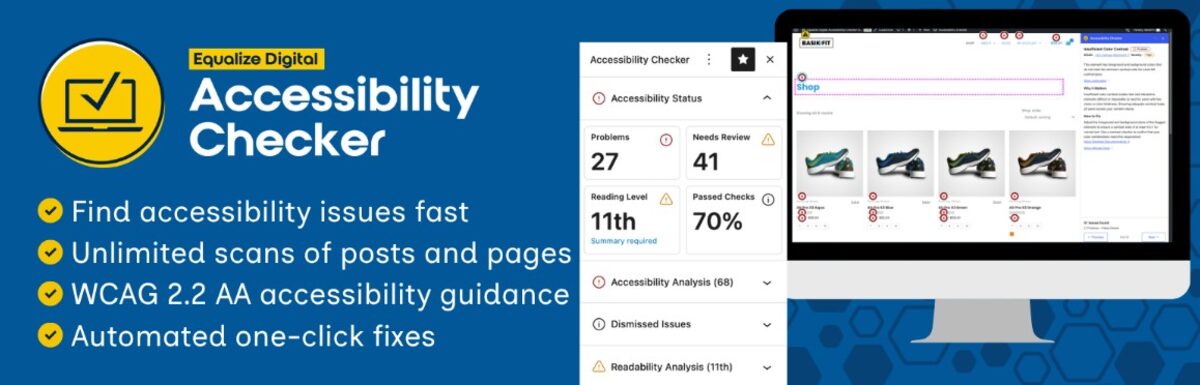
The plugin runs over 40 automated checks based on WCAG 2.2. Every scan runs on your own server because there are no external API calls, no URL-based limits, and no per-page fees. A site with thousands of pages gets unlimited scanning at no extra cost.
Accessibility Checker recently added a new Block Editor sidebar panel that shows scan data and lets editors navigate issues without leaving the edit screen. It covers unlimited scanning of standard posts and pages.
The plugin provides bulk scanning, admin columns showing accessibility status at a glance, a centralized open issues list, and role-based controls on who can dismiss issues. You’ll also get audit history, CSV export, and multisite network management.
You’ll find 10 one-click automated fixes, such as skip links, focus outlines, lang attributes, viewport scaling, and more. Every issue includes a help article explaining what the error is, why it matters, and how to fix it.
Pros & Cons
PROS
CONS
Pricing
The price of Accessibility Checker starts at $190/year. You can also avail yourself of a free plan with limited features.
UserWay Accessibility Widget
UserWay Accessibility Widget deploys an AI-powered widget on your site that helps users adjust text size, contrast, cursor size, reading guides, and more. It targets WCAG 2.1, ATAG 2.0, EN 301-549, ADA, and Section 508.
You need a UserWay account to install the plugin. After signing up, you receive activation credentials by email, and the widget goes live once you complete that step. The setup process is simple for non-technical site owners who need a quick accessibility layer. There is no code to write and no configuration beyond the account step.
Pros & Cons
PROS
CONS
Pricing
The pricing comes in two versions. The free version allows you to start your website accessibility journey with limited functions. Its pro version offers an AI-powered widget along with compliance.
accessiBe WordPress Plugin
accessiBe uses its AI-powered accessWidget through this plugin, which uses a two-component system. A background AI process scans and remediates code-level accessibility issues every 24 hours. A front-end interface lets visitors adjust font size, contrast, animations, and other preferences.
Pros & Cons
PROS
CONS
Pricing
The plugin starts at $59/month. You can take the 7-day free trial to explore the plugin.
WP ADA Compliance Check Basic
WP ADA Compliance Check Basic evaluates content against WCAG 2.2 Level A and AA and Section 508. It runs 81 individual accessibility error checks that cover more ground than most comparable free scanners.
The plugin checks content as it is published. It also supports full site scans across all existing pages and posts. Each report maps issues to the specific WCAG or Section 508 criterion, with plain-language fix instructions alongside.
Government agencies, educational institutions, and small businesses use it for structured compliance scanning without complexity. I found it useful on projects where the team needed a clear, itemized checklist without investing in a full audit platform.
Pros & Cons
PROS
CONS
Pricing
The price starts at $179.99 for a single site with unlimited pages. It also comes with a free version with limited advantages.
Accessibility Tools and Alt Text Finder
Accessibility Tools and Alt Text Finder plugin by ClearPath Web Accessibility takes a focused approach. It centres on alt text management and structured compliance education inside the WordPress admin.
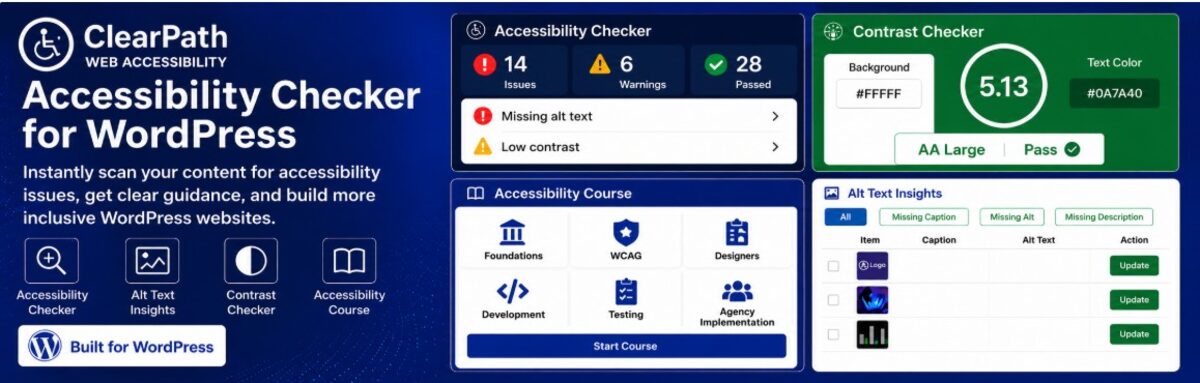
The Missing Alt Text Finder scans your media library and content for images without alternative text. It surfaces them all in one list so you can work through the backlog without opening each page individually.
Beyond alt text, the plugin includes an interactive ADA checklist organized by WCAG categories, such as Perceivable, Operable, Understandable, and Robust. It also includes a Section 508 checklist and an EAA checklist mapped to EN 301 549 criteria.
A built-in accessibility course, a contrast checker, and a curated resource library help content editors build accessibility knowledge as they work. The goal is to make compliance a regular part of publishing, not a separate audit event.
Pros & Cons
PROS
CONS
Pricing
The pricing includes the free version and the pro version. The Pro version is for users who want additional guidance, expanded features, and advanced accessibility support.
Ally
Ally, formerly known as One Click Accessibility, adds a lightweight front-end toolbar to any WordPress theme where users get controls for font size adjustment, contrast switching, link underlining, focus outline enforcement, and skip-to-content navigation.
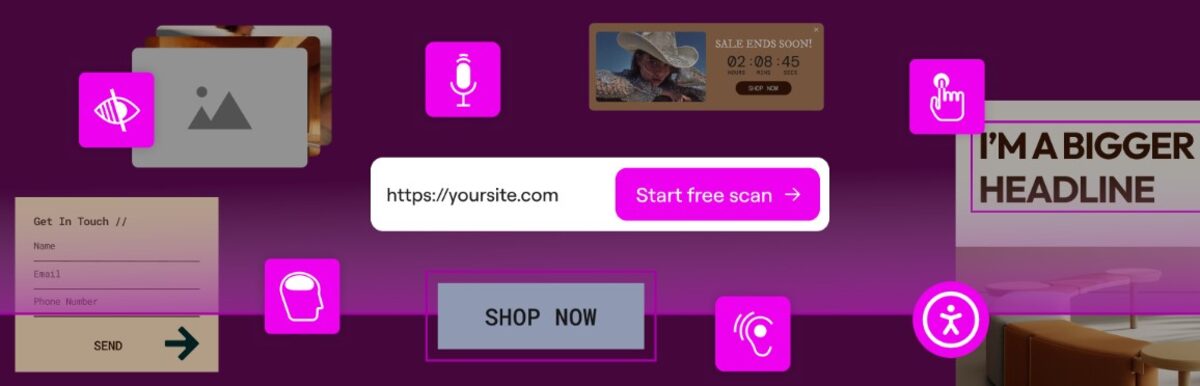
The plugin’s contrast switching covers three modes, including greyscale, negative contrast, and high contrast. The toolbar appears on desktop, tablet, and mobile, and can be toggled per device type in settings.
Beyond the toolbar, the plugin injects ARIA landmark roles, cleans up keyboard focus issues, and removes problematic target attributes from links. The current version adds RTL language support, block-based widget compatibility, and improved full site editing integration.
It loads without measurable performance overhead. It is compatible with most caching configurations and works across any WordPress theme.
Pros & Cons
PROS
CONS
Pricing
Use Ally Plugin for free with all the features you need to make your posts and pages accessible. You can go for paid plans if you want to increase your URL scans and AI fixes limit.
Key Features to Look For in a WordPress Accessibility Plugin
There is significant variation in what these plugins actually do. You need to evaluate them against a consistent checklist before installing.
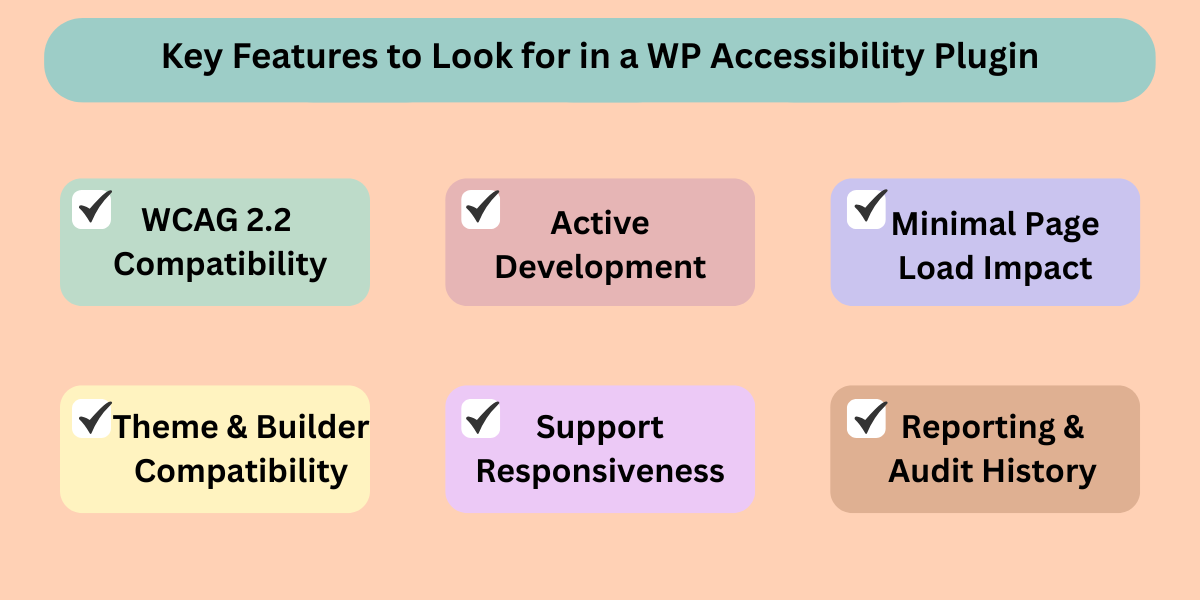
- WCAG 2.2 compatibility: The plugin must test against WCAG 2.2 Level AA. Plugins referencing only WCAG 2.0 or 2.1 are behind the current standard for EAA, ADA, and Section 508 purposes.
- Active development: Check the last updated date on the WordPress.org plugin page. A plugin not updated in over a year risks incompatibility with the current WordPress core and themes.
- Minimal page load impact: Overlay plugins loading large JavaScript bundles can hurt Core Web Vitals. Test any overlay with PageSpeed Insights on a staging site before going to production.
- Theme and builder compatibility: Test on staging before going live. Conflicts with Elementor, Divi, Avada, and FSE themes are common across overlay types.
- Support responsiveness: Check the WordPress.org forum for unanswered threads. A pattern of ignored support questions is a liability for compliance-sensitive sites.
- Reporting and audit history: For enterprise or legal defense purposes, you need documented evidence of what was scanned, when, and what was found. All in One Accessibility and Accessibility Checker Pro both provide this.
What Plugins Cannot Fix
Every plugin on this list has a ceiling. Automated tools surface between 30 and 40 percent of WCAG violations at best. The remaining 60 to 70 percent require human review.
No WordPress plugin reliably handles any of the following:
- Alt text accuracy: A plugin flags missing alt text, and AI tools suggest descriptions. Neither guarantees the description is contextually accurate for that specific image on that specific page.
- Heading hierarchy: A scanner spots heading level jumps. It cannot assess whether the content structure makes logical sense to a user navigating by headings alone.
- Video captions: No plugin auto-generates accurate captions. AI services produce imperfect output that needs human review before meeting WCAG 1.2 criteria.
- Custom interactive components: Date pickers, multi-step forms, drag-and-drop interfaces, and embedded third-party widgets often fail keyboard and screen reader testing in ways no overlay can patch. These require developer remediation at the component level.
- Color contrast in images and graphs: Automated tools detect contrast failures in CSS-rendered text. They cannot evaluate contrast inside raster images, charts, or infographics.
The only way to validate these areas is through real screen reader testing and manual keyboard navigation review. For a complete guide to testing approaches beyond plugins, the web accessibility testing tools guide covers what genuine compliance testing looks like in practice.