


I was talking to a tech startup founder and his team, and that’s when I understood how this is the case with so many of these companies right now. One team member starts using ChatGPT Plus. Another one of them signs up for Claude Pro. And within a month, you have 4-5 people paying for different AI subscriptions, writing the same prompts from scratch, and none of them have any idea about what the other team members have figured out.
If you are running AI models for personal experiments, then it’s fine. But if this is how your team operates AI, then you need to think again. It makes a lot more sense to have a shared workspace if:
- Multiple people on your team use AI daily
- You are paying for more than 1 subscription
- You want consistent outputs across your team members (same brand voice, data sources, or prompt patterns)
- You want to keep a track of how your team members are using AI
Sparkian’s Business plan is designed for collaborative teams. It includes 5 seats, 25,000 Sparks per month, advanced AI models, 5 workspaces, and a 250 MB Knowledge Base. Teams also get unlimited in-chat web search and 1-year chat history. The plan costs $49/month, billed monthly, with additional seats available for $5/month per seat.
If you need additional Sparks, Sparkian also offers one-time Spark purchases that are valid for one year.
Let’s test this in real-time!
Creating a Workspace and Inviting Your Team
It literally takes less than 5 minutes to set this up.
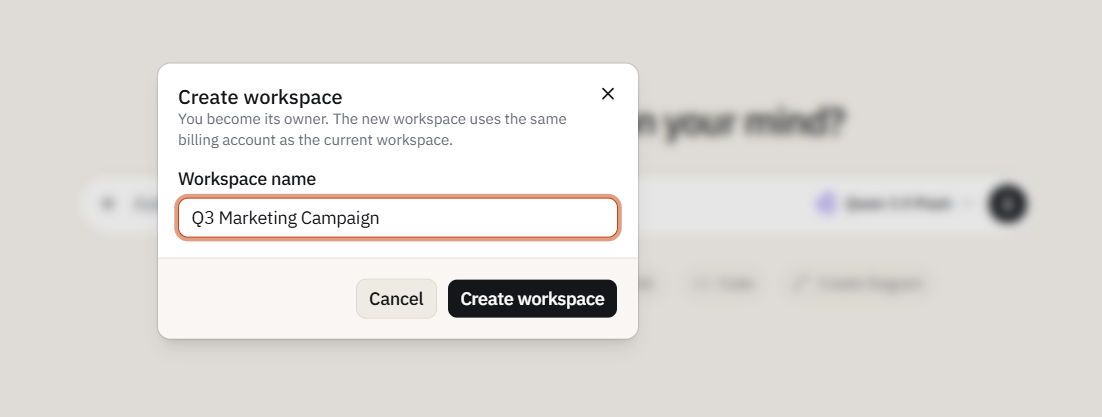
Step 1: Create your workspace
After signing in, you’ll be taken to the Sparkian dashboard. A workspace is automatically created using your account name. For example, if your account name is Dhruv, you may see Dhruv Workspace in the dashboard.
To create another workspace, click the existing workspace name. This opens the workspace options, where you can create a new workspace and configure it separately.
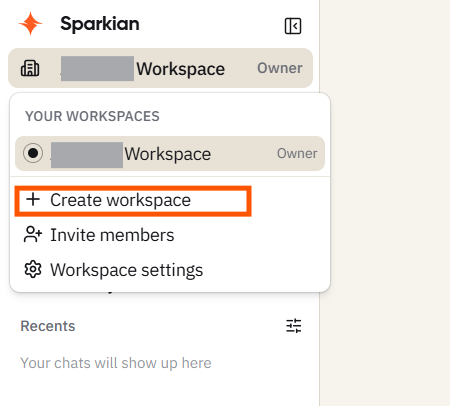
You can create unlimited workspaces on the Business plan. If your team runs distinct functions where you don’t want different departments to see each other’s work, you can set that up. For instance, there are client-facing and internal ops teams, so you can have separate workspaces to keep everything clean. By default, the users on the Pro plan get one workspace.
Step 2: Invite team members and assign roles
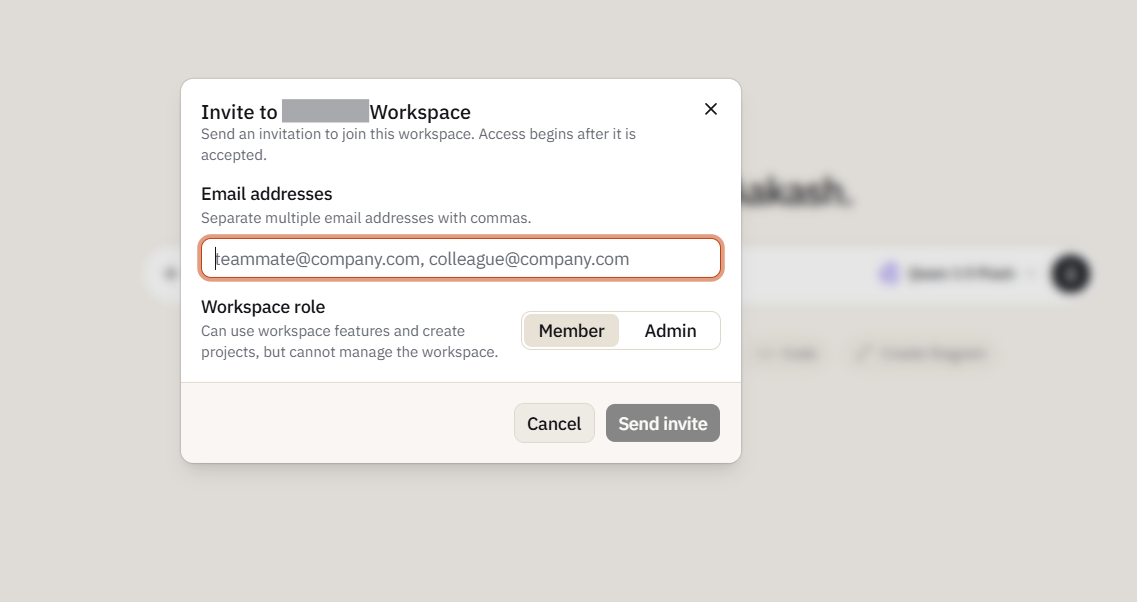
Click your existing workspace name to open the workspace menu, then select Invite Members. Enter the email addresses of the people you want to add and select their workspace role before sending the invitation.
Sparkian offers two workspace roles:
- Admin: Can invite and remove members, edit workspace settings, and manage models.
- Member: Can use workspace features and create projects, but cannot manage the workspace.
Building a Shared Prompt Library
The easiest and fastest way to get consistent output across your team is to stop letting everyone write their own prompts from scratch.
Sparkian’s prompt library helps teams create consistent outputs without requiring everyone to write prompts from scratch. It provides ready-made prompts across categories such as Marketing, Customer Support, Project Management, Sales, HR, Finance, and more. You can also create custom prompts and share them with your team for repeated use.
How to access it: You can open the prompt library in two ways. Click the + icon in the chat input box and select Prompt Library, or type /prompts directly in the chat to access the prompt options.
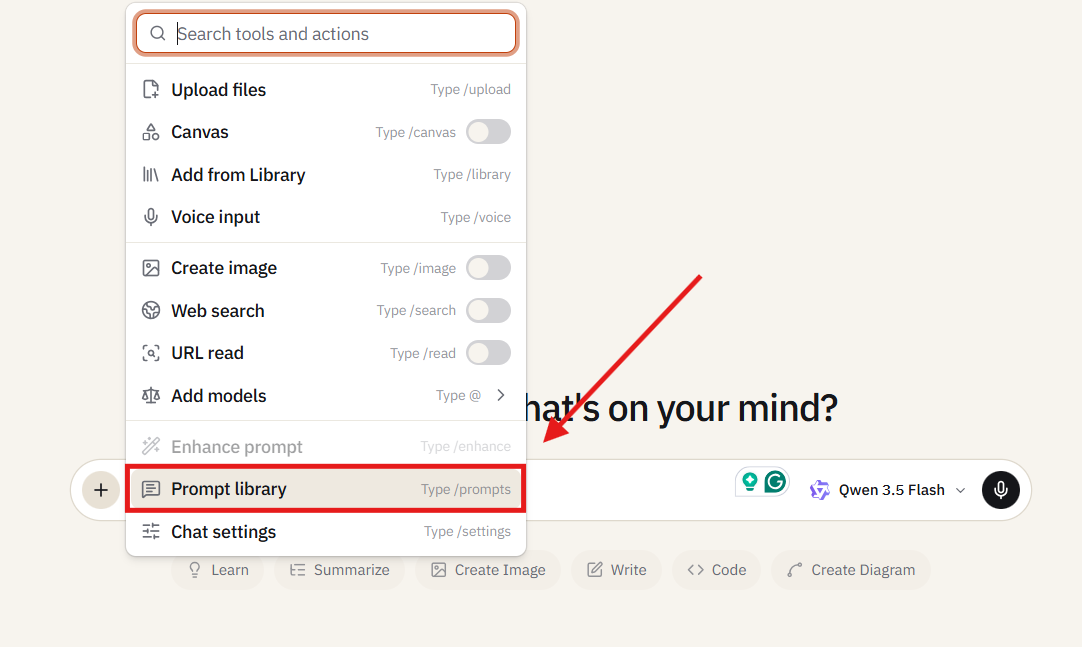
Using a readymade prompt: You can use any prompt from the category you want. If the prompt contains variables (such as [Topic], [Tone], or [Industry]), the interface prompts you to fill them in before inserting the final text into the chat.
Creating a custom prompt: Sparkian allows you to build a tailored prompt for your team or clients’ needs. You can add variables for the parts that change each time. Once you write the prompt, you can choose the sharing scope: share it within your workspace, keep it private, or publish it organization-wide so everyone in your workplace can access it.
This is where you get access to the full power of this setup. A senior marketer spends 20 minutes building 5 solid prompts. Now, every junior marketer on the team can produce the same quality of outputs with these prompts, without needing to learn prompt engineering from scratch. The library eliminates the gap between your best prompt writer and everyone else.
Setting Up a Shared Knowledge Base
The Knowledge Base standardizes everything that the AI knows about your company. You can upload all your company documents, like SOPs, brand guidelines, competitive intelligence, onboarding materials, product specs, and more. Once you’ve uploaded everything, you can reference it in any conversation in that workspace. This is how AI is going to answer the questions based on your actual documents rather than relying on its general training data.
How to set it up: From the left-side menu, click Library and open the Knowledge Base section. From there, you can upload the files you want to add to your workspace knowledge base.
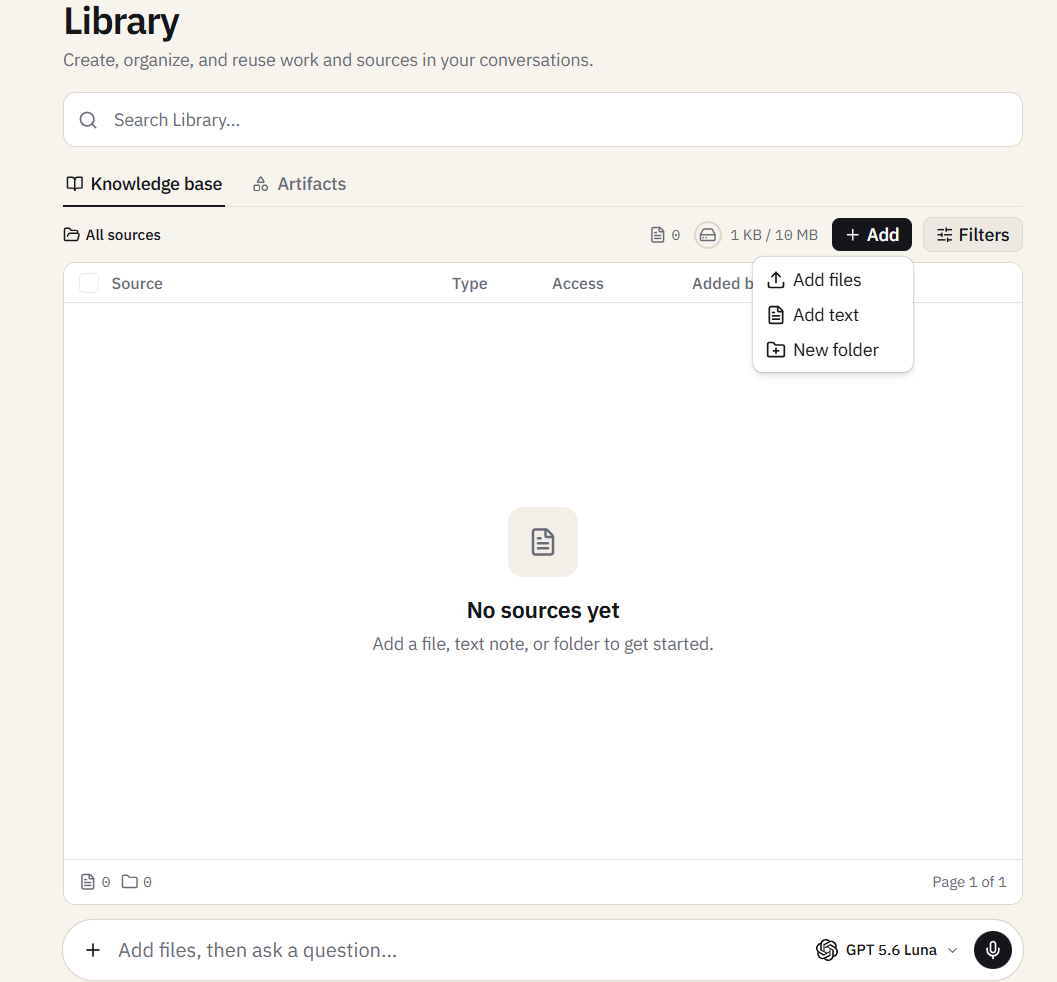
What to upload first: First, begin with the documents that your team is going to reference most often. It could be anything, like brand voice guidelines and product messaging docs for the marketing teams. Engineering teams can start with architecture decisions and internal documentation. At the same time, your sales teams can begin with objection-handling docs and battlecards.
Every message that queries the Knowledge Base costs an additional 5 Sparks on top of the selected model’s base Spark usage. For example, if your team makes 50 Knowledge Base queries a day, the additional Knowledge Base charge alone would be 250 Sparks per day, before accounting for the model usage.
Keep this extra cost in mind when estimating your team’s Spark consumption. You can learn more about Spark usage in the Sparkian Sparks guide.
Getting Your Team Productive in an Afternoon
When you sign your team up for Sparkian, you won’t really need a week-long rollout. The setup is only three steps, each building on the last.
Hour 1: Create your workspace and invite the team
Follow the walkthrough we talked about above to create your workspace and get your entire team logged in. They will know exactly how to switch workspaces and access everything.
Hour 2: Seed the Prompt Library and Knowledge Base
Get your team lead or admin to spend an hour uploading the 5 most-referenced company documents to the Knowledge Base. This will make it available to the entire team. Plus, curate 10 prompts that would match your team’s most common tasks and add them to the Prompt Library and share access across the workspace. This is how you start feeding, and the library can grow from there.
Hour 3: Run a live session
Rather than doing this in isolation, it’s better to get your team on a call where one person shares the screen. Now, take a real task and walk through it together with your team. I’d suggest picking a concrete task like summarizing your client brief using the brand voice prompt you built or extracting the key numbers from last quarter’s reports. Sending out irrelevant training documents won’t do a thing. Instead, it’s better to go with a successful real-world example like this.
After that, people are self-sufficient. They know where the prompts are, that the knowledge base exists, and that they’ve seen a real output. Everything else they learn by doing.
For individual onboarding habits that help AI adoption stick, our first week guide gives each team member a day-by-day plan.
The Pricing Math
For a team of five, Sparkian’s Business plan costs $49/month and includes five seats, 25,000 Sparks every month, five workspaces, a 250 MB Knowledge Base, advanced AI models, unlimited in-chat web search, and one year of chat history.
| 5 × ChatGPT Plus | 5 × Claude Pro | Sparkian Business |
|---|---|---|
| $100/month | $100/month | $49/month |
| Access to ChatGPT models and features | Access to Claude models and features | Access to advanced AI models |
| Individual subscriptions | Individual subscriptions | 5 seats included |
| No shared workspace structure across five Plus accounts | No shared workspace structure across five Pro accounts | 5 workspaces |
| No shared Knowledge Base | No shared Knowledge Base | 250 MB Knowledge Base |
| — | — | Unlimited in-chat web search |
| — | — | 25,000 Sparks/month |
ChatGPT Plus costs $20/month, so five individual Plus subscriptions come to $100/month. Five Sparkian Business seats cost $49/month, giving teams a lower monthly cost along with shared workspaces, a Knowledge Base, and pooled Sparks.
What 25,000 Sparks means
The Sparkian Business plan gives the entire team 25,000 Sparks every month. These Sparks are shared across the workspace rather than being assigned as a fixed allowance to each team member.
This means teams can use their allocation according to their actual needs. A team member who uses more advanced AI models can consume more Sparks, while lighter users consume fewer.
If the team needs additional usage, Sparkian also offers one-time Spark packs:
- Spark: $15 for 5,000 Sparks
- Blaze: $50 for 25,000 Sparks
- Inferno: $200 for 100,000 Sparks
All additional Sparks are valid for one year.
What Admins Can and Can’t See?
I know every team member would ask this question before signing up for a shared AI tool. They want to know: Can my boss read my chats?
No, your boss can’t read your chats.
On Sparkian, Admins can invite and remove members, edit workspace settings, and manage models. Members can use workspace features and create projects, but they cannot manage the workspace.
However, workspace access does not automatically give members access to each other’s conversations. A conversation is visible only to the person who created it and anyone it has been explicitly shared with.
I know this matters a lot because people won’t opt for something that they can’t trust. Nobody is going to use a shared AI workspace for drafting sensitive emails or brainstorming ideas if they think their manager is reading the logs.
You don’t need to worry about the privacy of your chats with this, by any chance.
If you’re ready to onboard your team to Sparkian, you can sign up here.