


Most people who sign up for a new AI tool stop using it within a week.
You probably know this because you’ve done it. You signed up for Notion AI, Jasper, maybe even ChatGPT Plus at some point with full intent. Used it for 2-3 days. Then one morning you didn’t open the tab, and you didn’t open it the next morning either, and a month later you were paying $20 for a bookmark.
Actually, it’s not the tool’s fault or even your fault. The honest reason most AI tools don’t stick is that features don’t turn into habits on their own. It’s fun to explore some features, but building habits requires work. And when the enthusiasm of signup day fades, usually around day 3, there’s nothing left to carry you through the dip except whatever routine you built in the first 72 hours.
Which is why most people don’t make it.
This post tells you exactly what you need to do to fix this problem and create one habit per day for the next 7 days. Every habit is small enough that you can do it on a lunch break and specific enough that by Day 7, you’re not thinking about Sparkian as “a tool I’m trying out,” and you’re thinking about it as part of how you work.
So, let’s start to create some good habits with AI.
Day 1: Pick Your Home Model
The habit: Default to a single model rather than hopping between them at random.
I know what most users would do on their first day with a multi-model AI tool. They open it, see the dropdown, and start clicking models one by one out of curiosity. Claude for this question. GPT for that question. Gemini for the third one, because why not?
Your exploration spirit is at an all-time high. But that’s not real onboarding. And it’s the fastest way to never get fluent in anything.
The fix is to pick one model as your starting point for the week, your “home model,” and actually use it for something real today. Don’t run a vague test prompt that won’t ever help you. Instead, give it a real task from your actual work that you were going to do anyway.
This matters because fluency compounds. The more you use one model, the better your intuition gets for what it’s good at, what it fumbles, how to prompt it, and when it’s time to second-guess it. You can’t build that intuition if you’re bouncing between models at random in your first week. You end up mediocre at three tools instead of fluent in one.
Not sure which model to start with? The ChatGPT vs. Claude vs. Gemini comparison breaks down which model wins at which task.
So, here’s today’s action list for you:
- Open Sparkian: If you haven’t signed up yet, stop here and do that first. The rest of this plan assumes you’re logged in.
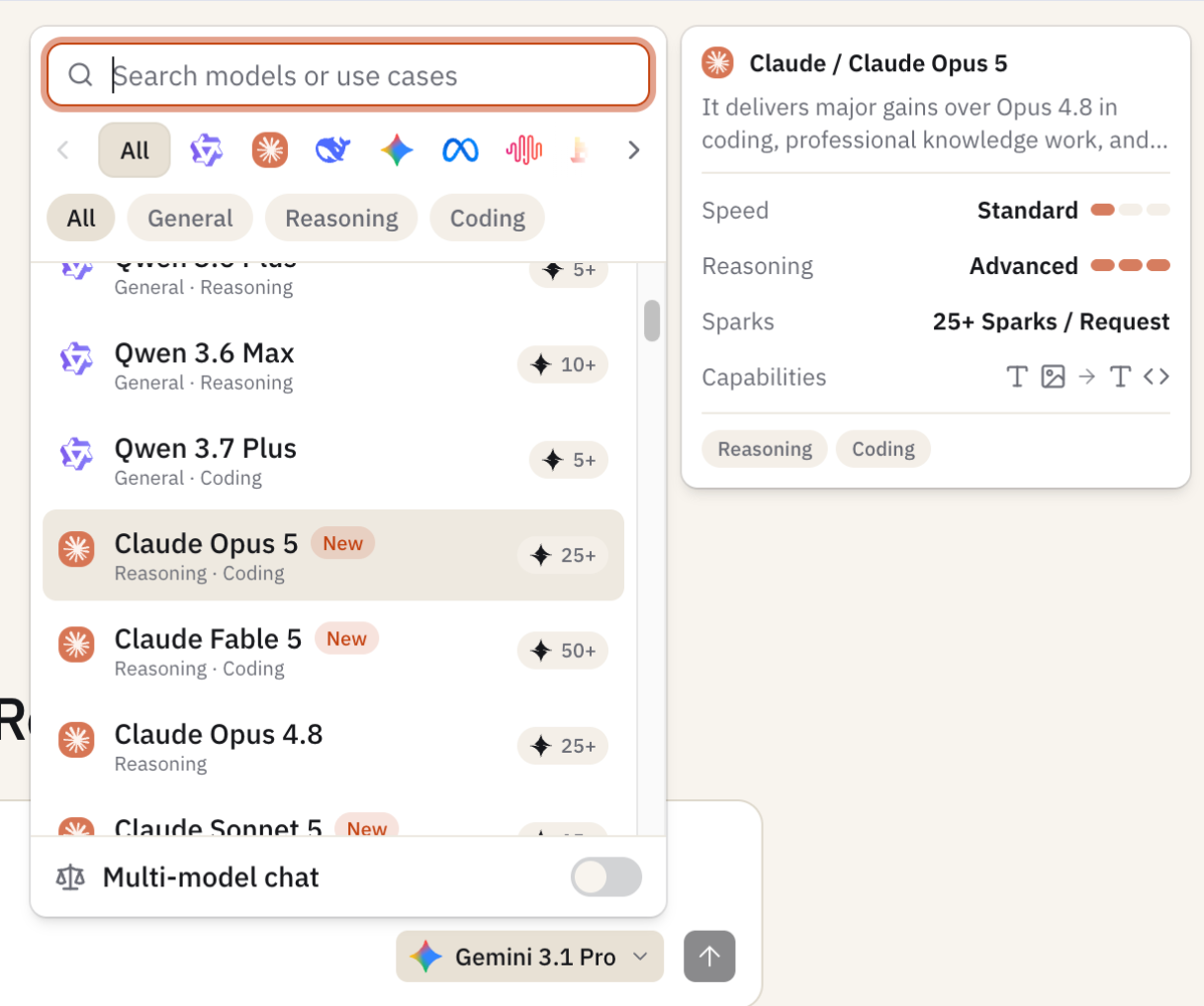
- Click the model dropdown at the top of the chat: You’ll see every model available on your plan.
- Pick one model: Let me make it easy for you. Pick Claude 4.6 Sonnet if most of your work involves writing, editing, or thinking through problems. Pick GPT-5 if you spend a lot of time on structured work, code, or anything where you need the output to be in a specific format. Try Gemini 3.1 Pro if research and current information matter more than voice. Please note that if you are on a free plan, you’ll only have access to Lite models, so choose accordingly.
- Do one real task: Pull something off your actual to-do list, like drafting an email you’ve been putting off, summarizing a document, solving a problem you’re stuck on, and run it through your home model right now.
That’s it. One real task with one model, and your work is done for today. You’ve just started building the habit.
Pro Tip
Don’t think too much over choosing a model. You’re not picking a spouse. You’re only picking a starting point for this week. If you realize by Day 4 that you picked wrong, then switch. The goal is building the habit of having a default, not picking the “right” default.
If you haven’t signed up yet, do it now, because the rest of this walkthrough assumes you’re logged in. Start free →
Day 2: Get a Second Opinion
The habit: Never accept the first model’s output on anything that matters.
Yesterday, you picked a home model and used it for one real task. Today, you’re going to learn to doubt it.
Every model has blind spots, and that’s why it’s good to doubt them. Claude hedges where GPT doesn’t. GPT confabulates a structure where Gemini admits uncertainty. Gemini pulls weird facts from training data, where Claude says, “I’m not sure.” You don’t know which bias you inherited from yesterday’s task until you see a second model handle the same thing.
The second opinion habit is the cheapest quality control you’ll ever install.
So here are today’s action steps:
- Take yesterday’s output: Take the output from the real task you ran in your home model.
- Switch the model dropdown to a different model: If you used Claude yesterday, try GPT-5, Grok, or something else today.
- Paste the same prompt: Read the new response you get for the same prompt.
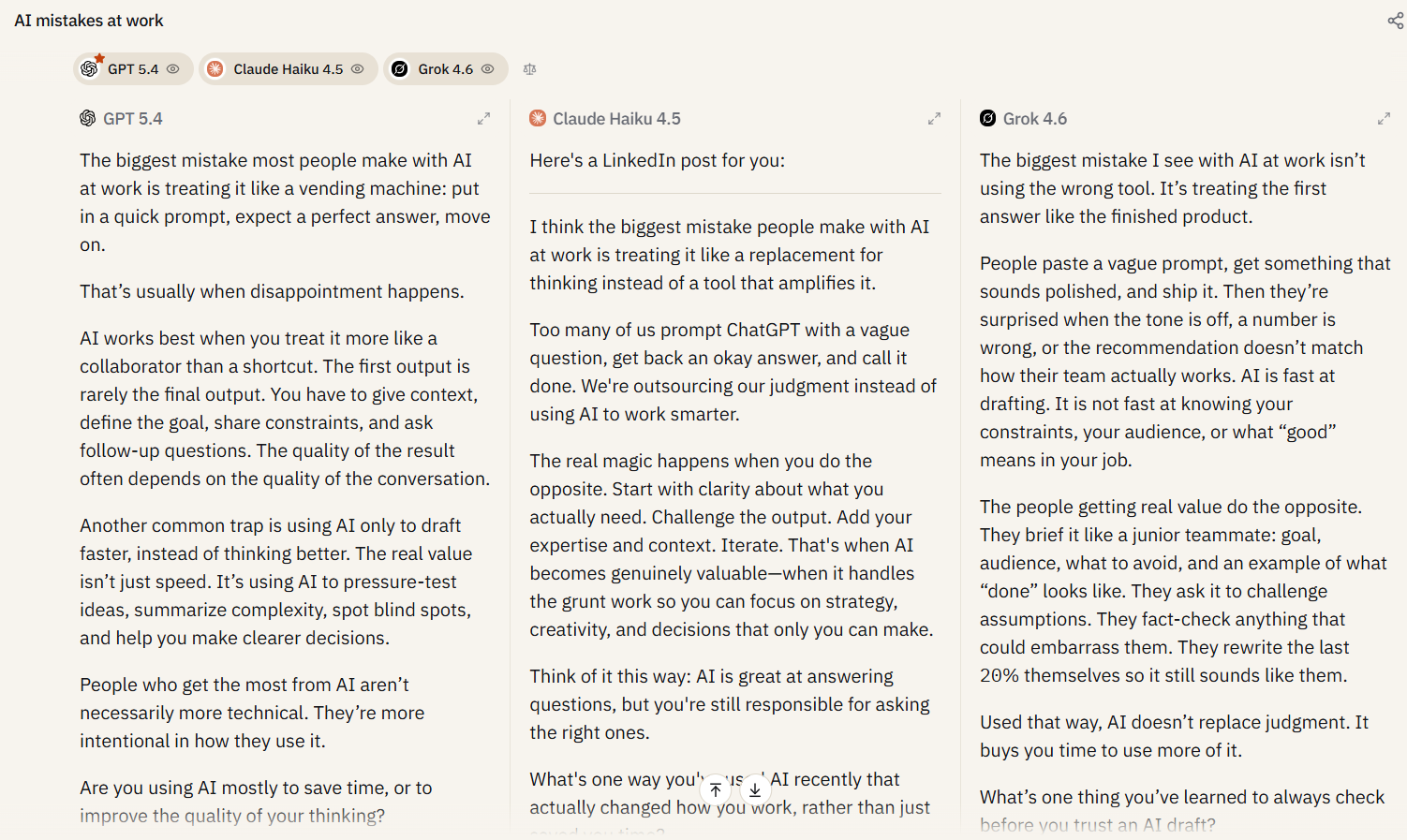
- Deluxe version: You can flip on side-by-side comparison mode and run two or more models against the same prompt in parallel. The columns make it impossible to miss the differences.
The point isn’t to pick a winner. It’s worth noticing what the second model caught that the first one missed. You will see a different angle, a factual correction, or even a better turn of phrase. That’s the habitual reflex of never trusting a single AI source on anything that has stakes.
Pro Tip
Reserve the second opinion for important work, like client deliverables, investor updates, or anything with legal and financial implications. Otherwise, one model is fine for a quick email to your cousin about weekend plans.
Day 3: Stop Pretending Like You Read the Whole Thing
The habit: Let’s understand the long documents sitting in your inbox and collecting dust.
Today is the day most new users quietly have a small breakthrough. If you do Day 3 properly, it’ll be the day you stop pretending you read things.
I know every knowledge worker has a stack of documents they’ve “read,” like reports, research papers, long Slack threads, or PDFs someone sent them with ‘take a look when you can.’ What actually happened is you scanned the summary, caught two or three bullet points, and convinced yourself you got the gist. Three weeks later, you’re in a meeting when you realize you missed something important, so you cover it up.
This has been the baseline of professional work since professional work has existed. AI tools that can actually read and reason about documents are the first real fix for it. Day 3 is when you start understanding documents with AI the right way.
Today’s action plan:
- Find the longest document: Look through your inbox, Drive, downloads folder, and everything. This document will be the one you’ve been meaning to “get to.” A 40-page report, a research paper, a client brief, a white paper, or anything that’s long and boring.
- Upload it to Sparkian: Use the file upload button next to the chat input to do this.
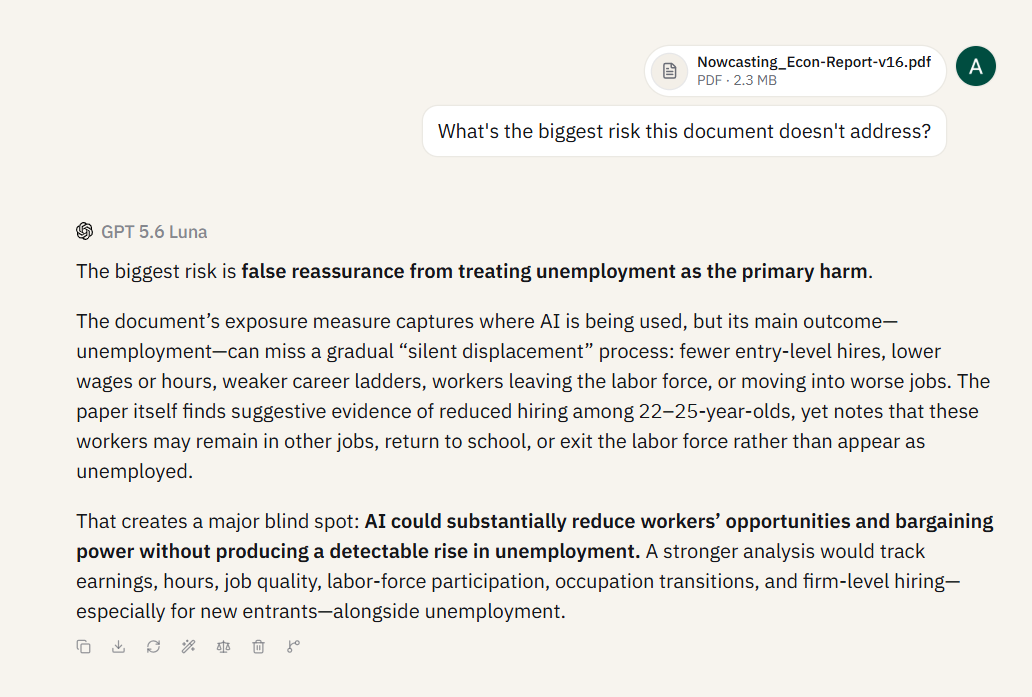
- Don’t ask for a summary: Summaries are lazy, so I don’t want you to ask for that. Instead, ask a specific question. Try one of these:
- What’s the biggest risk this document doesn’t address?
- Where does the author contradict themselves?
- What’s the single most important number in here, and why?
- If I had to remember only one thing from this document, what would it be?
- Then ask a follow-up: Now’s the time to challenge the answer by asking it to quote the exact passage it’s basing the answer on.
You’ll walk away from today’s session with more real understanding of that document than you would have gotten from an hour of solo reading. This is the habit I want you to develop so that from now on, long documents get uploaded and understood, not skimmed.
Pro Tip
If the document is confidential, the privacy policy matters. Sparkian uses commercial API endpoints from the underlying providers. So, nothing you upload is used to train models. You can even find the full details in the flagship walkthrough that has the privacy section.
Day 4: Save it or Lose it
The habit: The moment a prompt works, it goes in the library.
By now, you’ve run prompts through two or three models, uploaded a document, and asked at least a handful of follow-up questions. Somewhere in those chats are two or three prompts that actually worked. The kind that made you go, “Oh, that’s useful.”
Today, you save them, and that’s how you commit to never retyping a prompt twice again.
I know most of you will skip this step because it feels like extra work. But the real cost of not saving prompts isn’t the 30 seconds you skip today. The main cost is that every time you rebuild a prompt from memory, the quality slowly goes down the drain because you mildly remember the shape, but you have no idea about the specific phrase that made it work. Three weeks later, you’re getting worse results from the same idea, and you can’t figure out why.
A prompt library fixes that. Twenty proven prompts are the single biggest productivity multiplier any AI user can build. Most people never build one because they never start.
Need inspiration for what to save? Our 15 prompts for marketers are ready to use or customize.
So let’s put this into action:
- Scroll back through your chats from Day 1, 2, and 3: Find 2-3 prompts that actually worked the way you wanted them to work.
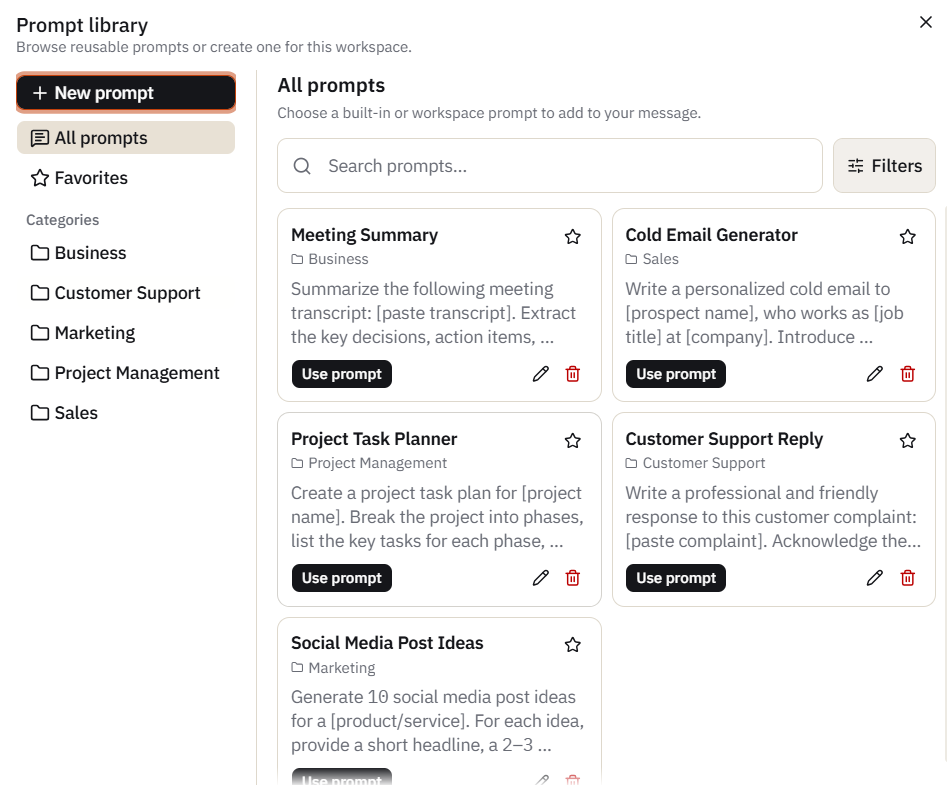
- Save them in your Prompt Library: Give it a short, searchable name.
- Name them by what they do: ‘Blog intro hooks’ is much better than ‘LinkedIn post about AI.’ You’ll thank yourself in two months when you’re searching.
- Set a calendar reminder: Make it a habit to save at least ONE prompt every week. Over a year, you’ll have a library of 52 prompts that are making your work easier.
Pro Tip
If you work with a team, the Prompt Library can help you keep frequently used prompts organized and easy to reuse across your workflow.
Day 5: Stop Tab-hopping
The habit: Whatever AI task you’re about to open a new tab for, do it in this window instead.
If you’re a multitasker like me, you’ll have so many tabs open in your browser. You probably have ChatGPT open in one tab, a Midjourney or DALL-E tab for images, maybe a Perplexity tab for research, and now Sparkian. Four tools running four separate histories, each in a different place where your work lives.
AI fluency is taking a big hit because of this fragmentation. Your flow breaks every time you switch tabs. Every tool has its own prompt quirks you have to remember. And when you want to find something you asked two weeks ago, you have to guess which tool you asked in.
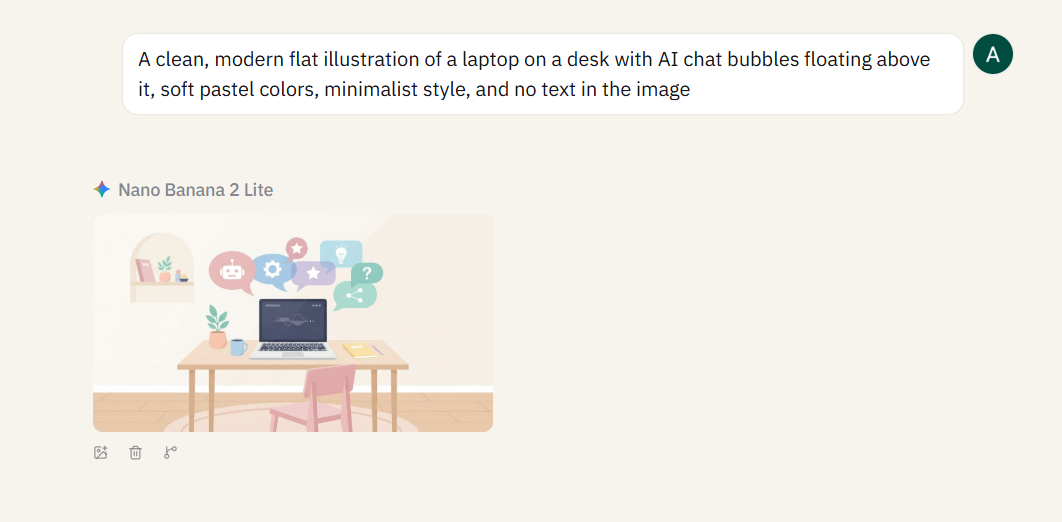
Sparkian is built to collapse all of that into one window. Be it text chat, image generation, PDF uploads, web research, or anything else, you can do it all in the same thread with the same context. Your tab-hopping journey stops today, because Sparkian has a model for every task.
Today’s action plan:
- Think of one task you’d normally open a different AI tool for: If I want to generate an image, I always go to Gemini for it. If I want an audit for any business or brand, I always go to Claude.
- Do it in Sparkian: If you wish to generate an image, switch to the Nano Banana (Gemini Flash Image) model. For code, stay in your home model. And do it all in the same chat window without losing any context.
- Notice what’s different: Everything you’ve done this week lives in one searchable place. Your prompts, your uploaded documents, your generated images, your research, it’s all there in one window.
Pro Tip
Image generation is also part of the Sparkian workflow. If you regularly create images, spend a week trying Sparkian’s available image-generation options for your everyday tasks. Test them with the kinds of prompts you normally use and see whether they cover your needs before paying for another separate AI image-generation subscription.
Day 6: Know When the AI Is Guessing
The habit: When your question depends on current information, turn on web access. When it doesn’t, save the credits.
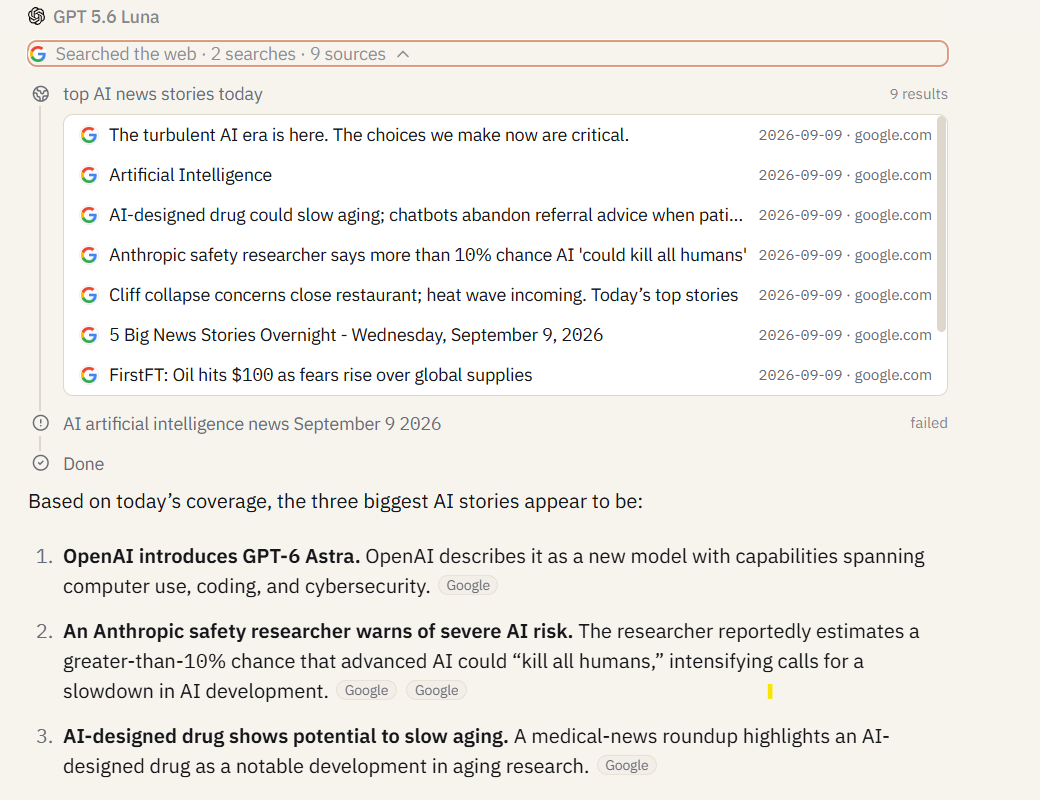
Most active AI users fall into this trap at least once. You ask a model about something current, like a recent announcement, a new feature in a tool you use, or even a competitor’s pricing, and you get a confident, specific, completely wrong answer. The model didn’t lie. It just answered from training data that ended months or years before your question. And you didn’t catch the error until it cost you.
Web access is the fix. Flip it on, and the model searches the live web before answering, then cites the sources it pulled from. But most new users never turn it on because it’s off by default and nobody told them when to use it. But now you know.
So let’s get this in action:
- Pick a question that depends on current information: Search for anything like recent news in a particular industry, a recent fact that you’re not exactly sure about, or even the latest price of an iPhone in your specific city.
- Turn on web access: Use the toggle near the chat input.
- Ask the question: The response will have plenty of cited sources, and I want you to click through at least one of them to verify the answer.
- Then turn web access off and ask the same question: Now, it’s time to compare the two answers. This is the day you learn exactly how much your model was guessing before.
Pro Tip
Web access costs extra credits, so don’t leave it on for everything. Rule of thumb: keep it on for anything time-sensitive or factual, off for writing, brainstorming, and editing. You need to develop the reflex of toggling it based on the question, not the default.
Day 7: Keep Your Sparks in Check
The habit: Review your Spark usage once a month.
The first six days focused on daily habits. Day 7 adds a monthly check-in to help you understand how you use Sparkian and whether your current Spark allowance still fits your workflow.
Your usage can change over time. You may start using advanced models more often, work with larger files, or rely more heavily on the Knowledge Base. A monthly review helps you spot those changes before they affect your workflow.
Want to understand your Sparks better? The Sparkian Sparks guide explains how Spark usage works, what can affect your usage, and how to manage your Sparks.
Do this:
- Review how you use Sparks: Think about the models, file uploads, Knowledge Base requests, web search, and other features you used most during the month.
- Ask three questions:
- What did I use the most? That shows your main Sparkian workflow.
- What did I expect to use but barely touched? You can stop building habits around those features.
- Is my current plan still right for me? If you regularly use most of your Sparks, a higher plan may be worth considering.
Need more Sparks? Sparkian lets you purchase additional Sparks as one-time top-ups. These work across plans and remain valid for one year.
| Pack | Price | Sparks |
|---|---|---|
| Spark | $15 | 5,000 |
| Blaze | $50 | 25,000 |
| Inferno | $200 | 100,000 |
A smaller pack can cover occasional extra usage, while the larger packs suit heavier workloads.
Pro Tip
The user who audits monthly never overpays and never runs out. The user who doesn’t either wastes money on a tier they’ve outgrown or hits credit limits at the worst possible moment. Five minutes a month beats both.
What Week 2 Looks Like
If you completed Week 1, you’ll notice these few things right away.
You’re reaching for Sparkian without thinking about it. The home model habit is kicking in, and you’re not comparison-shopping every time anymore. You have three saved prompts, and you’ve already reused at least one. When a colleague sends you a long document, your first instinct is to upload it, not skim it. And when you asked an AI something important this week, some part of your brain said check that against a second model before you commit.
That’s the whole point of this journey. You could’ve easily learned all the features of Sparkian within an hour. The point is that seven specific behaviors are now part of how you work, and they’ll still be there in a month.
Week 2 isn’t about learning more features. It’s about repeating these seven habits until they stop feeling like a plan and become default behavior. Month two is when it gets good, because now you’ll be creating more of these habits on your own. And Sparkian will still be there without becoming a burden, unlike other AI tools.
If you’re ready to bring your team on board, the workspace setup guide covers everything from invites to shared prompt libraries.
Frequently Asked Questions
What if I miss a day?
The main intent is to create a habit. It doesn’t matter if you miss a day or two. If you miss Day 4, come back and do it on Day 5 or 6. The prompt library is there waiting. Don’t restart the week or beat yourself up. Just pick up where you left off.
Can I do this on the Free plan?
Yes, you can complete most of the week on the Free plan, which gives you 100 Sparks per month and access to standard AI models. Pro provides 10,000 Sparks per month for $19/month, giving you more room to explore different models and features throughout the week.
What if I already know the basics?
Skim Days 1 and 2, then do Days 3 through 7 properly. The habits in the second half, especially “stop pretending you read it,” the prompt library, and the monthly check-in, are the ones most experienced users also skip. Knowing the features isn’t the same as having the habits.
How much time does each day actually take?
Nothing more than 10-15 minutes a day. None of the days require a full session, and each one is designed to fit into a lunch break or the first coffee of the morning. Day 3 (the document one) is the longest because the back-and-forth with the PDF is where the value lies, but you can stop whenever you want.
What do I do after the seven days?
Repeat the habits until they’re automatic. Save one new prompt a week. Do the monthly check-in on Day 30. That’s it.
Start Day 1 Right Now
Seven days, seven small habits, and the difference between people who make AI tools stick and people who add another abandoned tab to the pile.
The difference is never talent or time. It’s that the people who make it work built habits in the first week instead of exploring features. You just got the plan for the habits. The only thing left is starting.
If you haven’t signed up yet, Day 1 is waiting. Start free →
If you’re already signed up, close this tab and go do Day 1. The only thing between you and the habit is the first prompt.