




There’s a high chance you’re paying for two or three AI subscriptions right now if you use AI for work. Some people have different tools for different purposes, like ChatGPT for writing, Claude Pro for documents, and even Gemini Advanced for real-time web access. Your bill keeps adding up, and you still end up copy-pasting prompts between tabs whenever you want to compare how two models handle the same thing.
Geekflare Chat resolves this specific problem. It’s an AI workspace that gives you access to GPT-5.4, Claude 4.6, Gemini 3.1 Pro, Nano Banana, and a handful of other top models, all under one subscription starting at $9 a month. Compare outputs without opening three tabs (the best feature), drop a PDF into the chat and ask questions about it, generate images without leaving the conversation, and even pull your team into a shared workspace when you need to.
This comprehensive walkthrough covers everything, from sign-up and workspace tour to the features that actually matter and pricing. By the end, you’ll know whether it fits your workflow and how to get started right away.
TL;DR
- What it is: An AI workspace with GPT-5.4, Claude 4.6, Gemini 3.1 Pro, and other top models under one subscription
- Who it’s for: Solo founders, marketing teams, researchers, and small businesses tired of paying for three different $20/month plans
- What makes it different: Side-by-side multi-model comparison, context preservation when you switch models mid-conversation, and flat pricing that saves up to 85% compared to stacking subscriptions
- Pricing: Free with 500 monthly credits, Pro at $9/month, Business at $29/month for 5 seats
What is Geekflare Chat?
I’ll give you the short answer to not overwhelm you.
Geekflare Chat bundles access to the top AI models from OpenAI, Anthropic, Google, xAI, and DeepSeek into one subscription. Instead of paying separately for ChatGPT Plus, Claude Pro, and Gemini Advanced, you pay a flat rate and use all of them from a single interface. That isn’t even the best part.
You get to switch models mid-conversation without losing any context. You can run the same prompt across multiple models simultaneously. Whether you want to chat with PDFs, docs, or images, you can do it all. It’s built for people who’ve outgrown single-model tools but don’t want the hassle of managing three separate subscriptions.
Who is it built for?
A handful of specific use cases fit really well with Geekflare Chat. If one of these sounds like you, don’t stop reading:
- Solo founders & freelancers who need every top model but can’t justify $60+ a month stacked across three tools.
- Marketing teams that want a shared prompt library, consistent brand voice for content, and a way to test campaign copy across Claude Sonnet 4.6 & GPT-5.4 before anything ships.
- Researchers and analysts working with long PDFs, needing real-time web access, and wanting to cross-check findings across models.
- Engineering teams that compare how Claude, GPT-5, and Gemini handle the same coding problem without maintaining three separate accounts.
- Small businesses putting 5+ people on AI. The Business plan covers a team of 5 for $29 a month (roughly what a single ChatGPT Plus seat costs).
But there’s one caveat to Geekflare Chat. If you’re a heavy API user with existing OpenAI or Anthropic keys, Geekflare Connect is a better fit. It’s the BYOK (Bring Your Own Key) version of the same platform.
What makes it actually different?
I’ve seen the majority of the tools in this category claiming “access to every model.” But I found 3 things setting Geekflare Chat apart from just opening three browser tabs:
- Side-by-side multi-model comparison: Before trying Geekflare Chat, I was scratching my head over “which AI is best” blog posts to figure out when to use which model. But with side-by-side multi-model comparison, I was able to run the same prompt across GPT-5.4, Claude Sonnet 4.6, and Gemini 3.1 Pro in a single window. You can do the same to get the answer by testing your own prompts.
- Context preservation when you switch models mid-conversation: I started a marketing brainstorming session in Claude. Then switched to GPT-5 halfway. And again changed to Gemini 3.1 Pro when I wanted an advanced web search. There are no tools in this space that allow such smooth switching while keeping the whole thread.
- Flat pricing that actually saves money: ChatGPT Plus, Claude Pro, and Gemini Advanced together run to $60 a month for one person. Geekflare Chat Pro is just $9. For a team of five, ChatGPT Plus seats cost roughly $100/month; the Business plan covers the same team for $29.
File uploads, inline image generation, web access, and prompt libraries are like the cherry on top. But these 3 features are enough for you to pick it.
Signing Up for Geekflare Chat
The sign-up process takes less than 60 seconds, and you won’t even need a credit card to start.
Let me walk you through the step-by-step process!
Step 1: Go to the sign-up page
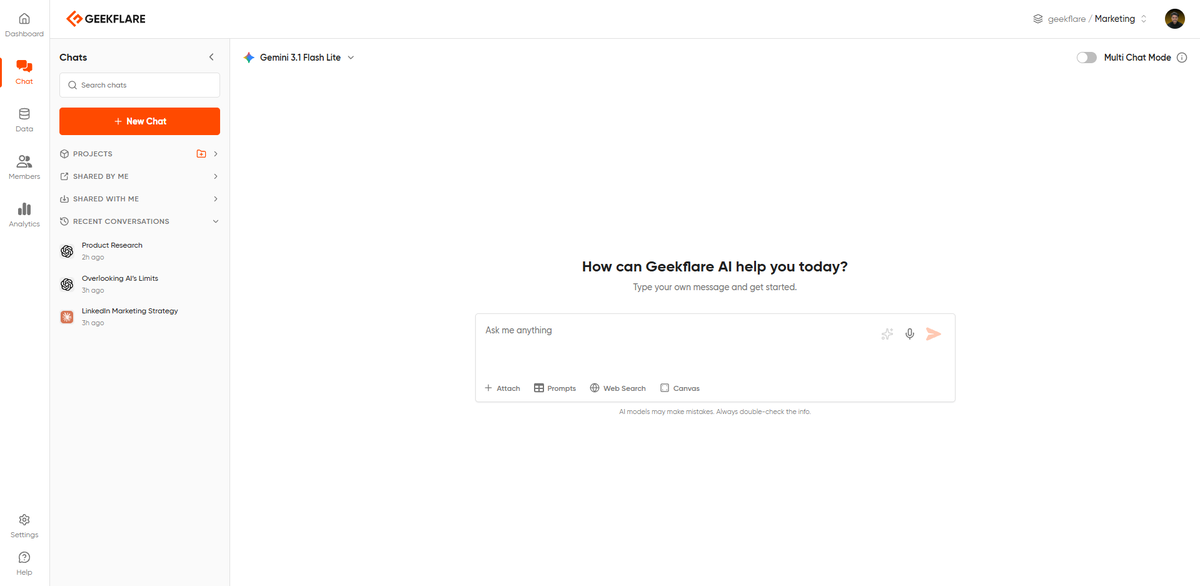
Head to geekflare.com/ai/chat and click “Get Started Free” in the top-right corner.
Step 2: Pick your sign-in method
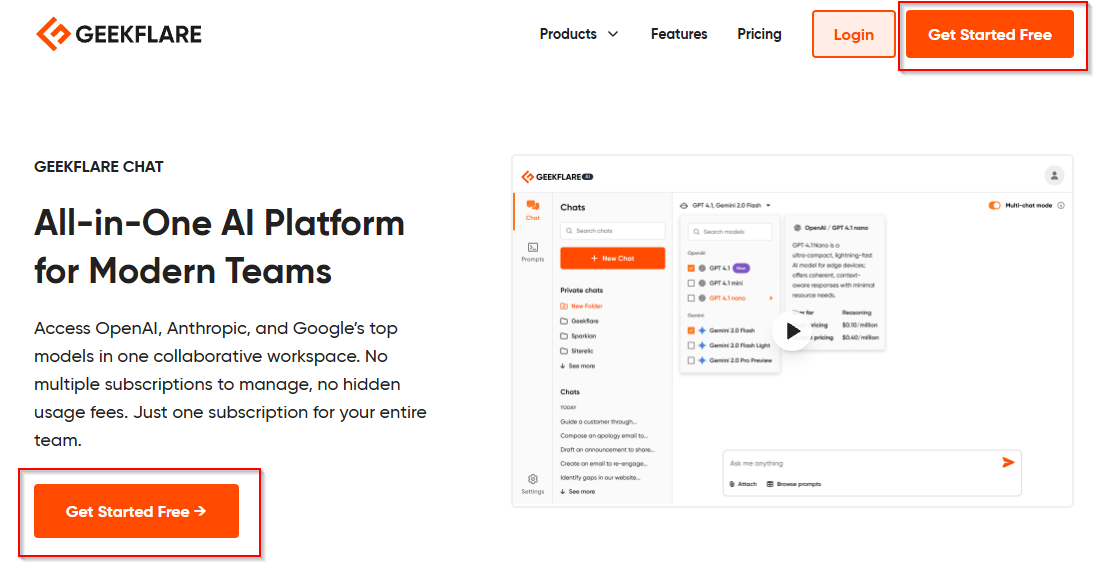
Two options: email and password, or Google. Google sign-up is the faster way because you’re in with one click.
Step 3: Land in your workspace
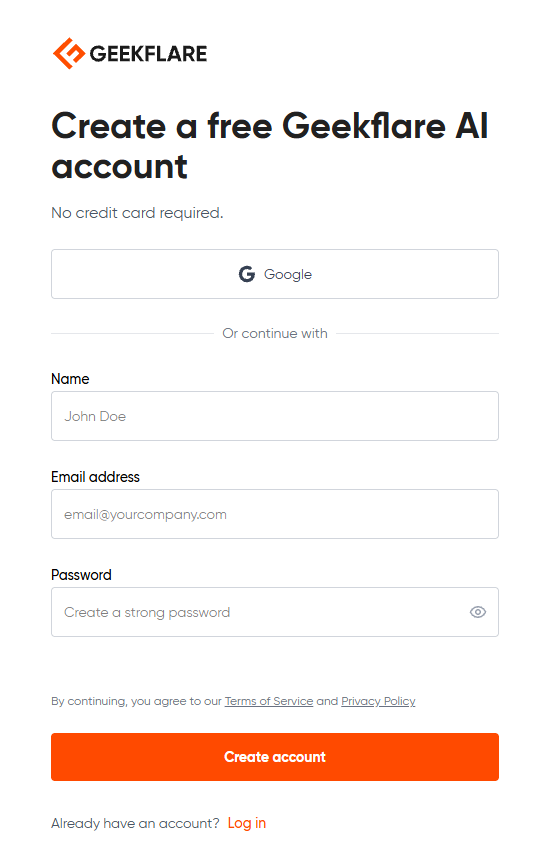
Once you’re done signing up, you’re dropped straight into your workspace.You’ll just see an empty chat, ready to go.
Pro Tip
The Free plan doesn’t require a credit card to sign up. You can start there and upgrade once you’ve used up your 500 monthly credits. You’ll be limited to using lite models in the Free plan, so if you want to test premium models like GPT-5.4 or Claude Sonnet 4.6 side-by-side, then you’ll need Pro.
I’d suggest something here. Before you read on, open Geekflare Chat in another tab and sign up for the Free plan. The next sections are a lot more useful if you can click along as you read. Start for free→
Now, let me give you a proper workspace tour!
The Workspace Tour
When you first log in, you’ll see a pretty simple interface. Chat area, sidebar, model dropdown. You might even mistake it for any other AI chat tool. But the power is hidden in places you won’t notice until I point them out.
- Model dropdown: This is where you choose which AI model will answer your next prompt or question. Click it, and every model available on your plan (even the ones that aren’t) shows up, including GPT, Claude, Grok, Gemini, DeepSeek, and more. You can switch models at any point in a conversation, and the context carries over. Most new users underuse this for their first week, which is a shame because it’s the USP.
- Chat input area: Enter your prompts here. Press ‘Enter’ to send, and ‘Shift+Enter’ to start a new line (just like other AI chat tools).
- File upload button: You get to attach a PDF, Word doc, image, or any other supported file to ask questions about it, extract data from it, or even pull it into a larger workflow from there.
- Web access toggle: Flip this ON when the AI needs to search the live web before answering. It’s OFF by default because web searches cost extra credits. But turn it ON for current news, recent data, or anything that needs fact-checking against live sources. You will get the responses back with source citations.
- Image generation trigger: This is another cool feature, because you won’t even have to leave the chat thread. You can flip your input into image generation mode and select an image model like Nano Banana (Gemini Flash Image), GPT Image, or Grok Imagine based on your plan to generate the desired image.
- Sidebar with chat history: Every conversation you’ve had here is saved and searchable. So, it’s better to organize everything properly by renaming them, pinning the important ones, and deleting the junk. That’s because search works across chat content, not just titles, so that you can find anything within seconds.
- Prompt Library: You and your team can create a library of reusable prompts and save them. Business plans allow you to share the library across your whole team, and you also get access to 275+ prompts built by experts in different domains on Geekflare.
- Knowledge Base: A lifesaver for teams working with multiple clients. You can upload documents, notes, or other reference materials here for the AI to use as context across multiple chats. It could be anything, such as SOPs, brand guidelines, product specs, or even research papers. Once something lives in the Knowledge Base, any chat in that workspace can pull from it without you re-uploading the file.
- Workspace Switcher: If you’re on Business or belong to multiple workspaces, switch between them here. Each workspace has its own chat history, prompt library, and knowledge base. This is very useful if you’re freelancing across multiple clients or have multiple projects and want to keep their data separate.
- Credit usage indicator: This displays all stats on credits used this month and remaining. You’ll even get to know which model is eating up how much percent of your credits.
Pro Tip
Check the credit usage indicator (10) after your first few chats. You’ll notice that a quick Claude Haiku chat might only burn 1-2 credits, but a long GPT-5.4 conversation with uploads and web access would have eaten up 20-30 credits in a single session.
Your First 10 Minutes in Geekflare Chat
I’ve tried plenty of AI tools, and this is what usually happens. I sign up for the tool, try one or two prompts, get responses, and then close the tab. And then I wonder whether it’s valuable. But if you want to understand whether Geekflare Chat fits into your workflow, you should at least do these 7 specific things in the first 10 minutes.
Each action would only take about a minute (but it’s worth doing).
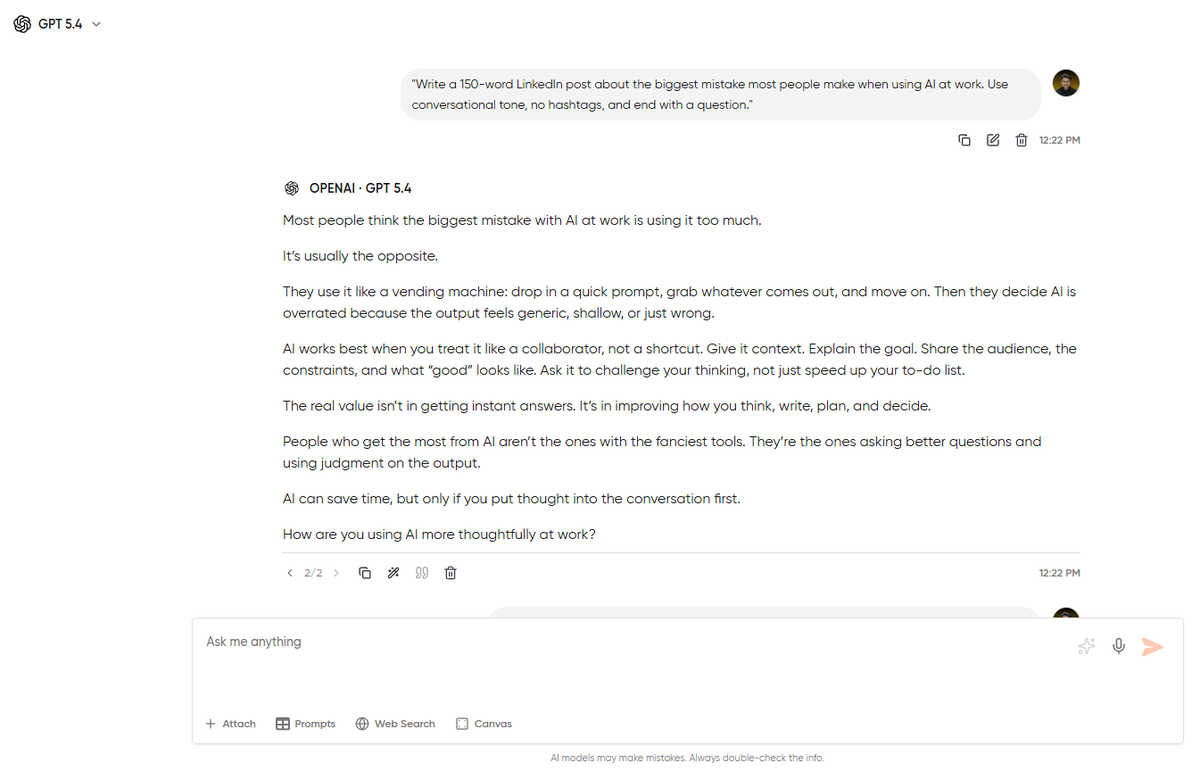
1. Run your 1st prompt in GPT-5
Click the model dropdown and pick GPT-5.4. Paste the below prompt there:
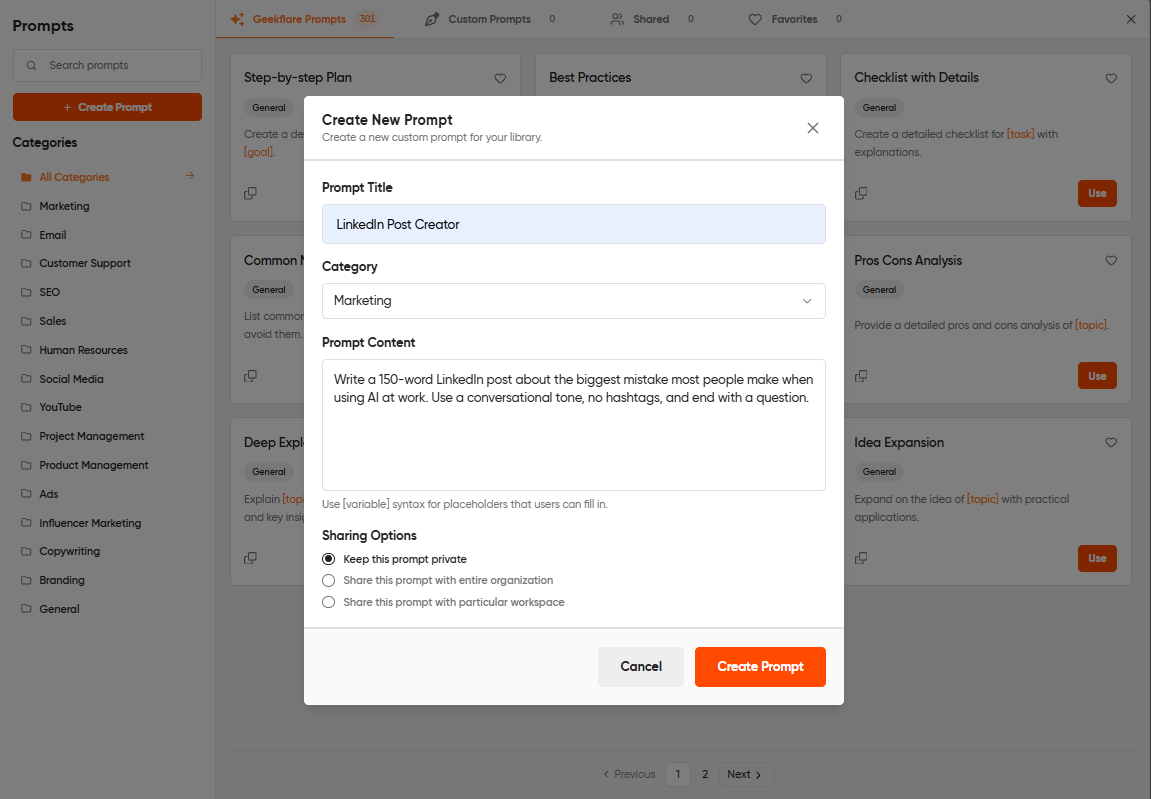
Write a 150-word LinkedIn post about the biggest mistake most people make when using AI at work. Use conversational tone, no hashtags, and end with a question.
Hit Enter. You’ll receive a response in a few seconds. This is just to confirm the workspace works and to set up a baseline for step 2.
2. Switch to Claude 4.5 and ask the same thing
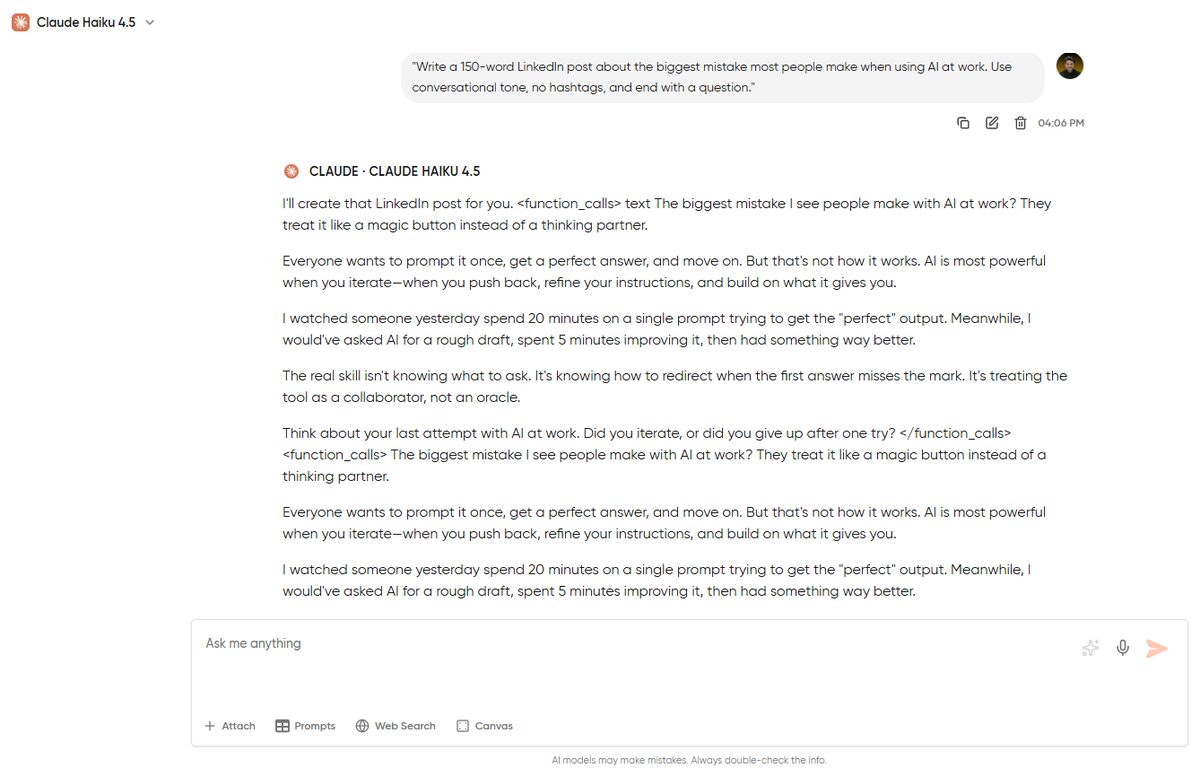
Now, click on the model dropdown again and select Claude 4.5 Haiku from the list. Paste the same prompt again and hit Enter.
Just like me, you’ll also be able to spot a clear difference between the two outputs. That’s because both models are built differently. GPT runs direct and punchy, while Claude runs thoughtful and structured. Once you’ve seen this on a prompt that actually matters to you, multi-model access starts feeling less like a gimmick and more like something you’d pay for.
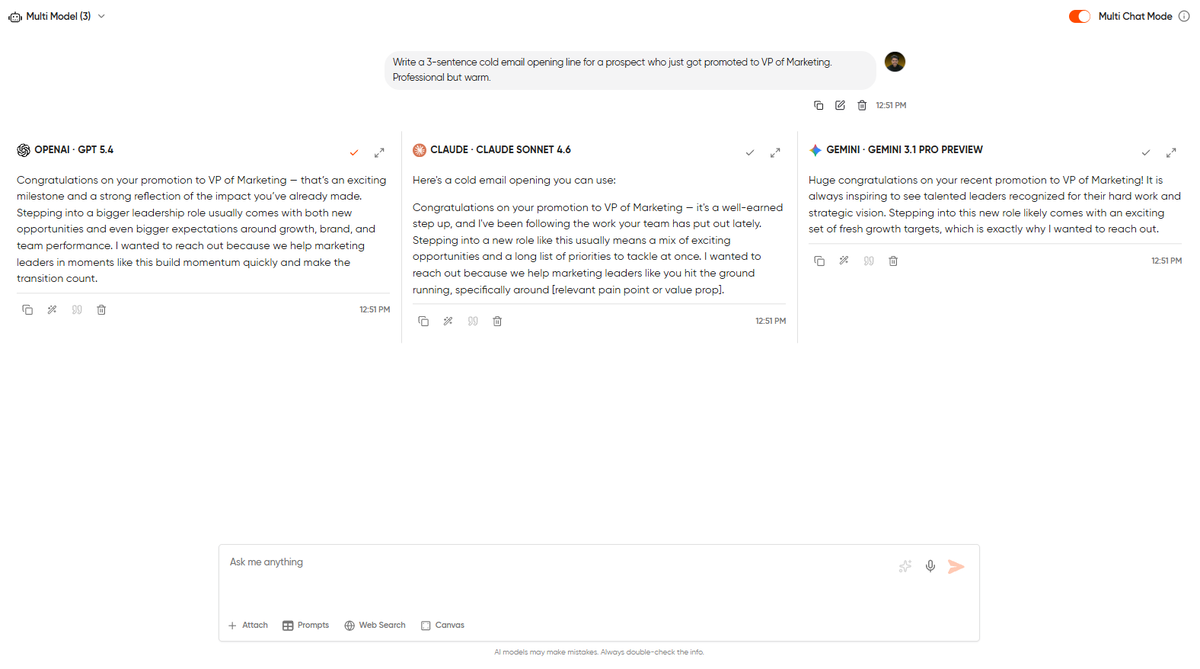
3. Turn on side-by-side comparison
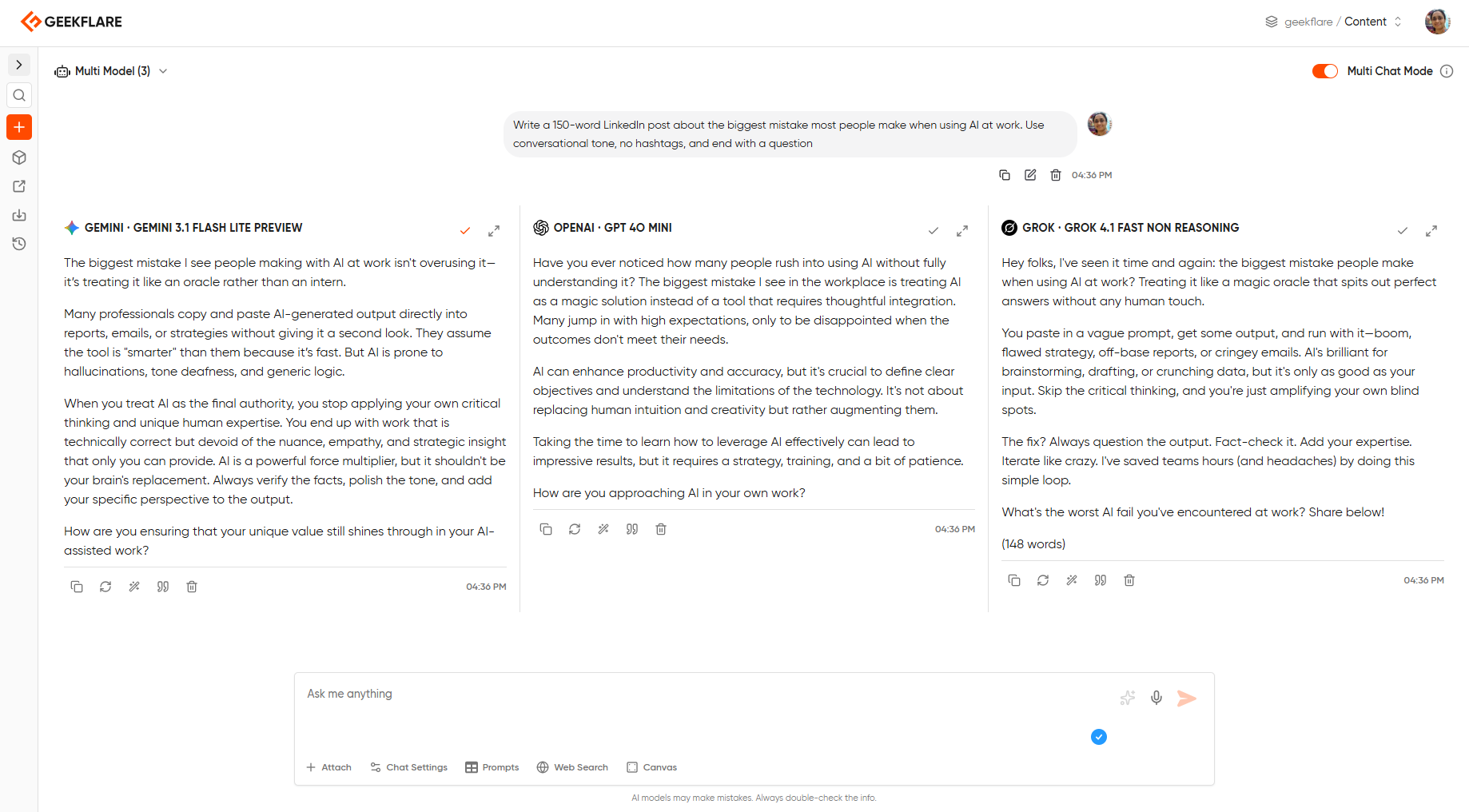
Look near the model dropdown for the side-by-side toggle. Flip it on, pick two or three models, and paste the same prompt again.
All three models generate responses at once, laid out in columns. This is the feature that converts “which model is best” from an unanswerable blog post question into a ten-second experiment on your own prompts.
4. Upload a PDF and ask a question
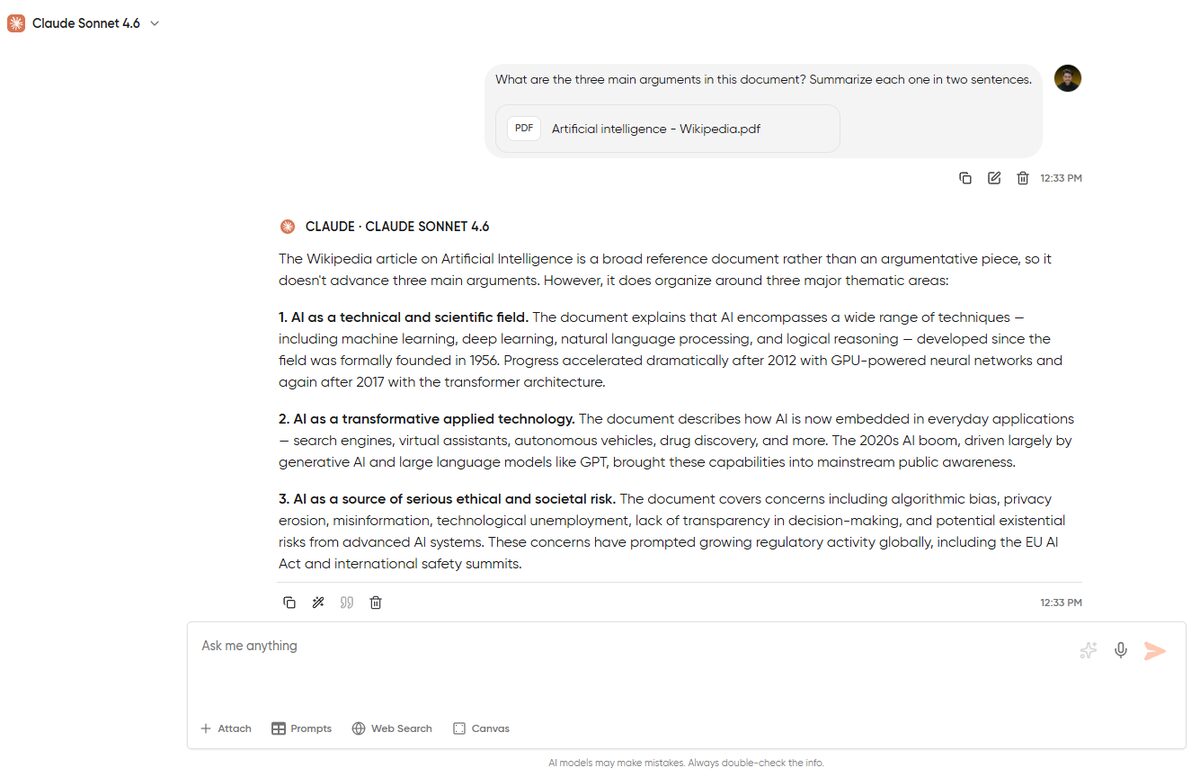
If you want to grab some key info from a 500-page-long PDF, this is where you come. Click the file upload button, attach it, and then ask:
“What are the three main arguments in this document? Summarize each one in two sentences.”
The AI will pull specific sections of the PDF into its response. This is one of the features that makes Geekflare Chat useful beyond basic chat.
5. Generate an image inline
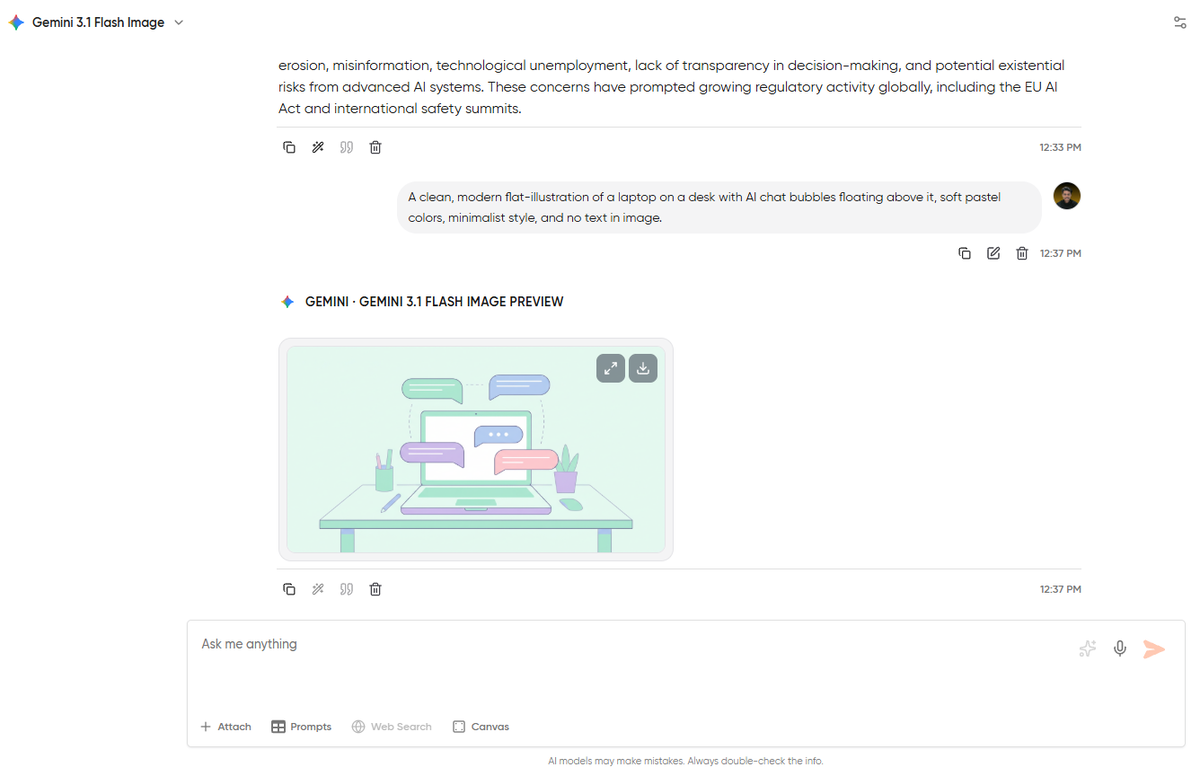
Now it’s time to switch to image generation mode. Pick Nano Banana or any image model from the model dropdown and paste this prompt:
A clean, modern flat illustration of a laptop on a desk with AI chat bubbles floating above it, soft pastel colors, minimalist style, and no text in the image.
You’ll get a generated image right inside the chat thread. The best part is that you didn’t have to switch between tools or lose context.
6. Enable real-time web access
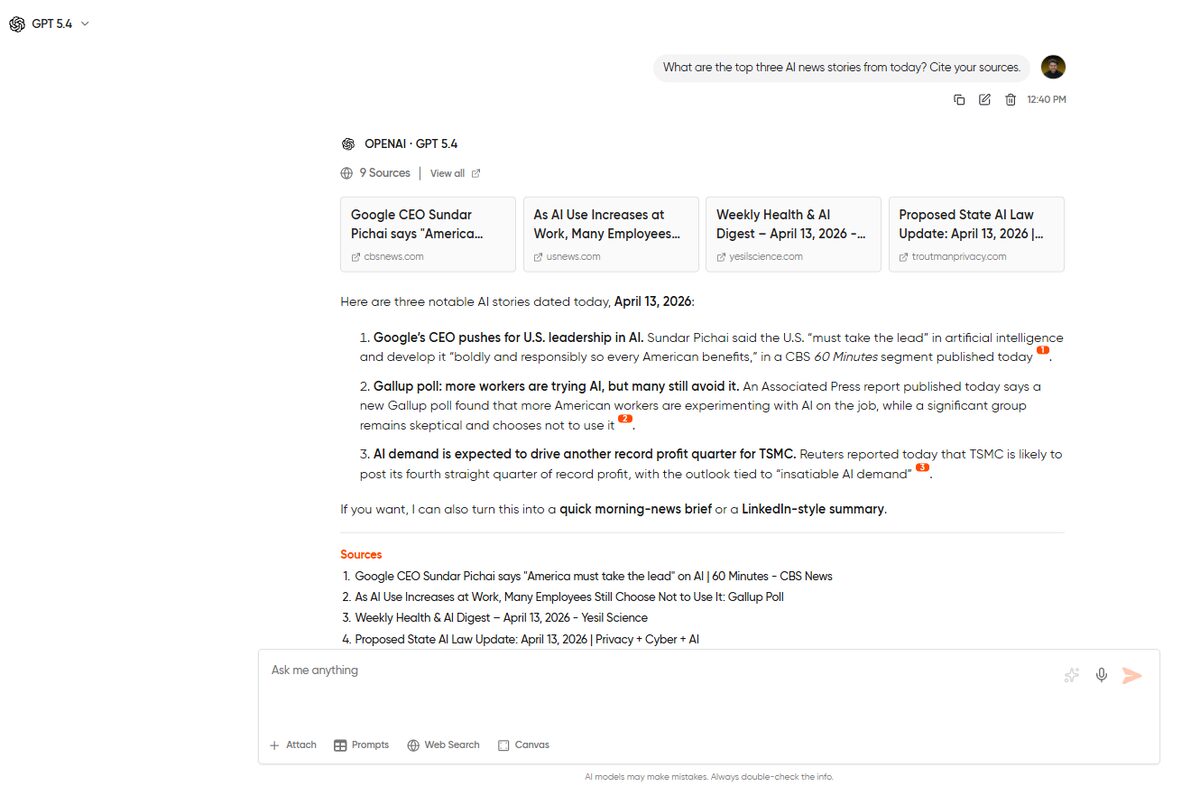
Turn on the web search toggle and ask:
What are the top three AI news stories from today? Cite your sources.
The response returns citation links. And this is the workflow that makes Geekflare Chat useful for research and anything where “the AI’s training data ends in 2024” has been frustrating you.
7. Save your 1st prompt to the library
Pick the prompt you liked most from steps 1-6. Click the ‘save-to-library’ option and give it a short name like “LinkedIn Post Creator.”
A week from now, when you want to write another LinkedIn post, you won’t have to retype the prompt. You can simply load it from the library in one click. Do this another 10 times over the next month, and you’ve built a personal prompt library that makes you faster than anyone stuck on a single-model tool.
Pro Tip
Short on time and have only 5 minutes to spare? Do only steps 1, 2, and 3, because these three will also be able to tell you whether multi-model comparison is worth the subscription.
5 Features of Geekflare Chat That Actually Matter
I already gave you a high-level view of the workspace. Now, we are going to go deeper into the 5 features that genuinely set Geekflare Chat apart.
#1. Multi-model Comparison
This is the feature you’ll keep coming back to. Side-by-side comparison lets you run the same prompt across three, four, or even five models at once, with outputs laid out in columns. It’s the difference between reading a “ChatGPT vs. Claude vs. Gemini” blog post and running the comparison yourself on your own prompts.
Use it for brand voice testing, code review across models, fact-checking (run a claim through three models and see if they line up), creative variance, and anything high-stakes. No more relying on one model, because you can now compare the outputs and continue with the model that works best.
For a full walkthrough on how to use this feature with real comparison scenarios, check out our guide to comparing AI models side-by-side.
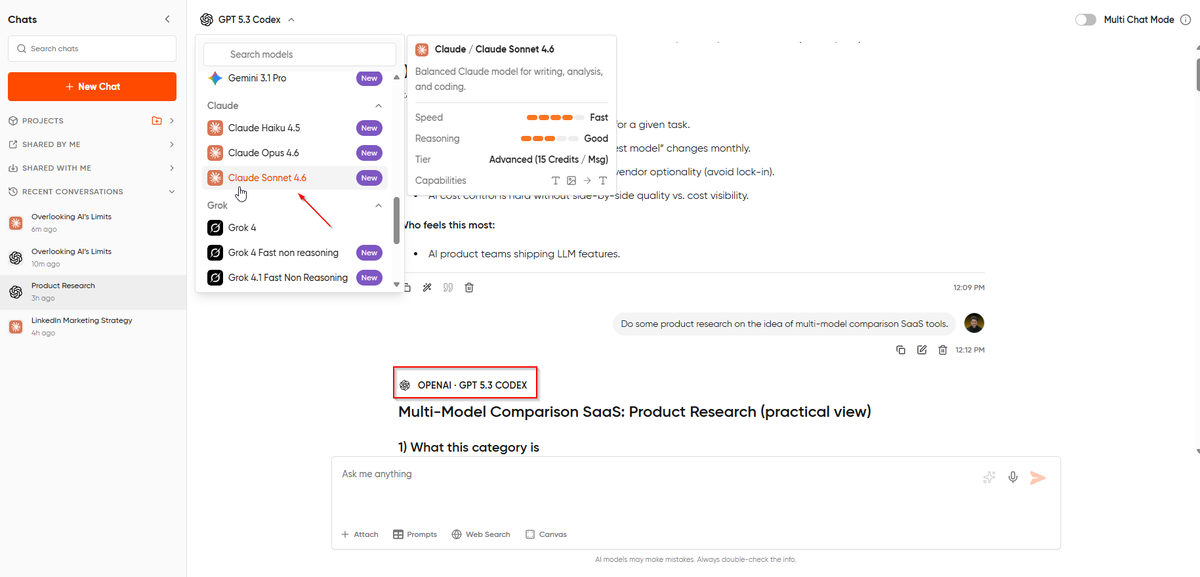
#2. Switching models mid-conversation without losing context
I prefer ChatGPT for some quick searches. But if I want you to create in-depth strategies or try out new prompts, I rely on Claude. This constant switching was a problem before, but once I started using Geekflare Chat, I’m never turning back.
I start with basics in GPT-5, then switch to Claude mid-thread for a structured approach to GPT’s output. The entire context, prompts, and the whole history stay even when I switch models. This might sound small until you’ve lost a 30-message conversation to a tab switch. At that time, you’ll feel like you can’t live without this feature.
#3. Prompt Library and Knowledge Base
These two are distinct features, but you can pair them pretty well. The Prompt Library is where you save, organize, and reuse your best prompts. It’s basically a bookmark folder for the prompts you’ve iterated on until they produce reliably great output. And if you are on the Business plan, you can share the prompt library across your team, which is how marketing teams get brand voice consistency across multiple writers. Plus, Geekflare has also added 275+ pre-built prompts for you to work with.
The Knowledge Base stores context instead of prompts. You can upload all the SOPs, brand guidelines, product specs, research papers, voice profiles, and everything related to a particular project. Once it’s in there, any chat in that workspace can reference it without you having to re-upload. This is what turns Geekflare Chat from “an AI chatbot” into “my team’s AI assistant that already knows how we work.”
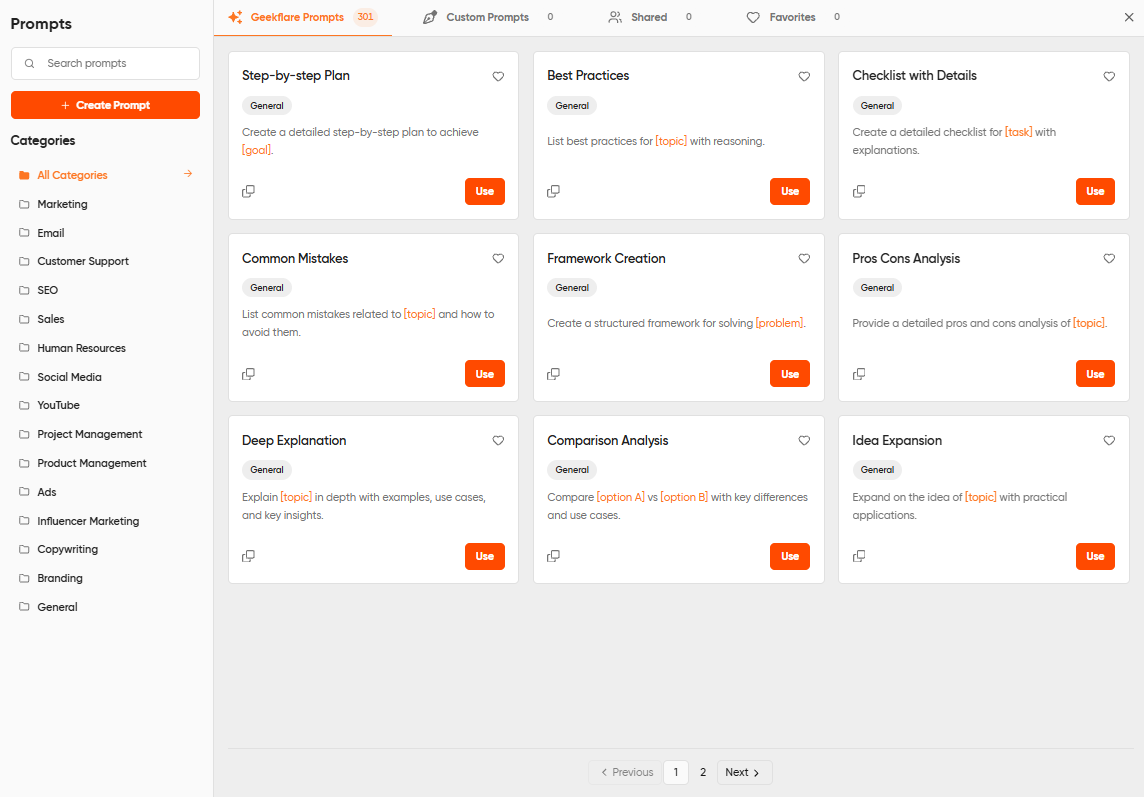
Our 15 prompts for marketers guide shows what good prompts look like across content, ads, SEO, email, and analytics.
#4. Chat with PDFs, Docs, and Images
You can upload any specific file and ask questions about it. And it’s not just about getting summaries or answers to questions, but you can even extract structured data into tables, cross-reference multiple documents, ask follow-ups about charts and diagrams inside the document, or compare findings across models to catch hallucinations.
This feature works with PDFs, Word docs, plain text, images, and more. There’s a file size limit for uploads. But one thing is clear from Geekflare: they never use any files you upload to train their underlying models, nor do they have access to them.
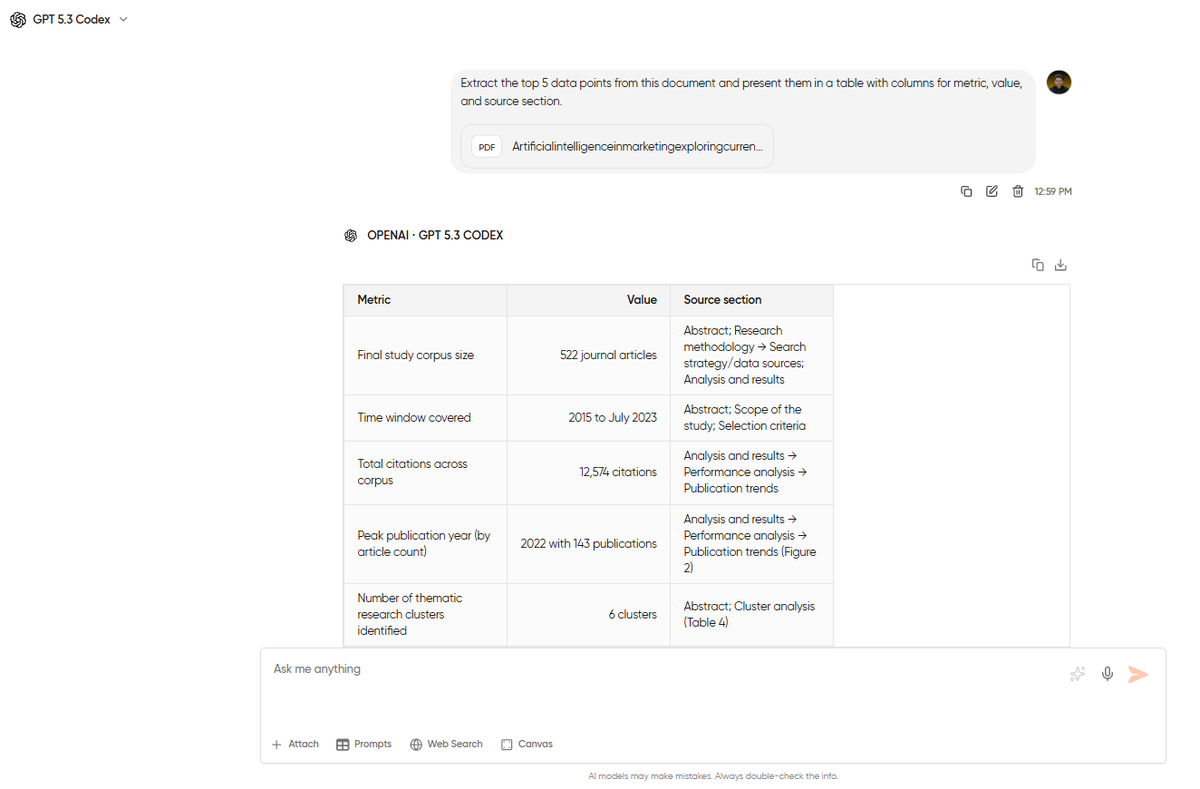
Find out how you can use this feature effectively as a researcher, lawyer, and analyst by going through this practical guide to chatting with PDFs.
#5. Image Generation in-chat
You don’t need a separate Midjourney subscription now. Image generation lives right inside your chat thread here. Generate an image, critique it with Claude, rewrite the prompt based on Claude’s critique, and regenerate until you get the desired output. No more tool hopping.
The image models you get depend on your plan. Nano Banana is the default and handles most use cases well. Premium plans unlock higher-end models for brand-quality marketing work.
Want to try these yourself? The Free plan gives you 500 credits a month, which are enough to run through every feature in this walkthrough. Start for free →
Geekflare Chat Pricing Explained
Before I switched to Geekflare Chat, I was paying for ChatGPT Plus and Claude Pro. And there’s a good chance you’re also paying the same, right? So let me show you the plans Geekflare Chat has to offer, and which one would be a good fit for your specific scenario.
| Free | Pro | Business | |
|---|---|---|---|
| Price | $0/month | $9/month | $29/month |
| Credits | 500/month | 5,000/month | 15,000/month |
| Models | Lite only | All model tiers | All model tiers |
| Workspaces | 1 | 1 | Unlimited |
| Seats | 1 | 1 | 5 |
| Best for | Testing the workspace | Solo users replacing ChatGPT Plus or Claude Pro | Teams of 2-5 consolidating AI spend |
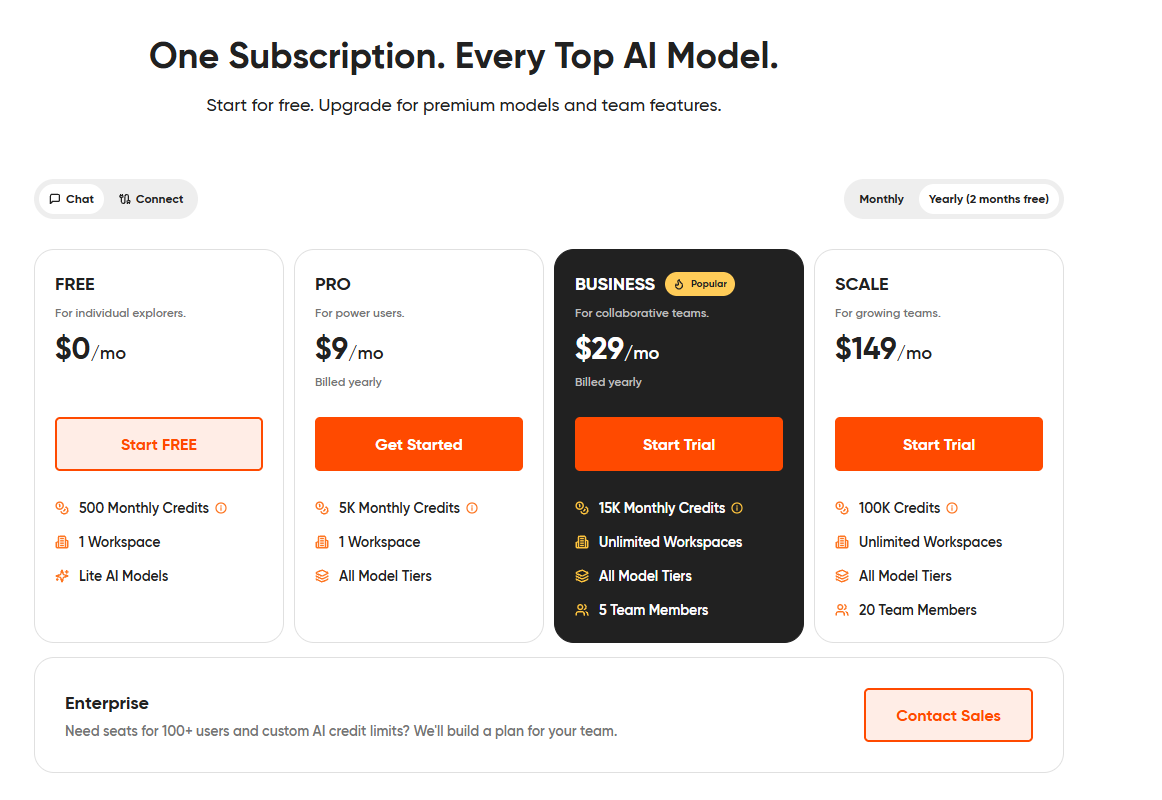
For a detailed breakdown of how credits work across every model tier, see the credits explainer.
How does Geekflare Chat’s credit system work?
The credits in Geekflare Chat are burned based on the model you use, not on how many messages you send. For instance, a quick Claude Haiku chat might cost 1-2 credits. But a long GPT-5.4 session with file uploads and web access can chew through 20-30 credits in one sitting. You will pay extra credits on top of the base chat cost whenever you use image generation and web access. Credits reset every month and don’t roll over.
This matters because the same $9 covers wildly different usage patterns. A freelancer running quick Claude Haiku sessions to polish emails will barely dent 5,000 credits in a month. Someone running long GPT-5.4 research sessions with PDFs and web access every morning can burn through them by week three. You’ll figure out which one you are within a couple of weeks.
Which plan should you pick?
- Free: If you’re simply here to test the workspace and evaluate whether multi-model comparison is useful, go for the Free plan. You’ll be capped at lite models, which is enough to feel out the workflow but not enough to compare top-tier outputs head-to-head.
- Pro: If you’re a solo user currently paying $20+/month for ChatGPT Plus, Claude Pro, or Gemini Advanced, then the Pro plan is for you. At $9, you’re saving money from day one and getting more models in return.
- Business: If two or more people on your team use AI, then you need the Business plan. 5 ChatGPT Plus seats run close to $100 a month, while Geekflare Chat’s Business plan covers the same 5 people for $29, plus shared prompt libraries and knowledge bases.
Privacy, Security, and Data Handling
“Does this tool train on my data?” is the biggest concern for any AI product right now. So, let me tell you exactly how Geekflare Chat handles it.
No model training on your data: Geekflare Chat runs on commercial API endpoints from OpenAI, Anthropic, and Google. That’s a different pathway than the consumer versions of ChatGPT or Claude. API endpoints are covered by data-use agreements that protect customer prompts from being used to train the underlying models. Your chats, uploads, and history don’t feed GPT, Claude, or Gemini.
Enterprise-grade encryption: Data at rest uses AES-256. Data in transit uses TLS 1.3. These are the same standards banks and healthcare companies rely on for sensitive data.
Workspace isolation: Your data is scoped to your workspace. On Free and Pro plans, that means only you can see your chats, uploads, and saved prompts. On Business plans, workspace members can see content you’ve shared with them, but nobody can access other workspaces. Plus, admins control who gets access to the workspaces.
I would also like to provide some quick answers to the questions most people have.
- Is my chat history private?
Yes, only you (and workspace members you’ve shared content with) can see it. - Does Geekflare train models on my data?
No. Neither do OpenAI, Anthropic, or Google via their API endpoints. - Can I delete my data?
Yes, you can delete individual chats, specific uploaded files, or even your entire account. The current process is in the docs.
Who Geekflare Chat Is (and Isn’t) For?
There’s a sweet spot and a wrong fit for every tool. After using Geekflare Chat for quite some time now, I’ll give you my honest take here.
Geekflare Chat is a great fit if:
- You’re already paying for 2 or more AI subscriptions and want to consolidate.
- You use multiple models for different jobs and want them in the same window.
- You regularly work with PDFs, images, or long documents.
- You lead a team of 2-10 people looking to standardize on an AI tool without per-seat sprawl.
It’s probably not the right fit if:
- You’re a heavy API user with existing OpenAI or Anthropic keys, then Geekflare Connect, which is the BYOK version of the same platform will be a cheaper option for you.
- You only use one model, and you’re happy with it, then there’s no reason to switch.
If you fall under the second group, no hard feelings. But you know how useful Geekflare Chat will be for you if you are falling in the first group.
Frequently Asked Questions
Geekflare Chat is an AI workspace that bundles access to the top models from OpenAI, Anthropic, Google, xAI, and DeepSeek into a single subscription. You get to compare models side-by-side, chat with PDFs and images, generate images inline, and share workspaces with your team. All from one interface, starting at $9/month.
ChatGPT Plus only gives you access to OpenAI’s models for $20/month. Geekflare Chat gives you access to GPT, Claude, Gemini, Grok, DeepSeek, and Nano Banana under one subscription, starting at $9. The biggest practical difference is that you can run the same prompt across multiple models side by side and switch models mid-conversation without losing context.
Top models from OpenAI (GPT-5 family), Anthropic (Claude 4.5 Haiku, Claude 4.6 Sonnet), Google (Gemini Flash, Gemini 3.1 Pro, Nano Banana), xAI (Grok), DeepSeek, and others are all available. The complete, up-to-date list lives in the official docs. New models get added as they launch.
Yes. Geekflare Chat uses commercial API endpoints from OpenAI, Anthropic, and Google, so your prompts and uploads aren’t used to train their public AI models. Data is encrypted at rest with AES-256 and in transit with TLS 1.3. Your workspace data is isolated, so only you and your workspace members can see it.
Geekflare Chat has three plans: Free ($0/month with 500 credits and lite models only), Pro ($9/month with 5,000 credits and all model tiers), and Business ($29/month with 15,000 credits, unlimited workspaces, and 5 seats). Credits reset monthly and don’t roll over.
With Geekflare Chat, you pay one flat monthly rate, and Geekflare handles model access. With Geekflare Connect, you pay a lower platform fee for the interface (workspaces, prompt library, collaboration tools), but you bring your own OpenAI and Anthropic keys and pay the providers directly for what you actually use. Chat is simpler for most users. Connect is cheaper for heavy API users who already have keys.
Yes, you can do that. The Business plan ($29/month) covers 5 seats with unlimited workspaces, shared prompt libraries, and shared knowledge bases. Admins can manage team members’ access and permissions directly. For teams with more than 5 members, you can check the pricing page for enterprise options.
Yes, the Free plan gives you 500 monthly credits, 1 workspace, and access to lite AI models. You won’t even need a credit card at sign-up. These features are enough to test the workspace and judge whether multi-model comparison fits your workflow. But if you want to test premium models like GPT-5.4 and Claude 4.6 Sonnet, then you’ll need the Pro plan.
Yes, and this is one of Geekflare Chat’s standout features. Start in Claude, switch to GPT-5 mid-thread, switch again to Gemini for a specific question, and the full conversation context carries over. Very few other tools in this space handle mid-conversation model switching cleanly.
Credits reset on the first of every month. If you run out mid-month, you can upgrade to a higher plan or wait for the next cycle. Geekflare Chat won’t bill you any extra charges without your consent. If you’re running out of credits every month, that’s usually a sign that the next plan up will pay for itself in saved time.
Next Steps
Now, you’ve got the full picture of Geekflare Chat. You know how it gives you every top AI model in one workspace, side-by-side comparisons, mid-conversation model switching, and flat pricing that saves real money compared to stacking subscriptions. Not sure what to do after signing up? The 7 habits for your first week give you a day-by-day plan.
And if you haven’t signed up yet:
Start for free → The Free plan gives you 500 monthly credits and access to lite models without a credit card. You can upgrade to Pro ($9/month) or Business ($29/month) whenever you’re ready.