


What do you do when a 200-page contract lands in your inbox at 4 PM, and your client asks for a summary by morning? Back in time, you would just spend 3-4 hours going through the whole contract, highlighting every clause that mattered, and then hoping you didn’t miss anything buried on page 89. But now, you can simply upload the document, ask a question, and get a structured answer in less than 30 seconds.
I’m seeing this shift across industries that deal with too many dense documents every day. I’ve talked to lawyers who are pulling key clauses from contracts without reading every page. Financial analysts can easily extract revenue figures from 10-K filings in seconds instead of switching between a spreadsheet and a PDF. Academic researchers are summarizing every 40-page study and asking follow-up questions about methodology or sample sizes.
The workflow has become pretty simple now. You can simply upload a PDF and ask questions in plain language to get every answer. The best part is that you can even pull specific, cited answers.
Today, I’m going to walk you through the practical side of this workflow, including actual prompts, the setup, and which AI models are best for specific PDF tasks, and how Sparkian makes it way too easy for you.
How PDF Chat Works in Sparkian
When you upload a PDF to your chat, the AI model reads the entire document. After this, every question you ask is answered based on the PDF’s content. So, you won’t see any guesses from this point based on model training, because every answer is pulled directly from the file you gave it.
For a quick overview of supported file types, upload mechanics, and model recommendations, see the file chat walkthrough.
Sparkian supports PDFs, Word documents, plain text files, and images. You can choose from a wide variety of models, including the top models from Claude, GPT, Gemini, Gwen, Grok, and more. The best part is that your entire chat history is intact, even if you switch models mid-conversation. I personally use this to summarize a contract with Claude, and then switch to GPT for structured data extraction without re-uploading anything.
There’s one thing to note when chatting with PDFs in Sparkian. Requests that use files from the Knowledge Base add 5 Sparks to the model’s base usage. You can also upload files directly into a conversation, and the Spark usage can vary based on the content processed.
The Free plan includes file uploads, so you can try chatting with PDFs without upgrading. For a detailed explanation of how Spark usage works, see the Sparkian Sparks guide.
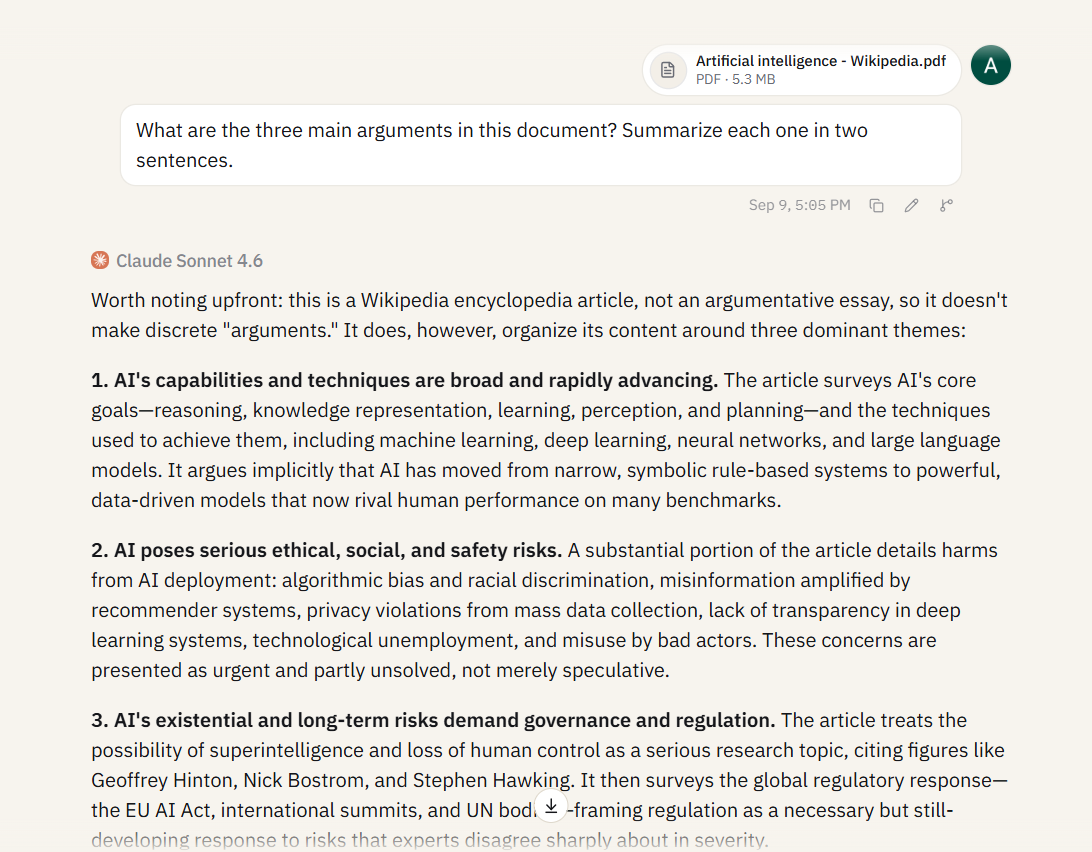
Tutorial to Summarize a Long Report
I’m going to begin with a task that a majority of professionals face at least once a week: understanding a long document without reading every page.
Let’s imagine you have received a 90-page industry report and need the executive summary, key data points, and any recommendations pulled out and organized so you can brief the team in the next 10 minutes.
Step 1: Upload your PDF: Look for the file upload button in Sparkian and attach your document. To confirm that the file upload went through, look for a file indicator to appear in the chat.
Step 2: Ask for a structured summary: Never type “summarize this” in the chat and expect the best output. You are writing generic prompts, which are setting you up for mediocre outputs. Instead, try this:
Summarize this report in three parts: (1) the main findings, (2) any specific data points or statistics cited, and (3) the report's recommendations. Keep each section under 150 words.The way you structure your prompt is what separates a useful summary from a wall of text. You’re telling the model exactly what to extract and how to organize it. The word limit keeps it tight.
Step 3: Follow up on what matters: The first summary only gives you the roadmap to begin with. From there, drill into the parts that matter specifically for your work.
If you’re a financial analyst and the report mentions a revenue projection, ask: “What methodology did the authors use to arrive at the $4.2B revenue projection on page 34?”
If you’re a lawyer reviewing a regulatory report, ask: “List every compliance obligation mentioned in sections 3 through 5, with the page number for each.”
Real value sits in these follow-ups. The summary is only the beginning point. But these follow-ups give you the answers that you would normally have to spend hours hunting for.
Tutorial to Extract Structured Data into a Table
Extracting important data is where you use AI-PDF workflows most effectively. Think about the last time you had to pull 15 data points out of a 60-page PDF and arrange them in a spreadsheet. I know you would’ve just opened the document, copied the figure from the first cell, then the figure from the second cell, and continued until you got bored.
But what if I tell you there’s a better and faster version?
Step 1: Upload your PDF: For this particular test, I’d want you to upload a data-heavy document. Something like a financial filing, a research paper with multiple tables, or even a government dataset report.
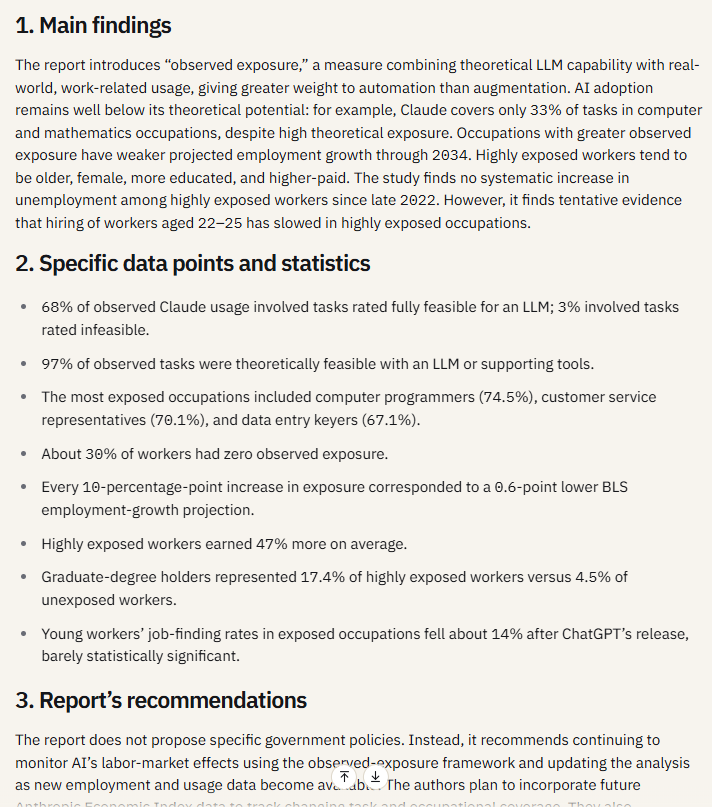
Step 2: Tell the model exactly what to extract and how to format it: The more specific you are, the better output you’ll get. A prompt like “pull out the important numbers” will get you something vaguely useful. Instead, use this prompt, and you’ll get something that you can paste into a spreadsheet:
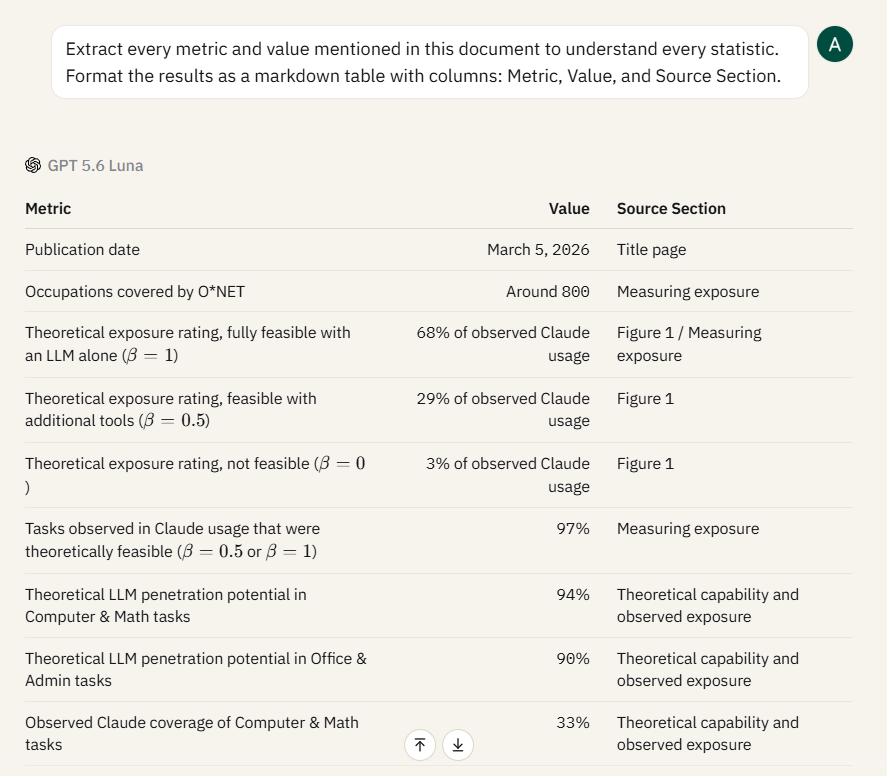
Extract every metric and value mentioned in this document to understand every statistic. Format the results as a markdown table with columns: Metric, Value, and Source Section.I added the page number column to save a whole lot of your time. That’s because when you are working with legal or financial documents, you will have to verify everything that AI pulled. With this page reference column, you will know exactly where to check.
Step 3: Refine and re-extract: It’s possible that the first pass might miss some entries buried in footnotes or appendices. Ask the model: “Are there any additional revenue figures mentioned in the appendices or footnotes that weren’t included in the table above?” This second pass will mostly catch what the first one missed.
I’ve always found that GPT-5.6 Luna produces cleaner table formatting on extraction tasks compared to Claude or Gemini. If your first model’s output is messy, switch models mid-conversation and re-run the extraction prompt.
Tutorial to Cross-Reference Documents with Knowledge Base
The first two tutorials involved working with a single PDF in a conversation. You may also need to compare information across multiple documents, identify differences between research findings, or combine evidence from several sources.
Sparkian’s Knowledge Base is useful for these workflows because you can store files in your workspace and reference them when working on a new conversation.
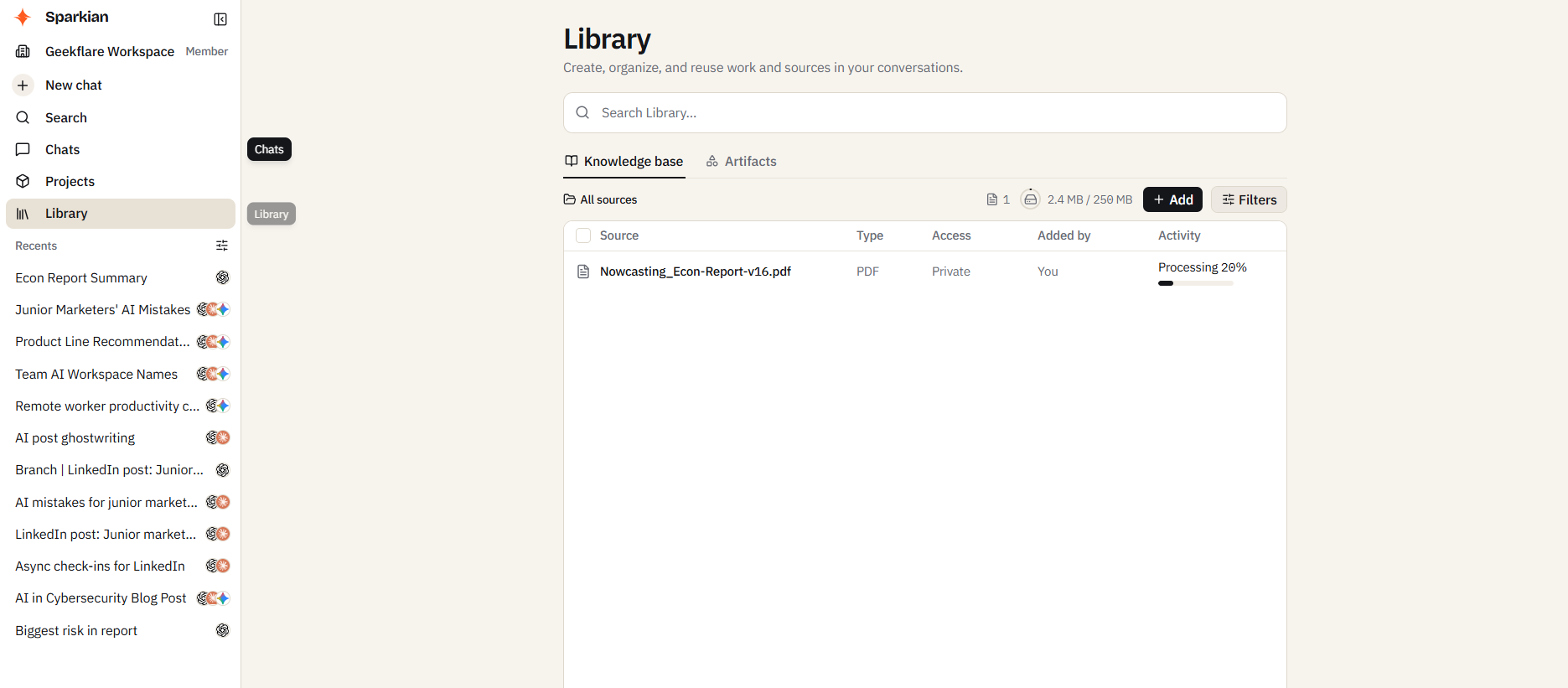
Step 1: Add your documents to the Knowledge Base
For this example, upload these two research papers to your Knowledge Base:
- How does Working from Home Affect Developer Productivity?
- The Daily Life of Software Engineers during the COVID-19 Pandemic
Both papers examine remote work and productivity, but they use different research approaches.
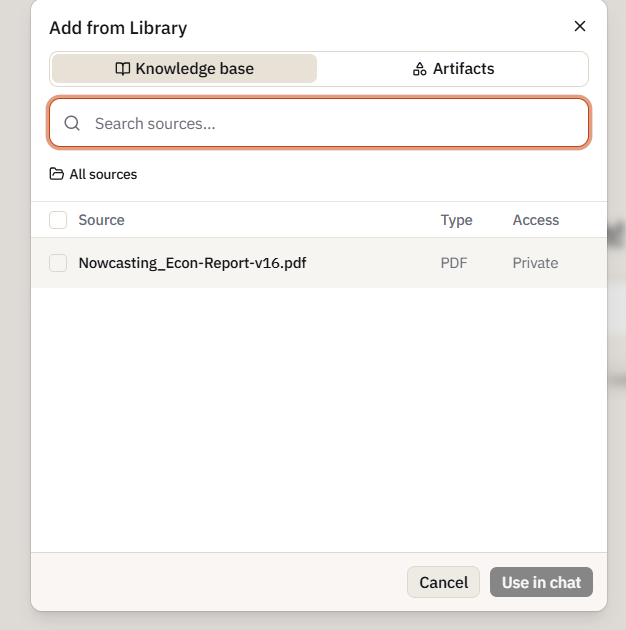
Step 2: Start a new chat and add the files
Start a new conversation and click the + button in the chat box. Select Add from Library, then open the Library section and select the PDFs you want to use from your Knowledge Base.
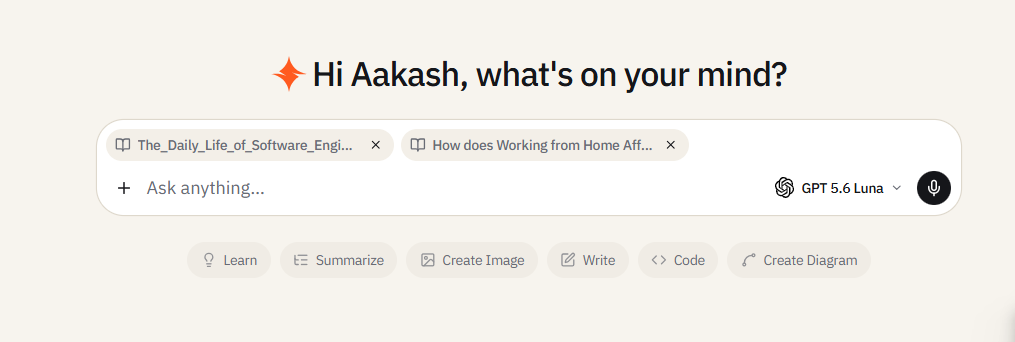
You can then ask Sparkian a question that requires information from both documents.
Try this prompt:
Compare the findings from these two studies on how remote work affects software-engineering productivity.

Identify:
1. The main findings from each study.
2. Areas where the studies agree.
3. Areas where their findings differ.
4. The research methods or differences in the study design that may explain those differences.

Present the comparison in a table with columns for Study, Method, Main Finding, Agreement or Difference, and Supporting Evidence.
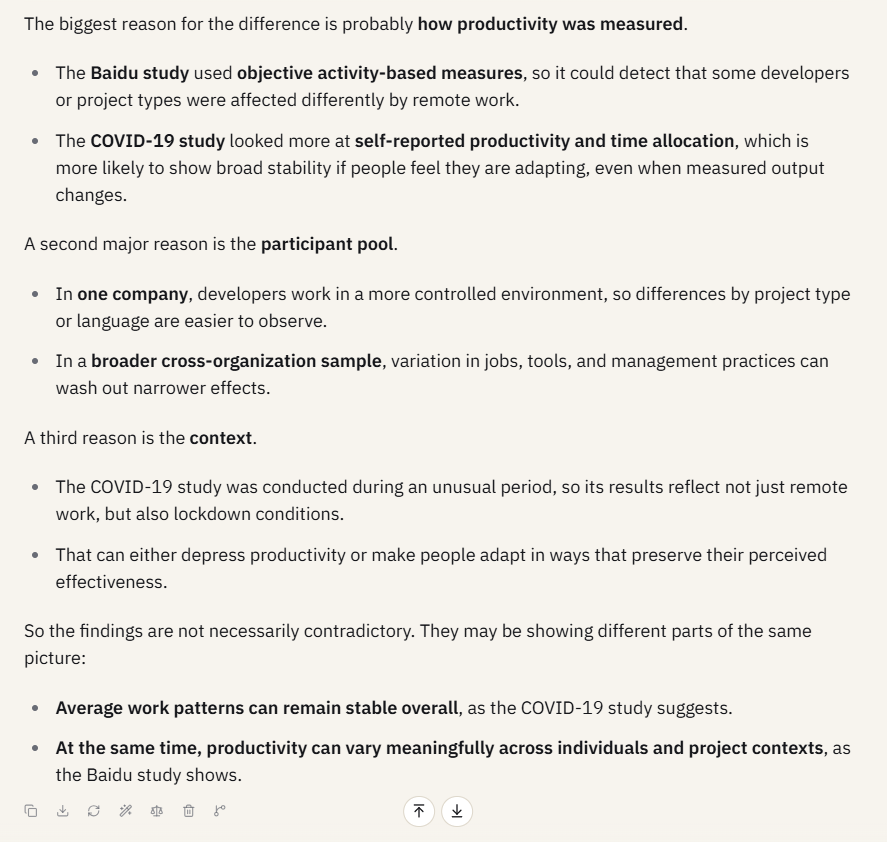
Step 3: Follow up on the differences
Once Sparkian identifies differences between the studies, you can ask a more focused question:
The two studies report different observations about remote work and productivity. Compare their datasets, participants, research methods, and productivity measures. Explain which of these factors could account for the differences in their findings.This gives you a practical example of using the Knowledge Base for cross-document analysis, rather than simply asking Sparkian to summarize two PDFs separately.
Which Model Performs Best for Which PDF Task?
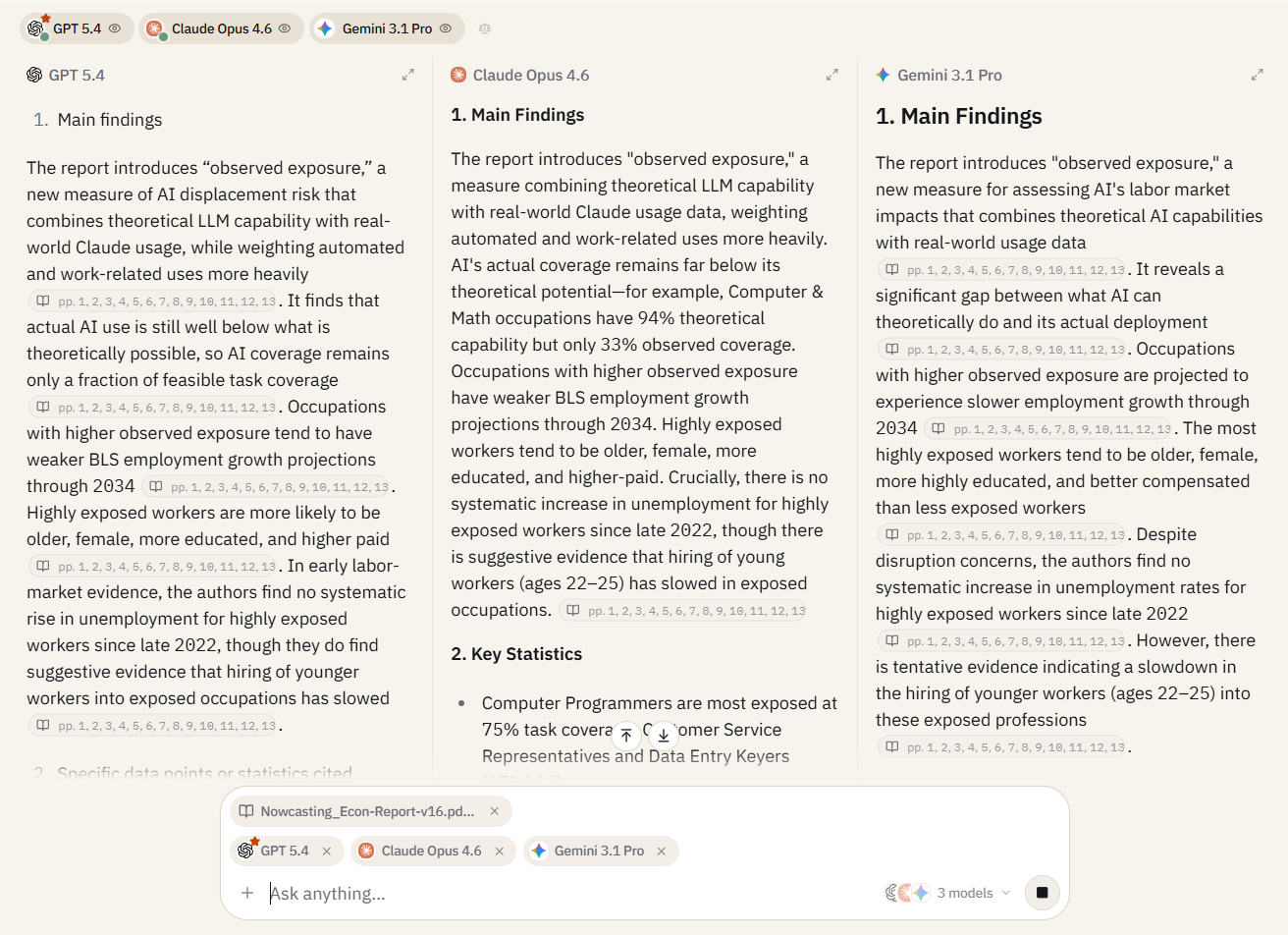
You can’t use the same model for every PDF work. I’ve tried running the same documents through different models, like GPT-5.4, Claude Sonnet 4.6, and Gemini 3.1 Pro, and want to give you a good idea of which model to use for each task.
| Task | Best Model | Why |
|---|---|---|
| Long-document summarization | Claude Sonnet 4.6 | Handles large context windows well. Summaries read like a human wrote them with clear structure, natural phrasing, and no robotic bullet dumps. |
| Structured data extraction | GPT-5.4 | Produces the cleanest tables and most consistent formatting. Rarely misses entries and follows column specifications precisely. |
| Cross-referencing multiple documents | Claude Sonnet 4.6 | Strongest at holding multiple sources in context and flagging contradictions between them. Cites sources naturally. |
| Quick factual lookups | Gemini 3.1 Pro | Fastest response time for simple “find this number on page X” queries. Less thorough on follow-ups, but unbeatable for speed on straightforward retrieval. |
| Mixed content (text + charts) | GPT-5.4 | Handles documents with embedded visual elements more reliably. If your PDF has charts, graphs, or diagrams alongside text, GPT tends to reference both. |
You can clearly see that no single model wins everything. You will have to switch between models based on the task. And you won’t have to pick a single model, because Sparkian allows you to switch models mid-conversation without losing your file or context. Run the summary in Claude, switch to GPT for the extraction, and you’ve used each model for the task it handles best.
You can test these model differences yourself using the multi-model comparison feature.
Why Free PDF Tools Are a Privacy Risk
There’s a reason this section comes after the tutorials and not before them. If I’d opened with a privacy warning, it would have read like a scare tactic to funnel you into a paid product. But now that you’ve seen the workflows, the question you should be asking is: where is my document going when I upload it?
You have to understand that most free AI-PDF tools operate on a simple trade: they get your data in exchange for giving you free access. Some use uploaded documents to fine-tune their models. Others store your files on servers with no clear retention or deletion policy. A few are honest about it in their terms of service, but most aren’t.
This matters less if you’re summarizing a publicly available research paper. It matters enormously if you’re uploading client contracts, financial filings, medical records, or internal strategy documents.
Sparkian routes every model request through commercial API endpoints from OpenAI, Anthropic, and Google. These endpoints are governed by data-use agreements that explicitly prohibit using your inputs to train the underlying models. Your PDFs aren’t feeding a training pipeline. They’re processed, the response is generated, and the data stays scoped to your workspace.
If you are constantly working with confidential documents as a lawyer, analyst, or researcher, then I know this is actually a requirement for you.
Frequently Asked Questions
Can I upload any type of PDF to Sparkian?
Yes, Sparkian supports standard PDFs, including text-based and scanned documents. It also accepts Word documents, plain text files, and images. Each file has a size limit per upload.
Which AI model is best for analyzing PDFs?
This will totally depend on the task. Claude Sonnet 4.6 handles long-document summarization and cross-referencing best. GPT-5.4 produces the cleanest structured data extraction and table formatting. Gemini 3.1 Pro is the fastest for quick factual lookups. You can switch between models mid-conversation without re-uploading your file.
Does Sparkian train AI models on my uploaded documents?
No, there is no model training happening on your files in Sparkian. All model requests go through commercial API endpoints from OpenAI, Anthropic, and Google. These endpoints operate under data-use agreements that prohibit using your inputs for model training. Your files stay scoped to your workspace.
How much does it cost to chat with a PDF?
Chatting with files through the Knowledge Base adds 5 Sparks per message on top of the selected model’s base Spark usage. For example, if a model starts at 1+ Spark per request, a Knowledge Base request adds another 5 Sparks to that usage. The Sparkian Sparks guide has the full breakdown of Spark usage.
Can I chat with multiple PDFs at once?
Yes, you can do this with the Knowledge Base feature. Upload multiple documents to your workspace’s Knowledge Base, and any conversation in that workspace can reference all of them simultaneously. This is how you cross-reference findings, compare reports, or check documents against each other.