


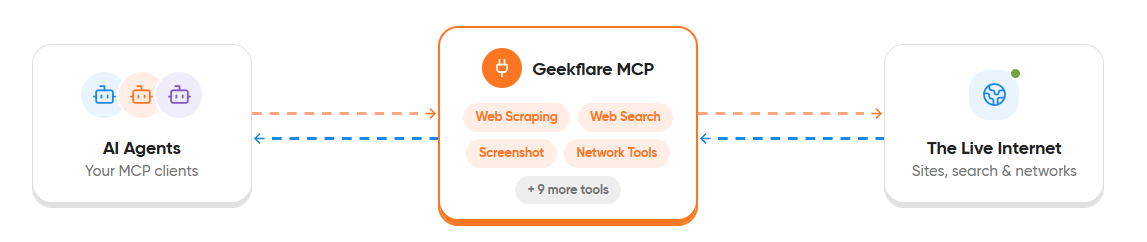
OpenAI Codex supports the Model Context Protocol (MCP), which extends Codex with external tools and services. This guide walks through the setup process for MCP for Codex using Geekflare MCP and covers the steps to verify that the connection is working correctly.
If you are new to Geekflare MCP, read our guide on What Is Geekflare MCP before continuing.
Prerequisites
Before setting up MCP for Codex, make sure you have the following:
- An OpenAI account with access to Codex.
- A Geekflare account.
- A Geekflare API key. Sign in to Geekflare and copy your API key. You can also generate a new key if needed.
- Codex CLI installed on your system.
Connect Geekflare MCP to Codex
Follow the steps below to set up MCP for Codex using Geekflare MCP and verify that the connection is working correctly.
Step 1: Add the Geekflare MCP Server
Geekflare provides a hosted MCP server for Codex and a local deployment option. Choose the setup that best fits your workflow.
Remote URL (Recommended)
Run the following command:
codex mcp add geekflare https://mcp.geekflare.com/YOUR_API_KEY/mcpLocal via npx
Run the following command if you prefer a local MCP server:
codex mcp add geekflare \
  --command "npx" \
  --args "-y,@geekflare/mcp" \
  --env API_KEY=YOUR_API_KEY
Replace YOUR_API_KEY with your Geekflare API key.
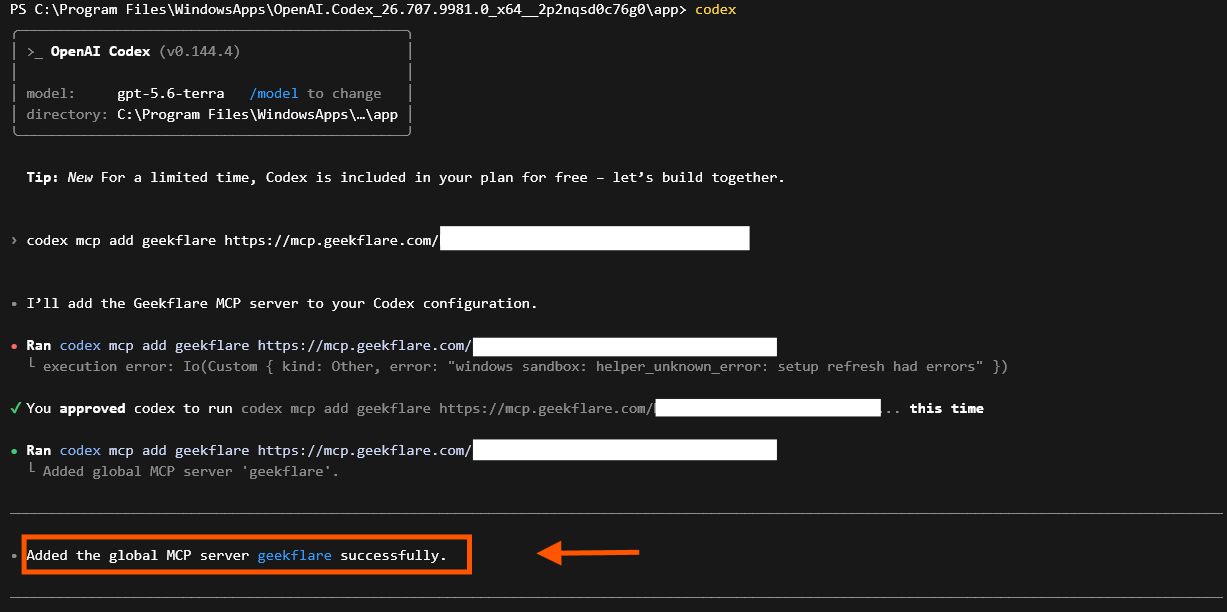
Step 2: Verify the Installation
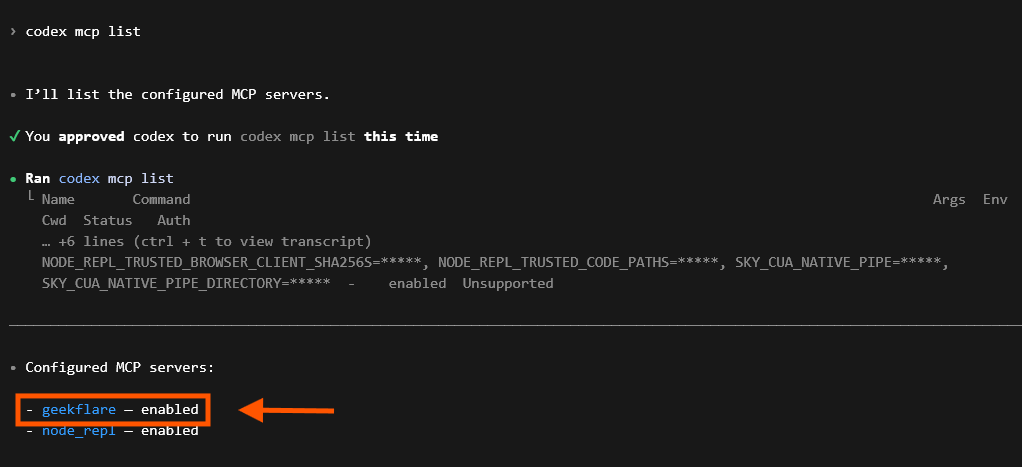
Run the following command:
codex mcp listIf the setup is successful, Geekflare appears in the list of configured MCP servers.
Try Geekflare MCP with Codex
After setting up Geekflare MCP, you can use Codex to access Geekflare tools through natural language prompts. The following examples demonstrate a few common workflows you can run directly from Codex.
Each example includes a prompt and the expected output so you can verify that the integration is working correctly.
Example 1: Scrape a Web Page
Extract content from a web page and summarize the information.
Scrape https://geekflare.com/webscraping/ and summarize the key features.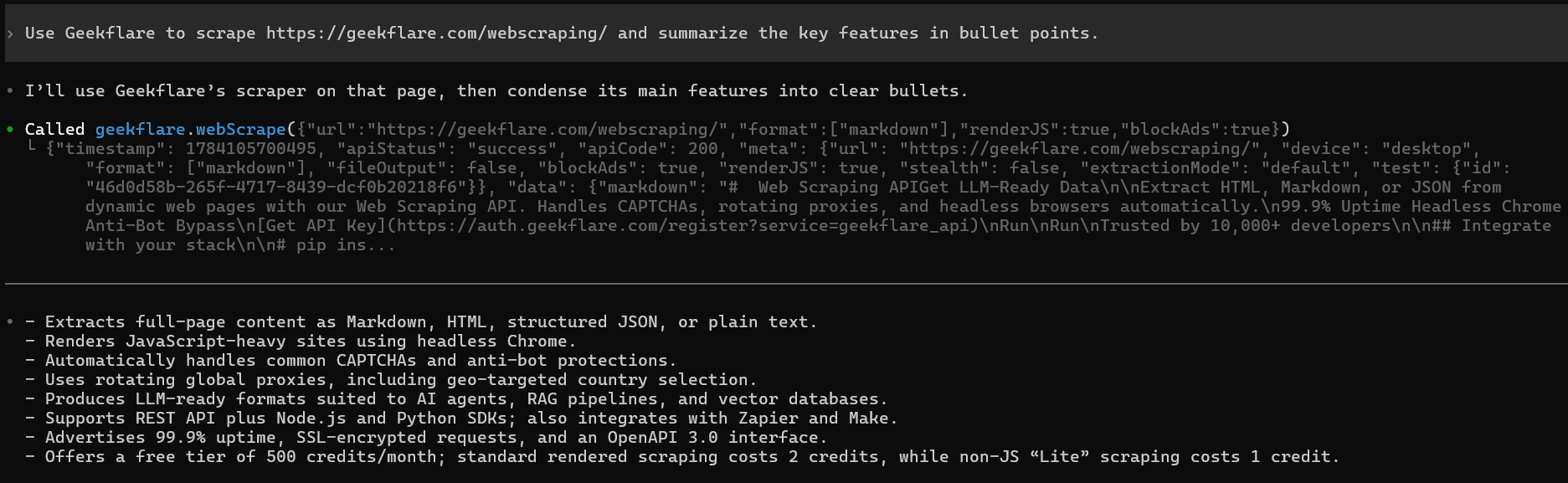
Codex retrieves the page through Geekflare MCP and returns a summary of the content.
Example 2: Check a TLS Certificate
Inspect the TLS certificate for a website to review its security configuration.
Check the TLS certificate for geekflare.com and show the issuer, expiration date, and supported TLS versions.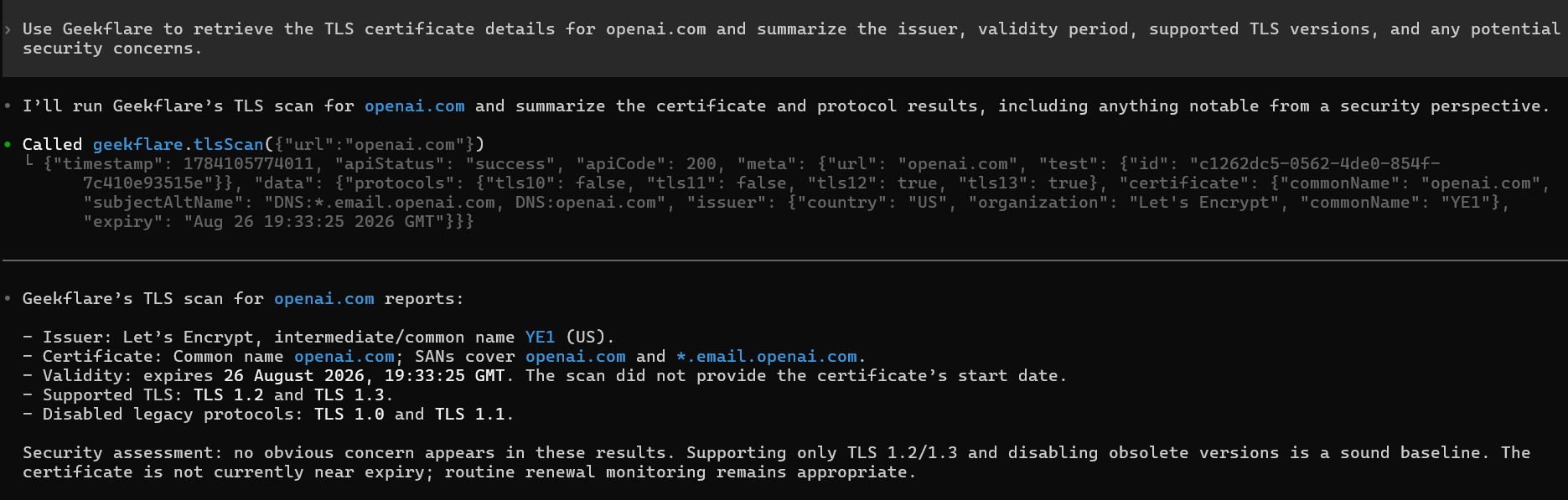
Codex retrieves the TLS certificate details through Geekflare MCP and presents the key information in a readable format.
Example 3: Search the Web
Search the web for the latest information without leaving Codex.
Use Geekflare to search for the latest OpenAI news and summarize the top five updates with links to the original sources.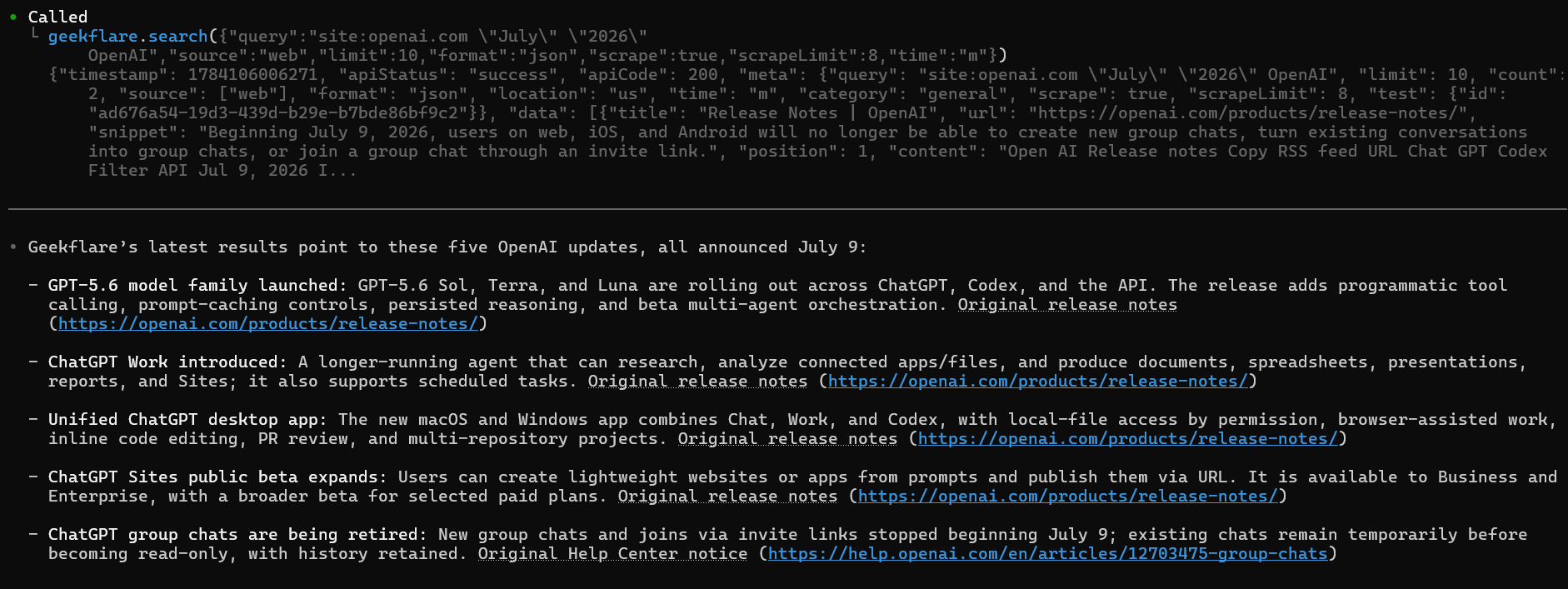
Codex performs a web search through Geekflare MCP and summarizes the latest results, making it useful for research and development workflows.
Conclusion
Geekflare MCP extends OpenAI Codex with access to web, developer, and infrastructure tools through a single MCP server. After completing the setup, you can use natural language prompts to access Geekflare tools directly from Codex.
Ready to explore more? Visit Geekflare to create your account, generate an API key, and explore the complete collection of APIs and developer tools.
For advanced setup options, supported AI clients, and additional configuration examples, refer to the official Geekflare documentation.
Frequently Asked Questions
How does Codex work?
OpenAI Codex uses natural language prompts to generate code, automate development tasks, and interact with external tools through the Model Context Protocol (MCP). After connecting Geekflare MCP, Codex can access Geekflare tools directly from your prompts.
What is an MCP server for Codex?
An MCP server for Codex provides external capabilities that Codex can access during a conversation or coding task. Geekflare MCP is a managed MCP server that integrates web, infrastructure, and developer tools with Codex.
What are the best MCP servers for Codex?
The best MCP server depends on your workflow. Geekflare MCP is a good choice for web automation, web search, website screenshots, TLS inspection, DNS lookups, and other developer tools through a single MCP server.
Where can I find my Geekflare API key?
Sign in to your Geekflare account. Your API key is available there, and you can generate a new key if needed.





