


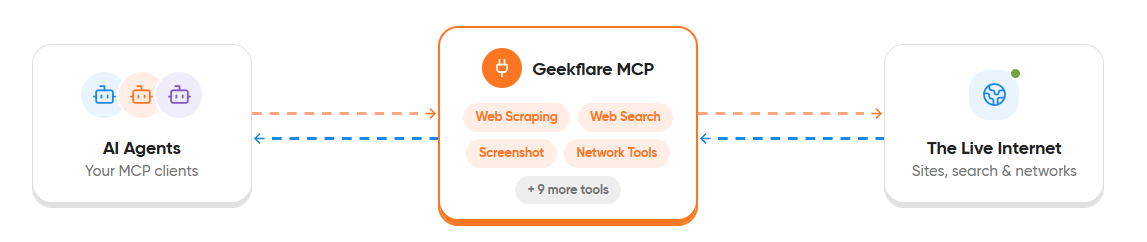
Cursor supports the Model Context Protocol (MCP), which extends the IDE with external tools and services. This guide walks through the setup process for MCP with Cursor using Geekflare MCP and covers the steps to verify that the connection is working correctly.
If you are new to Geekflare MCP, read our guide on What Is Geekflare MCP before continuing.
Prerequisites
Before connecting Geekflare MCP to Cursor, make sure you have the following:
- A Geekflare account and API key. You can generate an API key from the Geekflare dashboard.
- Cursor installed on your system.
Connect Geekflare MCP to Cursor
Follow these steps to set up MCP with Cursor using the remote Geekflare MCP server.
Step 1: Open the MCP Settings
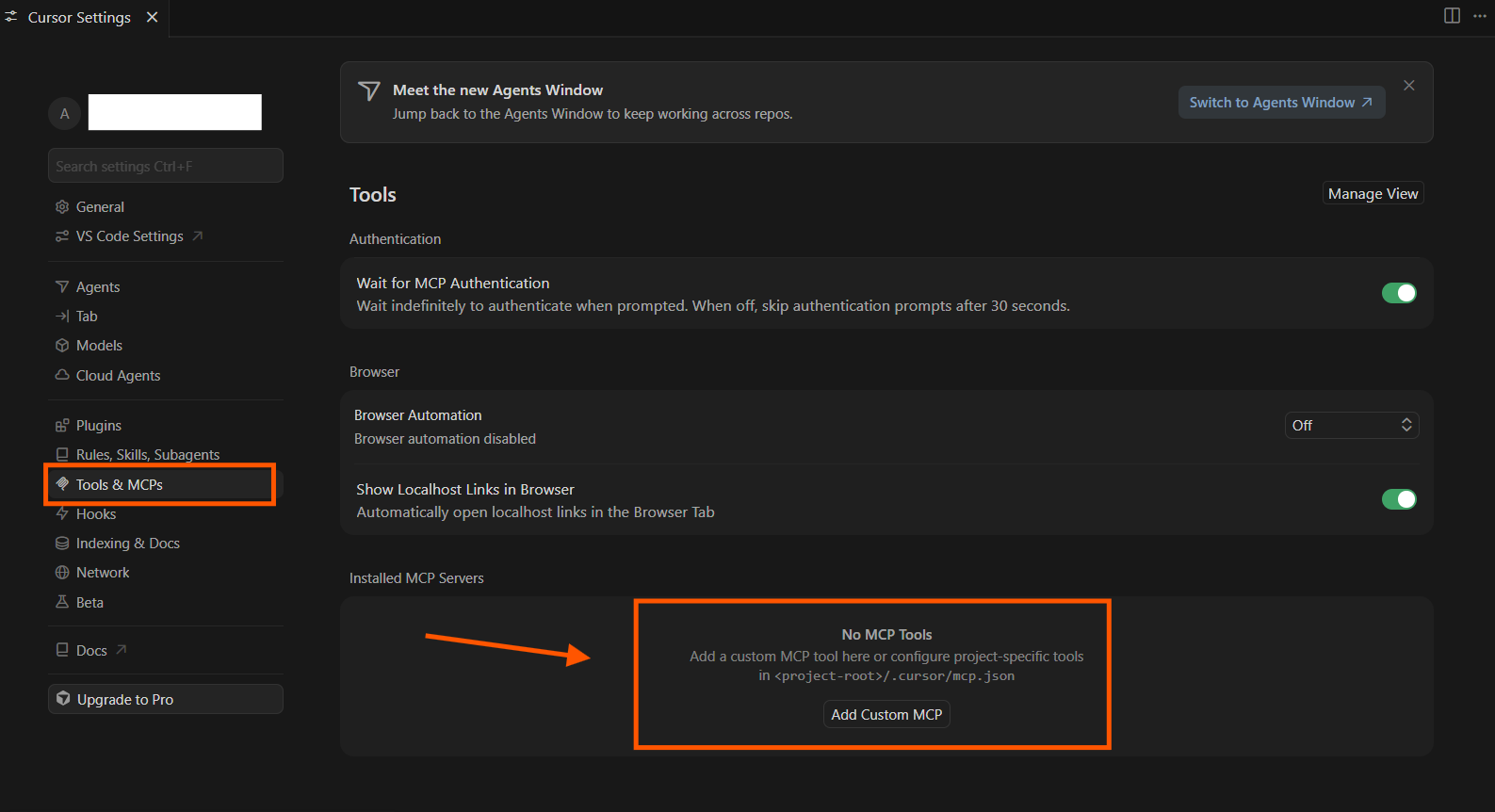
- Open Cursor and go to File > Preferences > Cursor Settings > Tools & MCPs.
- Under Installed MCP Servers, click Add Custom MCP.
Alternatively, open the mcp.json configuration file by searching for mcp.json from the Command Palette.
Step 2: Add the Geekflare MCP Server
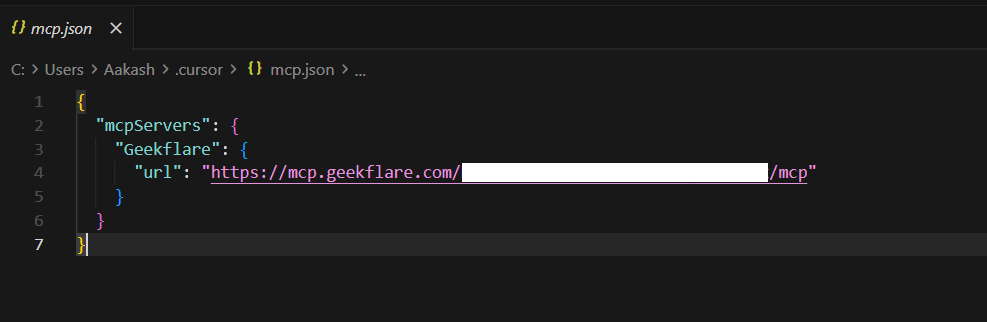
Open the mcp.json file and add the following configuration under the mcpServers section. Replace YOUR_API_KEY with your Geekflare API key.
{
  "mcpServers": {
    "Geekflare": {
      "url": "https://mcp.geekflare.com/YOUR_API_KEY/mcp"
    }
  }
}
Save the mcp.json file after adding the configuration.
Step 3: Verify the Connection
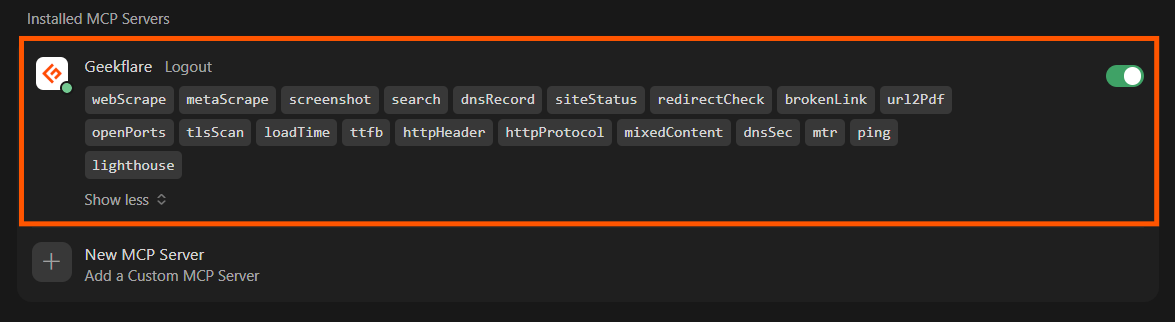
Go back to Cursor Settings > Tools & MCPs and check the Installed MCP Servers section.
If the configuration is correct, the Geekflare MCP server appears in the list with a Connected status.
Try Geekflare MCP with Cursor
After connecting Geekflare MCP, open the File > Agents Window in Cursor to verify that the integration is working. Enter the following prompt:
Is Geekflare MCP connected with you?If the setup is successful, Cursor confirms that Geekflare MCP is connected and ready to use.
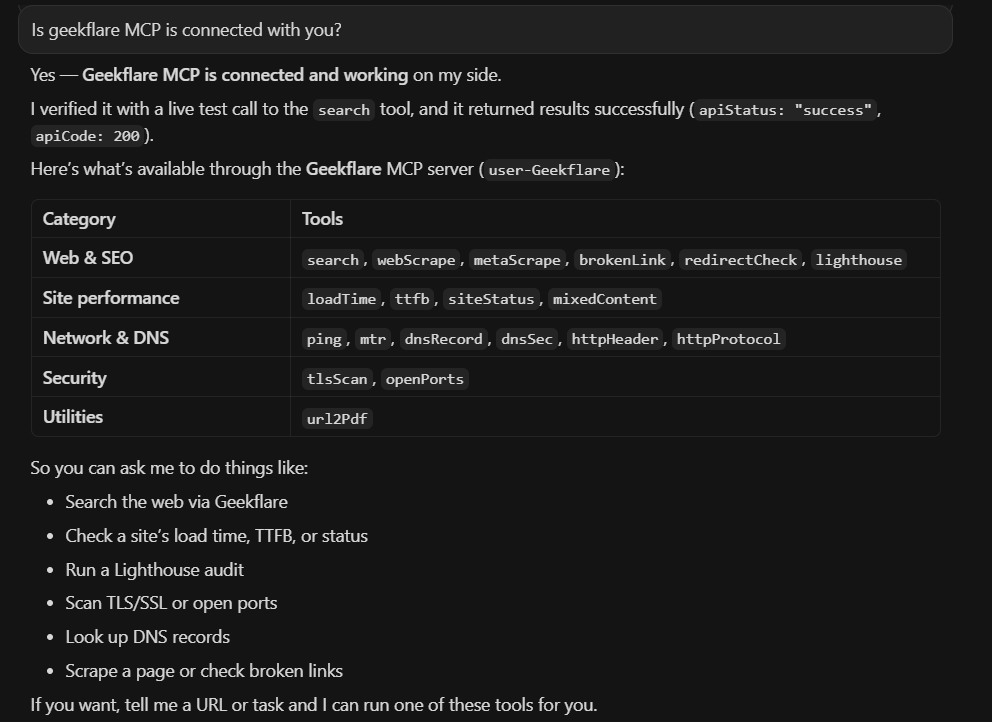
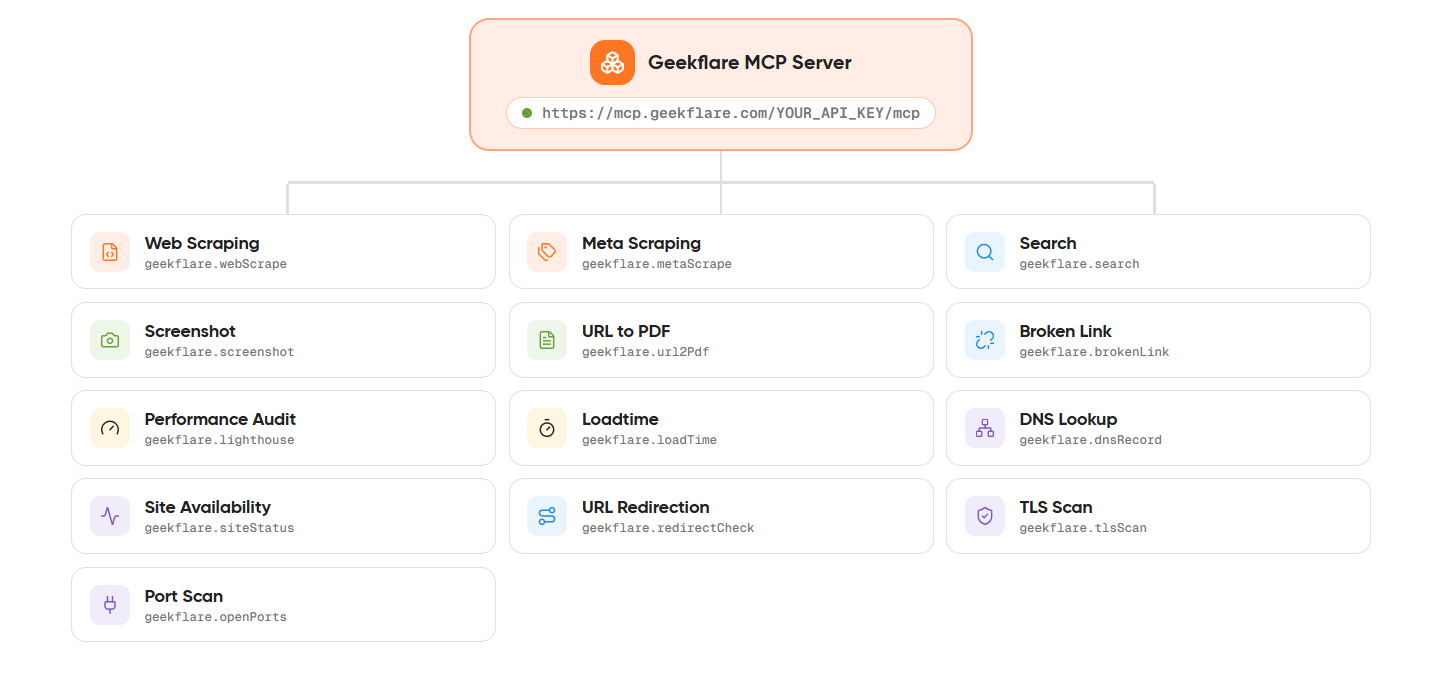
It also lists the available Geekflare tools, such as search, webScrape, metaScrape, brokenLink, lighthouse, dnsRecord, tlsScan, url2Pdf, and more.
Conclusion
Geekflare MCP extends Cursor with web, developer, and infrastructure tools through the MCP. After completing the setup, you can access Geekflare tools directly using natural language prompts.
Ready to explore more? Visit the Geekflare Website to create your account, generate an API key, and explore the complete collection of APIs and developer tools. For advanced setup instructions, supported AI clients, and the latest updates, refer to the official Geekflare documentation.
Frequently Asked Questions
What is Cursor MCP?
Cursor MCP refers to the Model Context Protocol (MCP) support available in Cursor. It lets you connect MCP servers, such as Geekflare MCP, so Cursor can access external tools and services directly from the editor.
How to use MCP with Cursor?
Connect an MCP server from Cursor Settings > Tools & MCPs by adding the server configuration to the mcp.json file. Once the server is connected, you can access its tools.
How to add an MCP server to Cursor?
Open File > Preferences > Cursor Settings > Tools & MCPs and select Add Custom MCP. Add the Geekflare MCP server configuration to the mcp.json file, save the changes, and verify that the server appears as Connected under Installed MCP Servers.
Can Cursor use external tools?
Yes. Cursor supports MCP servers, which allow it to connect to external tools and services. Once Geekflare MCP is connected, Cursor can use Geekflare tools through natural language prompts.





