


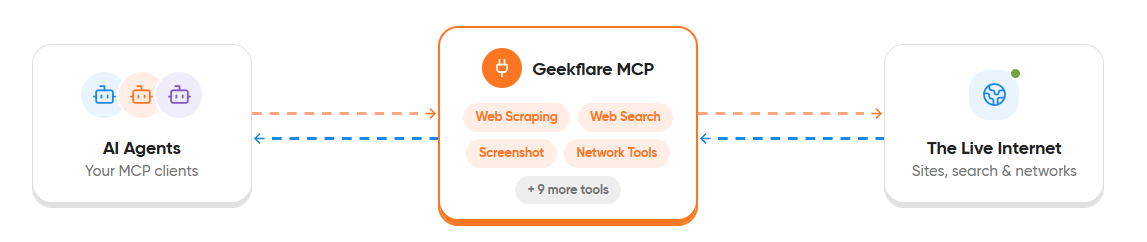
The n8n MCP Client lets your workflows connect to tools exposed by MCP servers. This guide explains how to set up the Geekflare MCP server in n8n and verify that the integration is working correctly.
If you’re new to Geekflare MCP, read our guide on What Is Geekflare MCP before you continue.
Prerequisites
Before you begin, make sure you have the following:
- An n8n account (Cloud or Self-hosted)
- A Geekflare account. Sign in to access your API key from the dashboard.
- Basic knowledge of creating and running n8n workflows
Connect Geekflare MCP to n8n
Follow these steps to configure the Geekflare MCP server with the n8n.
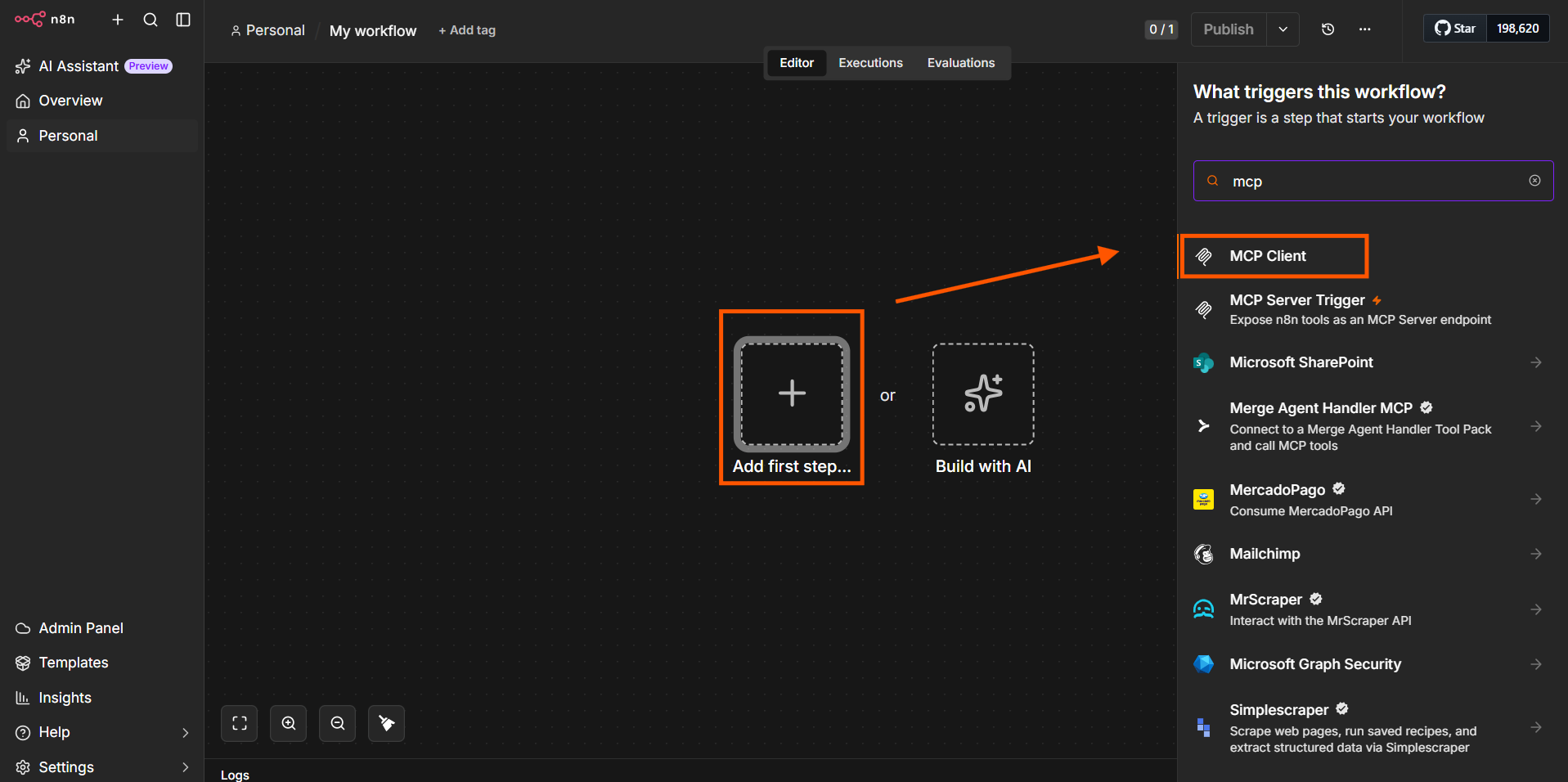
1. Open your n8n workspace and create a new workflow.
2. Click + to add a new node, then search for and select MCP Client.
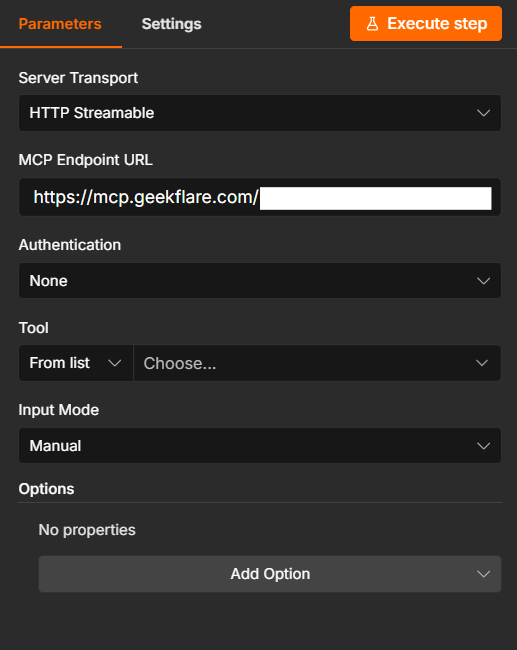
3. In the Server Transport field, select HTTP Streamable.
4. In the MCP Endpoint URL field, enter:
https://mcp.geekflare.com/YOUR_API_KEY/mcpReplace YOUR_API_KEY with your Geekflare API key.
5. Leave the Authentication field set to None.
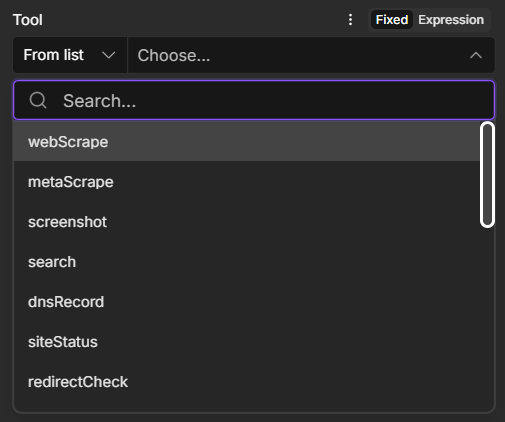
6. Keep the Tool option set to From list. If the connection is successful, the Tool dropdown displays the available Geekflare MCP tools. This confirms that the MCP server is connected correctly.
Build Your First n8n MCP Workflows
After connecting the Geekflare MCP server, you can execute any available tool directly from the MCP Client node. The following examples show how to use three common Geekflare tools.
Example 1: Save DNS Records to Google Sheets
- Add an
Execute Workflow Triggernode. - Add an
MCP Clientnode and select thednsRecordtool. - Set
Input Modeto Manual and enteropenai.comfor thedomainparameter. - Add a
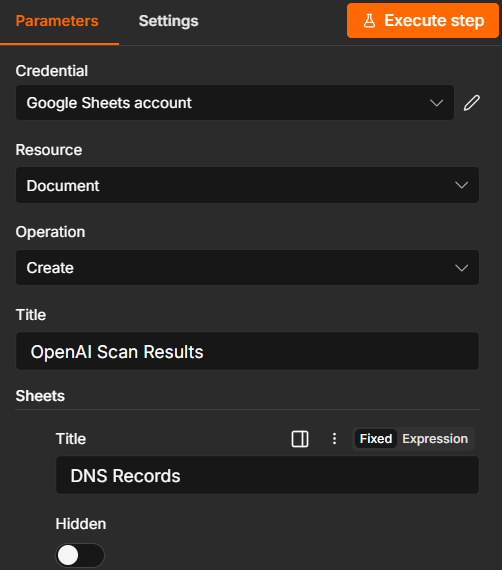
Google Sheetsnode and selectCreate spreadsheetaction. - Enter ‘OpenAI Scan Results‘ as the spreadsheet title and ‘DNS Records‘ as the sheet name.
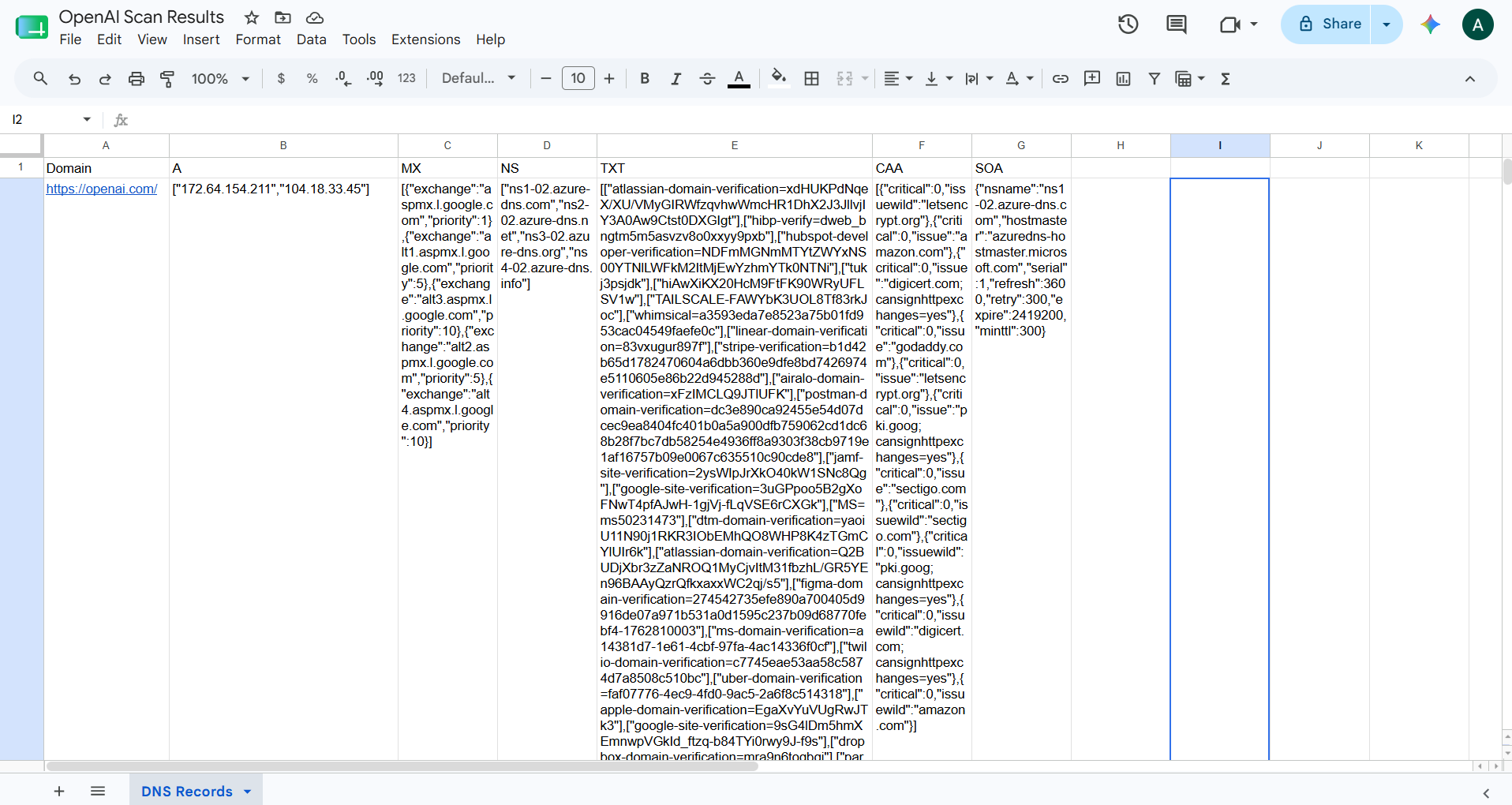
- After the spreadsheet is created, open the ‘DNS Records‘ sheet and add the following column headers:
- Domain
- A
- MX
- NS
- TXT
- CAA
- SOA
- Add another
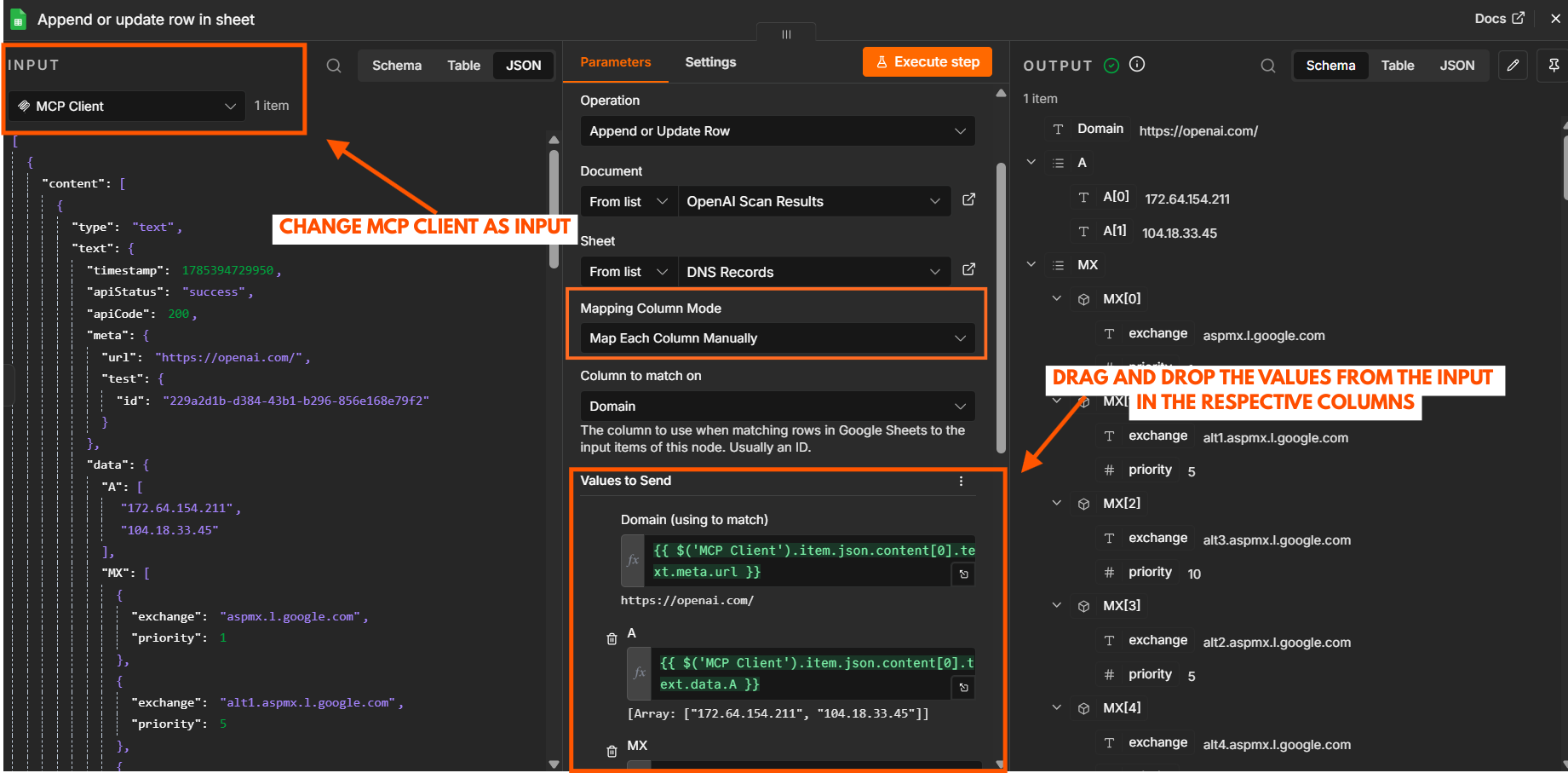
Google Sheetsnode and selectAppend row in sheet. - Select the
OpenAI Scan Resultsspreadsheet and theDNS Recordssheet. - Choose
MCP Clientas the input and drag the output fields to the corresponding columns.
- Click
Execute workflowto run the workflow and save the DNS records to Google Sheets.
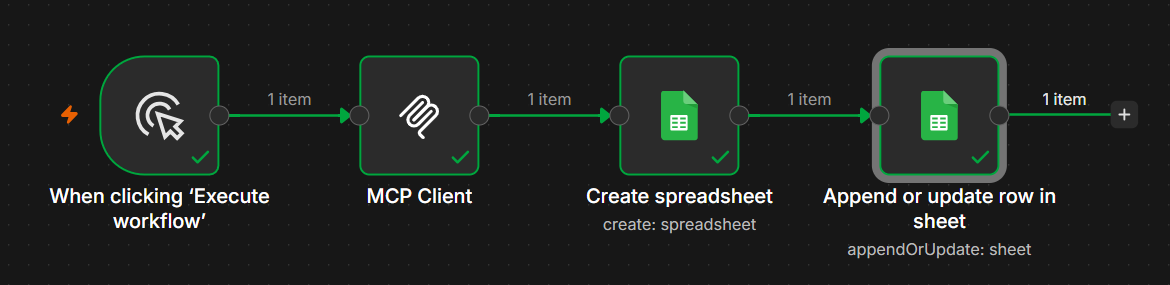
Here is the n8n workflow:
Here is the response:
Example 2: Generate a Lighthouse Report
- Add an
Execute Workflow Triggernode. - Add an
MCP Clientnode and select the lighthouse tool. - Set
Input Modeto Manual and enterhttps://www.anthropic.com/for theurlparameter. - Add an
Emailnode. Set a subject such as ‘Anthropic Lighthouse Report‘ and include the Lighthouse report returned by theMCP Clientnode in the email body. - Click
Execute workflowto run the workflow and receive the Lighthouse report in your inbox.
Here is the n8n workflow:
Here is the response:

Example 3: Capture a Website Screenshot
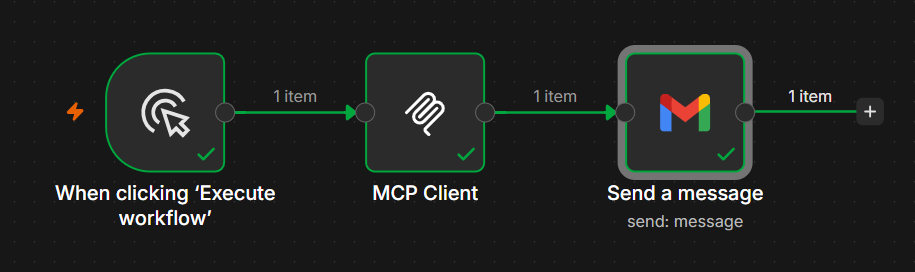
- Add an
Execute Workflow Triggernode. - Choose an
MCP Clientnode and select thescreenshottool. - Set
Input Modeto Manual and enterhttps://techcrunch.com/for theurlparameter. - Add an
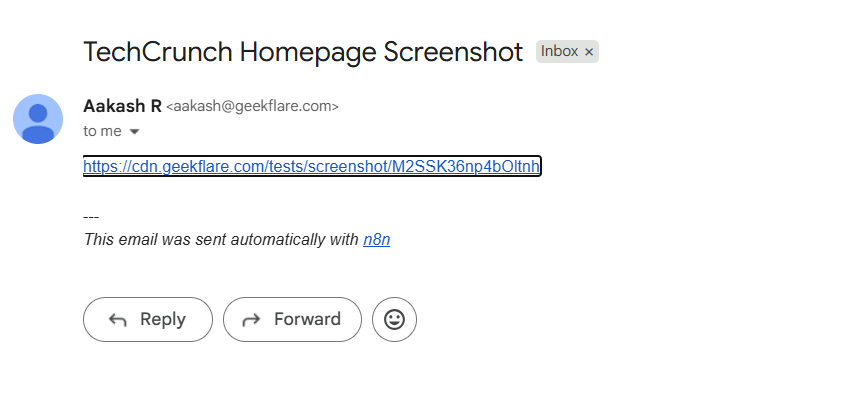
Emailnode. Set a subject such as ‘TechCrunch Homepage Screenshot‘ and attach the screenshot returned by theMCP Clientnode. - Click
Execute workflowto run the workflow and receive the latest screenshot in your inbox.
Here is the response:
Common Use Cases of Geekflare MCP
Connecting the Geekflare MCP server to n8n lets you automate a variety of website and infrastructure tasks. Here are some common workflows you can build:
- Website Uptime Monitoring: Monitor website availability and send alerts when a website becomes unavailable.
- Performance Reporting: Run scheduled Lighthouse audits and share the results through email or Slack.
- DNS Inventory Management: Retrieve DNS records and store them in Google Sheets or a database for tracking.
- Website Change Tracking: Capture website screenshots on a schedule to monitor visual changes.
- SSL Certificate Monitoring: Check SSL/TLS certificate details and receive notifications before certificates expire.
- Broken Link Detection: Scan websites for broken links and notify your content team.
- Automated PDF Reports: Convert web pages into PDFs for reporting and documentation.
- Web Content Collection: Scrape webpage content and send it to databases, AI tools, or other connected applications.
Conclusion
Geekflare MCP extends n8n with website, developer, and infrastructure tools that you can use in your workflows. After completing the setup, you can automate tasks such as website monitoring, DNS lookups, screenshots, and Lighthouse audits by adding Geekflare MCP tools to your workflows.
Visit the Geekflare website to create your account and generate an API key. Explore the complete collection of APIs, developer tools, and the official documentation for more MCP guides and integrations.
Frequently Asked Questions
What is the MCP Client node in n8n?
The MCP Client node lets n8n connect to an MCP server and execute its available tools. After connecting the Geekflare MCP server, you can access tools such as DNS lookup, Lighthouse audits, screenshots, and website monitoring directly from your workflows.
Do I need a Geekflare API key to use the Geekflare MCP server in n8n?
Yes. You need a Geekflare account to generate an API key. Replace YOUR_API_KEY in the MCP endpoint URL with your API key before connecting the MCP Client node.
Can I use Geekflare MCP tools with other n8n nodes?
Yes. You can combine Geekflare MCP tools with hundreds of n8n integrations, including Google Sheets, Email, Slack, databases, and cloud storage services, to build automated workflows.





