



You can use Microsoft’s Playwright library to control a real browser to extract data from pages that load content with JavaScript. It waits for elements automatically, can read the network requests a page makes, and runs many pages at once with async code, which makes it the strongest browser tool for scraping in Python today.
In this guide, I’ll build Playwright scrapers in Python for JavaScript-rendered pages. Then I’ll show three things Playwright does that most scraping tools don’t.
How I tested this
I tested with Python 3.14, Playwright 1.64, and Chrome on macOS. The target is TestingURL.dev. Times are from single runs unless noted.
Set Up Playwright for Python
You need Python 3.9 or later. Install the library and a browser:
python -m venv venv
source venv/bin/activate  # On Windows: venv\Scripts\activate
pip install playwright
playwright install chromium
The second command downloads Playwright’s own build of Chromium. In my scripts, I passed channel="chrome" to launch() instead, which uses the Google Chrome already installed on the machine.
If you ran playwright install chromium, remove that argument. Playwright runs headless by default, so no browser window opens.
Step 1: Scrape a JavaScript-Rendered Page
This page’s HTML has no products in it. JavaScript fetches them after the page loads, so a plain HTTP request sees an empty container.
Save this as first_scraper.py:
from playwright.sync_api import sync_playwright

with sync_playwright() as p:
    browser = p.chromium.launch(channel="chrome")  # omit channel to use Playwright's own Chromium
    page = browser.new_page()
    page.goto("https://testingurl.dev/scraping/js-rendered")

    cards = page.locator("#app .card")
    cards.first.wait_for()  # wait until JavaScript has rendered the products
    for i in range(cards.count()):
        card = cards.nth(i)
        print(card.locator("h3").inner_text(), "|", card.locator("p").inner_text())

    browser.close()
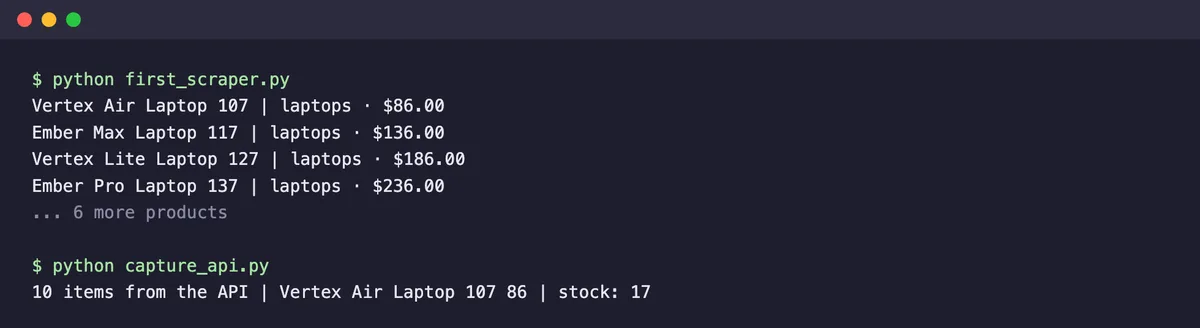
A locator such as page.locator("#app .card") describes how to find elements, and Playwright looks them up fresh each time you use it. wait_for() pauses until the first product appears. The script printed all 10 products in about 1.5 seconds, including the browser start.
Step 2: Grab the Page’s API Data Instead
Playwright sees every network request a page makes. Many JavaScript sites load their data from a JSON API, and capturing that response gives you clean data without parsing any HTML:
from playwright.sync_api import sync_playwright

with sync_playwright() as p:
    browser = p.chromium.launch(channel="chrome")
    page = browser.new_page()
    with page.expect_response(lambda r: "/scraping/js-rendered/api" in r.url) as response_info:
        page.goto("https://testingurl.dev/scraping/js-rendered")
    data = response_info.value.json()
    item = data["items"][0]
    print(len(data["items"]), "items from the API |", item["name"], item["price"], "| stock:", item["stock"])
    browser.close()
It returned the same 10 products as structured JSON, including fields that the page doesn’t display, such as the stock count. On TestingURL, the page shows each product’s name, category, and price, while the API also returned stock, rating, and description.
Step 3: Let Auto-Waiting Do the Work
Most actions in Playwright wait automatically. Before a click, it waits until the element is attached, visible, stable, enabled, and not covered by another element.
On TestingURL.dev’s dynamic elements page, a button starts disabled and enables itself after 5 seconds:
import time

from playwright.sync_api import sync_playwright

with sync_playwright() as p:
    browser = p.chromium.launch(channel="chrome")
    page = browser.new_page()
    page.goto("https://testingurl.dev/scraping/dynamic-elements")

    button = page.get_by_test_id("delayed-enable-button")
    print("Right after load:", button.inner_text(), "| enabled:", button.is_enabled())
    start = time.time()
    button.click()  # Playwright waits until the button is enabled, then clicks
    print(f"Clicked after {time.time() - start:.1f}s:", button.inner_text())
    browser.close()
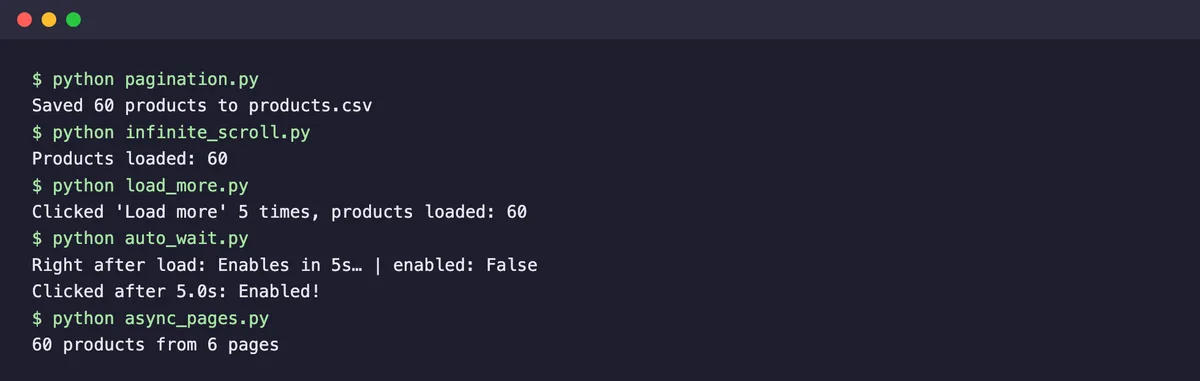
Right after the page loaded, the button was disabled. The plain click() waited 5.0 seconds, clicked as soon as the button was ready, and needed no wait code at all. In Selenium, I had to write an explicit wait for the same button.
Two locator habits save time. Use attributes that don’t change, such as get_by_test_id() for data-testid attributes, instead of ids that a site generates on each load. And prefer user-facing locators like get_by_role() and get_by_label(), but scope them to the part of the page you mean, as you’ll see in Step 6.
Step 4: Follow Pagination and Save to CSV
This script reads every product, clicks Next » until the link disappears, and writes the results to products.csv:
import csv

from playwright.sync_api import sync_playwright

rows = []
with sync_playwright() as p:
    browser = p.chromium.launch(channel="chrome")
    page = browser.new_page()
    page.goto("https://testingurl.dev/scraping/pagination/page/1")

    while True:
        for card in page.locator("div.card").all():
            category, price = card.locator("p").inner_text().split(" · ")
            rows.append({"name": card.locator("h3").inner_text(), "category": category, "price": price})
        next_link = page.get_by_role("link", name="Next »")
        if next_link.count() == 0:
            break  # last page
        next_link.click()
        page.wait_for_load_state()

    browser.close()

with open("products.csv", "w", newline="", encoding="utf-8") as f:
    writer = csv.DictWriter(f, fieldnames=["name", "category", "price"])
    writer.writeheader()
    writer.writerows(rows)
print(f"Saved {len(rows)} products to products.csv")
It saved all 60 products from 6 pages in about 2.1 seconds, with no duplicates. page.wait_for_load_state() after the click makes sure the next loop reads the new page.
Step 5: Infinite Scroll and Load More Buttons
For infinite scroll, scroll down and wait until the number of items grows. If nothing new appears within 3 seconds, you’ve reached the end:
from playwright.sync_api import sync_playwright

with sync_playwright() as p:
    browser = p.chromium.launch(channel="chrome")
    page = browser.new_page()
    page.goto("https://testingurl.dev/scraping/infinite-scroll")

    cards = page.locator("#items .card")
    while True:
        before = cards.count()
        page.mouse.wheel(0, 20000)  # scroll down
        try:
            page.wait_for_function(
                f"document.querySelectorAll('#items .card').length > {before}", timeout=3000
            )
        except Exception:
            break  # nothing new loaded within 3 seconds, so we reached the end
    print("Products loaded:", cards.count())
    browser.close()
It loaded all 60 products in about 4.5 seconds. wait_for_function() continues as soon as new items arrive, so there’s no fixed sleep slowing every round down.
A “Load more” button follows the same pattern, with a click instead of a scroll:
from playwright.sync_api import sync_playwright

with sync_playwright() as p:
    browser = p.chromium.launch(channel="chrome")
    page = browser.new_page()
    page.goto("https://testingurl.dev/scraping/load-more")

    cards = page.locator("#items .card")
    button = page.locator("#load-more-btn")
    clicks = 0
    while button.is_visible() and button.is_enabled():
        before = cards.count()
        button.click()
        clicks += 1
        try:
            page.wait_for_function(
                f"document.querySelectorAll('#items .card').length > {before}", timeout=3000
            )
        except Exception:
            break
    print(f"Clicked 'Load more' {clicks} times, products loaded: {cards.count()}")
    browser.close()
It clicked 5 times and collected all 60 products in about 1.5 seconds.
Step 6: Fill and Submit Forms
My first form script failed every time with a strict mode violation. page.get_by_label("Name") matched two elements: the form’s Name field and the site’s search box, whose label reads “Search pages by name or description”. Playwright refuses to act when a locator is ambiguous, which is annoying at first but stops you from typing into the wrong field.
Scoping the locators to the form fixed it:
from playwright.sync_api import expect, sync_playwright

with sync_playwright() as p:
    browser = p.chromium.launch(channel="chrome")
    page = browser.new_page()
    page.goto("https://testingurl.dev/scraping/forms/post")
    form = page.locator("form.test-form")
    form.get_by_label("Name").fill("Test User")
    form.get_by_label("Email").fill("[email protected]")
    form.get_by_role("button", name="Submit").click()
    expect(page.get_by_text("Thanks, Test User")).to_be_visible()  # waits for the result page
    print(page.locator("main").inner_text())
    browser.close()
This version passed 10 out of 10 runs. The expect() line waits until the confirmation text appears before the script reads the page. I also ran a version without it 10 times, and it passed all 10, because Playwright’s click() waits for a navigation it triggers to start.
The same pattern without a wait failed 3 times out of 10 in Selenium. I still keep the expect() line, because it fails with a clear message if the form ever stops working.
Strict mode is a feature
When Playwright says a locator resolved to several elements, it’s telling you the selector is ambiguous. Narrow it with a parent locator, exact=True, or a more specific role instead of switching to .first, which only hides the problem.
Make Playwright Scrapers Faster
Block images, stylesheets, and fonts
Scrapers don’t need images or styling. With page.route(), you can abort those requests before they download:
BLOCK = {"image", "stylesheet", "font", "media"}

page.route("**/*", lambda route: route.abort()
           if route.request.resource_type in BLOCK else route.continue_())
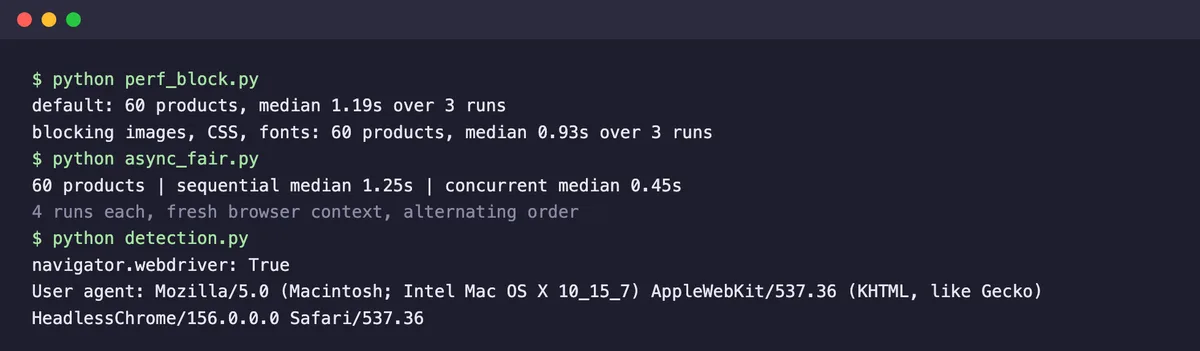
Across 6 pages, blocking those resource types cut the median time from about 1.2 to about 0.9 seconds over three runs, roughly 20 to 25% faster on pages that are already light. Image-heavy sites gain more.
Scrape pages concurrently with async
Playwright’s async API can load several pages at once in one browser. This script scrapes all 6 pages concurrently:
import asyncio

from playwright.async_api import async_playwright

URLS = [f"https://testingurl.dev/scraping/pagination/page/{n}" for n in range(1, 7)]


async def scrape(context, url):
    page = await context.new_page()
    await page.goto(url)
    names = await page.locator("div.card h3").all_inner_texts()
    await page.close()
    return names


async def main():
    async with async_playwright() as p:
        browser = await p.chromium.launch(channel="chrome")
        context = await browser.new_context()
        results = await asyncio.gather(*(scrape(context, url) for url in URLS))
        await browser.close()
    print(sum(len(r) for r in results), "products from", len(URLS), "pages")


asyncio.run(main())
To compare fairly, I timed both approaches 4 times each with a fresh browser context and alternating order. Loading the 6 pages one after another took a median of 1.25 seconds, and loading them concurrently took 0.45 seconds, almost three times faster. Keep the number of pages open at once reasonable, both for your machine’s memory and for the site you’re scraping.
Can Websites Detect Playwright?
Yes. Like Selenium, a default Playwright browser sets navigator.webdriver to true, and in headless mode the user agent contains HeadlessChrome, as my test showed. Bot protection services check these and many other signals, so sites behind Cloudflare or similar protection often challenge or block it.
Before trying to work around that, check the site’s terms of service and robots.txt. Our guide to scraping sites behind Cloudflare covers the options, and a managed service such as the Geekflare Web Scraping API renders JavaScript and handles proxies for you.
Playwright vs. Selenium for Scraping
I ran the same tasks with both libraries on the same site, with these results:
| Task | Playwright | Selenium |
|---|---|---|
| JavaScript page, 10 products | About 1.5 s | About 1.6 s |
| Pagination, 60 products | About 2.1 s | About 2.4 s |
| Load more, 60 products | About 1.5 s | About 3.8 s |
| Delayed button | Plain click() waited on its own | Needed an explicit wait |
| Form without extra wait | 10/10 runs passed | 7/10 runs passed |
| Read the page’s API responses | Built in with expect_response() | Possible through DevTools or BiDi APIs, with more setup |
| Async concurrency | Built in | Needs threads or multiple drivers |
For new scraping projects, Playwright is the better choice. Selenium still makes sense if your team already runs it for testing. Our Selenium web scraping guide covers the same tasks, and our test of Python web scraping libraries compares Playwright with Requests, Scrapy, and others.
Common Playwright Errors
- Strict mode violation: your locator matched more than one element. Scope it to a parent, use exact=True, or pick a more specific locator.
- TimeoutError: the element never became ready within the default 30 seconds. Check the selector, and whether the content sits inside an iframe, which needs
page.frame_locator(). - Executable doesn’t exist: the browser isn’t installed. Run
playwright install chromium, or passchannel="chrome"to use an installed Chrome. - Element is outside of the viewport or intercepts pointer events: something such as a cookie banner covers it. Close the overlay first.
FAQ
Is Playwright good for web scraping?
Yes. It handles JavaScript-rendered pages, waits for elements automatically, can capture the API responses a page loads, and supports async concurrency. In our tests, it collected all 60 products from pagination, infinite scroll, and Load more pages.
Is Playwright better than Selenium for scraping?
For most new projects, yes. In our side-by-side test, Playwright was as fast or faster on every task, needed no explicit wait for a delayed button, and passed a form test 10 out of 10 times where Selenium passed 7.
Is Playwright better than BeautifulSoup?
They solve different problems. BeautifulSoup parses HTML you’ve already downloaded and can’t run JavaScript. Playwright loads pages in a real browser, so it sees content that JavaScript adds, but it’s much slower. Use BeautifulSoup for static pages and Playwright for dynamic ones.
Can Playwright scrape without opening a browser window?
Yes. Playwright runs headless by default, so no window appears. Pass headless=False to launch() when you want to watch the browser while debugging.
Can Playwright scrape multiple pages at the same time?
Yes. With the async API, you can open several pages in one browser and load them together with asyncio.gather. In our test, 6 pages loaded concurrently in a median of 0.45 seconds, against 1.25 seconds one after another.