



Selenium web scraping means using Selenium to control a browser from code to collect data from pages that only show their content after JavaScript runs. It clicks, scrolls, fills forms, and waits for elements the way a person would.
In this guide, I’ll build Selenium scrapers in Python for the sites with a JavaScript-rendered page, numbered pagination, infinite scroll, a “Load more” button, delayed elements, and a form. I’ll show the results, including a timing bug that broke 3 of my first 10 runs.
How I tested this
I tested with Python 3.14, Selenium 4.52, and headless Chrome on my macOS. The target is TestingURL.dev, so you can check your results against mine.
When Should You Use Selenium for Scraping?
Use Selenium when the data you need render with JavaScript, or when you have to interact with the page first like click a button, scroll, choose a filter, or submit a form.
On TestingURL.dev’s JavaScript-rendered page, a plain requests call returns an empty container, while Selenium sees all 10 products.
Skip it when the data is already in the HTML. A browser is slow and memory-hungry compared with an HTTP library, so for static pages, Requests with BeautifulSoup is the better tool. Our Python web scraping tutorial covers that approach.
Check for a JSON API first
Many JavaScript pages load their data from an API. On our test page, the products came from a JSON endpoint that returned all 10 items to a plain Requests call in about 0.2 seconds. Open your browser’s developer tools, check the Network tab for Fetch or XHR requests, and you may not need a browser at all.
Set Up Selenium in Python
You need Python 3.9 or later and Google Chrome. Install Selenium in a virtual environment:
python -m venv venv
source venv/bin/activate  # On Windows: venv\Scripts\activate
pip install selenium
You don’t need to download ChromeDriver yourself. Since Selenium 4.6, Selenium Manager finds your browser and downloads the matching driver on the first run.
On my machine, it saved ChromeDriver to ~/.cache/selenium automatically.
Step 1: Scrape a JavaScript-Rendered Page
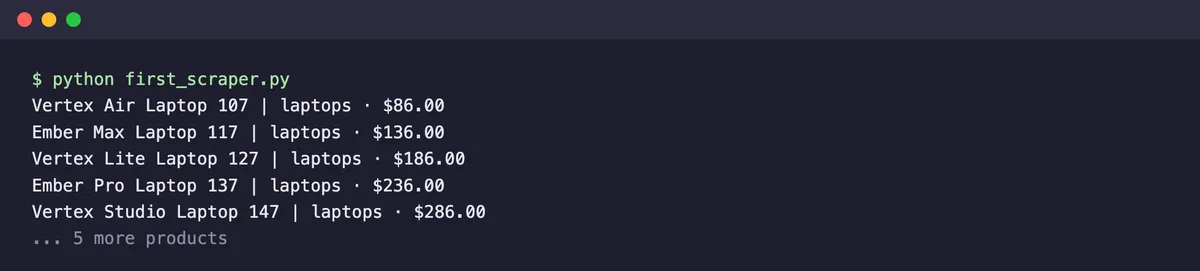
This first script opens the JavaScript-rendered page, waits until the products load, and prints each product’s name and price. Save it as first_scraper.py:
from selenium import webdriver
from selenium.webdriver.common.by import By
from selenium.webdriver.support import expected_conditions as EC
from selenium.webdriver.support.ui import WebDriverWait

options = webdriver.ChromeOptions()
options.add_argument("--headless=new")
driver = webdriver.Chrome(options=options)

try:
    driver.get("https://testingurl.dev/scraping/js-rendered")
    WebDriverWait(driver, 10).until(
        EC.presence_of_element_located((By.CSS_SELECTOR, '#app[data-loaded="true"]'))
    )
    for card in driver.find_elements(By.CSS_SELECTOR, "#app .card"):
        name = card.find_element(By.TAG_NAME, "h3").text
        price = card.find_element(By.TAG_NAME, "p").text
        print(name, "|", price)
finally:
    driver.quit()
Three parts matter. The --headless=new option runs Chrome without a window. WebDriverWait pauses until the page marks its content as loaded, instead of guessing with a fixed sleep. And the try/finally block closes the browser even if something fails, so you don’t leave Chrome processes running.
The script printed all 10 products in about 1.6 seconds, including starting the browser.
Step 2: Find Elements Reliably
Selenium finds elements with find_element() for the first match and find_elements() for all matches. You tell it how to search with a By locator:
| Locator | Example | Use it for |
|---|---|---|
By.ID | (By.ID, "load-more-btn") | Elements with a stable, unique id |
By.CSS_SELECTOR | (By.CSS_SELECTOR, "div.card h3") | Most scraping, since it’s short and flexible |
By.XPATH | (By.XPATH, "//div[@class='card']/h3") | Matching by text or walking up the tree |
By.PARTIAL_LINK_TEXT | (By.PARTIAL_LINK_TEXT, "Next") | Links like “Next »” |
By.TAG_NAME | (By.TAG_NAME, "h3") | Elements inside an element you already found |
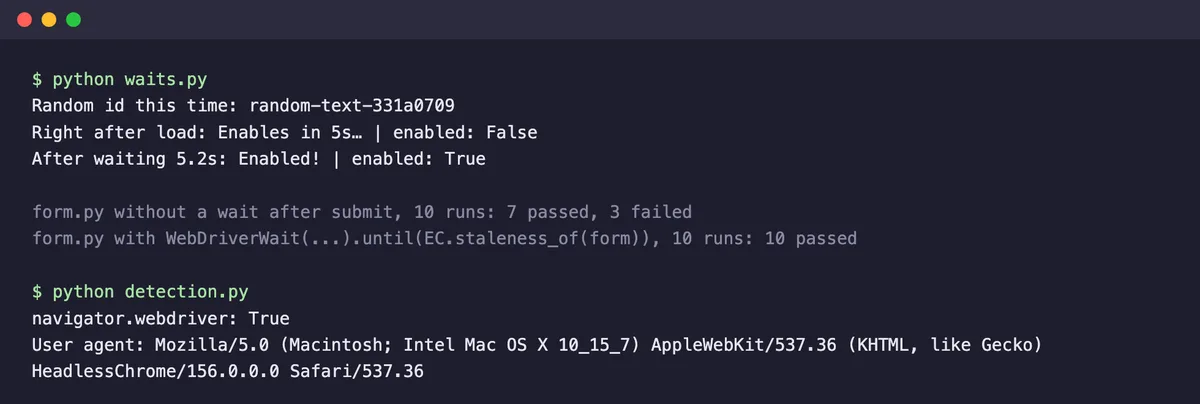
Prefer attributes that don’t change. TestingURL.dev’s dynamic elements page gives one paragraph a new random id on every load, random-text-331a0709 on one of my runs, so a script that hard-codes it breaks the next time. Selecting it by its data-testid attribute worked every time.
Step 3: Wait for Elements the Right Way
Most broken Selenium scrapers are timing problems. The page changes after load, and the script reads it too early. On the same test page, a button starts disabled and enables itself after 5 seconds:
import time

from selenium import webdriver
from selenium.webdriver.common.by import By
from selenium.webdriver.support import expected_conditions as EC
from selenium.webdriver.support.ui import WebDriverWait

options = webdriver.ChromeOptions()
options.add_argument("--headless=new")
driver = webdriver.Chrome(options=options)

try:
    driver.get("https://testingurl.dev/scraping/dynamic-elements")
    # The id changes on every load, so select by a stable attribute instead
    text = driver.find_element(By.CSS_SELECTOR, '[data-testid="random-text"]')
    print("Random id this time:", text.get_attribute("id"))

    button = driver.find_element(By.CSS_SELECTOR, '[data-testid="delayed-enable-button"]')
    print("Right after load:", button.text, "| enabled:", button.is_enabled())

    start = time.time()
    button = WebDriverWait(driver, 10).until(
        EC.element_to_be_clickable((By.CSS_SELECTOR, '[data-testid="delayed-enable-button"]'))
    )
    print(f"After waiting {time.time() - start:.1f}s:", button.text, "| enabled:", button.is_enabled())
finally:
    driver.quit()
Right after the page loaded, the button read “Enables in 5s…” and was disabled. With an explicit wait for element_to_be_clickable, the script continued after 5.2 seconds, as soon as the button was ready, and not a moment later.
Selenium also has implicit waits, set once with driver.implicitly_wait(10), which retry every lookup for up to 10 seconds. They only wait for an element to exist, not to become visible or clickable, and mixing them with explicit waits can cause unpredictable delays. I use explicit waits only.
Step 4: Follow Pagination and Save to CSV
This script reads every product on a page, clicks Next », and repeats until there’s no next link, then writes everything to products.csv:
import csv

from selenium import webdriver
from selenium.common.exceptions import NoSuchElementException
from selenium.webdriver.common.by import By
from selenium.webdriver.support import expected_conditions as EC
from selenium.webdriver.support.ui import WebDriverWait

options = webdriver.ChromeOptions()
options.add_argument("--headless=new")
driver = webdriver.Chrome(options=options)
wait = WebDriverWait(driver, 10)
rows = []

try:
    driver.get("https://testingurl.dev/scraping/pagination/page/1")
    while True:
        cards = wait.until(EC.presence_of_all_elements_located((By.CSS_SELECTOR, "div.card")))
        for card in cards:
            name = card.find_element(By.TAG_NAME, "h3").text
            category, price = card.find_element(By.TAG_NAME, "p").text.split(" · ")
            rows.append({"name": name, "category": category, "price": price})
        try:
            next_link = driver.find_element(By.PARTIAL_LINK_TEXT, "Next")
        except NoSuchElementException:
            break  # last page
        next_link.click()
        wait.until(EC.staleness_of(cards[0]))  # wait for the old page to go away
finally:
    driver.quit()

with open("products.csv", "w", newline="", encoding="utf-8") as f:
    writer = csv.DictWriter(f, fieldnames=["name", "category", "price"])
    writer.writeheader()
    writer.writerows(rows)
print(f"Saved {len(rows)} products to products.csv")
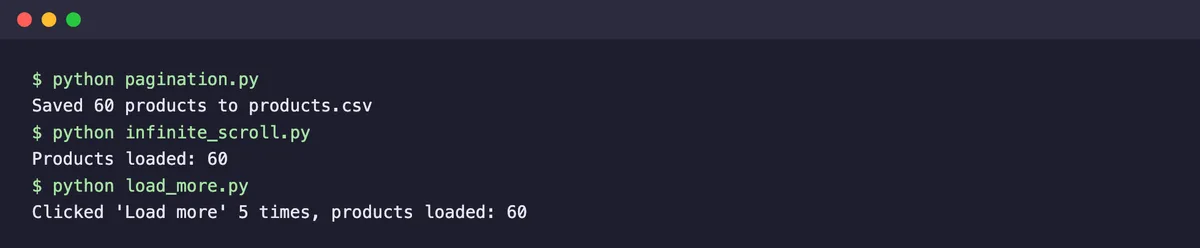
The key line is wait.until(EC.staleness_of(cards[0])). After the click, it waits until the old page’s first product disappears, so the next loop reads the new page instead of the old one. The script saved all 60 products from 6 pages in about 2.4 seconds.
Step 5: Handle Infinite Scroll and Load More Buttons
Infinite scroll loads more items as you reach the bottom of the page. The pattern is to scroll, give the page time to load, and stop when the number of items stops growing:
import time

from selenium import webdriver
from selenium.webdriver.common.by import By

options = webdriver.ChromeOptions()
options.add_argument("--headless=new")
driver = webdriver.Chrome(options=options)

try:
    driver.get("https://testingurl.dev/scraping/infinite-scroll")
    seen = 0
    while True:
        driver.execute_script("window.scrollTo(0, document.body.scrollHeight);")
        time.sleep(1)  # give the next batch time to load
        count = len(driver.find_elements(By.CSS_SELECTOR, "#items .card"))
        if count == seen:
            break  # nothing new loaded, so we reached the end
        seen = count
    print("Products loaded:", seen)
finally:
    driver.quit()
This is one place where a short time.sleep() is reasonable, because there’s no single element to wait for. The script loaded all 60 products in about 7 seconds, most of it the one-second pauses.
A “Load more” button works the same way, except you click instead of scroll and wait until new items appear:
from selenium import webdriver
from selenium.webdriver.common.by import By
from selenium.webdriver.support.ui import WebDriverWait

options = webdriver.ChromeOptions()
options.add_argument("--headless=new")
driver = webdriver.Chrome(options=options)
wait = WebDriverWait(driver, 10)

try:
    driver.get("https://testingurl.dev/scraping/load-more")
    clicks = 0
    while True:
        buttons = driver.find_elements(By.ID, "load-more-btn")
        if not buttons or not buttons[0].is_displayed() or not buttons[0].is_enabled():
            break
        before = len(driver.find_elements(By.CSS_SELECTOR, "#items .card"))
        buttons[0].click()
        clicks += 1
        try:
            wait.until(lambda d: len(d.find_elements(By.CSS_SELECTOR, "#items .card")) > before)
        except Exception:
            break  # button stayed but nothing new arrived
    total = len(driver.find_elements(By.CSS_SELECTOR, "#items .card"))
    print(f"Clicked 'Load more' {clicks} times, products loaded: {total}")
finally:
    driver.quit()
It clicked the button 5 times and collected all 60 products in about 3.8 seconds.
Step 6: Fill and Submit Forms
Selenium types into fields with send_keys() and submits with click(). My first version of this script read the result right after clicking Submit, and it failed 3 times out of 10, the failures I inspected raising StaleElementReferenceException. The browser was still swapping the form page for the confirmation page when the script tried to read it.
The code below passed 10 out of 10 runs:
from selenium import webdriver
from selenium.webdriver.common.by import By
from selenium.webdriver.support import expected_conditions as EC
from selenium.webdriver.support.ui import WebDriverWait

options = webdriver.ChromeOptions()
options.add_argument("--headless=new")
driver = webdriver.Chrome(options=options)

try:
    driver.get("https://testingurl.dev/scraping/forms/post")
    form = driver.find_element(By.CSS_SELECTOR, "form.test-form")
    form.find_element(By.ID, "name").send_keys("Test User")
    form.find_element(By.ID, "email").send_keys("[email protected]")
    form.find_element(By.CSS_SELECTOR, "button[type=submit]").click()
    WebDriverWait(driver, 10).until(EC.staleness_of(form))  # wait for the new page
    print(driver.find_element(By.TAG_NAME, "main").text)
finally:
    driver.quit()
Always wait after a click that loads a new page
A script that works on your machine can still fail on a slower server or network. After any click that navigates, wait for the old page to go stale or for an element on the new page to appear before you read anything.
How to Make Selenium Faster
A browser will never match the speed of HTTP library, but a few settings help. In my test of the 6 pagination pages, switching to the eager page load strategy and turning images off cut the median time from 1.35 to 1.08 seconds across three runs, about 20% faster, on pages that are already light:
options.page_load_strategy = "eager"  # don't wait for images and stylesheets
options.add_argument("--blink-settings=imagesEnabled=false")- Reuse one driver for many pages instead of starting a new browser each time.
- Run headless on servers.
- Read data with one
execute_script()call when you need many values from a large page, since eachfind_element()call is a round trip to the browser. - Run several browsers in parallel only if your machine has the memory, as each Chrome instance uses hundreds of megabytes.
Why Websites Can Detect Selenium
A default Selenium browser announces itself. In my test, navigator.webdriver returned true, and the headless browser’s user agent contained HeadlessChrome. Bot protection systems check these signals and many others, so sites behind Cloudflare or similar services often block or challenge Selenium.
Community projects such as SeleniumBase’s UC Mode and undetected-chromedriver try to hide these signals, with varying success, and it’s an ongoing arms race. Before you go down that path, check the site’s terms of service and robots.txt.
Our guide on scraping sites behind Cloudflare covers the options, and a managed service such as the Geekflare Web Scraping API, our own product, renders JavaScript and handles proxies for you.
Selenium vs. Playwright for Scraping
Playwright is usually faster. In our test of Python web scraping libraries, Playwright read the same JavaScript page in about 1.1 seconds, against 2.9 seconds for Selenium.
| Selenium | Playwright | |
|---|---|---|
| Speed in our test | About 2.9 s | About 1.1 s |
| Waiting | Explicit waits you write | Auto-waits built into most actions |
| Browsers | Chrome, Firefox, Edge, Safari | Chromium, Firefox, WebKit |
| Driver setup | Selenium Manager, automatic | Bundled browsers via playwright install |
| Best for | Teams with existing Selenium tests or a Selenium Grid | New scraping projects |
If you’re starting new project, Playwright is the good choice. If your team already runs Selenium for testing, everything in this guide carries over to scraping without new tools.
Selenium Errors I Encountered
NoSuchElementException: the element doesn’t exist yet, or your locator is wrong. Add an explicit wait, then check the selector in your browser’s developer tools.StaleElementReferenceException: the page changed after you found the element. Find it again, or wait for the new page as in Step 6.TimeoutException: your wait condition never came true. Check whether the content is inside an iframe or loads from an API instead.ElementClickInterceptedException: something such as a cookie banner covers the element. Close the overlay first, or scroll the element into view.
FAQ
Is Selenium good for web scraping?
Yes, for pages that need JavaScript or interaction, such as infinite scroll, Load more buttons, and forms. In our tests, it collected all 60 products from pagination, infinite scroll, and Load more pages.
Is Selenium better than BeautifulSoup?
They do different jobs. BeautifulSoup parses HTML you already downloaded and can’t run JavaScript. Selenium controls a real browser, so it sees JavaScript-loaded content but runs much slower.
Can Selenium scrape without opening a browser window?
Yes. Add the –headless=new argument to Chrome options, and the browser runs in the background with no window. All the scripts in this guide run headless.
Can websites detect Selenium?
Yes. A default Selenium browser sets navigator.webdriver to true, and headless Chrome includes HeadlessChrome in its user agent, as our test showed. Bot protection services check these and other signals, so heavily protected sites often block Selenium.