


Every AI model has some restrictions as to which file types you can upload and work with. Today, I’m going to make this easy for you with a clear breakdown of every file type you can work with.
Sparkian lets you upload files directly into a conversation and ask questions about them. You can use files for tasks such as summarizing documents, extracting information, analyzing data, reviewing code, and understanding images.
You will find these file types supported:
| File Type | Formats |
|---|---|
| Documents | PDF, DOCX, TXT, MD |
| Presentations | PPTX |
| Spreadsheets & Data | XLSX, CSV, JSON, YAML, INI |
| Web & Code | HTML, CSS, Python, JavaScript, TypeScript |
| Images | JPG, PNG, WebP, SVG |
Before you start uploading files, there are a few things to keep in mind:
- Your plan determines your monthly Sparks and Knowledge Base storage. The Free plan gives you 100 Sparks and 10 MB of Knowledge Base storage per month. Pro provides 10,000 Sparks and 100 MB, Business provides 25,000 Sparks and 250 MB, and Scale provides 75,000 Sparks and 500 MB.
- File processing can affect Spark usage. Larger files and requests that require more content to be processed can use more Sparks. The Spark cost shown for a model is a starting estimate rather than a fixed cost.
- Knowledge Base requests have an additional cost. When a request uses a file stored in the Knowledge Base, Sparkian adds 5 Sparks to the model’s usage.
You can check the Sparkian spark explained guide for a detailed explanation of how Spark usage is calculated.
Uploading your 1st PDF
This process hardly takes 10 seconds.
Step 1: Fire up a new conversation in Sparkian and pick your preferred model from the model selector. For this example, we’re going with GPT-5.4, as it’s well suited for handling documents.
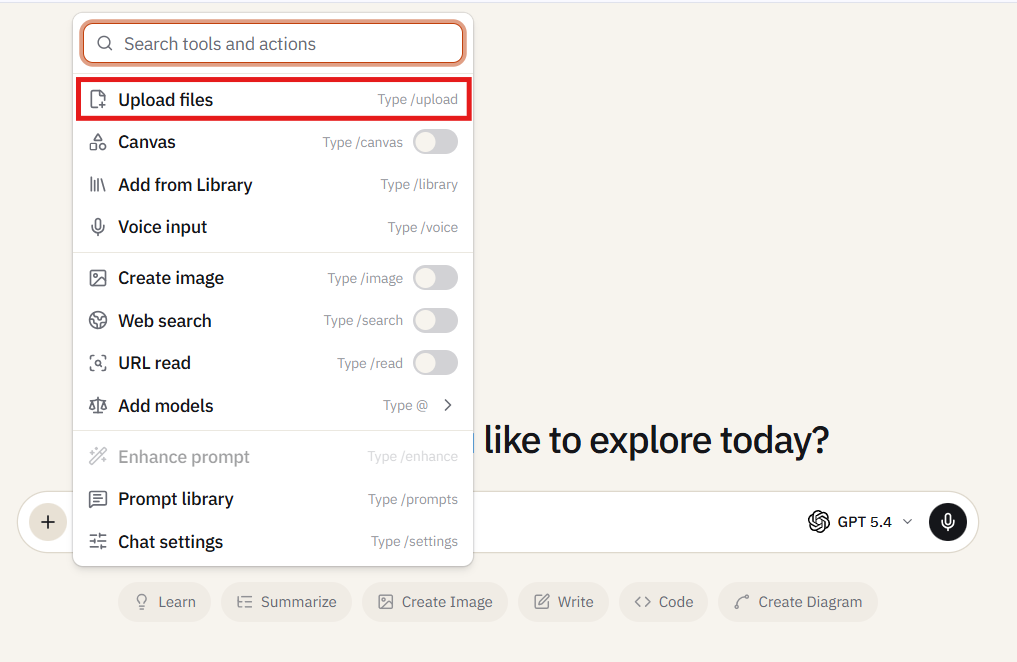
Step 2: Click the file upload button (the attachment icon next to the chat input), select your PDF file, and wait for the upload confirmation. Once the file is uploaded, you will see a file indicator appear in the conversation.
Step 3: Ask the question that you want answered. The model will now use your document as context and will answer based on its contents.
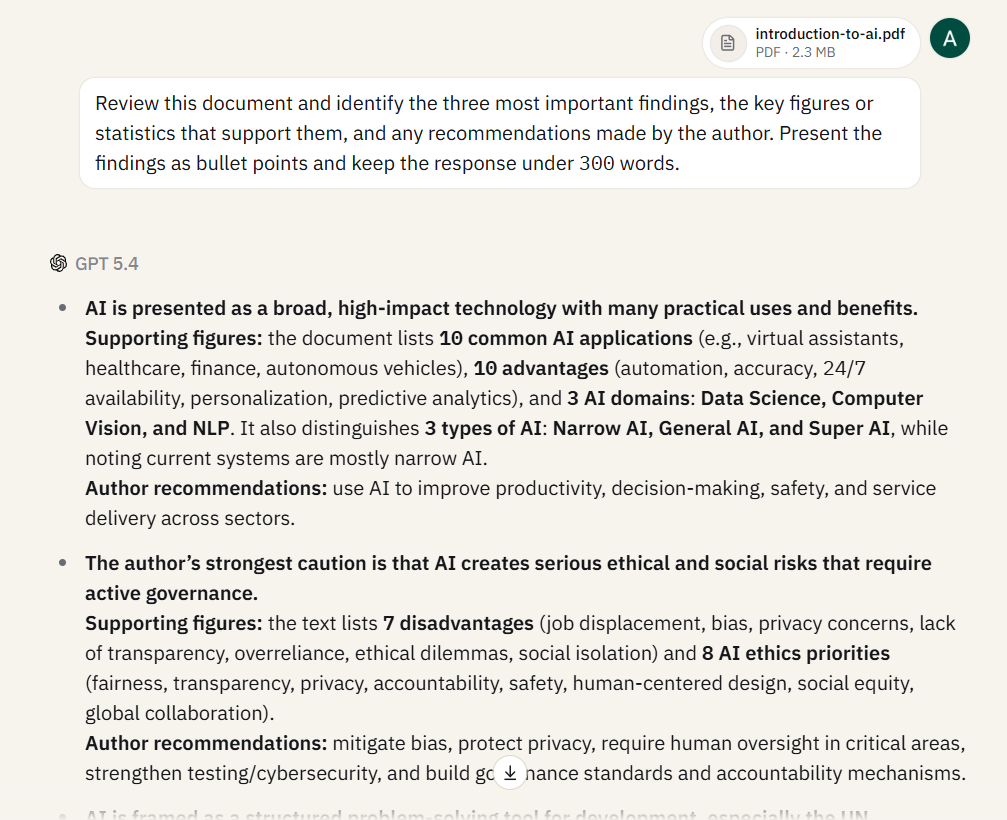
One thing people miss on their first upload: the model reads the document once when you attach it, and every follow-up question in that same conversation can reference it. You don’t need to re-upload or re-attach for each new question. The file remains in context throughout the thread.
This guide covers the mechanics of file chat. For use-case tutorials showing how researchers, lawyers, and analysts use these features, see our practical guide to chatting with PDFs using AI.
Asking the Right Questions: Bad Prompt vs. Good Prompt
You are only done with the easy part of uploading the PDF. The next part about prompting is where most people leave value on the table.
Let me tell you what a bad prompt looks like:
Summarize this document.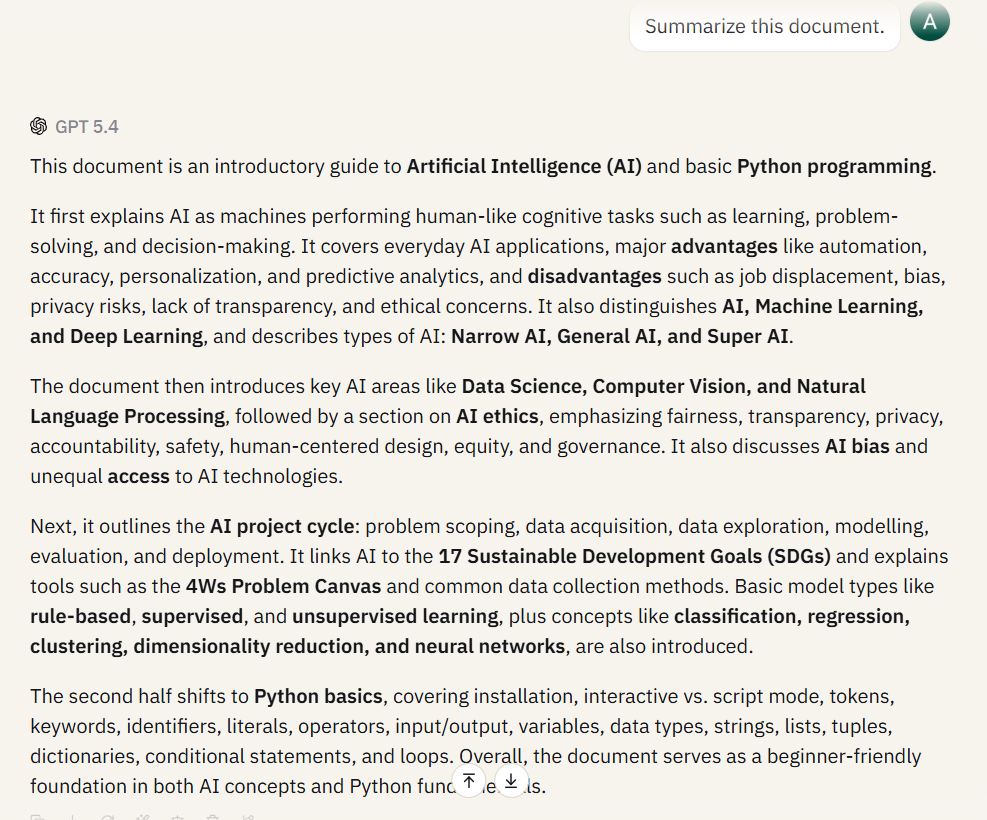
You will get a summary, but that’s all. It will be vague and cover everything at the surface level. The model isn’t going to return any specific details you actually care about. That’s because the model has no idea about what matters to you, so it’s only going to give you generic outputs.
Instead, try a prompt like this:
Summarize this AI report in three sections: (1) the definition of Artificial Intelligence and its common applications, (2) the main advantages and disadvantages of AI, and (3) the differences between AI, Machine Learning, and Deep Learning. Use bullet points for each section and keep the response under 300 words.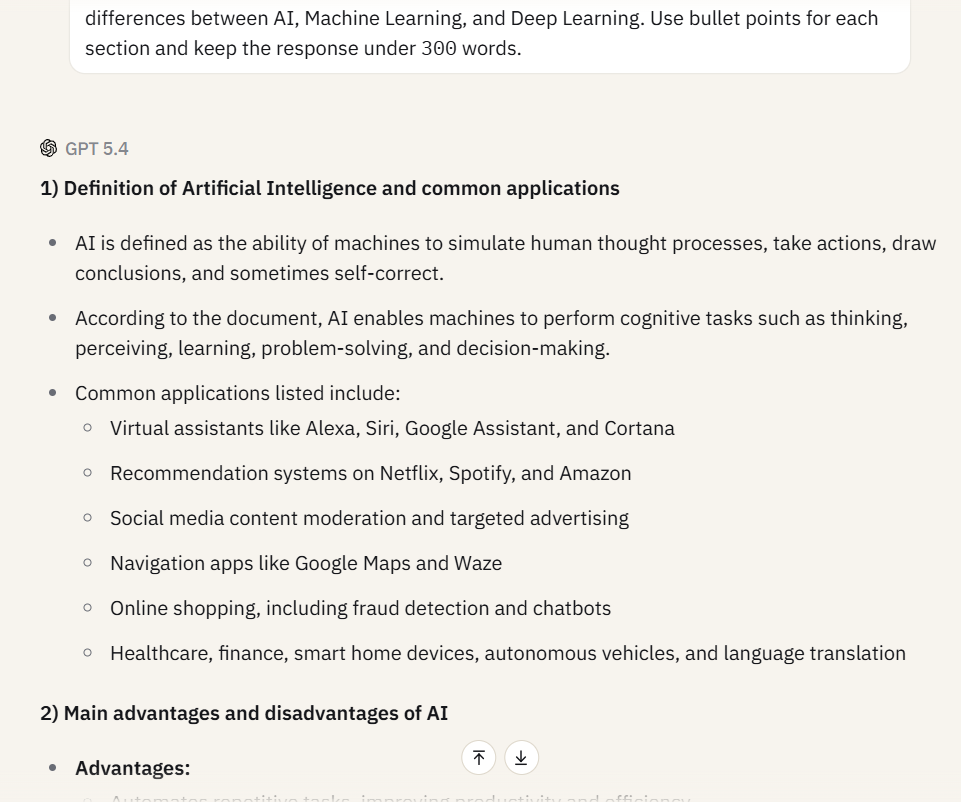
This is where you add structure and constraints for the output. You are telling the model exactly what you are looking for, how to organize that information, and how long each section should be. This is how you go from vague outputs to something that you can actually paste in your team’s Slack channel.
I know it’s not easy to write such prompts all the time, so let me give you a few more ideas:
- For contracts and legal documents: List every obligation, deadline, and penalty clause in this agreement. Include the section number for each.
- For financial filings: Extract all revenue figures, growth percentages, and forward-looking projections. Format as a table with columns for Metric, Value, and Page Number.
- For research papers: What methodology did the authors use? What were the limitations they acknowledged? Do any of their conclusions contradict their own data?
If you carefully read through every prompt, you’ll see that they ask for specific outputs and specify exactly how they want the answers formatted.
Uploading an Image and Asking for Analysis
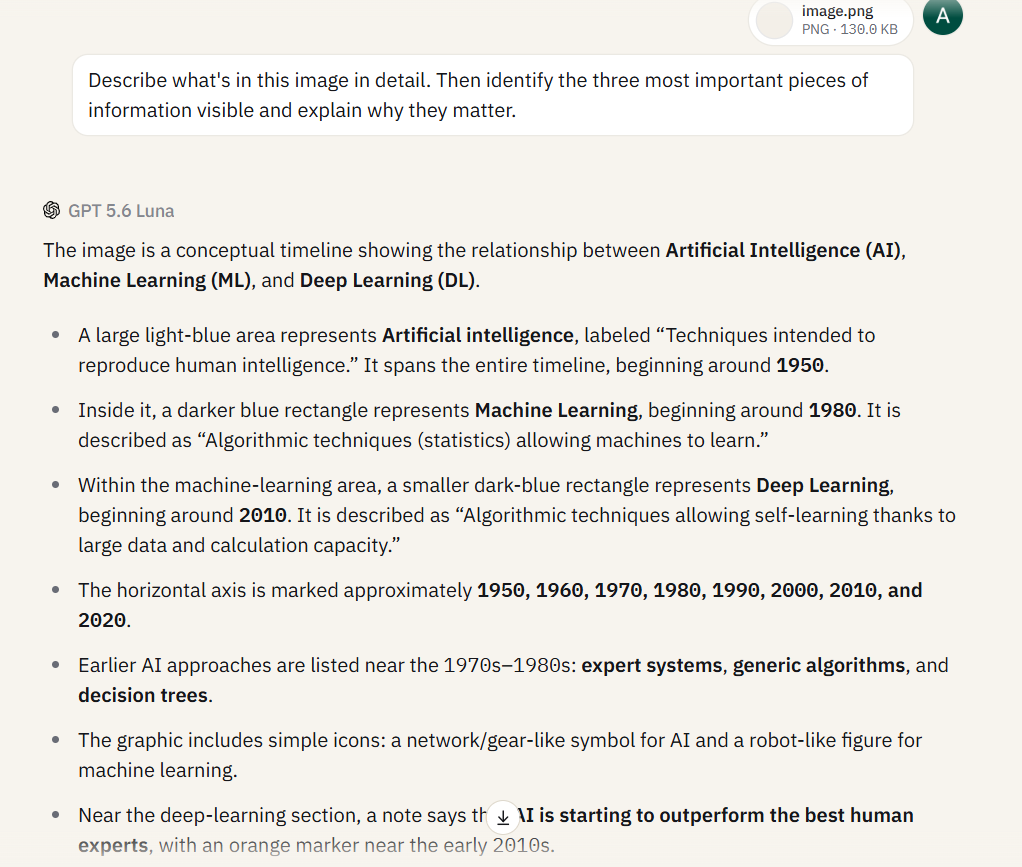
Image understanding can vary from one model to another. Sparkian gives you the flexibility to switch models within the same conversation, so you can compare how different models interpret an image.
For this test, I used GPT-5.6 for image analysis. It is well suited to tasks that require understanding both text and visual elements in an image.
For PDFs that contain embedded charts, diagrams, or other visuals, GPT-5.6 is also a good choice because it can work with both the document text and its visual content. Your file remains attached to the conversation when you switch models, so you can try another model if you want a different interpretation.
Which Model to Pick for Which File Type?
I’ve tried running the same files through different models on Sparkian, so that you know which model to pick for specific tasks.
| Task | Best Pick | Why |
|---|---|---|
| Long PDF summarization | Claude Sonnet 4.6 | Strongest at reading long documents and producing summaries that actually sound written, not generated. |
| Data extraction into tables | GPT-5.4 | Cleanest table formatting. Follows column specs precisely and rarely misses entries. |
| Image description and analysis | GPT-5.4 | Most detailed visual descriptions. Handles mixed-content documents (text + charts) better than alternatives. |
| Quick factual lookups from a doc | Gemini 3.1 Pro | Fastest for “find this number on page X” queries. Less thorough on follow-ups, but fast on retrieval. |
| Cross-referencing multiple files | Claude Sonnet 4.6 | Best at holding multiple documents in context and flagging where they agree or contradict. |
The best thing is that you don’t have to limit yourself to a single model for the whole conversation. You can upload your PDF, have it summarized by Claude, switch to GPT for structured extraction, and then ask Gemini to run the factual check. And even though you are switching models mid-conversation, your file and chats carry over. You won’t lose context in between these switches.
For the full breakdown on how different models perform across non-document tasks, the side-by-side comparison guide covers writing, coding, research, and reasoning.
Your Files Stay Private
Every model request in Sparkian goes through commercial API endpoints from OpenAI, Anthropic, and Google. These aren’t the same pipelines as the free consumer versions of ChatGPT or Gemini. The API endpoints operate under data-use agreements that explicitly prohibit the use of your inputs. So, it’s clear that Sparkian never uses your uploaded files or data to train its underlying models.
Your PDFs, Word docs, and images aren’t feeding a training dataset. They’re processed for your query, the response is generated, and the data stays in your workspace. On team plans, workspace isolation means your files are visible only to members of that specific workspace. Nobody outside your team sees them.
If you’re uploading client contracts, financial filings, internal strategy documents, or anything confidential, this distinction matters. Most free PDF-chat tools don’t offer this guarantee. Some explicitly state in their terms that uploaded files may be used for model improvement. Read the fine print before you upload anything sensitive elsewhere.
This is why you can’t rely on free PDF-chat tools right now. Instead, sign up for Sparkian, and you won’t have to worry about privacy or safety anymore.





