


There’s a high chance you’re paying for two or three AI subscriptions right now if you use AI for work. Some people have different tools for different purposes, like ChatGPT for writing, Claude Pro for documents, and even Gemini Advanced for real-time web access. Your bill keeps adding up, and you still end up copy-pasting prompts between tabs whenever you want to compare how two models handle the same thing.
Sparkian resolves this specific problem. It’s an AI workspace that brings 50+ AI models from providers such as OpenAI, Anthropic, and Google into one place. You can compare outputs side by side, switch models during a conversation while keeping the context, work with files, generate images, and use web search. Sparkian’s paid plans start at $19/month.
This comprehensive walkthrough covers everything, from sign-up and workspace tour to the features that actually matter and pricing. By the end, you’ll know whether it fits your workflow and how to get started right away.
TL;DR
- What it is: An AI workspace with GPT-5.4, Claude 4.6, Gemini 3.1 Pro, and other top models under one subscription
- Who it’s for: Solo founders, marketing teams, researchers, and small businesses tired of paying for three different $20/month plans
- What makes it different: Side-by-side multi-model comparison, context preservation when you switch models mid-conversation, and flat pricing that saves up to 85% compared to stacking subscriptions
- Pricing: Free with 100 Sparks/month, Pro with 10,000 Sparks/month at $19/month, Business with 25,000 Sparks/month at $49/month for 5 seats, and Scale with 75,000 Sparks/month at $149/month for 20 seats.
What is Sparkian?
I’ll give you the short answer to not overwhelm you.
Sparkian bundles access to the top AI models from OpenAI, Anthropic, Google, xAI, and DeepSeek into one subscription. Instead of paying separately for ChatGPT Plus, Claude Pro, and Gemini Advanced, you pay a flat rate and use all of them from a single interface. That isn’t even the best part.
You get to switch models mid-conversation without losing any context. You can run the same prompt across multiple models simultaneously. Whether you want to chat with PDFs, docs, or images, you can do it all. It’s built for people who’ve outgrown single-model tools but don’t want the hassle of managing three separate subscriptions.
Who is it built for?
A handful of specific use cases fit really well with Sparkian. If one of these sounds like you, don’t stop reading:
- Solo founders & freelancers who need every top model but can’t justify $60+ a month stacked across three tools.
- Marketing teams that want a shared prompt library, consistent brand voice for content, and a way to test campaign copy across Claude Sonnet 4.6 & GPT-5.4 before anything ships.
- Researchers and analysts working with long PDFs, needing real-time web access, and wanting to cross-check findings across models.
- Engineering teams that compare how Claude, GPT-5, and Gemini handle the same coding problem without maintaining three separate accounts.
- Small businesses putting 5+ people on AI. The Business plan covers a team of 5 for $29 a month (roughly what a single ChatGPT Plus seat costs).
If you’re a heavy API user with existing OpenAI or Anthropic keys, Geekflare Connect is a better fit. It’s the BYOK (Bring Your Own Key) version of the same platform.
What makes Sparkian actually different?
I’ve seen plenty of AI tools claim to offer access to multiple models. But I found three things that set Sparkian apart from simply opening multiple AI tools in separate browser tabs:
- Side-by-side multi-model comparison: You can run the same prompt across different AI models in a single window and compare their responses. This makes it easier to test models and choose the response that works best for your task.
- Context preservation when switching models mid-conversation: You can start a conversation with one model, switch to another, and continue from the same thread without losing the existing context. This lets you try different models for different parts of the same task.
- Flexible pricing for different usage needs: Flexible pricing for different usage needs: Sparkian offers 100 Sparks/month on the Free plan, 10,000 Sparks/month on Pro at $19/month, 25,000 Sparks/month on Business at $49/month for 5 seats, and 75,000 Sparks/month on Scale at $149/month for 20 seats.
File uploads, image generation, web search, and prompt libraries add to the experience. But these three capabilities are a strong reason to consider Sparkian when you want to work with multiple AI models from one place.
Signing Up for Sparkian
The sign-up process takes less than 60 seconds, and you don’t need a credit card to get started on the Free plan.
Let me walk you through the process.
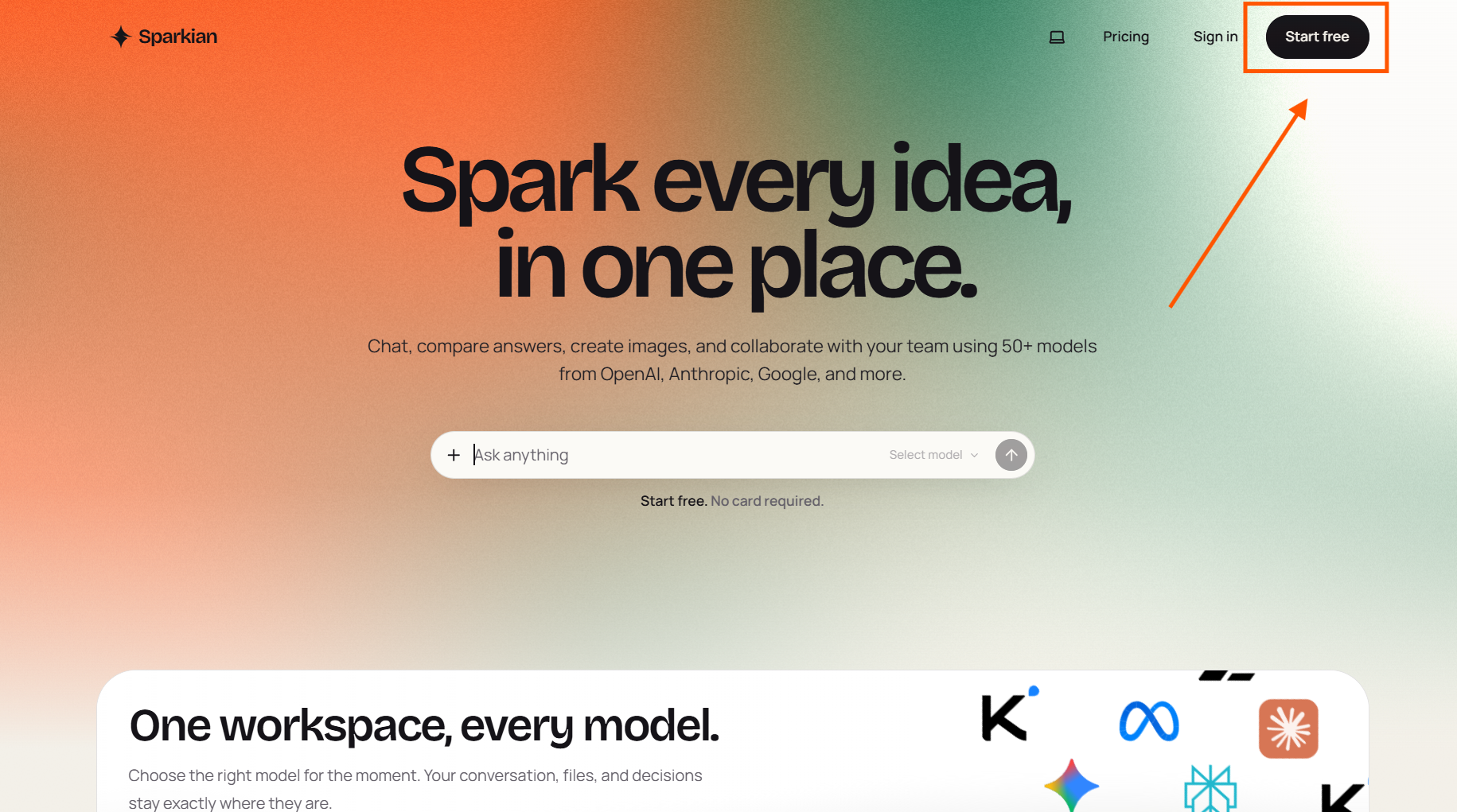
Step 1: Go to the Sparkian website
Head to Sparkian and click the option to start free.
Step 2: Pick your sign-in method
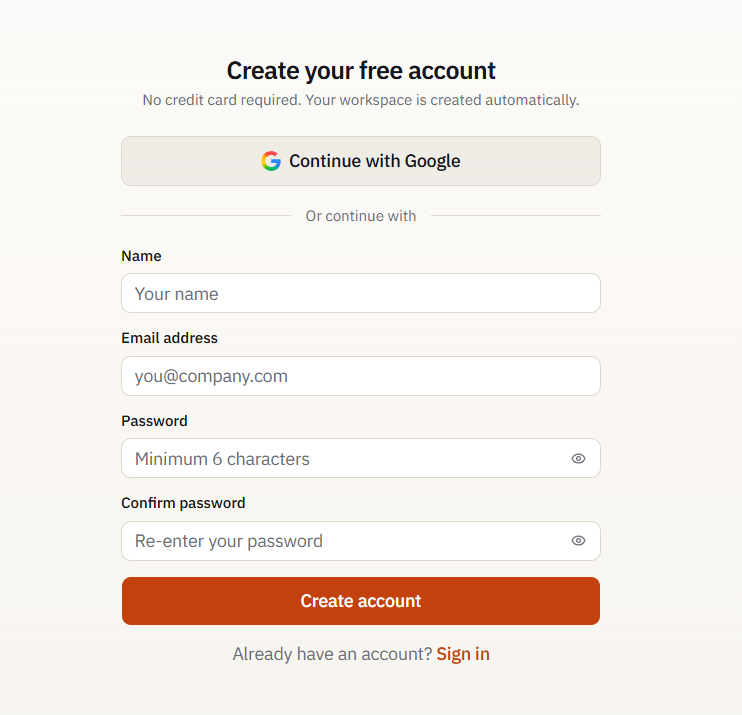
Choose your preferred sign-in method and complete the registration process.
Step 3: Land in your workspace
Once you finish signing up, Sparkian takes you to the dashboard. A workspace is automatically created using your account name, and you can start a new conversation from there.
Pro Tip
The Free plan gives you 100 Sparks per month, so you can try Sparkian before choosing a paid plan.
Before you read on, open Sparkian in another tab and sign up for the Free plan. The next sections are much more useful when you can follow along with the interface.
Now, let me give you a proper workspace tour!
The Workspace Tour
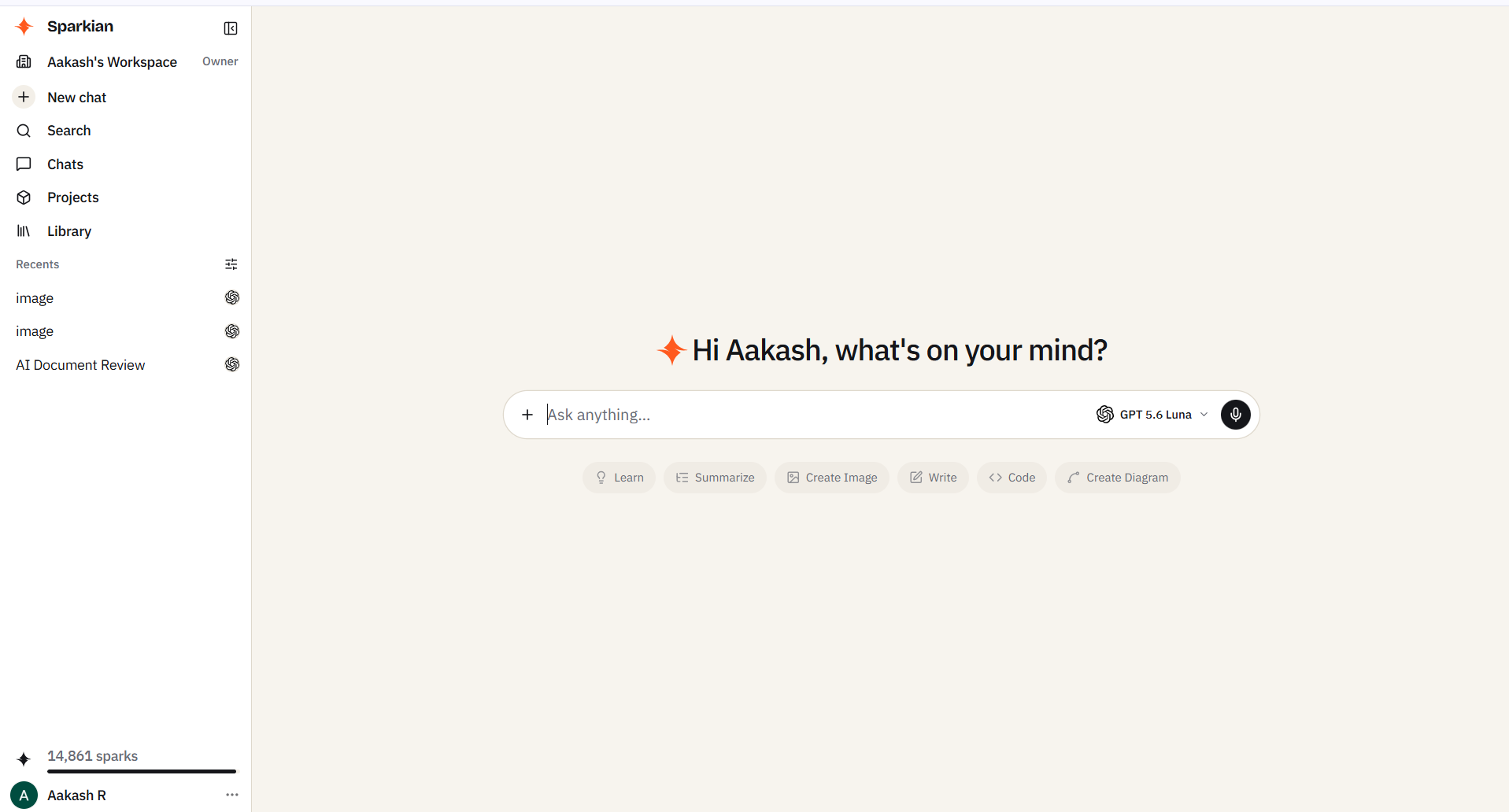
When you first log in, you’ll see a pretty simple interface. Chat area, sidebar, model dropdown. You might even mistake it for any other AI chat tool. But the power is hidden in places you won’t notice until I point them out.
- Model dropdown: This is where you choose which AI model will answer your next prompt or question. Click it, and every model available on your plan (even the ones that aren’t) shows up, including GPT, Claude, Grok, Gemini, DeepSeek, and more. You can switch models at any point in a conversation, and the context carries over. Most new users underuse this for their first week, which is a shame because it’s the USP.
- Chat input area: Enter your prompts here. Press ‘Enter’ to send, and ‘Shift+Enter’ to start a new line (just like other AI chat tools).
- File upload button: You get to attach a PDF, Word doc, image, or any other supported file to ask questions about it, extract data from it, or even pull it into a larger workflow from there.
- Web access toggle: Flip this ON when the AI needs to search the live web before answering. It’s OFF by default because web searches cost extra credits. But turn it ON for current news, recent data, or anything that needs fact-checking against live sources. You will get the responses back with source citations.
- Image generation trigger: This is another cool feature, because you won’t even have to leave the chat thread. You can flip your input into image generation mode and select an image model based on your plan to generate the desired image.
- Sidebar with chat history: Every conversation you’ve had here is saved and searchable. So, it’s better to organize everything properly by renaming them, pinning the important ones, and deleting the junk. That’s because search works across chat content, not just titles, so that you can find anything within seconds.
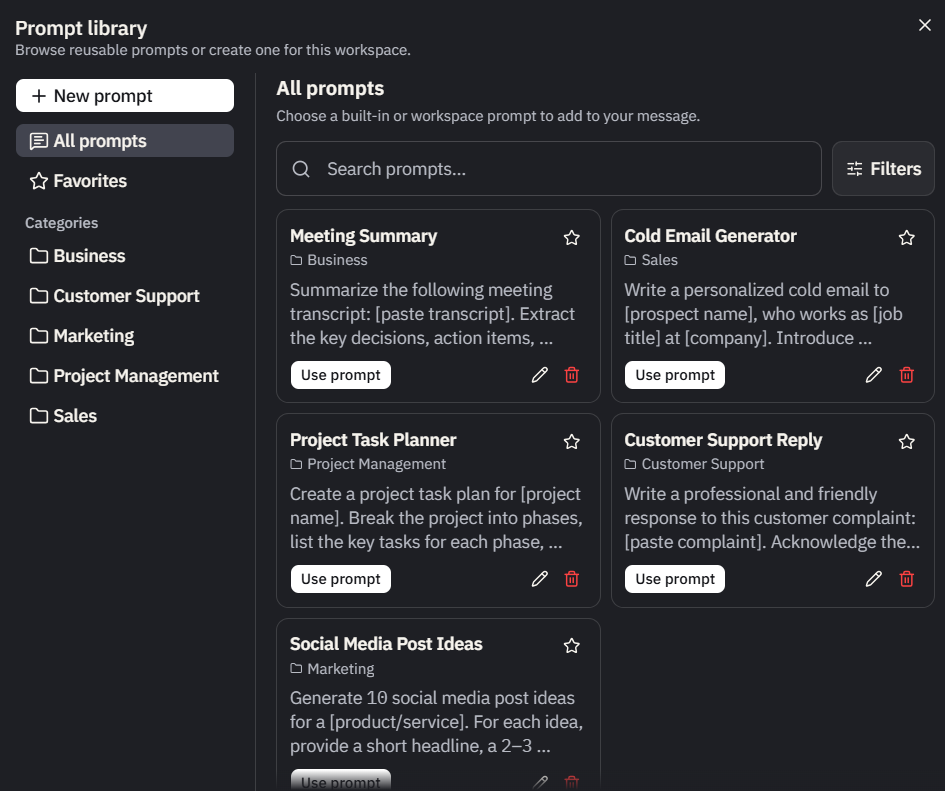
- Prompt Library: You and your team can create a library of reusable prompts and save them. Business plans allow you to share the library across your whole team, and you also get access to 275+ prompts built by experts in different domains on Geekflare.
- Knowledge Base: A lifesaver for teams working with multiple clients. You can upload documents, notes, or other reference materials here for the AI to use as context across multiple chats. It could be anything. Once something lives in the Knowledge Base, any chat in that workspace can pull from it without you re-uploading the file.
- Workspace Switcher: If you’re on Business or belong to multiple workspaces, switch between them here. Each workspace has its own chat history, prompt library, and knowledge base. This is very useful if you’re freelancing across multiple clients or have multiple projects and want to keep their data separate.
- Credit usage indicator: This displays all stats on credits used this month and remaining. You’ll even get to know which model is eating up how much percent of your credits.
Pro Tip
Check the credit usage indicator (10) after your first few chats. You’ll notice that a quick Claude Haiku chat might only burn 1-2 credits, but a long GPT-5.4 conversation with uploads and web access would have eaten up 20-30 credits in a single session.
Your First 10 Minutes in Sparkian
I’ve tried plenty of AI tools, and this is what usually happens. I sign up for the tool, try one or two prompts, get responses, and then close the tab. And then I wonder whether it’s valuable. But if you want to understand whether Sparkian fits into your workflow, you should at least do these 7 specific things in the first 10 minutes.
Each action would only take about a minute (but it’s worth doing).
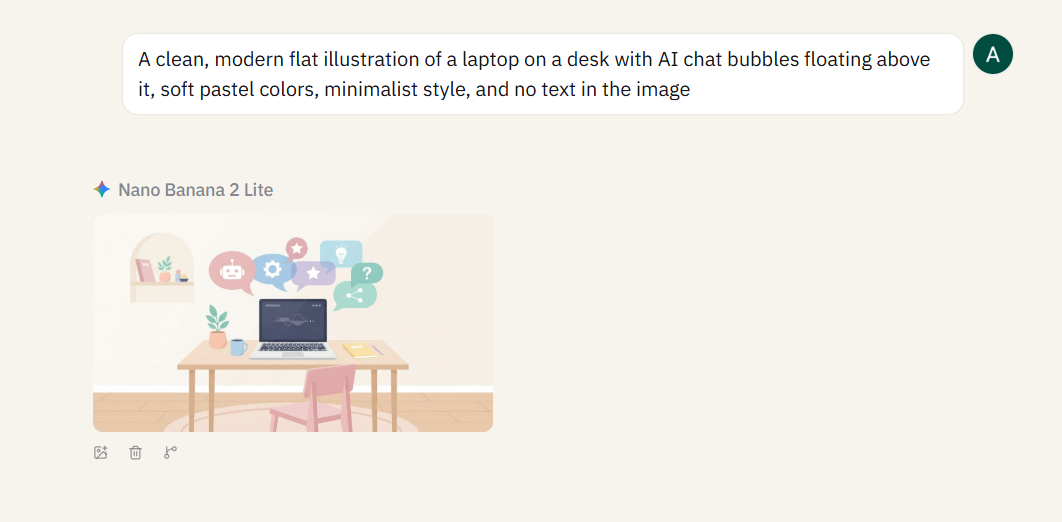
1. Run your 1st prompt in GPT-5
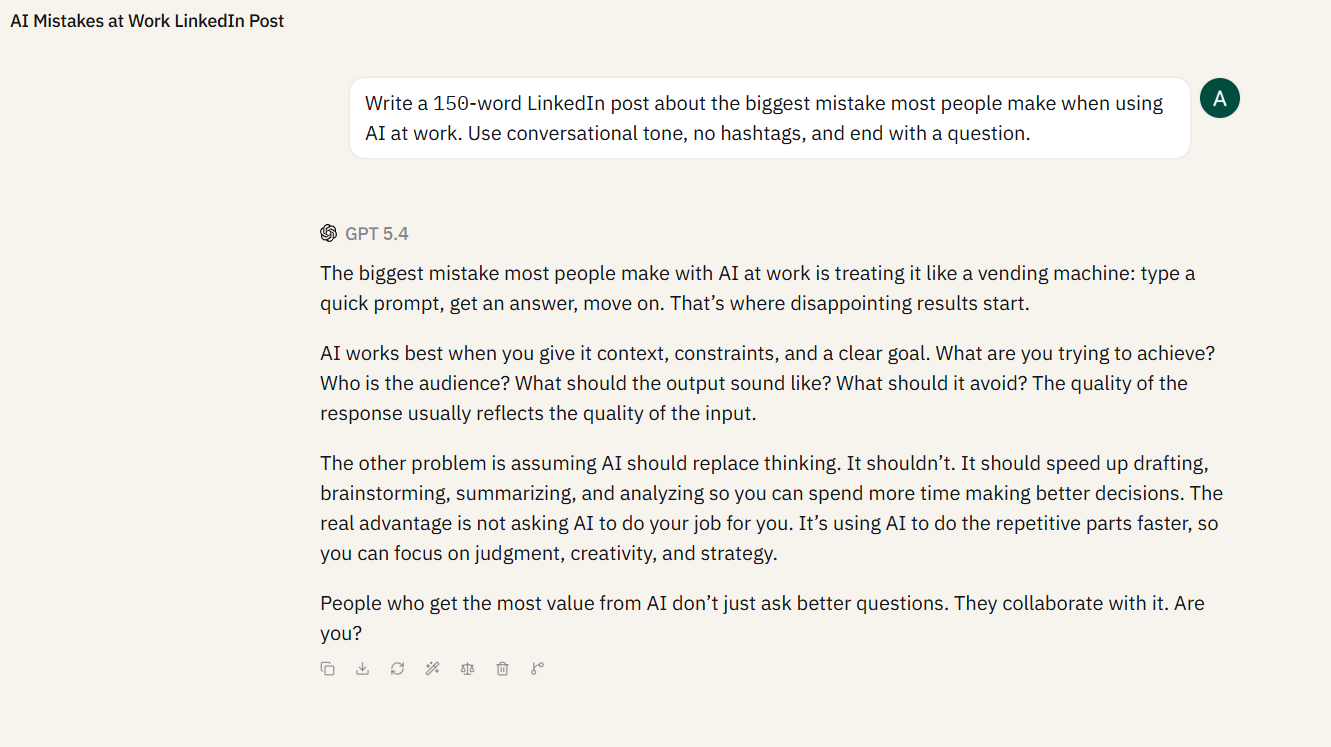
Click the model dropdown and pick GPT-5.4. Paste the below prompt there:
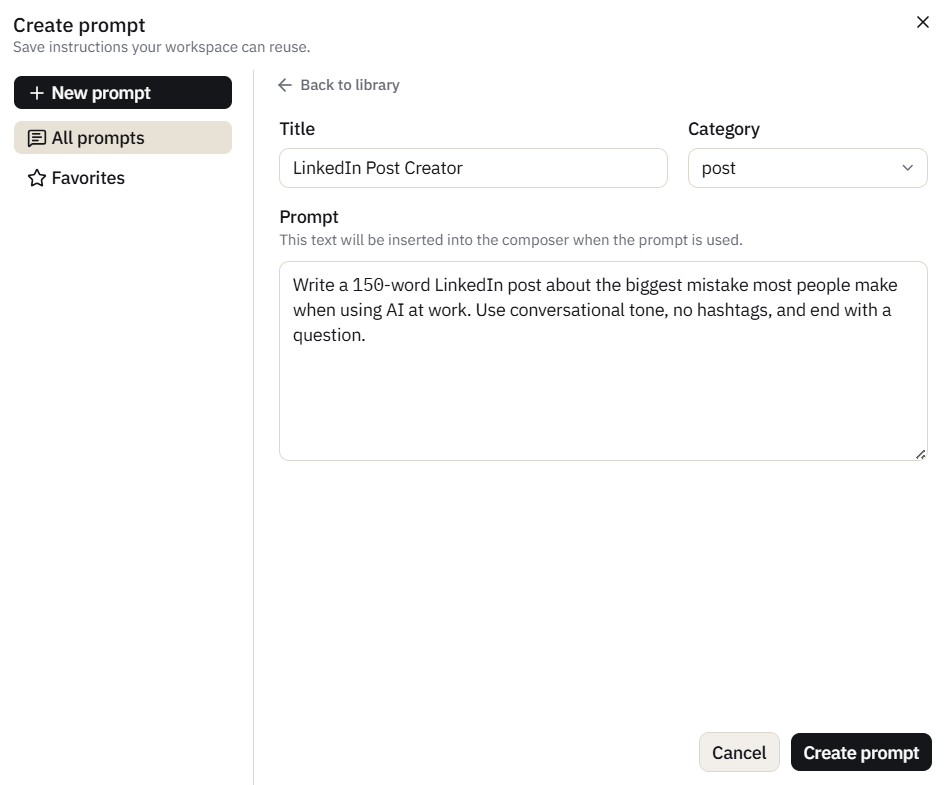
Write a 150-word LinkedIn post about the biggest mistake most people make when using AI at work. Use conversational tone, no hashtags, and end with a question.
Hit Enter. You’ll receive a response in a few seconds. This is just to confirm the workspace works and to set up a baseline for step 2.
2. Switch to Claude 4.5 and ask the same thing
Now, click on the model dropdown again and select Claude 4.5 Haiku from the list. Paste the same prompt again and hit Enter.
Just like me, you’ll also be able to spot a clear difference between the two outputs. That’s because both models are built differently. GPT runs direct and punchy, while Claude runs thoughtful and structured. Once you’ve seen this on a prompt that actually matters to you, multi-model access starts feeling less like a gimmick and more like something you’d pay for.
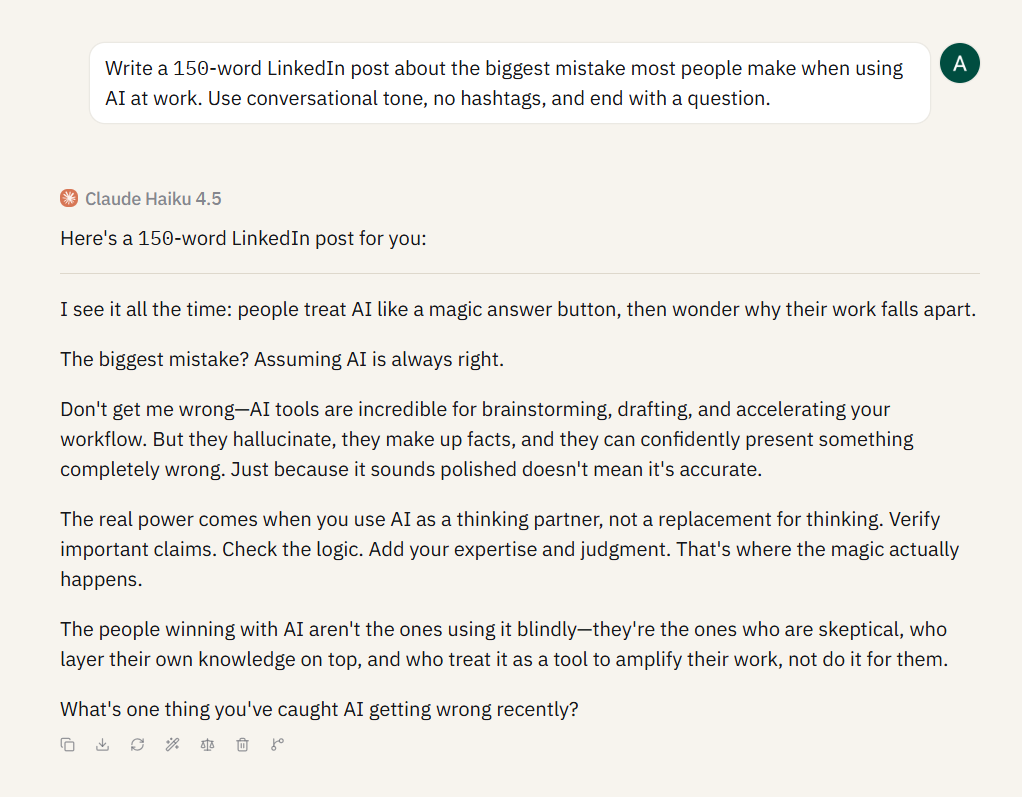
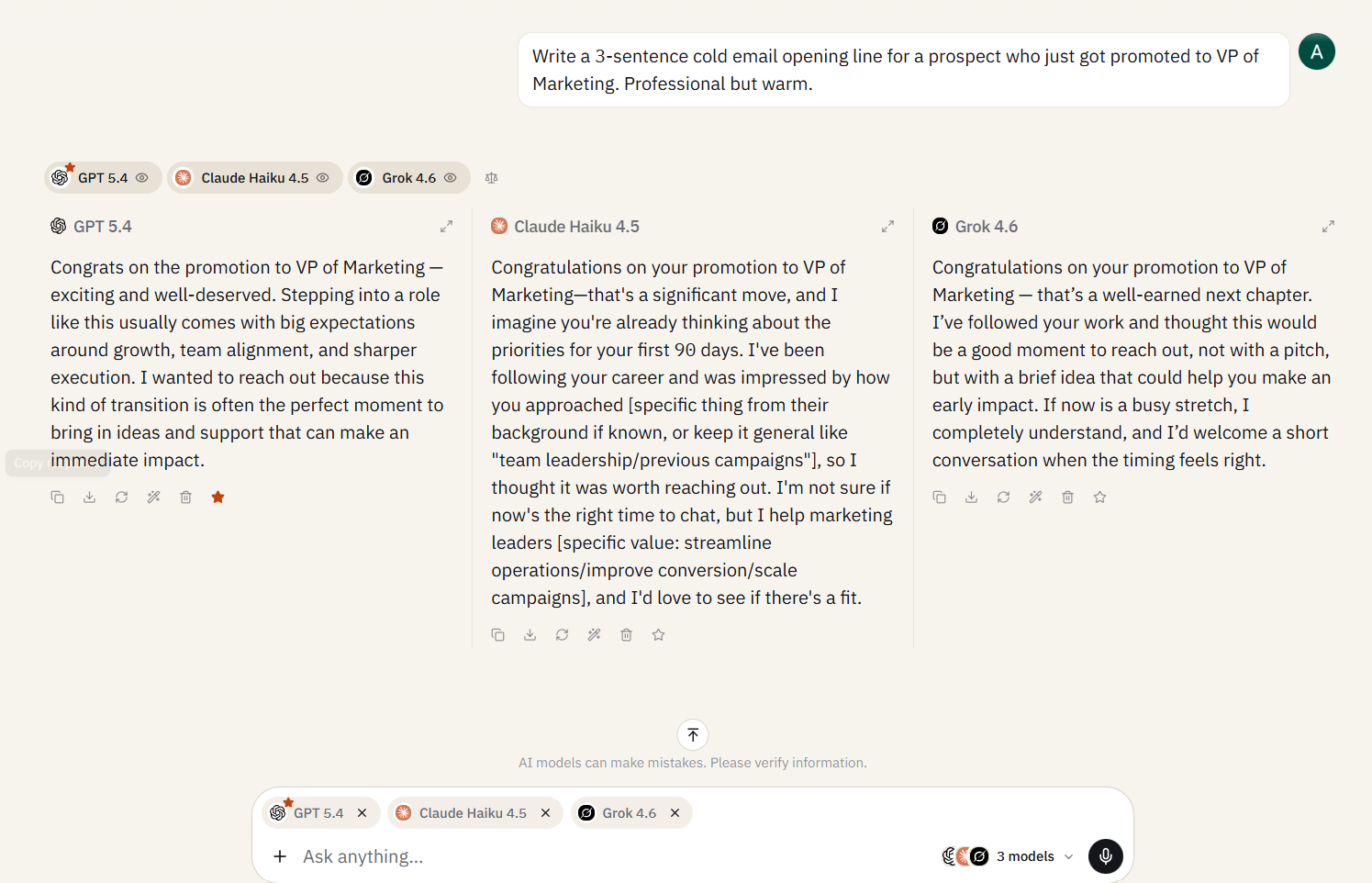
3. Turn on side-by-side comparison
Look near the model dropdown for the side-by-side toggle. Flip it on, pick two or three models, and paste the same prompt again.
All three models generate responses at once, laid out in columns. This is the feature that converts “which model is best” from an unanswerable blog post question into a ten-second experiment on your own prompts.
4. Upload a PDF and ask a question
If you want to grab some key info from a 500-page-long PDF, this is where you come. Click the file upload button, attach it, and then ask:
“What are the three main arguments in this document? Summarize each one in two sentences.”
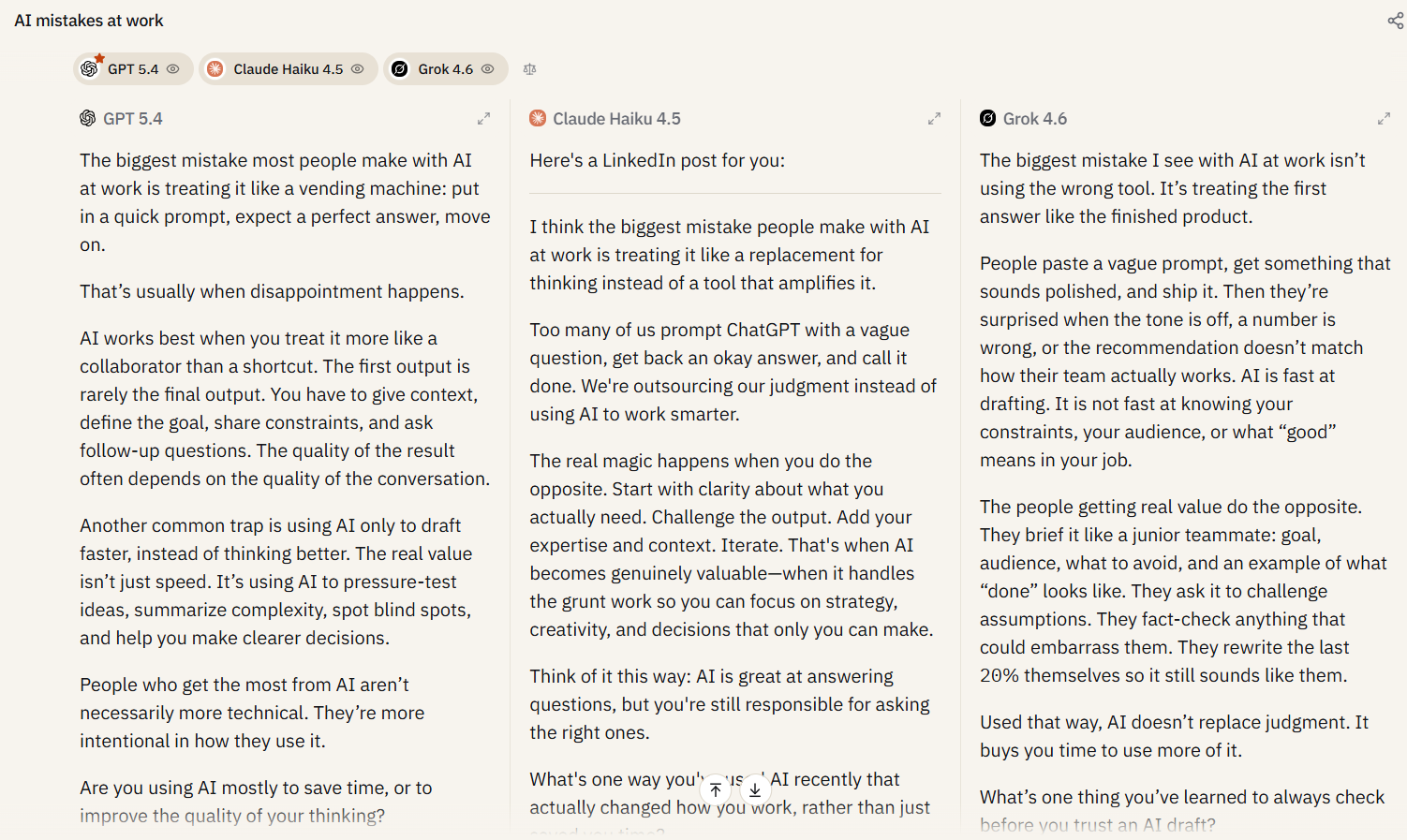
The AI will pull specific sections of the PDF into its response. This is one of the features that makes Sparkian useful beyond basic chat.
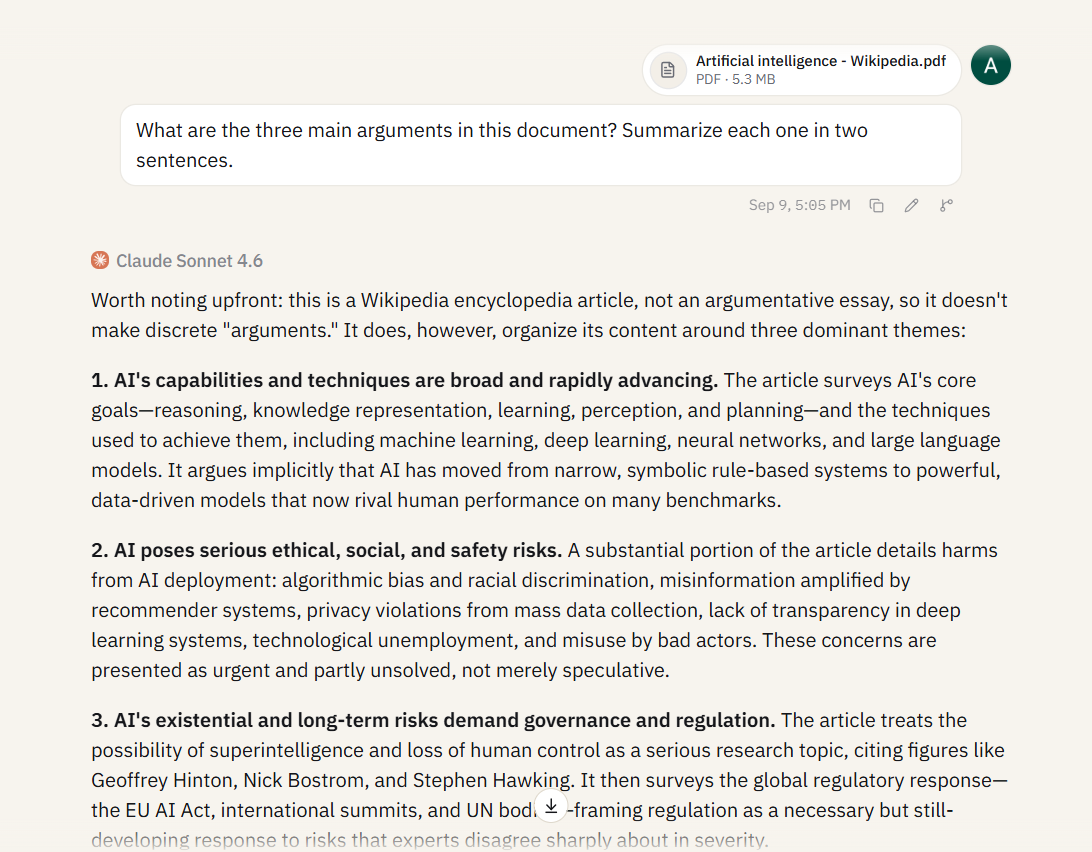
5. Generate an image inline
Now it’s time to switch to image generation mode. Pick Nano Banana 2 Lite or any image model from the model dropdown and paste this prompt:
A clean, modern flat illustration of a laptop on a desk with AI chat bubbles floating above it, soft pastel colors, minimalist style, and no text in the image.
You’ll get a generated image right inside the chat thread. The best part is that you didn’t have to switch between tools or lose context.
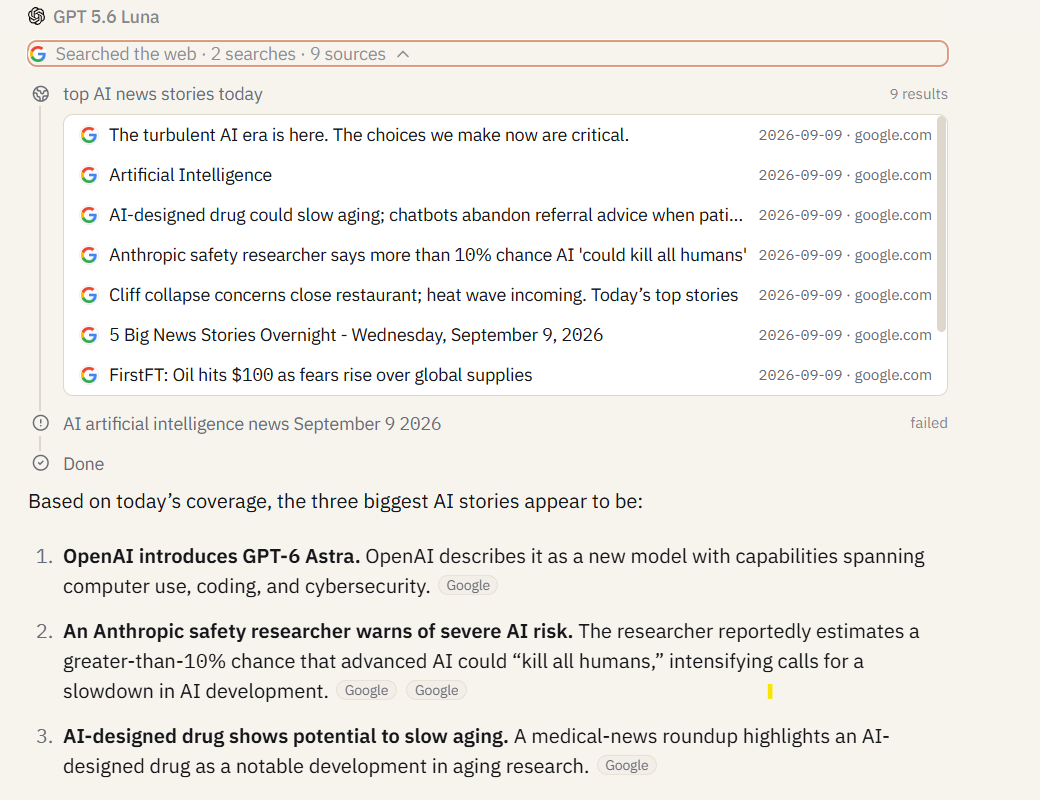
6. Enable real-time web access
Turn on the web search toggle and ask:
What are the top three AI news stories from today? Cite your sources.
Sparkian searches the web and returns a response with citation links, giving you current information alongside the relevant sources. This makes it useful for research tasks that require up-to-date information.
7. Save your 1st prompt to the library
Pick the prompt you liked most from steps 1-6. Click the ‘save-to-library’ option and give it a short name like “LinkedIn Post Creator.”
A week from now, when you want to write another LinkedIn post, you won’t have to retype the prompt. You can simply load it from the library in one click. Do this another 10 times over the next month, and you’ve built a personal prompt library that makes you faster than anyone stuck on a single-model tool.
Pro Tip
Short on time and have only 5 minutes to spare? Do only steps 1, 2, and 3, because these three will also be able to tell you whether multi-model comparison is worth the subscription.
5 Features of Sparkian That Actually Matter
I already gave you a high-level view of the workspace. Now, we are going to go deeper into the 5 features that genuinely set Sparkian apart.
#1. Multi-model Comparison
This is the feature you’ll keep coming back to. Side-by-side comparison lets you run the same prompt across three, four, or even five models at once, with outputs laid out in columns. It’s the difference between reading a “ChatGPT vs. Claude vs. Gemini” blog post and running the comparison yourself on your own prompts.
Use it for brand voice testing, code review across models, fact-checking (run a claim through three models and see if they line up), creative variance, and anything high-stakes. No more relying on one model, because you can now compare the outputs and continue with the model that works best.
For a full walkthrough on how to use this feature with real comparison scenarios, check out our guide to comparing AI models side-by-side.
#2. Switching models mid-conversation without losing context
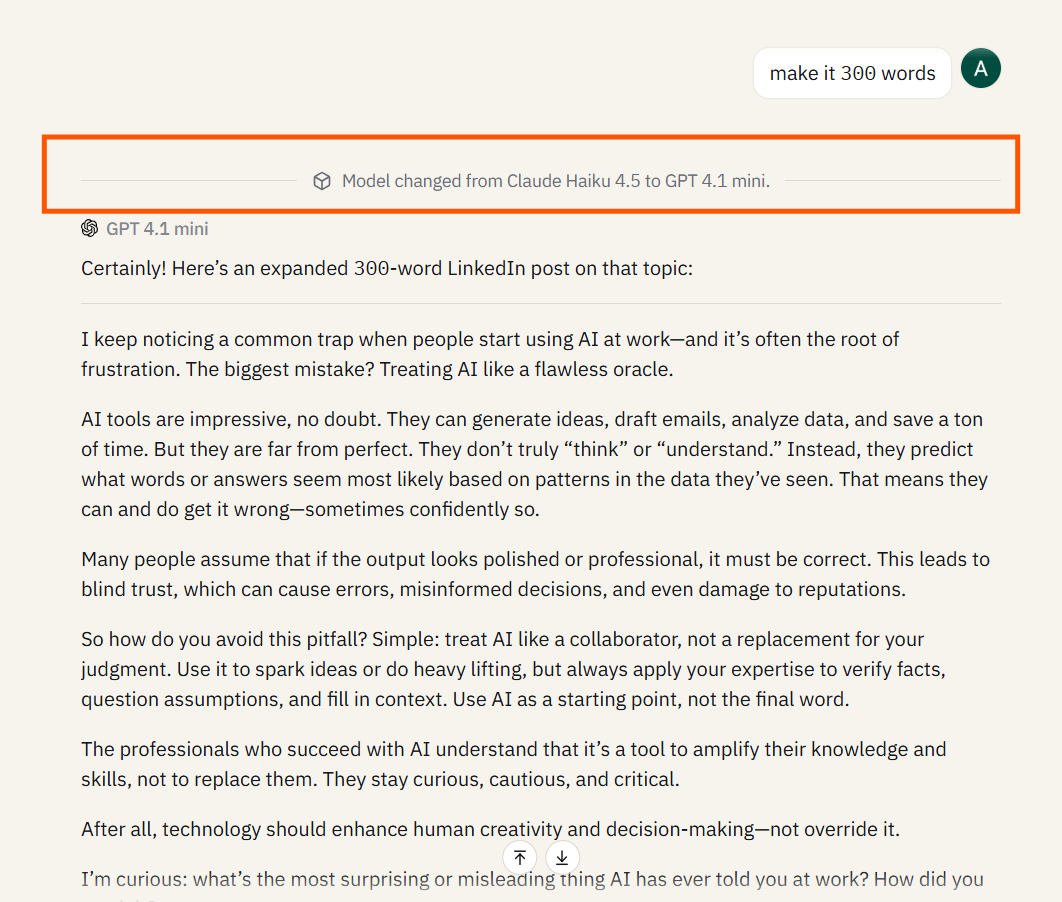
I prefer ChatGPT for some quick searches. But if I want you to create in-depth strategies or try out new prompts, I rely on Claude. This constant switching was a problem before, but once I started using Sparkian, I’m never turning back.
I start with basics in GPT-5, then switch to Claude mid-thread for a structured approach to GPT’s output. The entire context, prompts, and the whole history stay even when I switch models. This might sound small until you’ve lost a 30-message conversation to a tab switch. At that time, you’ll feel like you can’t live without this feature.
#3. Prompt Library and Knowledge Base
These two are distinct features, but you can pair them pretty well. The Prompt Library is where you save, organize, and reuse your best prompts. It’s basically a bookmark folder for the prompts you’ve iterated on until they produce reliably great output. And if you are on the Business plan, you can share the prompt library across your team, which is how marketing teams get brand voice consistency across multiple writers. Plus, Geekflare has also added 275+ pre-built prompts for you to work with.
The Knowledge Base stores context instead of prompts. You can upload all the SOPs, brand guidelines, product specs, research papers, voice profiles, and everything related to a particular project. Once it’s in there, any chat in that workspace can reference it without you having to re-upload. This is what turns Sparkian from “an AI chatbot” into “my team’s AI assistant that already knows how we work.”
Our 15 prompts for marketers guide shows what good prompts look like across content, ads, SEO, email, and analytics.
#4. Chat with PDFs, Docs, and Images
You can upload any specific file and ask questions about it. And it’s not just about getting summaries or answers to questions, but you can even extract structured data into tables, cross-reference multiple documents, ask follow-ups about charts and diagrams inside the document, or compare findings across models to catch hallucinations.
This feature works with PDFs, Word docs, plain text, images, and more. There’s a file size limit for uploads. But one thing is clear from Geekflare: they never use any files you upload to train their underlying models, nor do they have access to them.
You can learn more about working with files in Sparkian in this guide with real examples.
Find out how you can use this feature effectively as a researcher, lawyer, and analyst by going through this practical guide to chatting with PDFs.
#5. Image Generation in-chat
You don’t need a separate Midjourney subscription now. Image generation lives right inside your chat thread here. Generate an image, critique it with Claude, rewrite the prompt based on Claude’s critique, and regenerate until you get the desired output. No more tool hopping.
The image models you get depend on your plan. Nano Banana is the default and handles most use cases well. Premium plans unlock higher-end models for brand-quality marketing work.
Want to try these yourself? The Free plan gives you 500 credits a month, which are enough to run through every feature in this walkthrough. Start for free →
Sparkian Pricing Explained
Before switching to Sparkian, you may be paying for separate AI subscriptions. Sparkian brings multiple AI models and features into one platform, with plans suited to different usage needs.
| Free | Pro | Business | Scale |
|---|---|---|---|
| $0/month | $19/month | $49/month | $149/month |
| 100 Sparks/month | 10,000 Sparks/month | 25,000 Sparks/month | 75,000 Sparks/month |
| Standard AI models | Advanced AI models | Advanced AI models | Advanced AI models |
| 1 workspace | 2 workspaces | 5 workspaces | 10 workspaces |
| 1 seat | 2 seats | 5 seats | 20 seats |
| 10 MB Knowledge Base | 100 MB Knowledge Base | 250 MB Knowledge Base | 500 MB Knowledge Base |
| Best for trying Sparkian | Individual users | Small teams | Larger teams |
You can also choose annual billing for the paid plans at a lower effective monthly price.
For a detailed explanation of how Sparks are calculated and used across different models and features, see our Sparkian Sparks guide.
How does Sparkian’s Spark system work?
Sparks are used across Sparkian’s AI models, image generation, and other workspace tools. The amount deducted depends on the model and the content processed during your request. Sparkian shows a starting Spark estimate next to each model before you send a message, rather than using one fixed cost for every request.
A simple request may use close to the model’s starting estimate, while a longer conversation or a request with attachments can use more Sparks. Sparkian also adds 5 Sparks to requests that use the Knowledge Base.
Your monthly Sparks refresh with your plan. If you need more, you can buy a one-time top-up or upgrade to a plan with a larger monthly allowance.
Which Sparkian plan should you pick?
- Free: A good starting point for testing Sparkian. You get 100 Sparks/month, one seat, one workspace, and 10 MB of Knowledge Base storage at $0/month.
- Pro: Suitable for individual users who need more usage and access to advanced models. It provides 10,000 Sparks/month, two seats, two workspaces, and 100 MB of Knowledge Base storage at $19/month.
- Business: Designed for teams. You get 25,000 Sparks/month, five seats, five workspaces, and 250 MB of Knowledge Base storage at $49/month.
- Scale: Built for larger teams that need higher usage. It provides 75,000 Sparks/month, 20 seats, 10 workspaces, and 500 MB of Knowledge Base storage at $149/month.
Privacy, Security, and Data Handling
“Are my conversations and files used to train AI models?” is an important question when using an AI workspace. Sparkian states that your conversations and files are not used to train AI models.
- Data processing: Sparkian processes prompts and relevant uploads through third-party AI model providers such as OpenAI, Anthropic, and Google to generate responses.
- Encryption: Sparkian states that data is encrypted while in transit and applies technical and organizational measures designed to protect user data.
- Workspace isolation: Workspaces remain isolated, and access is controlled by the people authorized to use each workspace.
Is my chat history private?
Sparkian says conversations and files are not used to train AI models. Workspace access is also limited to authorized users.
Does Sparkian train AI models on my data?
No. Sparkian states that conversations and files are not used to train AI models.
Can I delete my data?
Yes. Sparkian provides data-deletion rights, subject to applicable legal exceptions. Its privacy policy also explains how long different types of data are retained.
Who Sparkian Is (and Isn’t) For?
There’s a sweet spot for every tool. Based on Sparkian’s features and plans, it’s a good fit for users who:
- Use multiple AI models for different tasks and want them in one place.
- Regularly work with PDFs, documents, images, or other supported files.
- Want to compare responses from different models in the same conversation.
- Work in teams that need shared workspaces, Knowledge Base storage, and role-based access.
It’s probably not the right fit if:
- You’re a heavy API user with existing OpenAI or Anthropic keys, then Geekflare Connect, which is the BYOK version of the same platform will be a cheaper option for you.
- You only use one model, and you’re happy with it, then there’s no reason to switch.
If you fall under the second group, no hard feelings. But you know how useful Sparkian will be for you if you are falling in the first group.
Frequently Asked Questions
What is Sparkian?
Sparkian is an AI workspace that brings access to multiple AI models into a single subscription. You can compare model responses side by side, chat with PDFs and images, generate images, search the web, and collaborate through shared workspaces. Plans start with a free option and paid plans start at $19/month.
How is Sparkian different from ChatGPT Plus?
ChatGPT Plus focuses on OpenAI models, while Sparkian gives you access to models from multiple providers through one workspace. You can compare responses from different models side by side and switch models during a conversation while keeping the existing context.
Can I use Sparkian with my team?
Yes. The Business plan includes 5 seats, 25,000 Sparks per month, 5 workspaces, and a 250 MB Knowledge Base. Scale increases this to 20 seats, 75,000 Sparks per month, 10 workspaces, and 500 MB of Knowledge Base storage. Additional seats cost $5/month per seat on paid plans.
Does Sparkian have a free plan?
Yes. The Free plan costs $0/month and provides 100 Sparks, 1 workspace, 1 seat, and 10 MB of Knowledge Base storage. You can use it to try Sparkian before upgrading to a paid plan.
Can I switch between AI models in the same conversation?
Yes, and this is one of Sparkian’s standout features. Start in Claude, switch to GPT-5 mid-thread, switch again to Gemini for a specific question, and the full conversation context carries over. Very few other tools in this space handle mid-conversation model switching cleanly.
What happens if I run out of credits?
You can purchase additional Sparks through one-time top-up packs. Sparkian offers 5,000 Sparks for $15, 25,000 Sparks for $50, or 100,000 Sparks for $200. Purchased Sparks are valid for one year.
Next Steps
ets you compare responses, switch models during a conversation, and use features such as file uploads, web search, image generation, and prompt libraries.
Not sure what to do after signing up? The 7 habits for your first week give you a day-by-day plan.
And if you haven’t signed up yet:
The Free plan gives you 100 Sparks per month with access to standard AI models. You can upgrade to Pro ($19/month), Business ($49/month), or Scale ($149/month) as your needs grow.





